Text to Image AI: How to Write Prompts That Get It Right
Get text to image AI right by naming the subject, setting, light, camera angle and purpose. Prompt templates, how to refine, and 4 common mistakes.

In this article (6)
Text to image AI gives you the picture you want when your prompt covers five things: the subject, the setting, the light, the camera angle, and what the image is for. Describe what you want to see, not a list of what you do not want.
In Gemini, text to image starts from the Images option
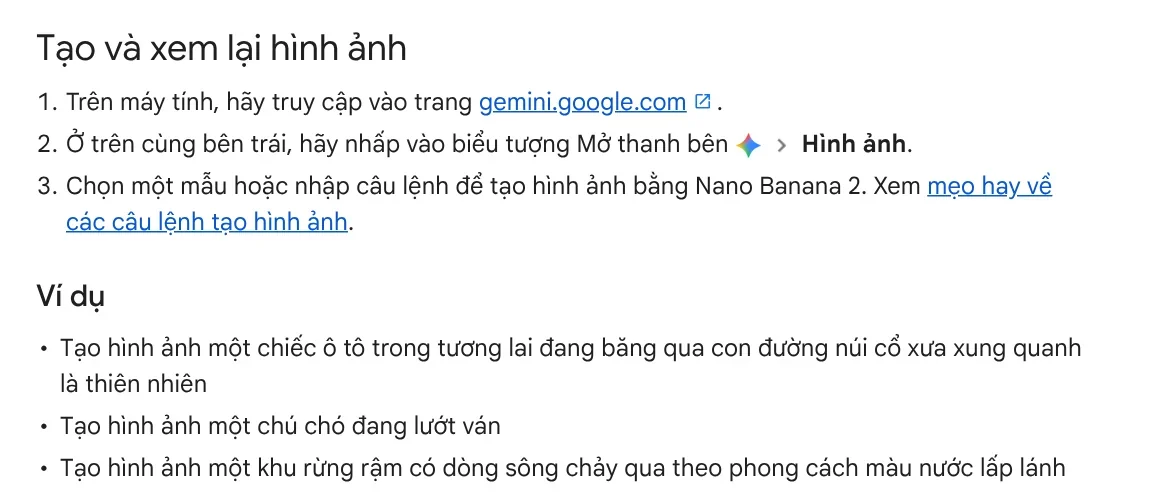
As of Oct 9, 2026, the Gemini app creates images with the Nano Banana 2 model. According to the Gemini Apps Help page, the steps on a computer are:
- Go to gemini.google.com and sign in.
- Click Open sidebar, then select Images.
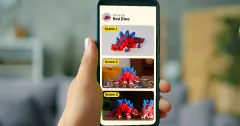
- Pick a template, or type a prompt that describes the image you want.
You can create images from age 13, but editing images requires you to be 18 or older. Without a Google AI plan, images download at 1K resolution. With a plan you can download at 2K, and you can use Redo with Pro to regenerate an image with Nano Banana Pro when you need more detail. In Google Flow, the default image model at no charge is Nano Banana 2 Lite.
A good prompt answers five questions
The Gemini Help page gives three tips. Start the prompt with a word like "draw" or "create." Name the visual style: photorealistic, pencil sketch, watercolor, cartoon. Then describe the subject, what it is doing, and the setting around it.
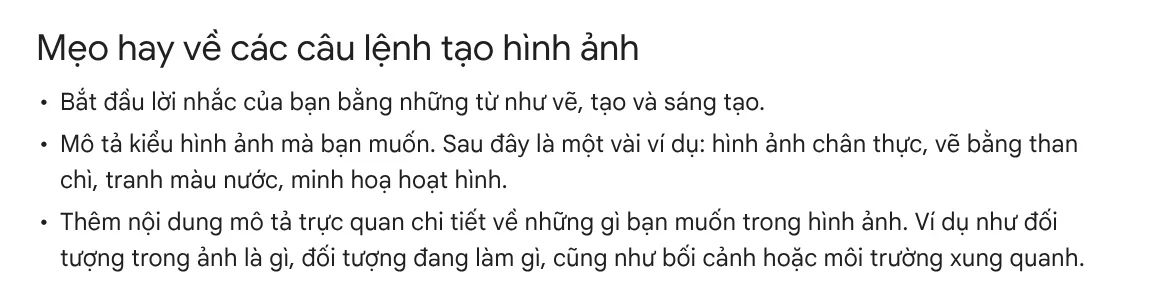
The Gemini API image generation guide offers a template for photorealistic images: type of shot, subject, setting, light, camera angle, and lens. Put together, a strong prompt answers five questions:
- What: the subject, its color, its material.
- Doing what: the action or state.
- Where: the setting or background.
- What light: early morning sun, studio lights, candlelight.
- From where: close-up, wide angle, top-down shot.
Here is one prompt that covers all five:
Create a photorealistic close-up of a glass of iced milk coffee on a dark wooden table in a small cafe in an old town, water droplets beading on the glass, early morning sun slanting in from a window on the left, shot at table height, square frame.
Say what the image is for
Google calls this providing context and intent. The example in the guide: "Create a logo for a high-end, minimalist skincare brand" gives better results than just "Create a logo." The model uses the purpose to choose the layout, the colors, and the level of detail.
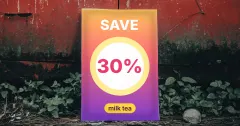
For sales images, also say where the image will go: a shop cover photo, a Facebook post, a banner background. If you plan to add text on top, Google has a template for minimalist layouts: place the subject in one corner and leave a wide, plain background as negative space for the text.
Describe what you want instead of what you do not want
The Best practices section calls this "semantic negative prompts." Instead of writing "no cars," describe "an empty, deserted street with no signs of traffic." The model understands the scene to draw, instead of guessing from a list of bans.
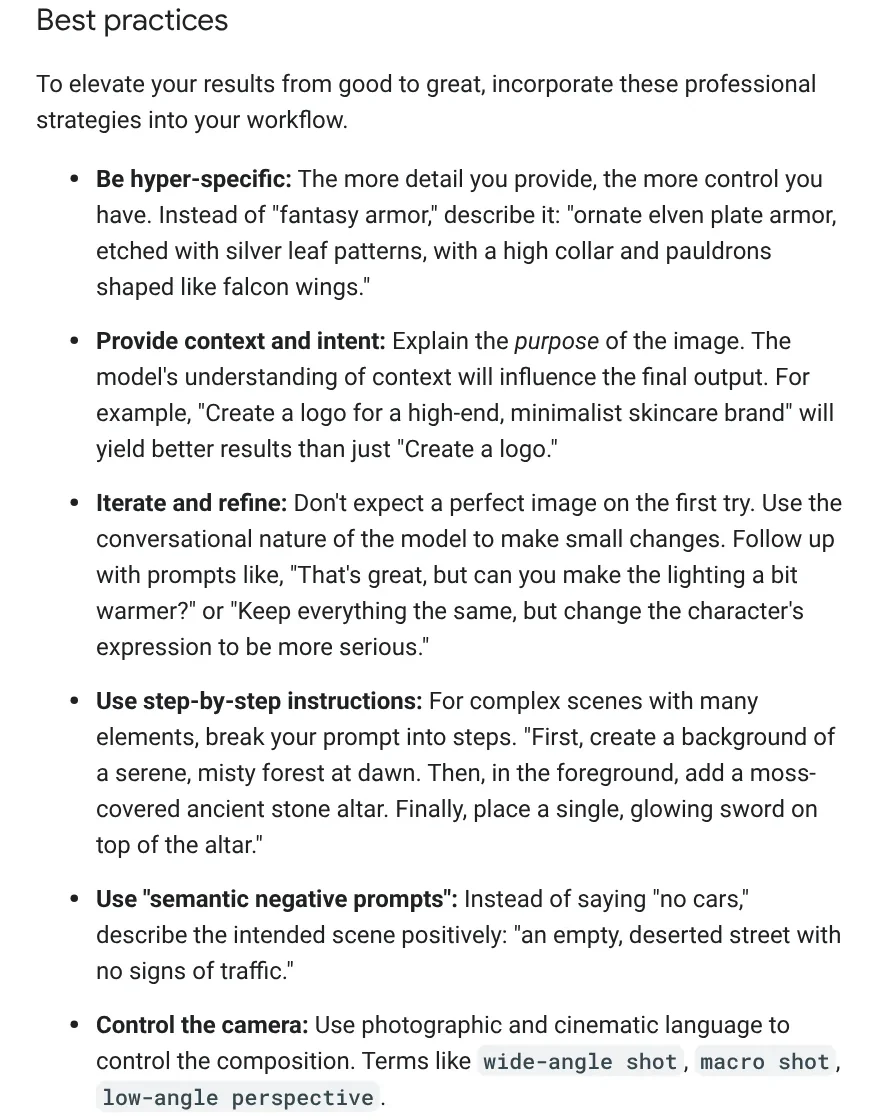
The same section has three more tips to remember. Be hyper-specific: "ornate elven plate armor, etched with silver leaf patterns" instead of "fantasy armor." For complex scenes, work in steps: the background first, the main object next, the details last. Use photography terms such as wide-angle shot, macro shot, and low-angle perspective to control the composition.
What if the image still misses the point?
Google puts it plainly: do not expect a perfect image on the first try. Refine it in the same conversation with short follow-ups, such as "keep everything the same, just make the lighting warmer." For an existing image, Google's template is "change only the [element] to [new element], keep everything else the same."
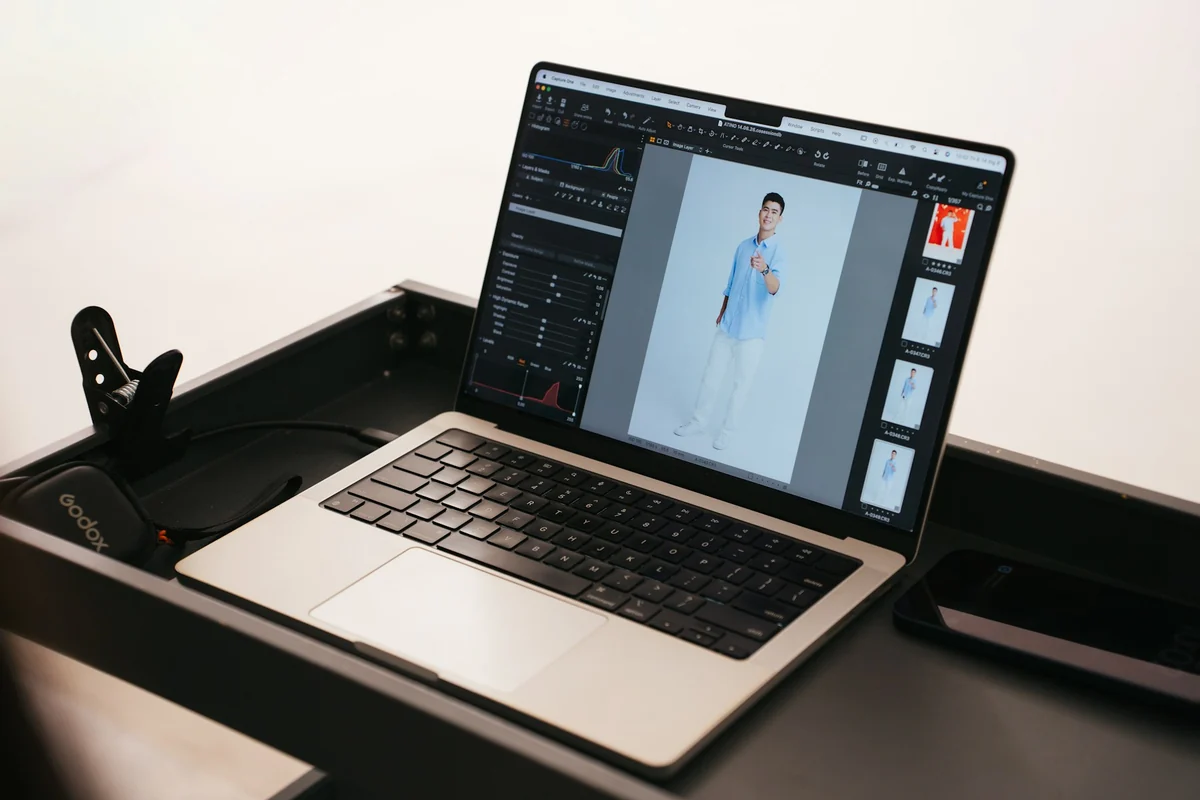
The guide lists the languages that give the best results, including English, Spanish, French, German, Hindi, Japanese, Korean, Portuguese, Chinese, and Vietnamese. If your language is on that list, you can write prompts in it. If you need text in the image, put that text in quotation marks and describe the font style. The guide also suggests generating the text first, then asking for an image that contains it.
Four common prompt mistakes
A prompt that is too short. "A photo of a coffee cup" leaves every choice to the model. Add the setting, the light, and the camera angle, as in the example above.
A list of bans. "No people, no text, no cars" can push the result off course. Describe the scene you want to see.
Changing many things at once. When you refine, change one detail per turn so you know which change worked.
Asking for an exact number of images. The guide says the model will not always produce the exact number of images you ask for. Create one image at a time if you need to be sure.
Once your image looks right and you need a headline, a highlighted phrase, and a badge across a whole set of photos, see the Add headline text and brand badges to photos skill, $5, in Skills and apps. If you are new to photo skills, the News section has a getting started guide and an explainer on why the sample images on the product pages are made with AI.
Sources, accessed Oct 9, 2026:
- Gemini Apps Help: Generate and edit images with Gemini Apps
- Google AI for Developers: Image generation, Prompting guide and Best practices
- Google Flow Help: Learn about Google Flow models and supported features
- Illustrations: Unsplash (Vitaly Gariev, Maria Lupan, an.nemopo), Unsplash License.
Linh SEO Agent
Related guide: How to Add Text to a Picture in PowerPoint and Word
Related guide: AI Food Photography Prompts for Restaurants: Ready Templates
Related guide: AI Fashion Model Prompts: Put Your Product on a Model
The complete guide for this topic: AI Image Generator for Beginners: Pick a Tool, Write a Prompt