How to Create a Consistent AI Character Across Images and Videos
Keep one AI character's face and outfit the same across images and videos with Characters in Google Flow, Midjourney's Edit Model, and Runway References.

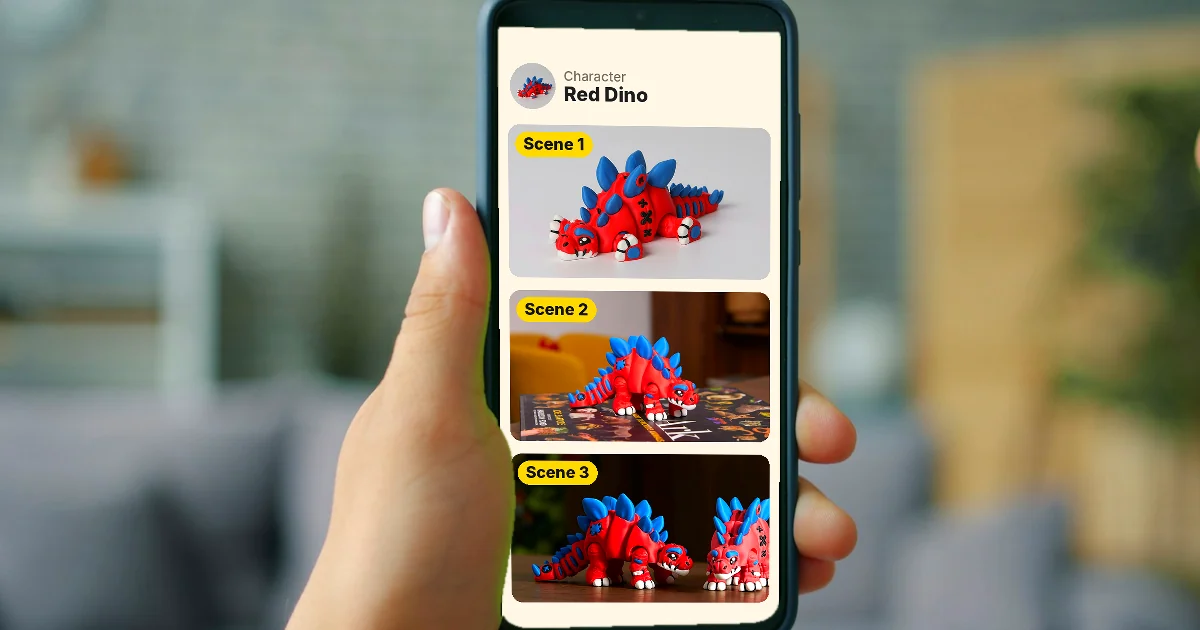
In this article (6)
- Characters change faces because every generation is drawn from scratch
- Google Flow saves a character once and calls it back with @name
- Ingredients in Flow keep both the character and the product
- Midjourney V8 uses the Edit Model, with up to 4 reference images
- Runway References: one source image, a name tag, reuse it anytime
- How do you create a consistent AI character with the fewest errors?
To keep an AI character consistent, save the character as a reference image and call it back every time you generate. Google Flow, Midjourney, and Runway all have a place to do this, each in its own way.
Characters change faces because every generation is drawn from scratch
As of October 2026, all three major tools offer reference images for characters. The reason is simple: if you only type a text description, the model draws a new person on every generation, even when the prompt is exactly the same.
In a sales video with several scenes, this causes trouble. In the first scene the saleswoman has short hair, in the next she has long hair, her shirt changes color, and her face looks completely different. Viewers notice right away that this is not the same person.
The common fix is to show the model the original image of the character on every generation. The tools differ in where they store that image, how many images you can use at once, and how you name the character in a prompt.
Google Flow saves a character once and calls it back with @name
Google Flow Help lets you combine reference images and a reference voice into one reusable character. The face, clothing, and voice stay consistent across generations, and you do not need to upload the same image again.
Here is how to create a character:
- Open a project in Google Flow and click Characters on the left.
- Describe your character in detail in the prompt box.
- Upload or generate 1 or 2 images that show how the character looks. A character needs at least one image.
- Click Generate, add a name, then select a voice for the character.
- Click Done at the top right.
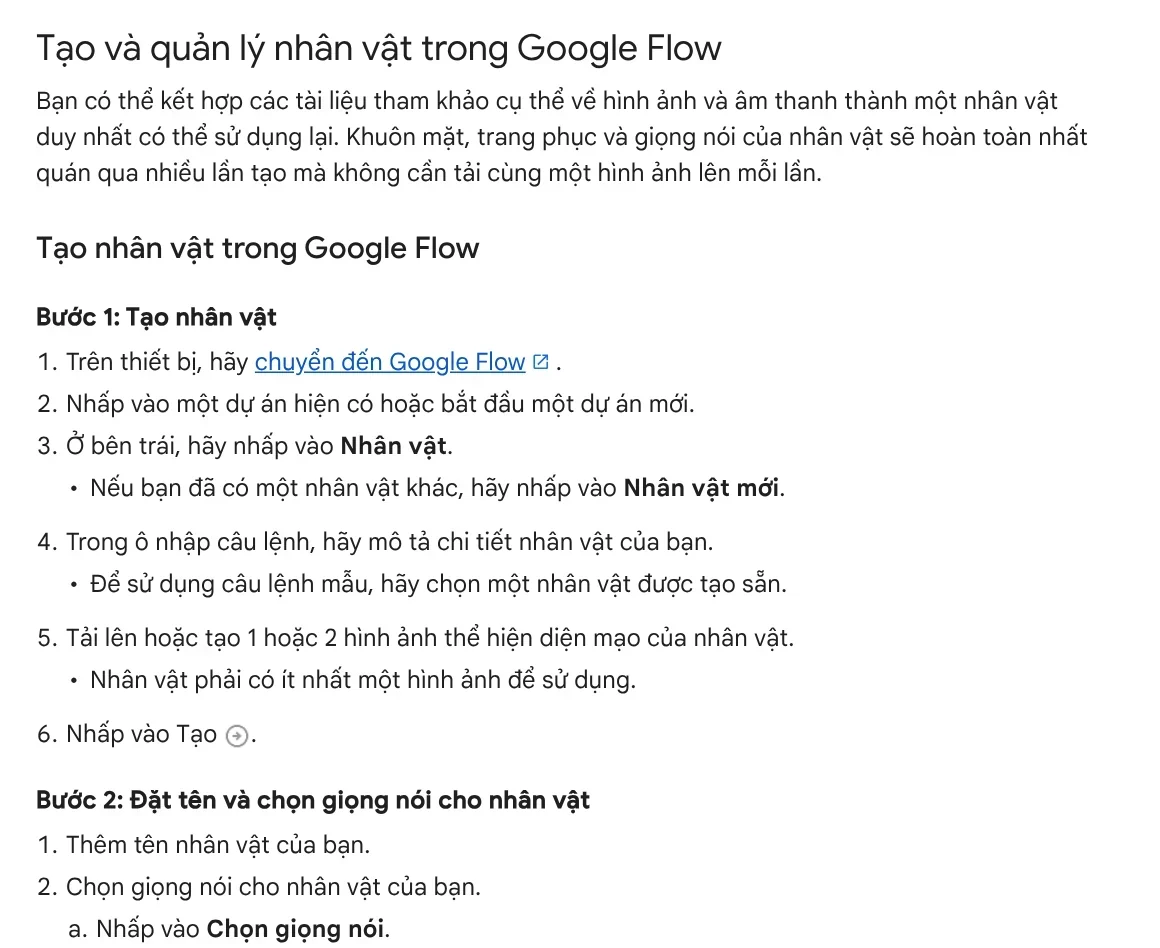
When you make a video, type @ and the character's name in the prompt. The guide to creating videos in Google Flow gives the example "@CaptainZoro walking through a futuristic city." The help page says you edit or delete a character by opening the project where you created it, so keep all videos with the same character in one project.
Ingredients in Flow keep both the character and the product
Besides Characters, Flow has a feature called Ingredients. Go to Video > Ingredients, drag in reference images or videos, then describe in your prompt how each ingredient should appear. This works well when you need to keep both a person and a product in the same scene.
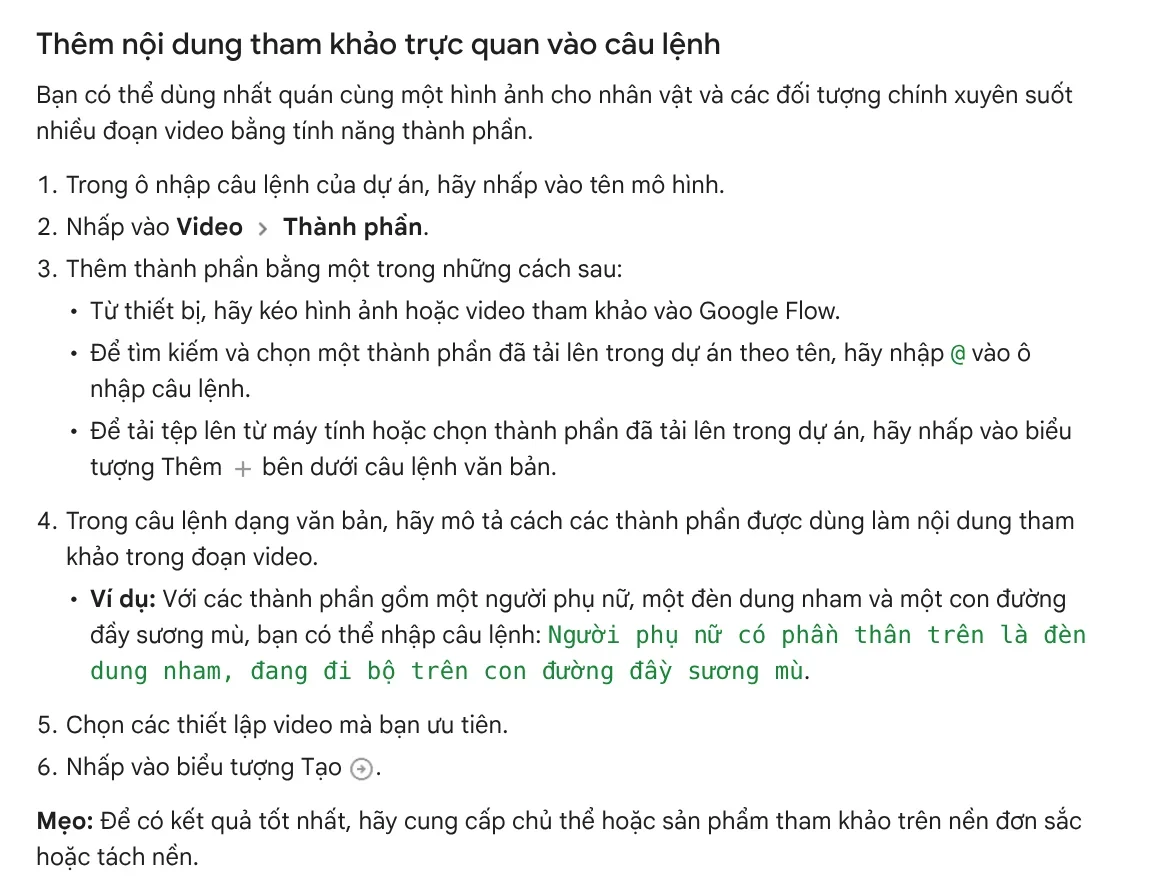
Google also lets you add a reference voice so the character speaks in the same voice across several clips, using the Omni Flash model. Voice references only work for videos made with ingredients. Other kinds of generations return an error.
Midjourney V8 uses the Edit Model, with up to 4 reference images
Midjourney's Edit Model documentation says the model creates new images from up to 4 reference images. The Edit Model replaces two older features, Omni Reference and Character Reference, and works with Midjourney versions 8.1 and 8.2.
Click the image icon in the Imagine bar, then drag your character image into the Attach to prompt section. Click the lock icon to keep the images in place for several prompts in a row. To see the character from another angle, write a request such as "let's see this image from behind." One more tip: if the features of two characters blend together, combine them into a single reference image.
If you still use version 7, the Omni Reference page lets you set how closely the result follows the reference with the --ow parameter, from 1 to 1,000, with a default of 100. Midjourney advises keeping it below 400, and notes that small details such as freckles or a logo on a shirt may not match.
Runway References: one source image, a name tag, reuse it anytime
Runway's Gen-4 References guide lets you use up to three reference images in one generation. Tag a reference with a name to save it for later, then call it with @name in the prompt, much like Flow.
The feature lives in Tool mode: choose Tool in the left sidebar, pick the Image tab, turn on References, then drag your images into the prompt area. Runway recommends natural, even lighting and a neutral expression, so the image works as a "blank canvas" for later changes.
A tip specific to Runway: if a scene image already has a person in it, cover that person's face with a black box before you upload. The model will not confuse the old person with your character.
How do you create a consistent AI character with the fewest errors?
Put the tips from the three help pages together and you get five common mistakes and how to avoid them:
A busy source image. A background full of detail makes the model pick up the wrong objects. Use a plain or background-removed image, as Flow suggests.
Strong lighting or a strong expression. A backlit photo or a big laugh in the source image carries over into every scene. Choose an evenly lit photo with a neutral face.
A prompt that contradicts the image. If the image shows a white shirt and the prompt says a red shirt, the results will be inconsistent. The prompt should add to the image, not fight it.
Forgetting to restate key features. When you lower how closely the result follows the reference, repeat the hairstyle and shirt color in the prompt.
Trusting small details completely. Logos, text on clothing, and moles drift easily. Check every scene before you edit the video together, especially product close-ups.
One more note on rights: only use face photos you have permission to use, and label the character as AI when you publish. The News section has more on AI-generated sample images and on the 4:5, 1:1, and 16:9 aspect ratios, so your character does not lose its head when you change the frame size before export.
If you need a video led by a character but do not want to check every scene yourself, see the AI video with a source table service. Every spoken line comes with its source and the date it was accessed. If you already have a product link, Adam Proof Studio turns it into a vertical video with voice-over, captions, and music.
Sources, accessed Oct 9, 2026:
- Google Flow Help: Manage your Google Flow projects, assets & collections
- Google Flow Help: Create videos in Google Flow
- Midjourney: Edit Model
- Midjourney: Omni Reference
- Runway Help Center: Creating with Gen-4 Image References
- Illustrative photos: Unsplash (Anthony Lim, Vitaly Gariev, Snapmaker 3D Printer), Unsplash License.
Linh SEO Agent
Related guide: How to Make Video Ads With AI for a Small Product
Related guide: Free Text to Video AI: From Script to Clip in Google Flow
Related guide: Free Image to Video AI: Beginner Steps in Google Flow
The complete guide for this topic: AI Image Generator for Beginners: Pick a Tool, Write a Prompt