How to Make AI Images Look Realistic: 6 Mistakes to Fix
Realistic AI images start with the prompt. Six mistakes that make images look fake and how to fix them, from Google's and OpenAI's official guides.

In this article (9)
- Realistic AI images need a prompt that reads like a brief to a photographer
- Mistake 1: writing the prompt as a list of loose keywords
- Mistake 2: leaving out the light, the lens and the camera angle
- Mistake 3: describing things vaguely and not saying what the image is for
- Mistake 4: writing "no..." in the prompt
- Mistake 5: expecting it right the first time and packing everything into one sentence
- Mistake 6: warped text on the image and characters whose faces change
- Should you label realistic AI images as AI?
- The six mistakes fit into one checklist
An AI image that looks fake usually starts with the prompt. The six mistakes below, with fixes from Google's and OpenAI's guides, help you make AI images look realistic.
Realistic AI images need a prompt that reads like a brief to a photographer
The Gemini API page on image generation with Nano Banana was last updated on Oct 9, 2026. It has a whole section on writing prompts, and the first item is "photorealistic scenes".
The core advice is short: describe a scene in detail, and the more specific you are, the more control you have over the result. Each of the six mistakes below does the opposite of that advice.
Mistake 1: writing the prompt as a list of loose keywords
Many people type something like "girl, coffee shop, sunlight, 4K, realistic". The prompting guide on the Google Developers Blog, published in August 2025, sets the basic rule: describe the scene, do not just list keywords.
According to the post, a narrative, descriptive paragraph almost always produces a better, more coherent image than a list of separate words. The reason is that the model's strength is understanding language. Write full sentences: who, doing what, where, and when.
Mistake 2: leaving out the light, the lens and the camera angle
A real photo is always taken with a specific camera under a specific light. The Google blog post says to "think like a photographer": name the camera angle, the lens type, the lighting and the fine details, so the model moves toward a photorealistic result.
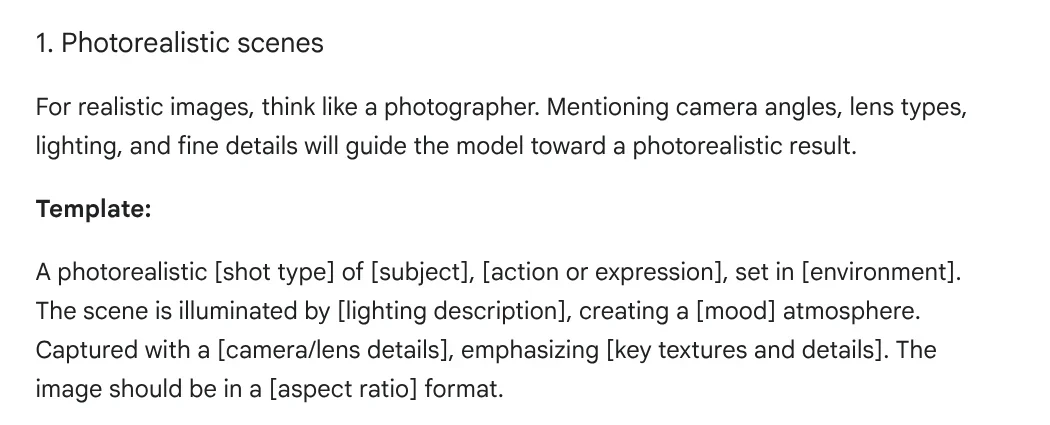
The template in the post has a slot for each part: shot type, subject, action, setting, lighting, mood, camera or lens, key textures and aspect ratio. Its example uses golden hour light through a window and an 85mm portrait lens to blur the background.
The Gemini API docs also suggest photography and film terms to control the framing. Examples are wide-angle shot, macro shot and low-angle perspective.
Mistake 3: describing things vaguely and not saying what the image is for
"A cake" gives you a cake everyone has seen before, so smooth and even that it looks fake. The Gemini API docs recommend being "hyper-specific" and explaining the purpose of the image. When the model understands the context, the result gets closer to what you want.
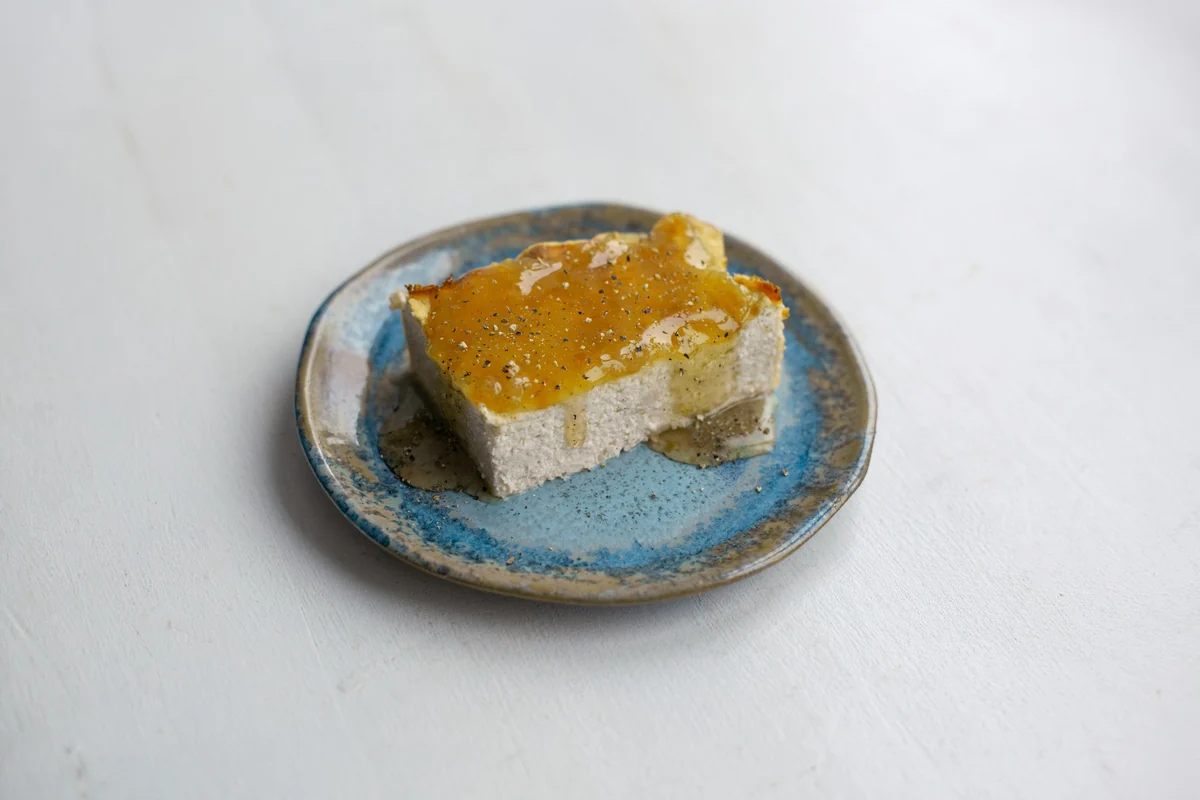
For product images, spell out the material, signs of use and how glossy it is, and say where the image will go: a product cover, a social media post or a banner. The Google blog post also mentions naming the textures and small details to emphasize. For a cake, that could be crumbs on the plate or frosting that has just started to melt.
Mistake 4: writing "no..." in the prompt
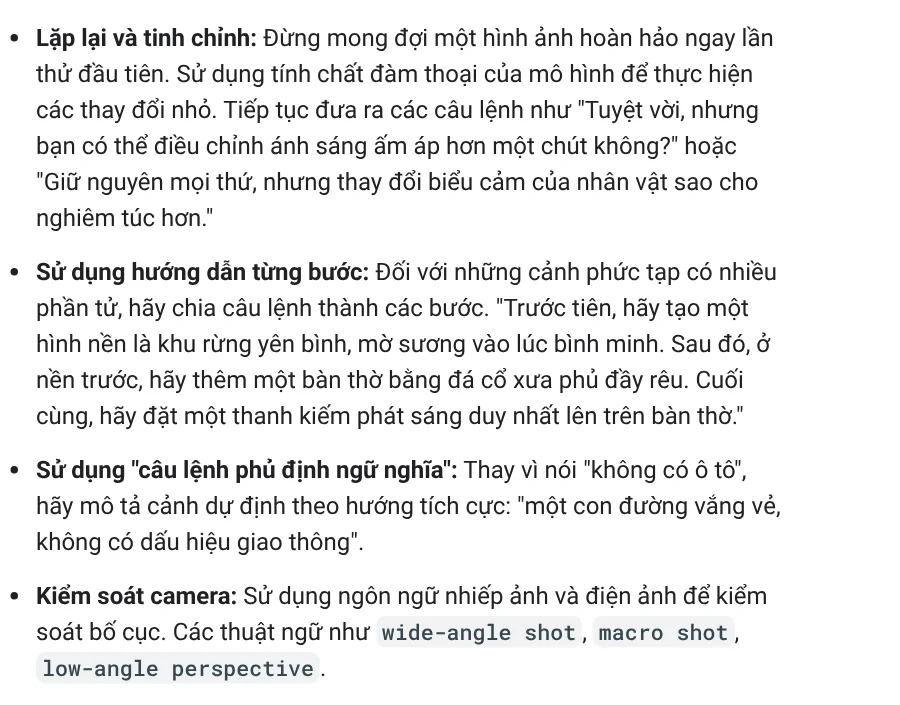
Many people write "a street, no cars". The Gemini API docs suggest replacing this with a semantic negative prompt: describe the scene you want in positive terms.
The example in the docs: instead of "no cars", write "an empty, deserted street with no signs of traffic". Apply the same idea to your own images: instead of "no people", write "an empty cafe early in the morning, with the tables and chairs still neatly arranged".
Mistake 5: expecting it right the first time and packing everything into one sentence
The Gemini API docs say it plainly: do not expect a perfect image on the first try. Use the conversational nature of the model to make small changes, such as "keep everything the same, just make the lighting a little warmer".
For a scene with many details, the docs suggest splitting the prompt into steps: create the background first, add the objects in the foreground next, and only then place the focal point. Change one thing at a time, and you will know which change made the image look more real or more fake.
Mistake 6: warped text on the image and characters whose faces change
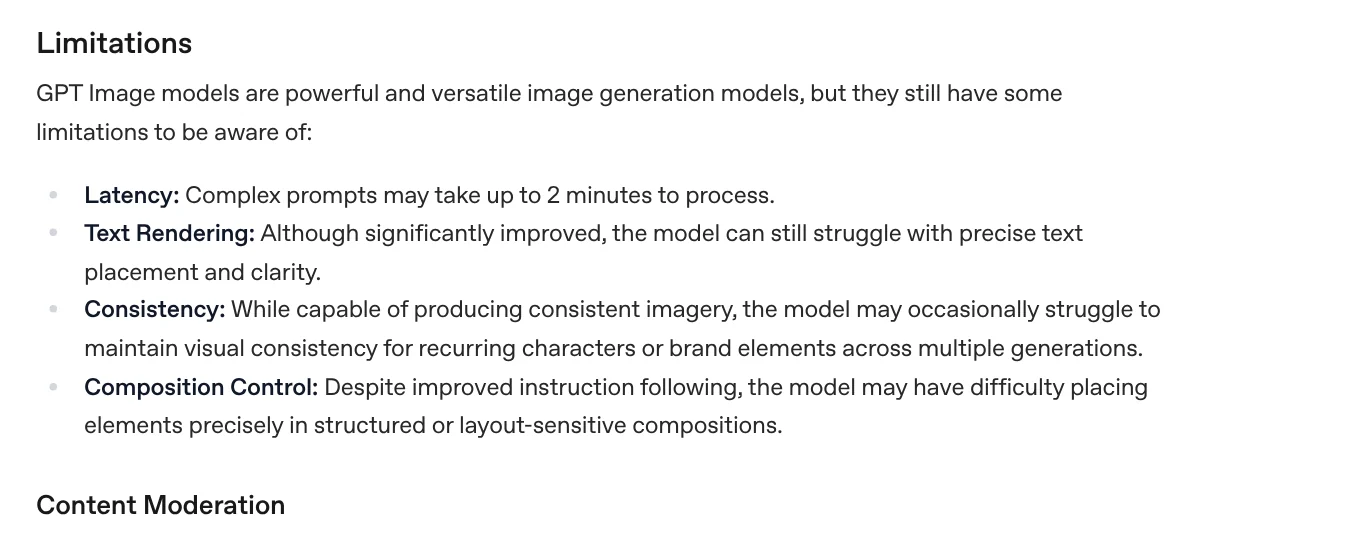
This is a limit of the model itself, not just the prompt. The Limitations section of OpenAI's Image generation guide says the model can still struggle with precise text placement and clarity.
The same page says the model may sometimes struggle to keep recurring characters or brand elements consistent across multiple generations. It may also place elements in the wrong spot in layouts that need precision. Complex prompts can take up to 2 minutes to process.
How to reduce these errors: with Gemini, the docs suggest generating the text first, then asking for an image that contains that text. When you edit an image with a face or a logo, describe the details to keep unchanged right in the prompt. For headlines and prices, the safest choice is to add the text afterward, outside the model.
Should you label realistic AI images as AI?
Yes. The Gemini API docs say every image made with Nano Banana carries a SynthID watermark, a marker that identifies AI images. The page also requires you to have the rights to any images you upload, and it bans images that deceive, harass or cause harm.
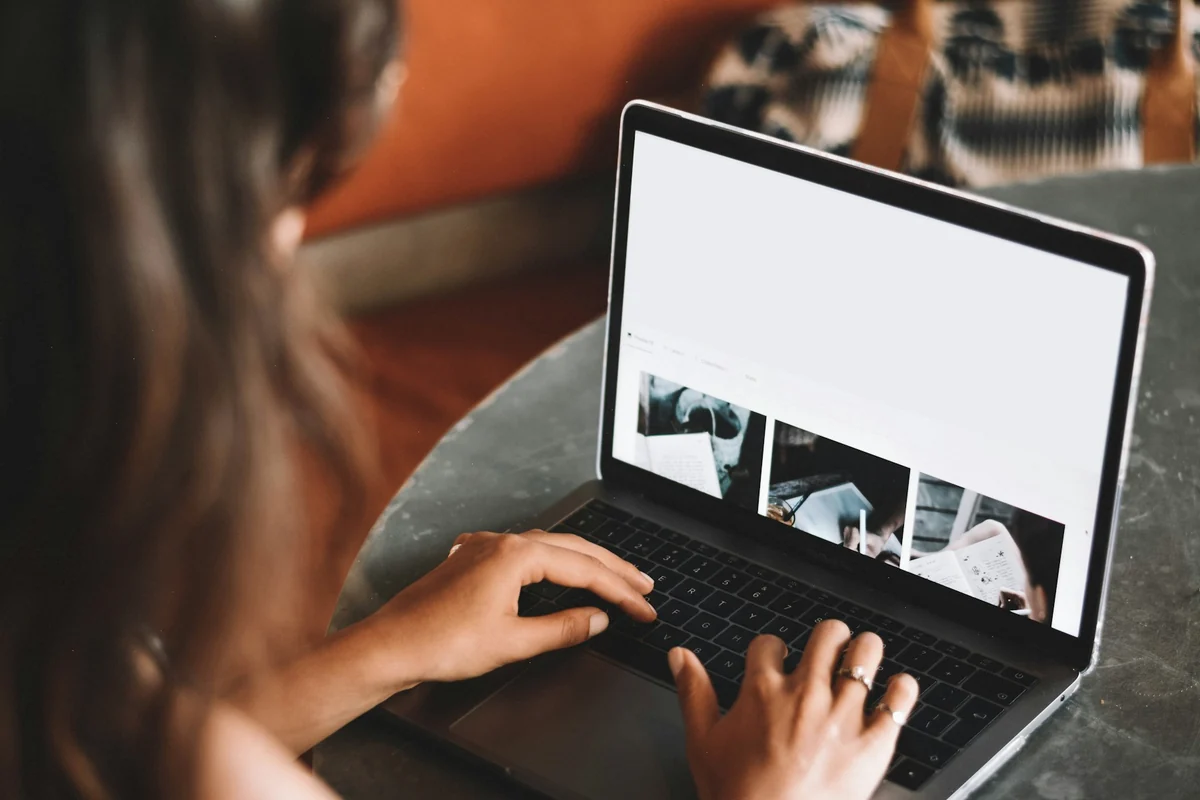
A realistic image used as an illustration is fine, as long as viewers know it is an illustration. News has a post on why the sample images on product pages are AI images and how that is made clear to buyers.
The six mistakes fit into one checklist
Before you click generate, reread your prompt with six questions. Did you write it as sentences? Did you include the light and the lens? Is it specific enough? Is there a "no" you should rephrase? Did you pack in too much? Should the text on the image be added later?
Once the image works, the last step is adding a headline that matches your brand. The Add headline text and brand badges to photos skill costs $5. It adds a headline, a highlighted phrase in color and a badge to a whole folder of images in one go. It works in three frames: 4:5, 1:1 and 16:9. See more in Skills and apps, and the guide to getting started with image skills in News.
Sources, accessed Oct 9, 2026:
- Google AI for Developers: Image generation with Nano Banana (Gemini API) (English version checked Oct 11, 2026)
- Google Developers Blog: How to prompt Gemini 2.5 Flash Image Generation for the best results
- OpenAI API docs: Image generation, Limitations section
- Images: Unsplash (Patricia Palma, Lana Mattice, Narissa de Villiers, Vika David, Vitaly Gariev, Content Pixie), Unsplash License.
Linh SEO Agent
Related guide: Text to Image AI: How to Write Prompts That Get It Right
Related guide: AI Video Prompts for Veo 3 and Gemini Omni: A 4-Part Formula
Related guide: AI Poster Prompts: Templates and How to Fix Text Errors
The complete guide for this topic: AI Image Generator for Beginners: Pick a Tool, Write a Prompt