
AI Food Photography Prompts for Restaurants: Ready Templates
AI food photo prompts built on Google's product shot template: menu photos, 45-degree shots, photos with space for text and a template to edit real photos.

In this article (6)
- Google's product photo template works directly for food
- Three AI food photography prompts for menus, social media and banners
- If you have a real photo, edit it instead of generating a new dish
- Google's tips: be specific, state the purpose, refine step by step
- Where do you run these prompts?
- Four common mistakes in AI food photo prompts
A food photo prompt that works needs five parts: the dish, the table surface, the lighting, the camera angle and the aspect ratio. The templates below build on the product photo prompt framework Google has published.
Google's product photo template works directly for food
The image generation guide in Google's Gemini API docs, read on Oct 9, 2026, has a section called "Product mockups & commercial photography" for ecommerce and advertising product shots. The original template covers the product description, the background surface, the lighting setup and its purpose, the camera angle, the detail to keep sharp and the aspect ratio.
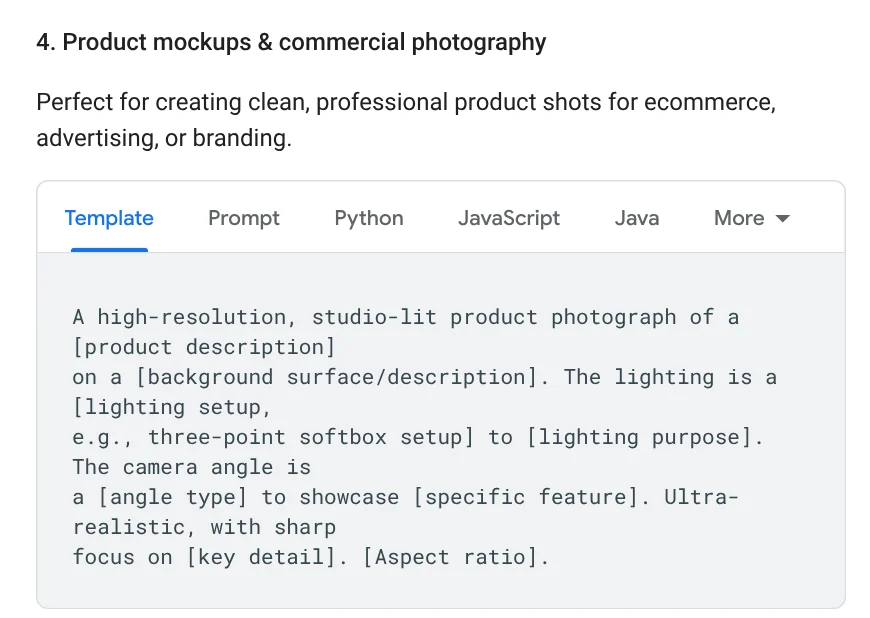
A dish is a product too, so you only need to fill in each blank. Google's example describes a coffee mug shot at a 45-degree angle, with a three-point softbox setup and sharp focus on the rising steam. For a restaurant, the steam over a bowl of pho or a hot pot is exactly the detail worth keeping sharp.
You can write prompts in English or in any of the other languages Google lists for best results, such as Spanish, Japanese, Hindi or Vietnamese.
Three AI food photography prompts for menus, social media and banners
Template 1, top-down menu photo. Good for flat plated dishes such as rice plates, noodle salads or grain bowls:
``text A high-resolution, studio-lit product photograph of a plate of broken rice with grilled pork chop on a light wooden table. Soft natural light from a window on the left, with no harsh shadows. The camera angle is straight top-down to show the pork, shredded pork skin, egg meatloaf and fried egg. Photorealistic, with the sharpest focus on the charred grill marks on the pork. Square 1:1 image. ``
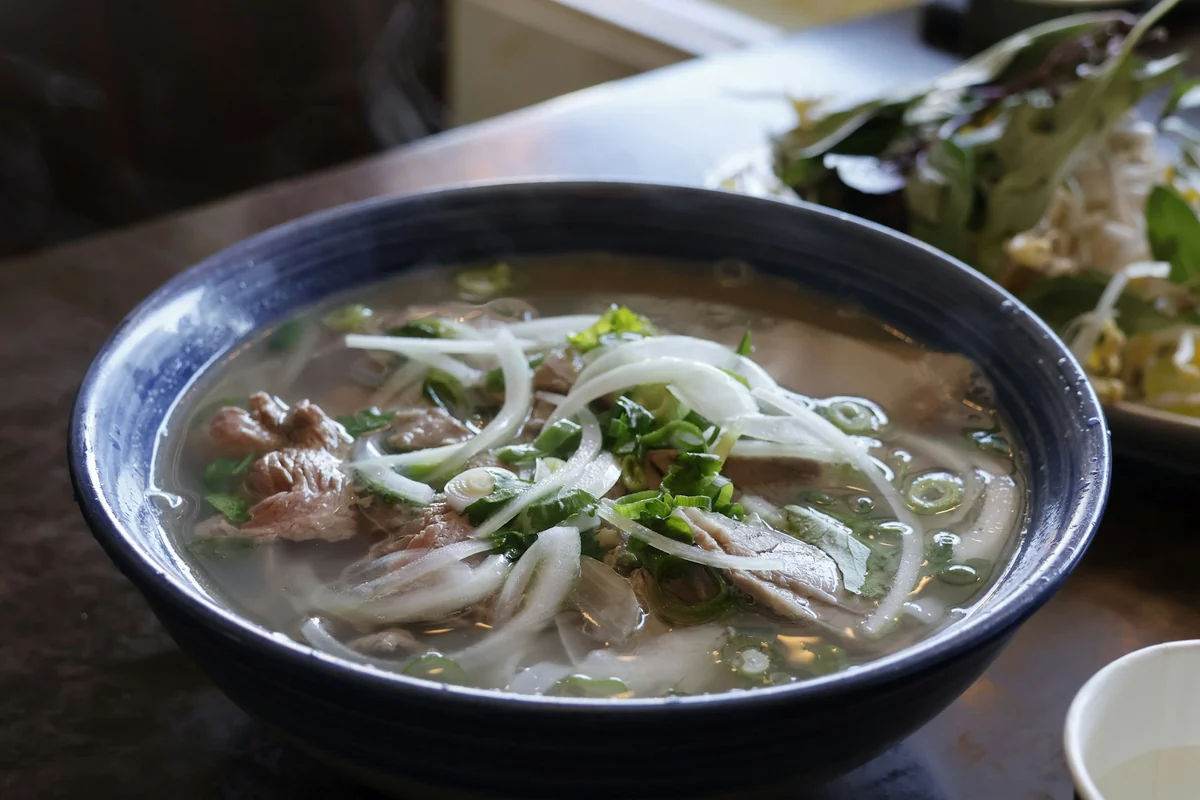
Template 2, 45-degree shot with steam. Good for soups and hot dishes:
``text A high-resolution product photograph of a bowl of rare beef pho in a white porcelain bowl on a gray stone table. A three-point softbox setup for soft highlights with no harsh shadows. The camera angle is a 45-degree elevated shot to clearly show the beef and green onions. Photorealistic, with the sharpest focus on the rising steam. Vertical 4:5 image. ``
Template 3, photo with empty space for text. Google suggests a "negative space" template for images that will serve as a background with text on top:
``text A minimalist composition featuring a single glass of boba milk tea positioned in the bottom-right of the frame. The background is a vast, empty cream-colored canvas, creating significant negative space in the top half. Soft, subtle lighting. Landscape 16:9 image. ``
The three ratios, 1:1, 4:5 and 16:9, match three different places to post. The News section explains when to use each aspect ratio.
If you have a real photo, edit it instead of generating a new dish
A menu photo should look like the dish the customer gets. So if you already have a phone photo, the safe approach is to upload it and change only what needs changing. Google says that when you provide an image and describe a change, the model keeps the style, lighting and perspective of the original.
A template for editing one part, based on Google's "semantic masking" framework (selecting an area with words):
``text Using the image I sent, change only the red plastic table to a light oak wooden table. Keep the bowl of noodles, the broth, the herbs and every other detail exactly the same, preserving the original lighting, style and composition. ``
The line "keep every other detail exactly the same" is the most important part. Without it, the AI tends to "improve" the dish too, and the photo stops matching the real food.
If your restaurant runs Google ads, Google Ads Asset studio also has a tool for product images. From one or two product photos, the AI builds backgrounds, people and usage scenes while keeping the product accurate.
Google's tips: be specific, state the purpose, refine step by step
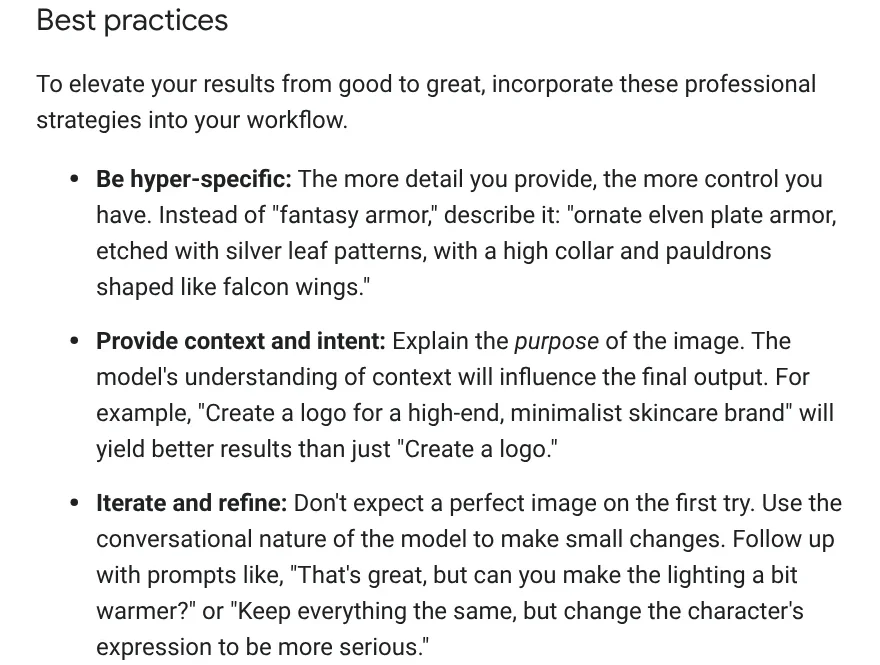
The Best practices section of the same guide gives principles to keep in mind when you write food photo prompts:
- Be very specific. Name the type of bowl, the table material and the color of the broth.
- State the purpose. Adding "a photo for a pho restaurant's menu" helps the model understand the context.
- Refine over several turns. Follow up with "keep everything, just make the lighting a little warmer."
- Describe what you want to see, not what you do not want. Write "an empty table with only a bowl of pho" instead of "no chopsticks or spoons."
- Use photography terms. Macro close-up, low angle, wide-angle shot.
Where do you run these prompts?
The easiest place is the Gemini app. According to the Gemini Apps Help page, go to gemini.google.com, open the sidebar, choose Images, then pick a template or type your prompt. Images are created with Nano Banana 2. To edit a real photo, upload it and type your edit. Image editing is only for users 18 and older.
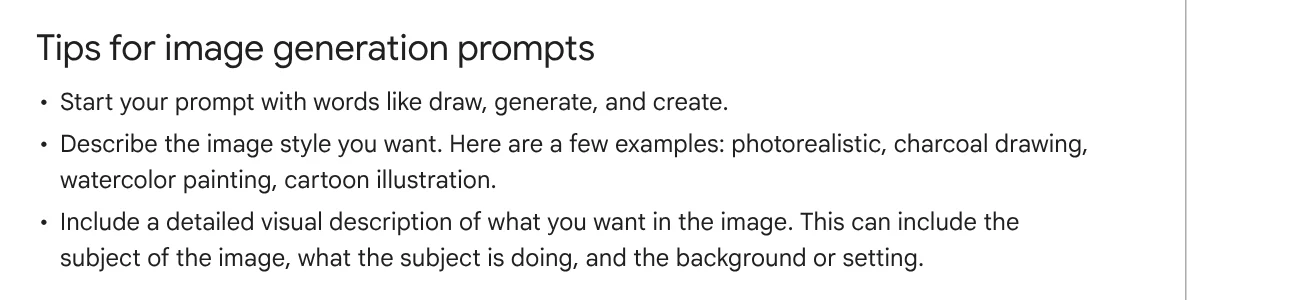
Downloaded images are 2K if you have a Google AI plan and 1K if you do not. The Gemini API page also says every image the model creates carries a SynthID watermark, a digital marker that shows the image was made by AI.
Four common mistakes in AI food photo prompts
The prompt is too short. "A tasty pho photo" gives generic results. Fill in all five parts: dish, table surface, lighting, camera angle and aspect ratio.
Listing only what is banned. A string like "no chopsticks, no napkin, no people" can confuse the model. Describe the scene you want to see.
Asking the AI to write long text in the image. Google notes that Gemini works best when you generate the text first and then ask for an image with that text. For prices and dish names, adding text after you have the photo is easier to fix. The News section covers common mistakes when you add text to photos.
Making the dish "better than real". A photo that looks very different from the real dish disappoints customers. Edit real photos when you can, and say clearly which images are made with AI. The News section explains why the sample images on this site are AI images.
Once you have your food photos, the next step is adding the dish name, price and labels. The Add headline text and brand badges to photos skill adds a headline, a highlighted phrase and a badge in your brand style to a whole folder of photos at once. It comes with three frames, 4:5, 1:1 and 16:9, for $5.
Sources, accessed Oct 9, 2026:
- Google AI for Developers: Image generation with Gemini, Prompting guide and strategies and Best practices sections
- Gemini Apps Help: Generate & edit images with Gemini Apps
- Google Ads Help: About Asset studio
- Images: Unsplash (Jamie Trinh, You Le, Trương Tuyết Ly), Unsplash License.
Linh SEO Agent
Related guide: What Is Nano Banana? Where to Use It and What It Costs
Related guide: AI Poster Prompts: Templates and How to Fix Text Errors
Related guide: AI Fashion Model Prompts: Put Your Product on a Model
The complete guide for this topic: How to Create AI Product Photos for Your Online Store
More reading
 AI Fashion Model Prompts: Put Your Product on a Model
 How to Remove the Background From Product Photos for Free
 AI Product Photo Background: Put Products in New Scenes
 How to Remove a Background From a Photo for Free: 4 Ways
 How to Take Product Photos With Your Phone, Then Fix Them With AI
 How to Bulk Add Logos and Badges to Shopee Product Photos








