
AI Image Generator for Beginners: Pick a Tool, Write a Prompt
Make AI images as a beginner: how to use Gemini, ChatGPT, and Adobe Firefly, a prompt formula based on Google's guidance, and five common mistakes.

In this article (4)
To make AI images, all you need is a Gemini, ChatGPT, or Adobe Firefly account and one sentence that clearly describes the subject, the setting, and the style.
Three AI image tools are easy to start with: Gemini, ChatGPT, Firefly
As of October 2026, Gemini makes images with Nano Banana 2, ChatGPT has ChatGPT Images 2.5, and Firefly lets you pick models up to Firefly Image 5. All three take a plain-language description. You do not need to know how to code.
Gemini: images made with Nano Banana 2
The Gemini help page says the Gemini app makes images with Nano Banana 2. You must be signed in. You must be 13 or older (or the applicable age in your country) to generate images, and 18 or older to edit them. On a computer, follow these steps:
- Go to gemini.google.com.
- At the top left, open the sidebar and choose Images.
- Pick a template, or type a prompt that describes your image.
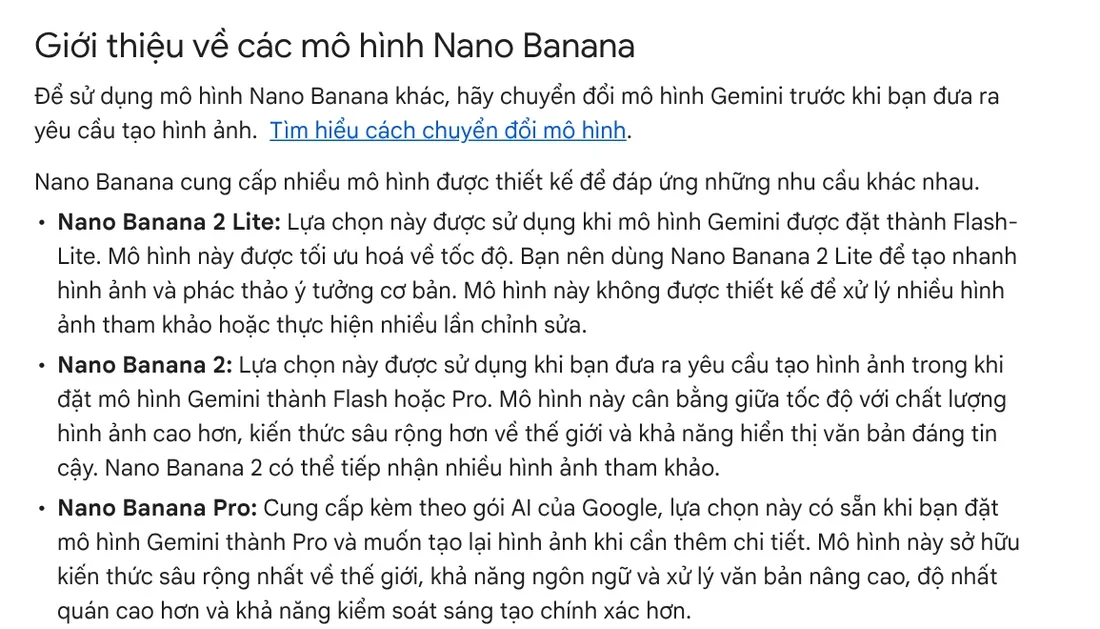
Downloads are 2K if you have a Google AI plan and 1K if you do not. Paid subscribers also get Nano Banana Pro to redo an image with more detail, which suits images with text or infographics. There is a daily quota for image creation. Once you use it up, you have to wait.
ChatGPT: ChatGPT Images 2.5
On September 8, 2026, OpenAI released ChatGPT Images 2.5 with sharper details, more precise editing, and faster image generation. You can open Images, choose Templates (ready-made starting points), then customize the details. On your phone, type @ in the message box and pick Sketch to draw a rough idea and turn it into an image.
Free accounts can still create images in ChatGPT, but image generation has its own usage limit. ChatGPT tells you when you reach that limit, and you need to wait until later to keep going.
Adobe Firefly: you choose the model and the frame
Firefly suits people who like to adjust settings. According to Adobe's help page, you choose Image, then Generate image. Next, pick a model under Model, such as Firefly Image 4 or Firefly Image 5, or a partner model. Set the Aspect ratio, choose Content type (Art or Photo), type your description, and select Generate.
Write AI image prompts with subject, action, setting, and style
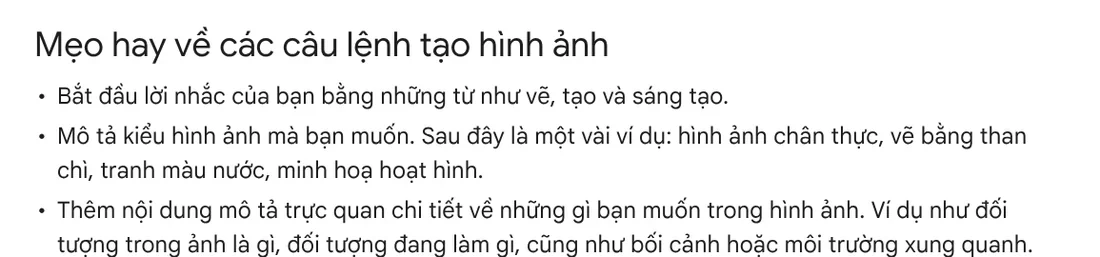
Your description (the prompt) decides most of the image quality. Google gives beginners three tips on the Gemini help page. Start with a verb such as "draw" or "create." Name the style, such as photorealistic, watercolor, or cartoon illustration. Add details about the subject, what the subject is doing, and the setting around it.
Put together, you get a formula that is easy to remember: style + subject + action + setting + light and camera angle + purpose. Compare these two prompts:
- Weak prompt: "A cup of coffee."
- Strong prompt: "Create a photorealistic image of a glass of iced milk coffee on a wooden table on the balcony of a Hanoi café, with early morning sun coming in at an angle, shot close up from above, to use as the cover photo for a post that introduces the café."
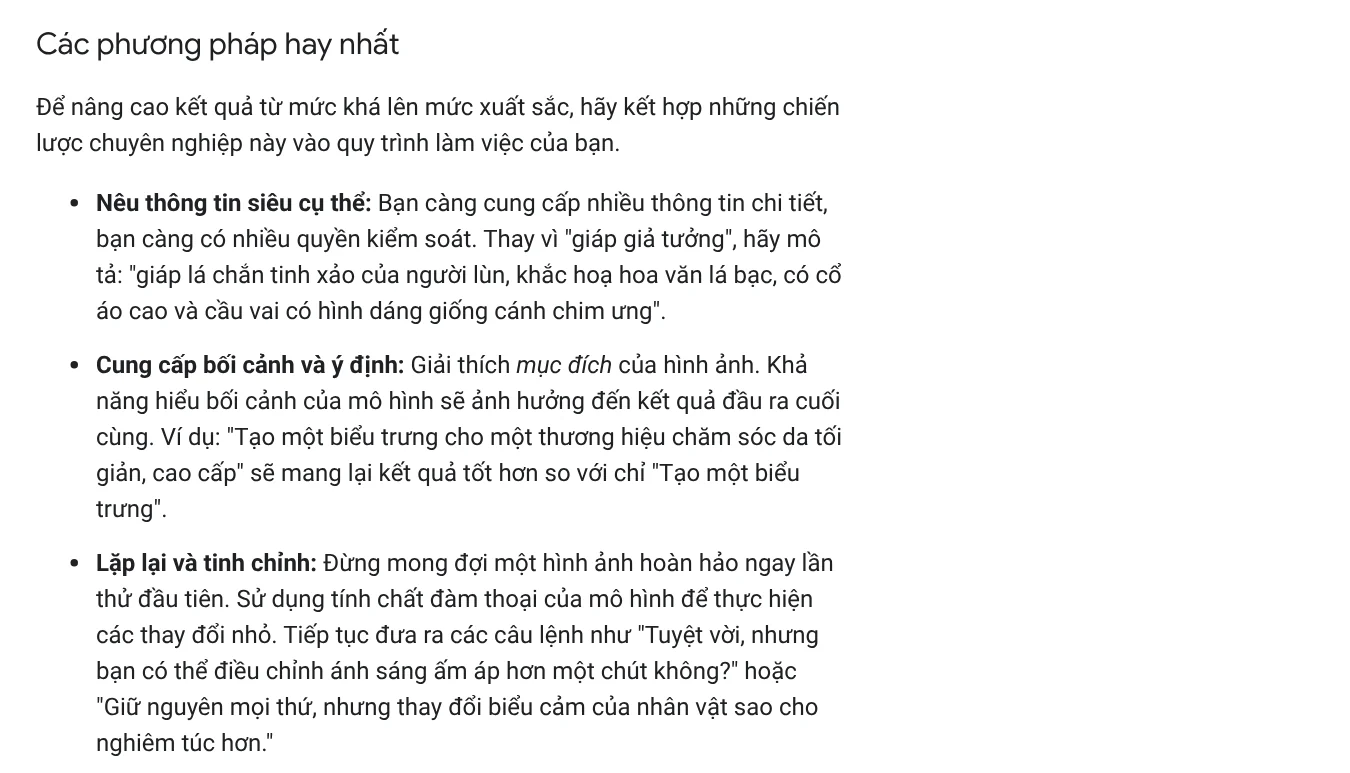
The second prompt has every part Google recommends in the Gemini API docs. The docs stress being very specific and explaining the purpose of the image. They also suggest photography terms such as wide-angle shot and macro shot to control the composition.
Adobe adds one note for Firefly: use simple, direct language and at least three words. Firefly also offers prompt suggestions and can improve your prompt for you.
If you need many images in the same aspect ratio for social media, decide between 4:5, 1:1, and 16:9 first, then put the ratio in your prompt. The News section explains when to use each one.
How do you get correctly spelled text in an AI image?
Text in the image is where beginners trip up most. Google says Nano Banana 2 renders text with more accurate spelling for supported languages. The Gemini API docs list 15 languages for best performance, including English, Spanish, Japanese, and Vietnamese.
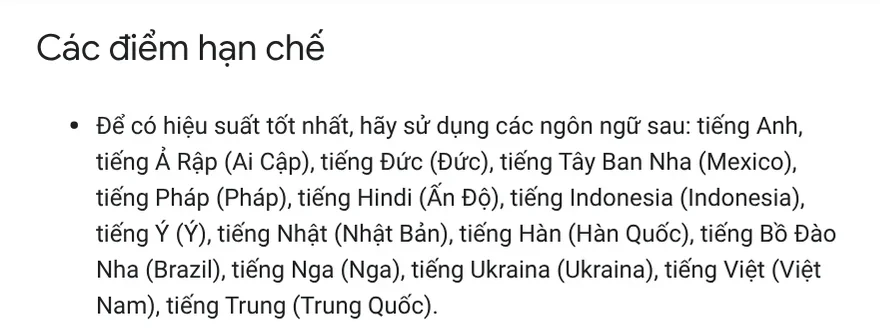
The Gemini API docs suggest two ways to get fewer text errors. First, state the exact text, describe the font style, and describe the overall design. Second, ask Gemini to write the text first, then ask for an image that contains that text.
A safer way is to have the AI make a background with no text, then add the text yourself. That way you control the font, including accented letters, the accent color, and where the text sits.
Five common mistakes on your first AI images
The prompt is too short. With one or two words, the tool has to guess the rest. Add the style, the setting, and the purpose, as in the formula above.
Writing what you do not want. Google suggests replacing "no cars" with a positive description, such as "an empty, deserted street with no signs of traffic."
Expecting a perfect image on the first try. Google's docs recommend iterating with small changes, for example "keep everything the same, just make the lighting warmer."
Cramming everything into one sentence. For a detailed scene, split the prompt into steps: the background first, then the object in the foreground, then the final details.
Posting without checking rights or labeling. Gemini reminds you not to violate other people's copyright or privacy. The Gemini API docs say every generated image includes a SynthID watermark. On a sales page, say clearly which images are AI images. The News section has an example of a page that explains why its sample images are AI images.
Once you have your images and need to add a headline, a highlighted phrase, and a badge to a whole folder, see the Add headline text and brand badges to photos skill. It costs $5 and runs on a whole folder of photos at once, using your brand look. Browse more photo skills in Skills and apps, or read the guide to getting started with photo skills in News.
Sources, accessed Oct 9, 2026:
- Google: Generate & edit images with Gemini Apps
- Google AI for Developers: Image generation with Nano Banana
- OpenAI: ChatGPT release notes
- OpenAI: ChatGPT Free Tier FAQ
- Adobe: Generate images from text descriptions
- Illustrative photos: Unsplash (Dmitry Mashkin), Unsplash License.
Linh SEO Agent
Related guide: AI Fashion Model Prompts: Put Your Product on a Model
Related guide: Gemini Photo to Video: Steps, Requirements and Limits
Related guide: AI Poster Prompts: Templates and How to Fix Text Errors
In this topic
- Text to Image AI: How to Write Prompts That Get It Right
- AI Poster Prompts: Templates and How to Fix Text Errors
- How to Make AI Images Look Realistic: 6 Mistakes to Fix
- What Is Nano Banana? Where to Use It and What It Costs
- How to Create a Consistent AI Character Across Images and Videos
More reading
 How to Make AI Images Look Realistic: 6 Mistakes to Fix
 Text to Image AI: How to Write Prompts That Get It Right
 What Is Nano Banana? Where to Use It and What It Costs
 How to Create a Consistent AI Character Across Images and Videos
 AI Poster Prompts: Templates and How to Fix Text Errors
 Write Work Emails with AI: Prompt Templates and Tips








