AI Poster Prompts: Templates and How to Fix Text Errors
An AI poster prompt needs 5 parts: purpose, text in quotes, font style, layout, and color palette. Plus 3 templates and how to fix misspelled text.

In this article (5)
A good AI poster prompt has five parts: what the poster is for, the exact text in quotation marks, a description of the font style, the layout, and the color palette. Leave any part out and the AI will guess it.
Google says to spell out the text, the font style, and the overall design
The Gemini API image generation docs, read on Oct 9, 2026, have a whole section on text in images. Google writes that for accurate text, you need to state three things: the text itself, the font style described in words, and the overall design.
Google's template looks like this:
Create a [image type] for [brand/concept] with the text "[text to render]" in a [font style]. The design should be [style description], with a [color scheme].
The same page has a tip worth remembering: Gemini works best when you write the text first, then ask for an image that contains it. For a poster, that means you settle the headline and the price before you write the image description.
Write an AI poster prompt with a 5-part formula
The "Best practices" part of the same docs suggests a few principles. Be hyper-specific, state the purpose of the image, break complex scenes into steps, and describe what you want instead of what you do not want. Applied to posters, the five-part formula looks like this:
- Purpose and poster type. "A promo poster for the checkout counter" is very different from "a Facebook event cover". Google's example: "a logo for a high-end, minimalist skincare brand" gives better results than just "create a logo".
- The text, in quotation marks. Less text means fewer errors. One headline, one subline, and one number are enough.
- The font style, described in words. Google recommends describing the font instead of only naming it. For example: bold, rounded, all-caps sans-serif.
- Layout and empty space. Where the headline goes, where the product goes, and which area stays empty. You can write it in steps: "First... Then... Finally...".
- Color palette and lighting. Name 2 or 3 main colors. Add the aspect ratio at the end of the prompt.
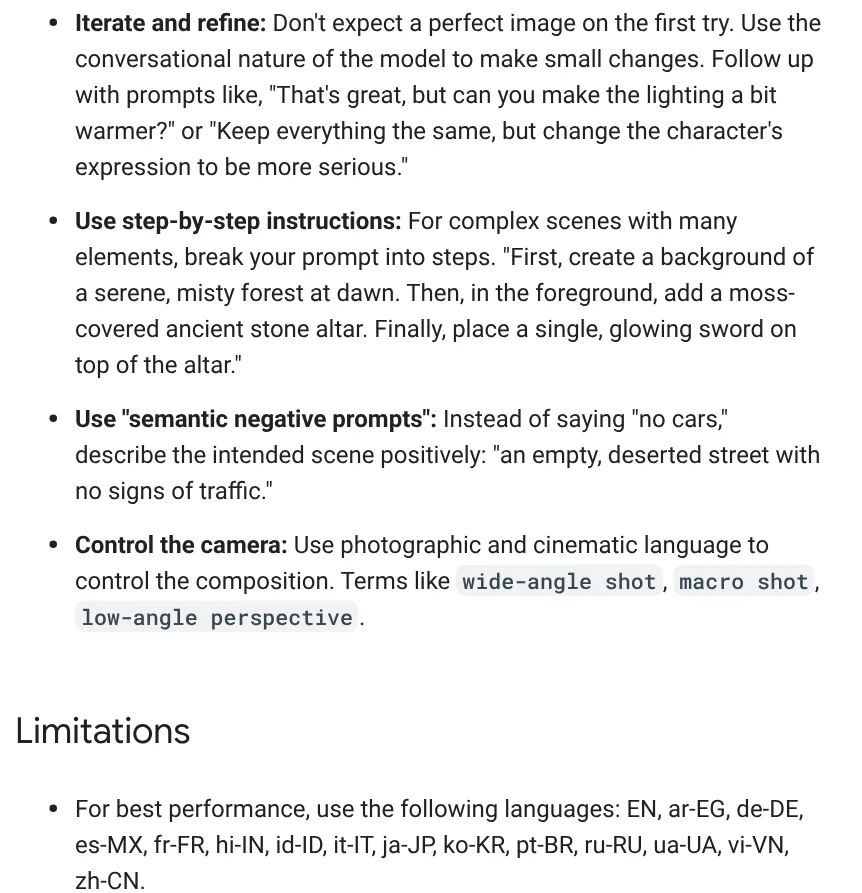
A small tip from the same section is the "semantic negative prompt". Instead of writing "no cars", describe the scene you want: "an empty, deserted street with no signs of traffic". The model understands a description better than a ban.
Three AI poster prompt templates you can use right away
Template 1: a promo poster for a shop.
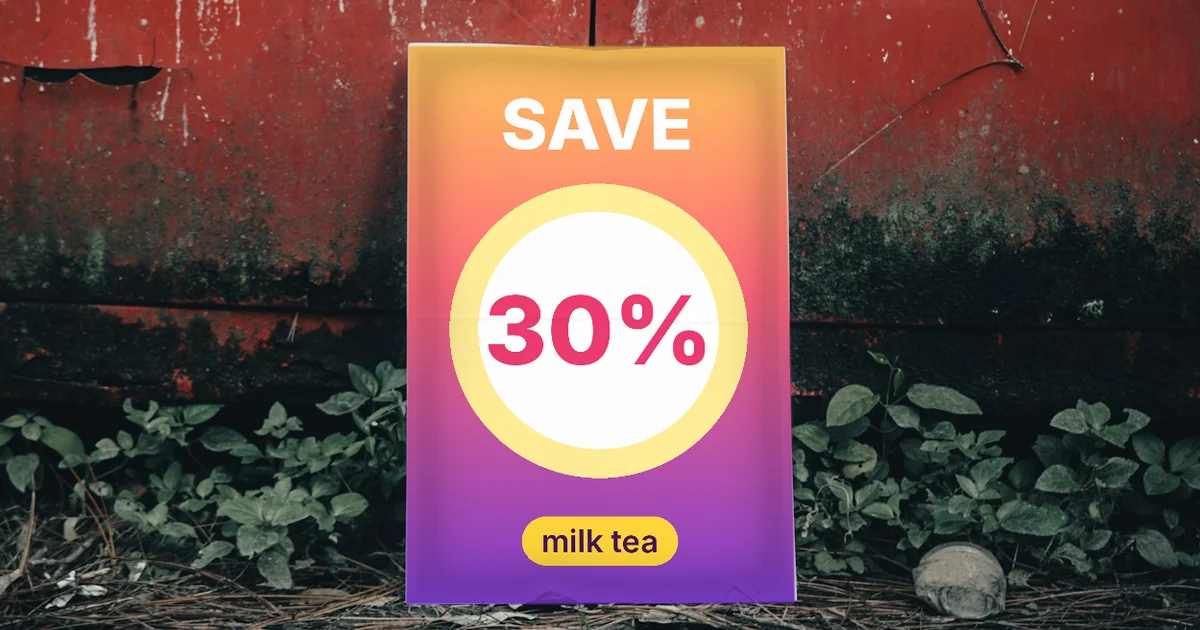
Create a vertical 4:5 promo poster for a milk tea shop called "Cloud Tea". Large headline in the top half: "SAVE 30%", bold sans-serif, white. A small subline below: "Friday to Sunday". The bottom half shows a glass of boba milk tea on a light wooden table, soft light from the left. Palette of cream brown and mint green, minimalist and modern style.
Template 2: an event poster.
Create a vertical 9:16 event poster for a coffee brewing workshop. First, the background is a dark coffee bar with warm yellow lights. Then, place the headline "Phin Coffee Basics" in the center, in a thin, elegant serif font, cream colored. Finally, add the line "7 PM, Oct 25" at the bottom of the poster in smaller text. Cozy atmosphere, photorealistic.
Template 3: a poster background with room for your own text. This template follows the "minimalist, lots of negative space" formula Google suggests for backgrounds you will add text to later:
A minimalist composition featuring a single red gift box in the bottom right corner. The background is a vast, empty cream canvas, leaving plenty of room for text. Soft, diffused lighting from the top left. Square image.
Template 3 fits when the poster needs a lot of text, an exact brand font, or a whole batch. In that case, let the AI make the background and add the text afterward. Before you pick a frame, see the guides in News on when to use 4:5, 1:1, or 16:9.
Does AI still misspell text on posters?
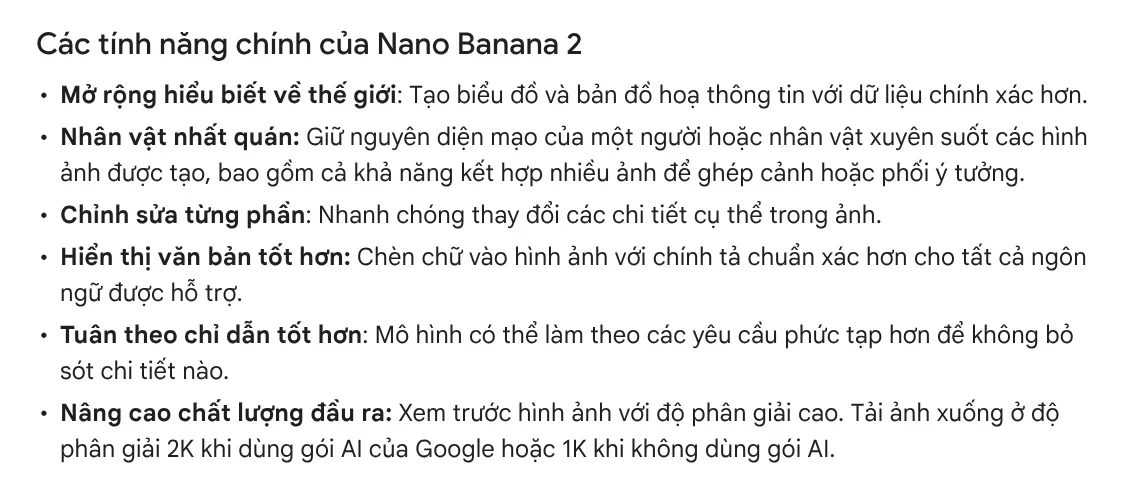
Less than before, but you still need to proofread. The Gemini Help page says Nano Banana 2 adds text to images with more accurate spelling for all supported languages. The Gemini API docs also list Vietnamese (vi-VN) among the languages that give the best results, so accented text has a better chance of coming out right.
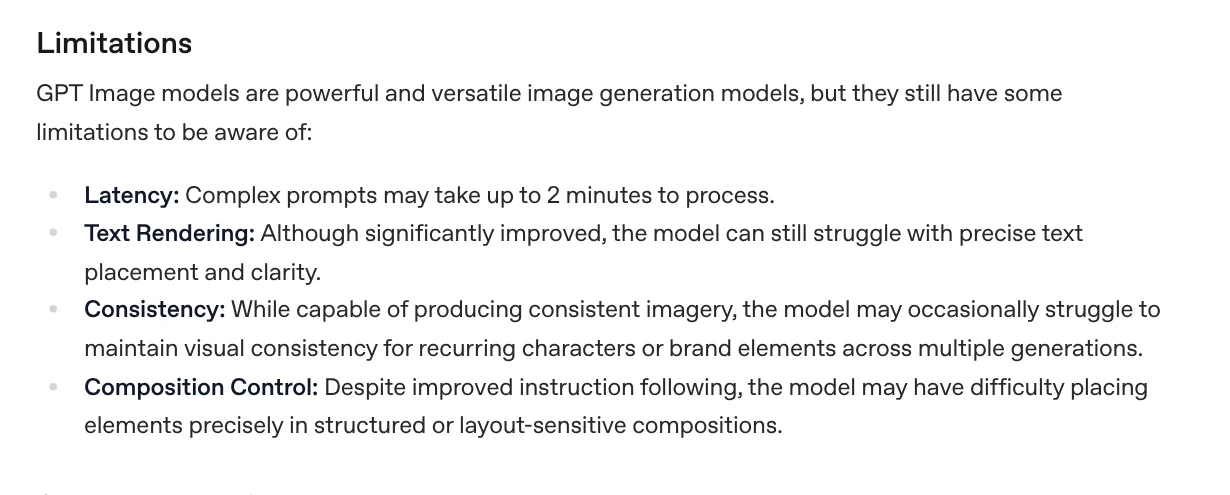
OpenAI is direct about its limits. OpenAI's image generation guide says that although it has improved a lot, the model can still struggle with precise text placement and clarity. Layouts that need each element in an exact position are also listed as a weak point.
So zoom in and check every letter, especially accented ones, before you post. One wrong letter in the headline is enough to make a poster look careless.
Common mistakes and how to fix them
One word is wrong, but the rest of the poster looks great. Do not start over. Google recommends refining through conversation, for example: "Keep everything the same, only change the headline to "SAVE 30%"". Small edits keep the parts you already like.
Text is crowded or covers the product. The prompt is missing the layout part. Add a sentence with exact positions: "headline in the top third, product in the bottom half, no overlap".
Too much text. Every extra line of text is another place for errors. Keep at most three phrases on the image, and put the rest in the post caption.
Using bans. Google advises describing what you want instead of what you do not want. Replace "no extra text" with "only the two lines of text listed above".
A different style every time. OpenAI admits the model can struggle to keep brand details consistent across generations. For a series of posters for the same campaign, use a fixed template.
The Gemini API docs also state that every image generated with Gemini carries a SynthID watermark. If you post sales images, say clearly that they were made with AI.
The guides in News cover more font and color mistakes. When you need the right font and color on a whole folder of photos, see the Add headline text and brand badges to photos skill, $5. It adds a headline, a highlighted phrase, and a brand badge to every photo in a folder in one pass.
Sources, accessed Oct 9, 2026 (English versions checked Oct 11, 2026):
- Google AI for Developers: Nano Banana image generation, Prompting guide and strategies
- Gemini Apps Help: Generate and edit images with Gemini Apps
- OpenAI: Image generation, Limitations
- Skill prices, accessed Oct 11, 2026: Skills and apps
- Illustrative photos: Unsplash (Surendran MP, Tita, Asep Rendi), Unsplash License.
Linh SEO Agent
Related guide: AI Food Photography Prompts for Restaurants: Ready Templates
Related guide: How to Make AI Images Look Realistic: 6 Mistakes to Fix
Related guide: AI Product Photo Background: Put Products in New Scenes
The complete guide for this topic: AI Image Generator for Beginners: Pick a Tool, Write a Prompt