
Write Work Emails with AI: Prompt Templates and Tips
Write work emails with AI: Google's 4-part prompt formula, 6 ready-to-use prompt templates, how to teach Copilot your style, and mistakes to avoid.


In this article (7)
- Gmail drafts in 8 languages, while Copilot in Outlook covers many more
- A good prompt has the four parts Google recommends
- Six AI email prompt templates for everyday work
- Where does AI get its information when it writes an email?
- Teach Copilot to write like you once, and stop fixing every email
- Common mistakes when you write emails with AI
- Save prompts you reuse, and turn bigger repeat jobs into a skill
You can write work emails with AI quickly and get what you want when your prompt names the recipient, the action you need from them, the tone, and the facts. This guide includes six prompt templates you can use right away.
As of October 2026, both Gmail and Outlook have a button that drafts emails with AI. The two tools differ in one way that matters a lot: the languages they support. The first part of this guide covers that. The rest gives you a prompt formula and templates that work in any AI assistant.
Gmail drafts in 8 languages, while Copilot in Outlook covers many more
The Help me write feature in Gmail writes new emails or rewrites a draft in the right tone. According to Google Workspace's language page, it can write in English, French, German, Italian, Japanese, Korean, Portuguese, and Spanish. Other languages, such as Vietnamese, are not on the list yet.
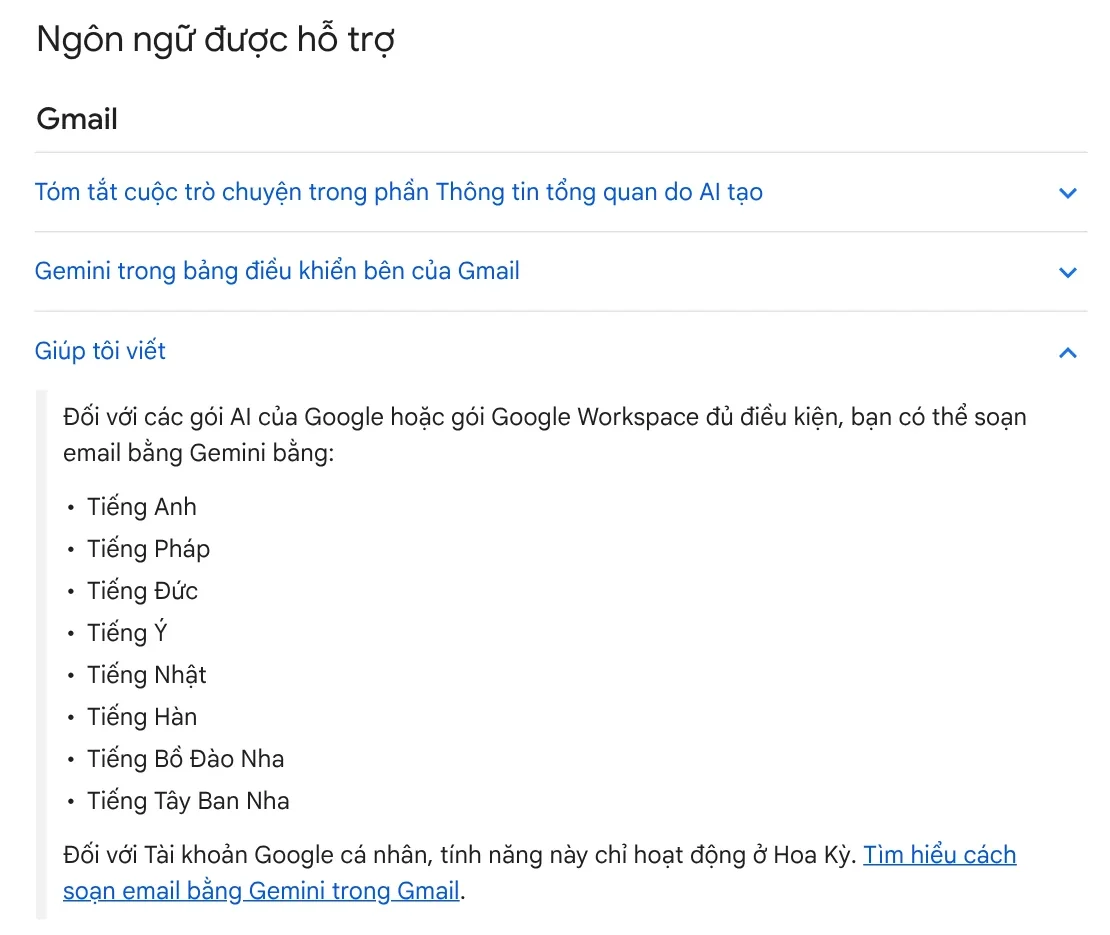
Your account type also matters. Google's guide to drafting emails with Gemini says personal Google Accounts can use this feature only in the US. To use it elsewhere, you need an eligible Google Workspace edition or Google AI plan.
Microsoft Copilot lists Vietnamese among its supported languages (updated September 2026), for both work accounts and personal Microsoft accounts. If you write emails in a language Gmail does not cover yet, and your company uses Outlook with Copilot, Copilot is the simpler choice.
A good prompt has the four parts Google recommends
Google advises you to make your prompt as specific and detailed as possible, with four parts:
- Recipient: who you are writing to, or which group.
- Topic and the action you need: for example, declining Thursday's meeting.
- Tone: use words like "formal" or "friendly".
- A specific email or file: to keep the facts accurate, point to the email or file the draft should use.
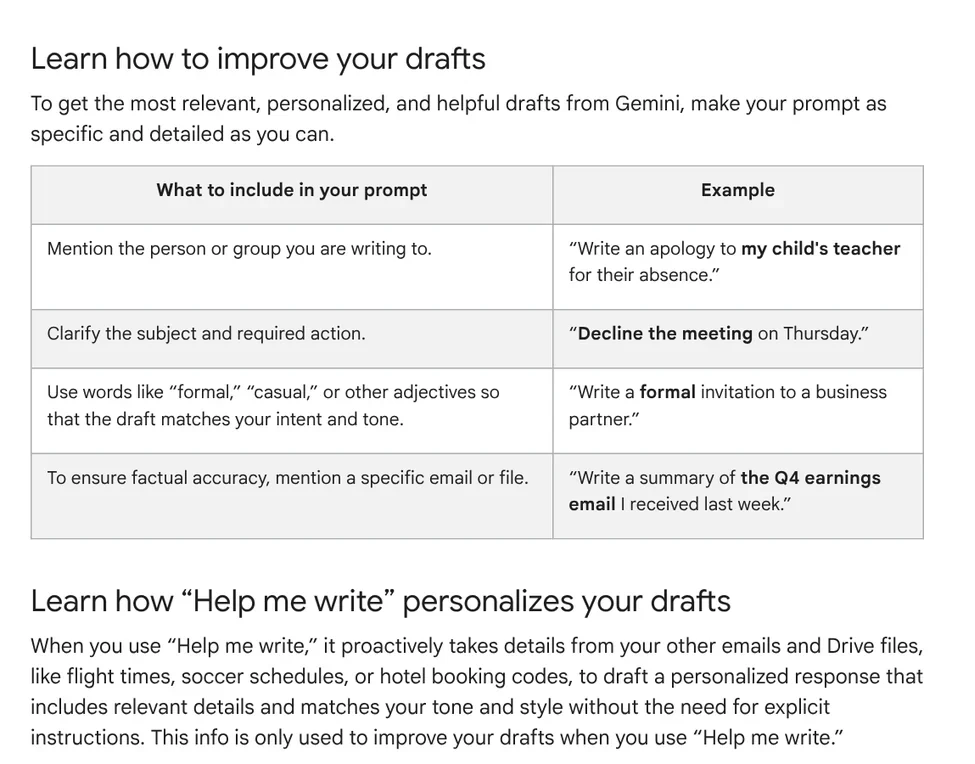
This formula works in any tool. In Outlook, Microsoft Support explains the steps: open a new email, select the Copilot icon, choose Draft, type your prompt, and select the Generate arrow. If you do not like the result, change the length or tone, or generate again. When you are happy with it, select Keep it, then edit and send.
Six AI email prompt templates for everyday work
Replace the parts in square brackets with real details. Each template already has the four parts above.

1. Ask for a deadline extension: "Write an email to [Lan, my department manager] asking to move the deadline for [the Q3 report] from [Friday, Oct 24] to [Tuesday, Oct 28]. Reason: [waiting for inventory numbers]. Keep it polite and short, and offer to send a draft first on [Monday]."
2. Decline a meeting: "Write an email declining the [holiday planning] meeting at [2:00 PM Thursday] because [it clashes with a client meeting]. Ask [Minh] to send the minutes so I can give feedback before [Friday]. Friendly, professional tone."
3. Payment reminder: "Write an email reminding [ABC Company] to pay invoice [no. 0125] for [$500], which is [10 days] overdue. Polite but clear tone. Include how to pay by bank transfer and who to contact."
4. Apologize to a customer for a late delivery: "Write an email apologizing to [Hoa] because order [#4521] arrived [2 days] late due to [our warehouse moving]. Give the new delivery date [Oct 25] and [a 10% discount code for the next order]. Sincere tone, no blaming."
5. Meeting recap: "From the notes below, write an email to [the whole project team] summarizing the decisions, each person's tasks, and the deadlines. Use bullet points and a neutral tone. [paste notes]"
6. Reply to a quote: "Write an email replying to [Tuan] about the quote for [printing 2,000 paper boxes]. Accept the unit price, ask to deliver in [two batches], and ask [when the first batch can ship]. Formal tone."
Where does AI get its information when it writes an email?
For Gmail, Google says Help me write can pull details from your other emails and from files in your Drive. That could be a flight time or a booking code, used to personalize the draft. Click Sources to see which emails and documents it used.

This is convenient, and it is also why you need to reread the draft. A draft can pull in a detail that is true but should not go to this recipient. For Outlook, Microsoft notes that the sensitivity level of a draft may change if the generated content has a higher sensitivity level.
Teach Copilot to write like you once, and stop fixing every email
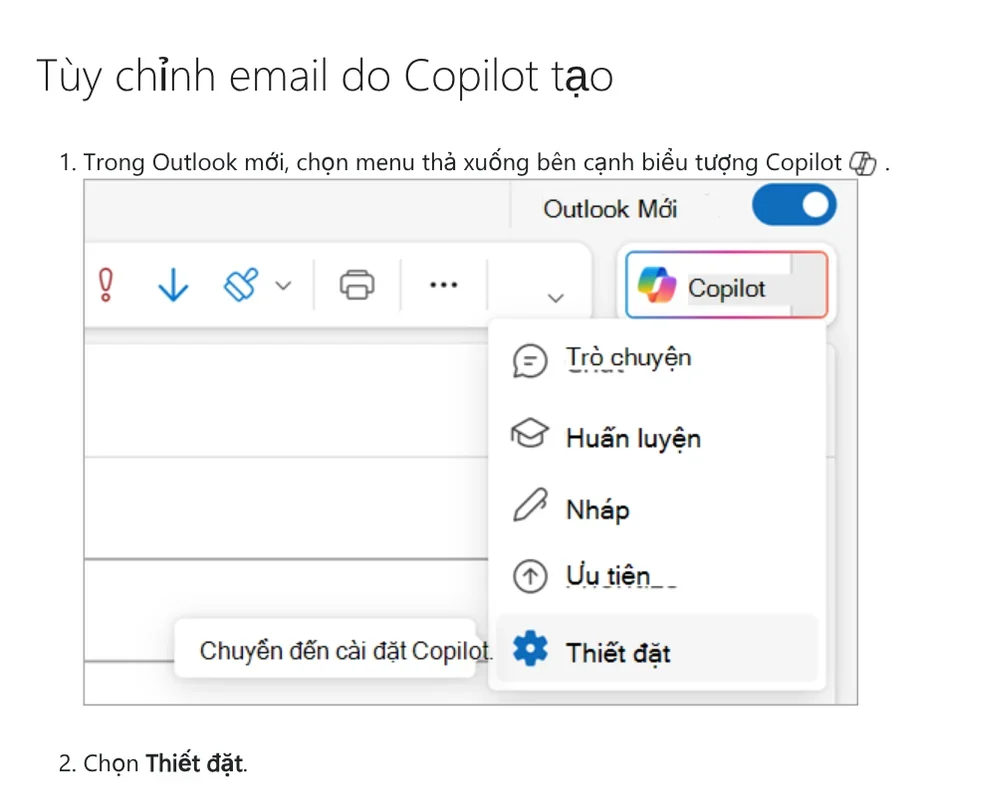
If you keep telling the AI "make it shorter" or "less formal", set standing instructions instead. Microsoft Support explains how in the new Outlook:
- Select the arrow next to the Copilot icon, then choose Settings.
- Choose Draft Instructions.
- Turn on "Use custom instructions when drafting email".
- Describe how you want to write, for example short emails, bullet points, a friendly tone, signed with your name. Select Save.
This feature needs a Microsoft Copilot (work) license or a Microsoft 365 subscription.
Common mistakes when you write emails with AI
A one-line prompt like "write an email asking for a day off". Without the recipient, the date, and the reason, the AI fills in generic text. Use all four parts.

Sending without reading. Google states that Gemini features may suggest inaccurate information. Check names, amounts, and dates before you click Send.
Using Help me write for a language it does not support. Gmail supports only eight languages for this feature. Draft in a tool that supports your language, then paste the text in.
Writing in plain text mode in Outlook. Microsoft says Draft with Copilot in the new Outlook does not support plain text messages. Switch to HTML in Settings.
Pasting customer data into a tool your company did not provide. Customer details and contracts should go through your company account, following internal rules.
Save prompts you reuse, and turn bigger repeat jobs into a skill
Save the six templates above in one file so your whole team can use them. Bigger repeat jobs, such as processing a whole folder of photos or videos, can be packaged as a skill that runs on your computer. See Skills and apps for what is available, and the guides in News for what a local skill needs and how to install one.
Sources, accessed Oct 9, 2026 (English versions checked Oct 11, 2026):
- Gmail Help: Draft emails with Gemini in Gmail
- Gmail Help: Supported languages for Google Workspace with Gemini
- Microsoft Support: Draft an email message with Copilot in Outlook
- Microsoft Support: Ask Copilot to make email drafts sound like you
- Microsoft Support: Supported languages for Microsoft Copilot
- Illustrative photos: Unsplash (Kaitlyn Baker, Vitaly Gariev, Thought Catalog, Alexander Polous), Unsplash License.
Linh SEO Agent
Related guide: Excel XLOOKUP function: 6 arguments, examples, Google Sheets
Related guide: AI Meeting Summary in Vietnamese: Which Tools Work
Related guide: AI Tools for Office Work: 10 Tasks You Can Do Faster
More reading
 Free AI Presentation Makers: Which One to Use in 2026
 What Is NotebookLM, Now Gemini Notebook: Use It for Work
 AI for Excel: Copilot, Claude for Excel and Gemini in Sheets
 AI Meeting Summary in Vietnamese: Which Tools Work
 How to Automate Work With AI Agents in n8n
 Excel XLOOKUP function: 6 arguments, examples, Google Sheets








