
How to Add Text to a Picture in PowerPoint and Word
Add text to a picture in PowerPoint and Word with a text box or WordArt, group it with the photo, then save the slide as a JPEG or PNG. Plus 5 mistakes.


In this article (6)
- Add text to a picture in PowerPoint: a text box grouped with the photo
- Use WordArt for short text that needs to stand out
- In Word, put the picture and the text on one New Drawing Canvas
- How do you save a picture with text as a JPEG or PNG file?
- Set the slide size before you add text
- Five common mistakes when adding text to a picture in PowerPoint and Word
To add text to a picture in PowerPoint or Word, place a text box or WordArt on the photo, remove the box's fill, and group the two. PowerPoint can also save the whole slide as a JPEG or PNG image.
Add text to a picture in PowerPoint: a text box grouped with the photo
On Oct 9, 2026, the Microsoft Support page covered this method for Microsoft 365 and Office 2016 through 2024. In PowerPoint, the steps are:
- Insert the photo on the slide first.
- On the Insert tab, in the Text group, click Text Box, drag to draw the box near the picture, and type your text.
- To change the font or style, highlight the text, right-click it, and pick the formatting you want.
- Click the edge of the text box, drag it over the picture, and rotate it if needed.
- On the Shape Format tab, choose Shape Fill > No Fill and Shape Outline > No Outline.
- Click the edge of the picture, hold Ctrl, and click the edge of the text box to select both. Then in the Arrange group, choose Group > Group.
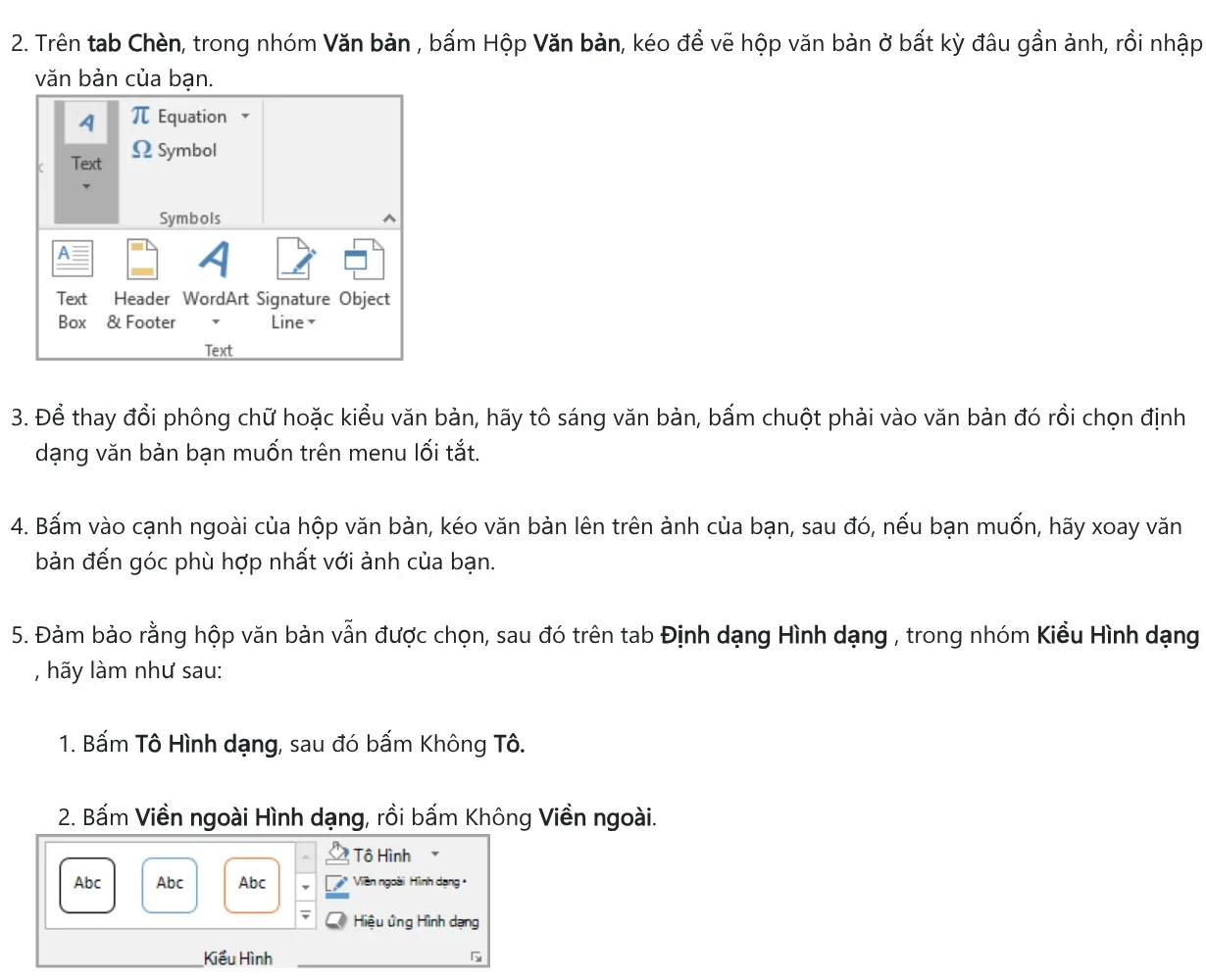
Do not skip the grouping step. Grouping turns the text and the picture into one object, so the text stays exactly where you placed it wherever you drag the picture.
Use WordArt for short text that needs to stand out
Microsoft suggests choosing between the two methods based on how long your text is. A text box suits longer text or text that does not need a fancy look, and you can format it any way you like. WordArt suits short text with a stylized look, like the words on a postcard.

In PowerPoint, go to the Insert tab, Text group, click WordArt, pick a style, and type your text. Drag the WordArt over the picture, hold Ctrl to select both the picture and the WordArt, then group them the same way as a text box.
For product photos, one short WordArt headline plus one price line in a text box is usually enough. Too many text styles on one picture make it hard to read.
In Word, put the picture and the text on one New Drawing Canvas
Word needs one more step than PowerPoint. Microsoft tells you to create a drawing canvas first:
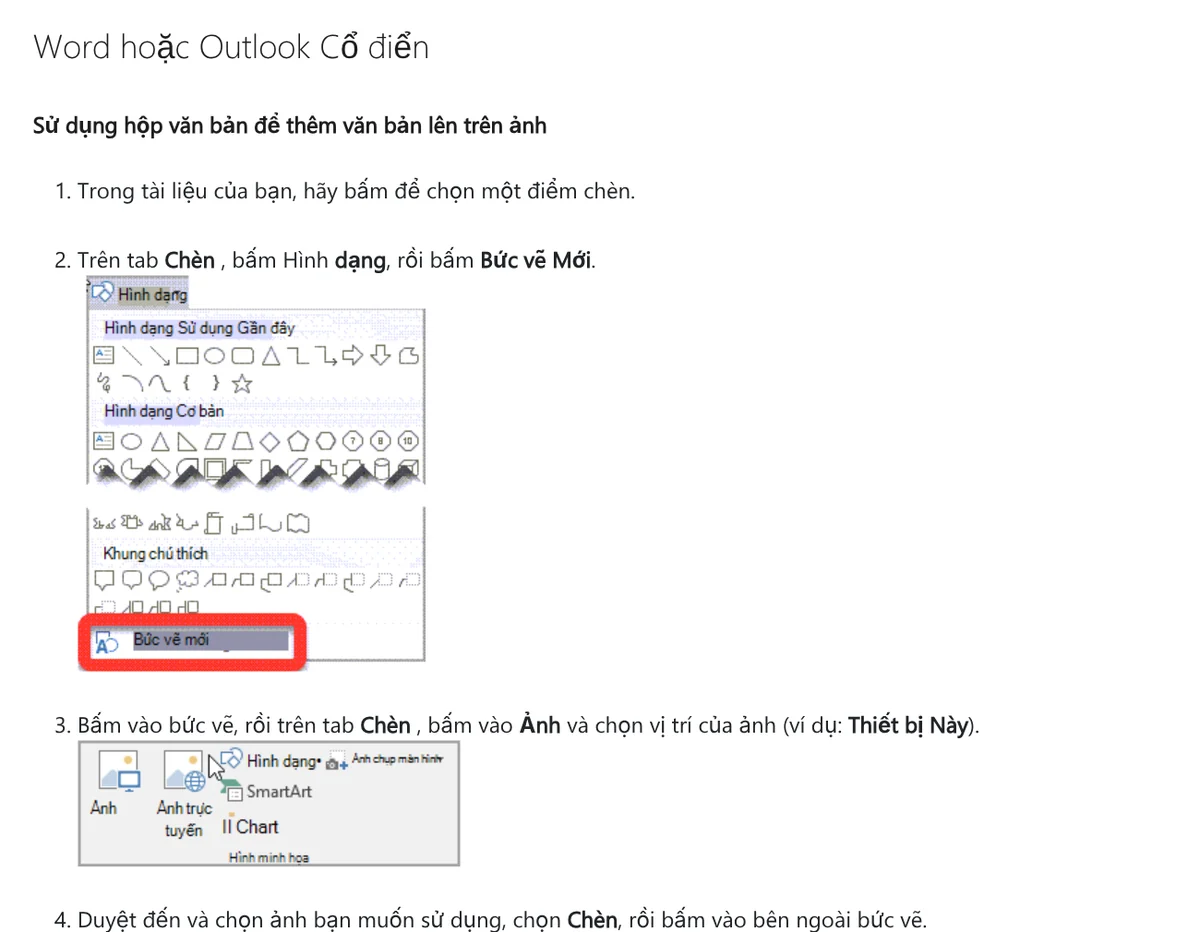
- Click to set the insertion point in your document.
- Go to Insert > Shapes > New Drawing Canvas.
- Click the canvas, choose Insert > Pictures, pick a picture from your computer, click Insert, then click outside the canvas.
- Go to Insert > Text Box > Draw Text Box, drag to create the box, type your text, and drag it over the picture.
- Remove the fill and outline the same way as in PowerPoint, then select both and choose Group.
If you only want the document's own text to run over the picture, use the picture's layout and wrapping options. Select the picture, open Layout Options or Picture Format > Arrange > Wrap Text, and choose Behind Text. The picture sits underneath and the document text sits on top.
Microsoft notes that In Line with Text places the picture in a paragraph as if it were text. The picture moves when you add or delete text before it. The other layout options let you drag the picture anywhere on the page.
How do you save a picture with text as a JPEG or PNG file?
The quickest way is PowerPoint. Following the guide to saving a slide as an image on Windows:
- Select the slide in the thumbnail pane on the left.
- Go to File > Save As, or Save a Copy if the file is stored on OneDrive or SharePoint.
- In the Save as type box, choose JPEG (.jpg) or PNG (.png). GIF and SVG are also available.
- Click Save, then choose Just This One.
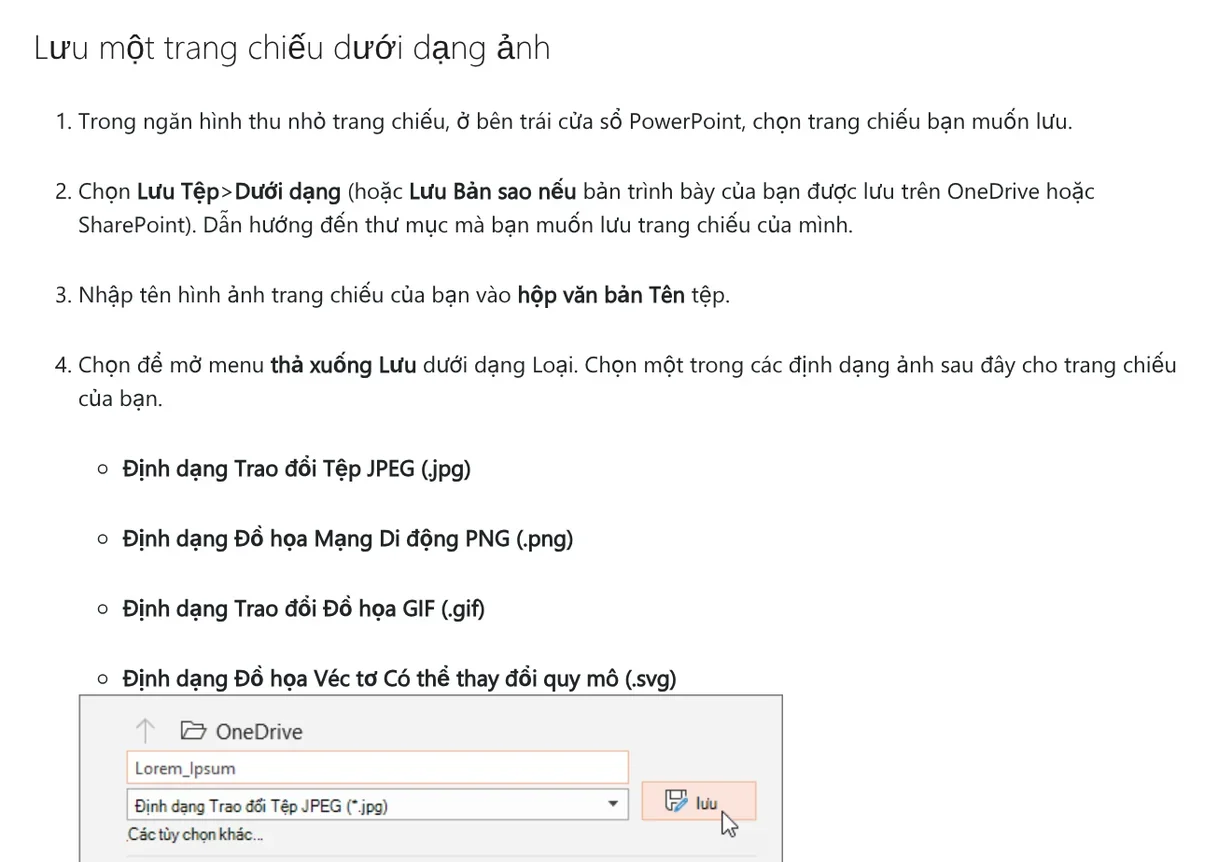
Choose All Slides and each slide becomes its own image file. This is a handy trick when you need a whole batch of images: each slide is one product photo with text. On a Mac, go to File > Export, choose the format, and you can also enter the image width and height.
Set the slide size before you add text
New PowerPoint slides use the 16:9 widescreen size by default. The slide size guide shows how to change it: go to the Design tab, choose Slide Size, then pick Standard (4:3), Widescreen (16:9) or Custom Slide Size.
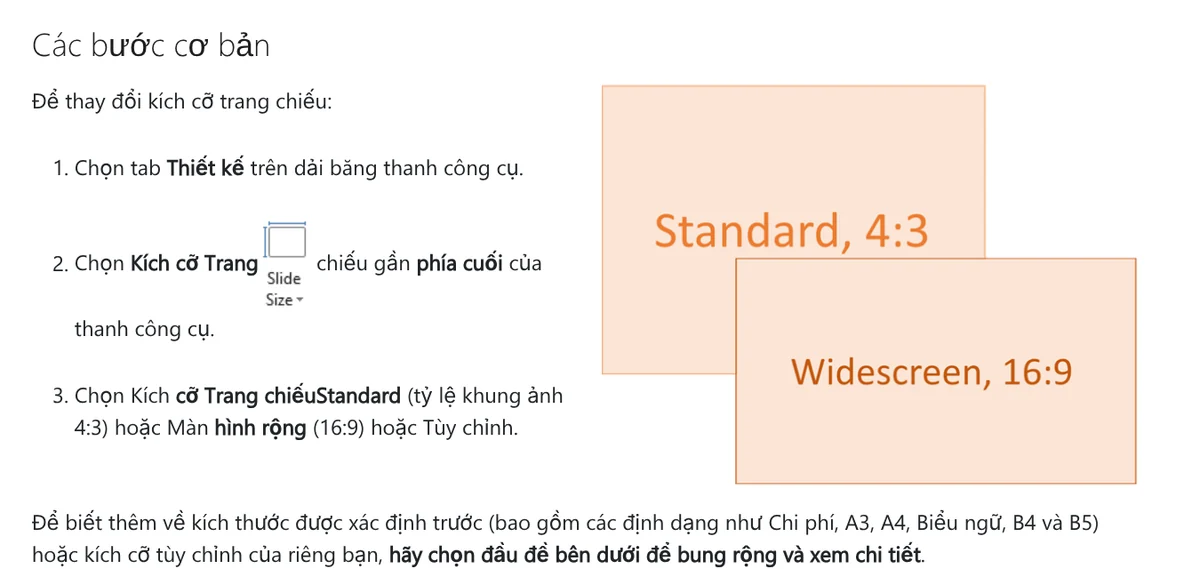
The custom size box accepts inches, centimeters or pixels. You can set a portrait or square size for social media posts. News has a guide to when to use the 4:5, 1:1 and 16:9 frames, so you can pick the right one.
Change the size before you add text. If you change it later and PowerPoint cannot scale your content on its own, it asks whether to Maximize or Ensure Fit. Maximize can push content off the slide.
Five common mistakes when adding text to a picture in PowerPoint and Word
Forgetting to group the text with the picture. You move the picture and the text stays behind. Always select both and choose Group.
Leaving a white fill or an outline on the text box. Choose No Fill and No Outline on the Shape Format tab.
Changing the slide size after placing the text. The text shrinks or spills off the slide. Pick the size first, then add the text.
A picture in Word that keeps jumping around. It is set to In Line with Text. Switch to another option under Layout Options.
Saving the whole presentation by mistake. When PowerPoint asks, choose Just This One if you only need one image.
News also covers six common mistakes when adding text to photos, including font, color and placement problems. If you need a headline, a highlighted phrase and a badge on a whole folder of photos at once, doing it slide by slide takes a long time. The skill Add headline text and brand badges to photos costs $5 and does this in three frames: 4:5, 1:1 and 16:9. If this is your first skill, News has a guide to getting started with photo skills.
Sources, accessed Oct 9, 2026 (English versions checked Oct 11, 2026):
- Microsoft Support: Add text on top of a photo
- Microsoft Support: Save a slide as an image or as a separate presentation file
- Microsoft Support: Change the size of your PowerPoint slides
- Microsoft Support: Wrap text around a picture in Word
- Images: Unsplash (Amy Hirschi, Stephen Crane), Unsplash License.
Linh SEO Agent
Related guide: How to Add Text to a Photo on iPhone Without an App
Related guide: Free AI Presentation Makers: Which One to Use in 2026
More reading
 How to Add Text to a Photo on iPhone Without an App
 Bulk Add Text to Images: Names and Prices for Product Photos
 How to Add a Signature to a Photo, Plus Your Phone Number
 How to Add a Logo to Photos Online, One at a Time or in Bulk
 6 Common Mistakes When Adding Text to Photos
 How to Add Text to a Video on Your Phone or Computer








