Excel XLOOKUP function: 6 arguments, examples, Google Sheets
XLOOKUP looks left or right and matches exactly by default. The 6 arguments, approximate match, bottom-up search, Excel versions and Google Sheets.


In this article (8)
- The XLOOKUP function has 6 arguments, and only the first 3 are required
- Unlike VLOOKUP, XLOOKUP can look left and needs no column number
- Set if_not_found to show your own text instead of #N/A
- Approximate match with match_mode 1 or -1 fits tiered tables like tax brackets
- Search from the bottom up with search_mode -1 to get the last match
- Which versions of Excel have the XLOOKUP function?
- XLOOKUP in Google Sheets uses the same 6 inputs with different names
- Four common XLOOKUP mistakes
The XLOOKUP function finds a value in one column and returns the data in the same row from another column, whether that column sits to the left or to the right. It returns an exact match by default.
The XLOOKUP function has 6 arguments, and only the first 3 are required
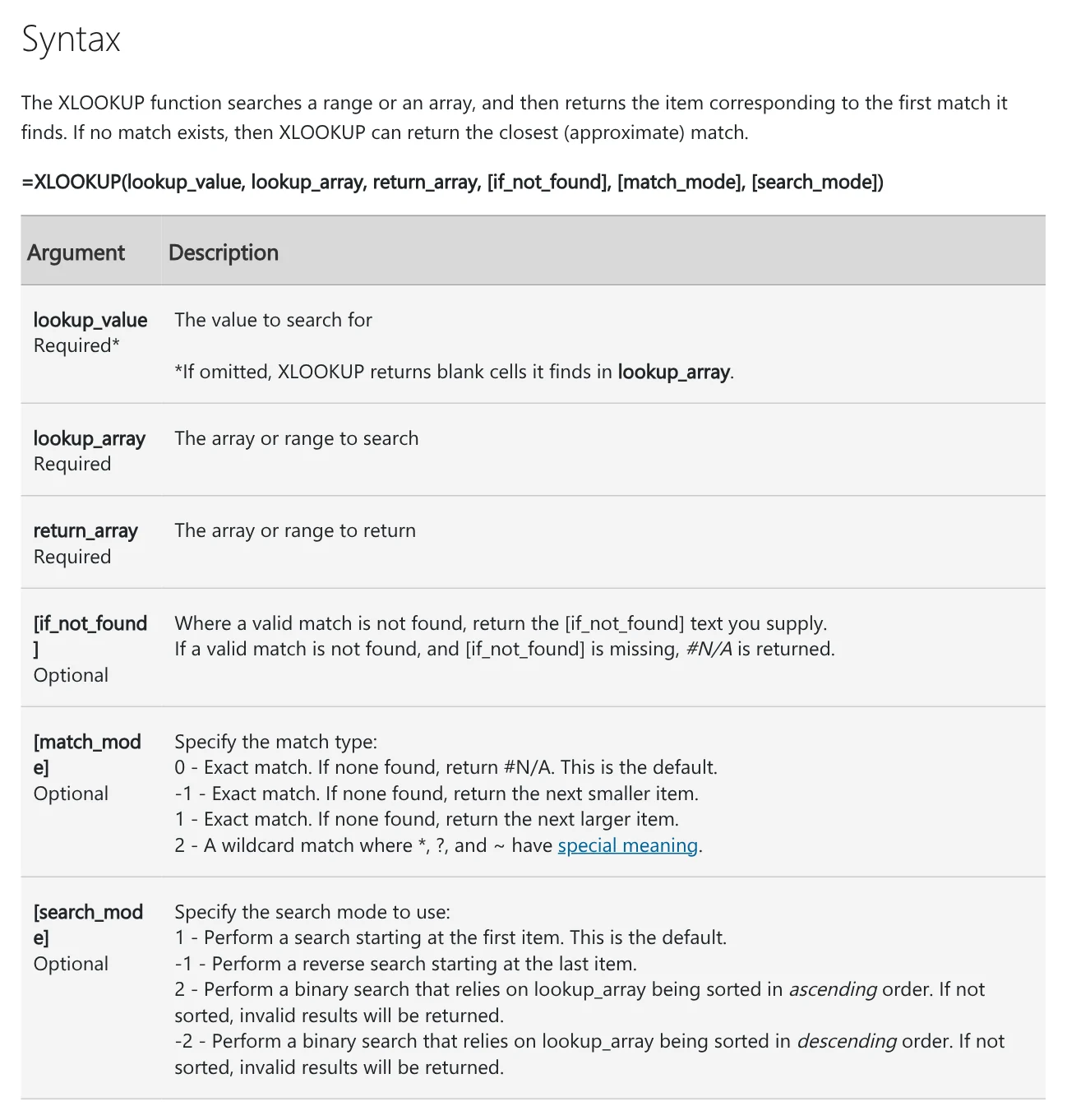
Microsoft's XLOOKUP function page, read on Oct 12, 2026, gives the syntax as =XLOOKUP(lookup_value, lookup_array, return_array, [if_not_found], [match_mode], [search_mode]). The three arguments in square brackets are optional.
- lookup_value: what you want to find, such as a product code.
- lookup_array: the array or range to search.
- return_array: the array or range to return.
- if_not_found: the text to return when no valid match is found. Leave it out and you get #N/A.
- match_mode: 0 is an exact match and the default. -1 returns the next smaller item, 1 the next larger item, and 2 is a wildcard match where *, ? and ~ have special meaning.
- search_mode: 1 searches from the first item and is the default. -1 searches in reverse from the last item. 2 and -2 are binary searches that need data sorted in ascending or descending order.
Unlike VLOOKUP, XLOOKUP can look left and needs no column number
Microsoft describes XLOOKUP as looking in one column and returning a result from the same row in another column, regardless of which side the return column is on. The VLOOKUP page, by contrast, tells you to organize data so the lookup value is to the left of the return value.
In this sample table in A1:C4, the product code sits in column C, to the right of the product name. The numbers are only for illustration.
| A (Product) | B (Price, USD) | C (Code) | |
|---|---|---|---|
| 2 | A5 notebook | 1.40 | VP01 |
| 3 | Blue ballpoint pen | 0.25 | VP02 |
| 4 | Box of staples | 0.50 | VP03 |
Type VP02 in cell F2, then enter =XLOOKUP(F2,C2:C4,A2:A4) in G2. The function finds VP02 in column C and returns "Blue ballpoint pen" from column A.
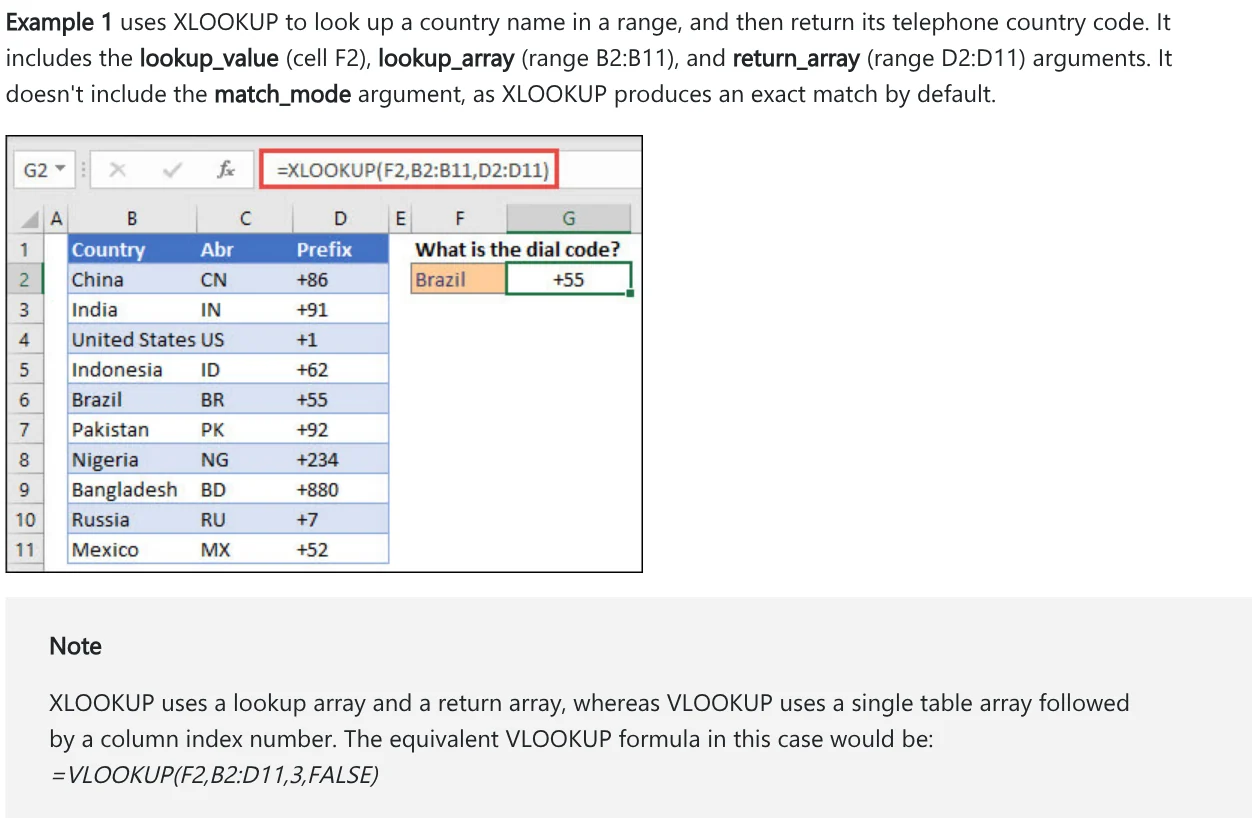
The note under Example 1 on the Microsoft page names the main difference: XLOOKUP uses a lookup array and a return array, while VLOOKUP uses a single table array followed by a column index number. To find the dial code for Brazil, XLOOKUP uses =XLOOKUP(F2,B2:B11,D2:D11), and VLOOKUP needs =VLOOKUP(F2,B2:D11,3,FALSE).
XLOOKUP also matches exactly by default and can return several columns at once, as Example 2 returns both the employee name and department.
Set if_not_found to show your own text instead of #N/A
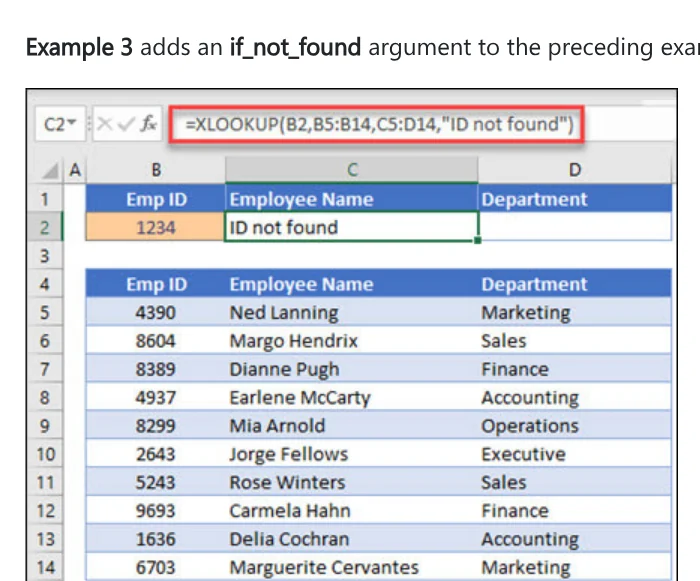
If there is no valid match and the fourth argument is missing, XLOOKUP returns #N/A.
With the sample table above, =XLOOKUP(F2,C2:C4,A2:A4,"No such code") shows "No such code" when the code in F2 is not in column C. Example 3 on the Microsoft page does the same: ID 1234 is not in the employee table, so the result cell shows "ID not found" instead of an error.
Approximate match with match_mode 1 or -1 fits tiered tables like tax brackets
To get the nearest level when there is no exact value, set match_mode to -1 for the next smaller item, or 1 for the next larger item.
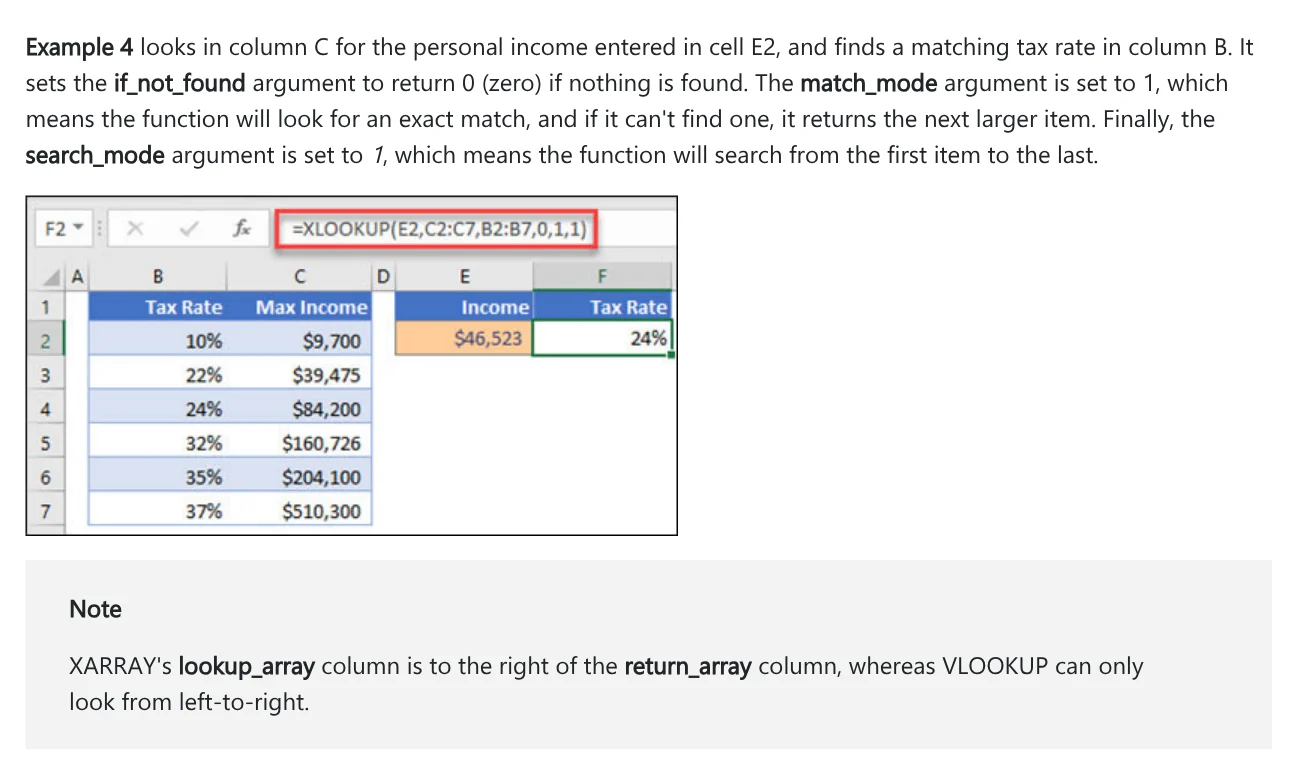
Example 4 on the Microsoft page finds a tax rate for the income in cell E2 with =XLOOKUP(E2,C2:C7,B2:B7,0,1,1). The income does not match any level in column C exactly, so the function takes the next larger level and returns 24%.
This is also a left lookup, since the lookup column C sits to the right of the return column B.
Search from the bottom up with search_mode -1 to get the last match
By default the function searches from top to bottom, so when a name appears on several rows, you get the first one. Set search_mode to -1 and it searches from the last entry to the first.
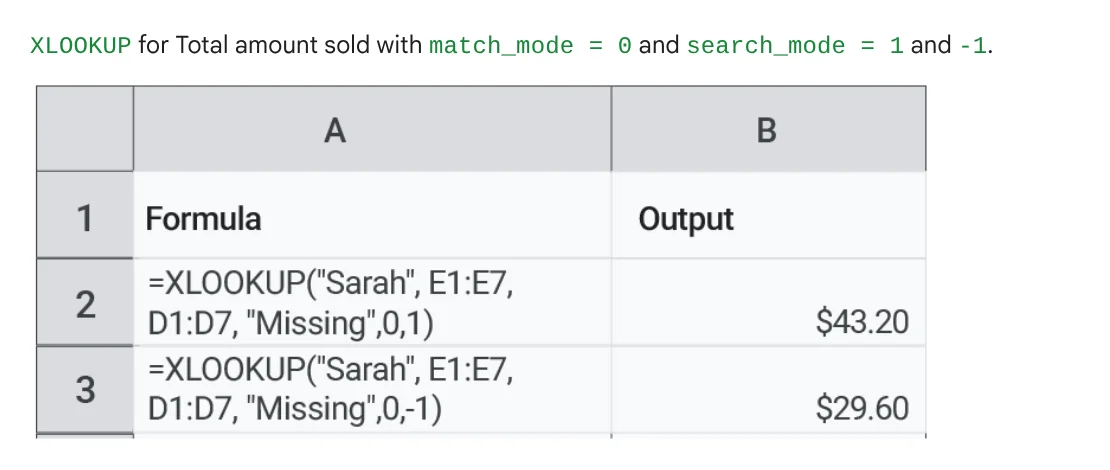
The example on Google's help page uses a sales table where Sarah appears on rows 6 and 7. =XLOOKUP("Sarah", E1:E7, D1:D7, "Missing",0,1) returns $43.20 from row 6. Change the last number to -1 and the result is $29.60 from row 7.
Which versions of Excel have the XLOOKUP function?
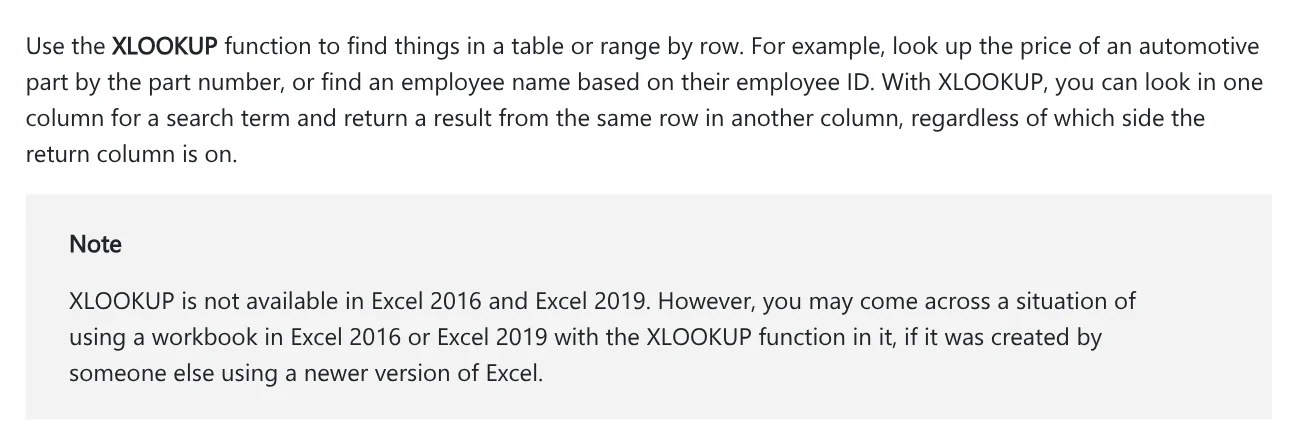
The Applies To list on the Microsoft page includes Excel for Microsoft 365, Excel 2024 and Excel 2021, on Windows and Mac, plus Excel for iPad, iPhone, and Android tablets and phones. The list also shows Excel 2016 and 2019.
However, the note at the top of the page says XLOOKUP is not available in Excel 2016 and Excel 2019. You may still come across a workbook with XLOOKUP in those versions if someone else created it in a newer version of Excel.
If the person you send the file to still uses Excel 2016 or 2019, VLOOKUP is the safer choice.
XLOOKUP in Google Sheets uses the same 6 inputs with different names
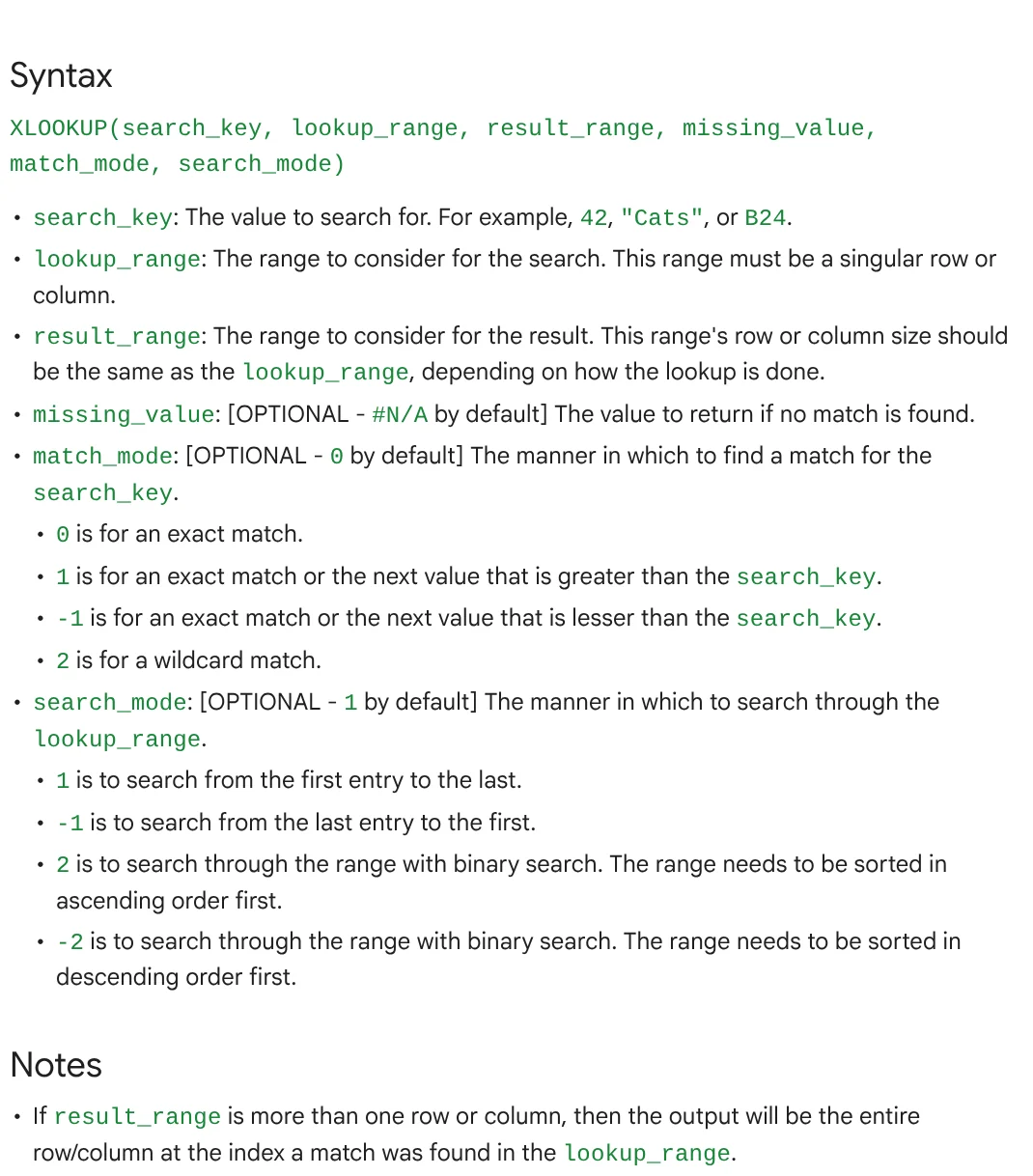
Google Sheets also has an XLOOKUP function. Its syntax is XLOOKUP(search_key, lookup_range, result_range, missing_value, match_mode, search_mode).
The six inputs map to the Excel arguments. missing_value is #N/A by default, match_mode is 0 by default and search_mode is 1 by default. Google adds two rules: lookup_range must be a single row or column, and result_range should have the same row or column size as lookup_range. If result_range is more than one row or column, the output is the entire row or column at the matched position.
Four common XLOOKUP mistakes
- The recipient uses Excel 2016 or 2019, where XLOOKUP is not available.
- Forgetting match_mode when you need an approximate match, so a value without an exact match returns #N/A.
- Using search_mode 2 or -2 on unsorted data, which returns invalid results.
- Mismatched range sizes in Google Sheets.
If you rebuild the same lookup table every week, that repeat task can be packaged as a skill. The explainer What is a Claude skill shows how, and the news page has more step-by-step guides. Which part trips you up most: looking left, #N/A, or picking the wrong match mode?
Related guides: AI for office work.
Sources, accessed Oct 12, 2026:
- Microsoft: XLOOKUP function
- Microsoft: VLOOKUP function
- Google: XLOOKUP function, Google Docs Editors Help
Linh SEO Agent
Related guide: AI for Excel: Copilot, Claude for Excel and Gemini in Sheets
The complete guide for this topic: AI Tools for Office Work: 10 Tasks You Can Do Faster
More reading
 AI for Excel: Copilot, Claude for Excel and Gemini in Sheets
 What Is NotebookLM, Now Gemini Notebook: Use It for Work
 Write Work Emails with AI: Prompt Templates and Tips
 AI Meeting Summary in Vietnamese: Which Tools Work
 How to Automate Work With AI Agents in n8n
 Free AI Presentation Makers: Which One to Use in 2026