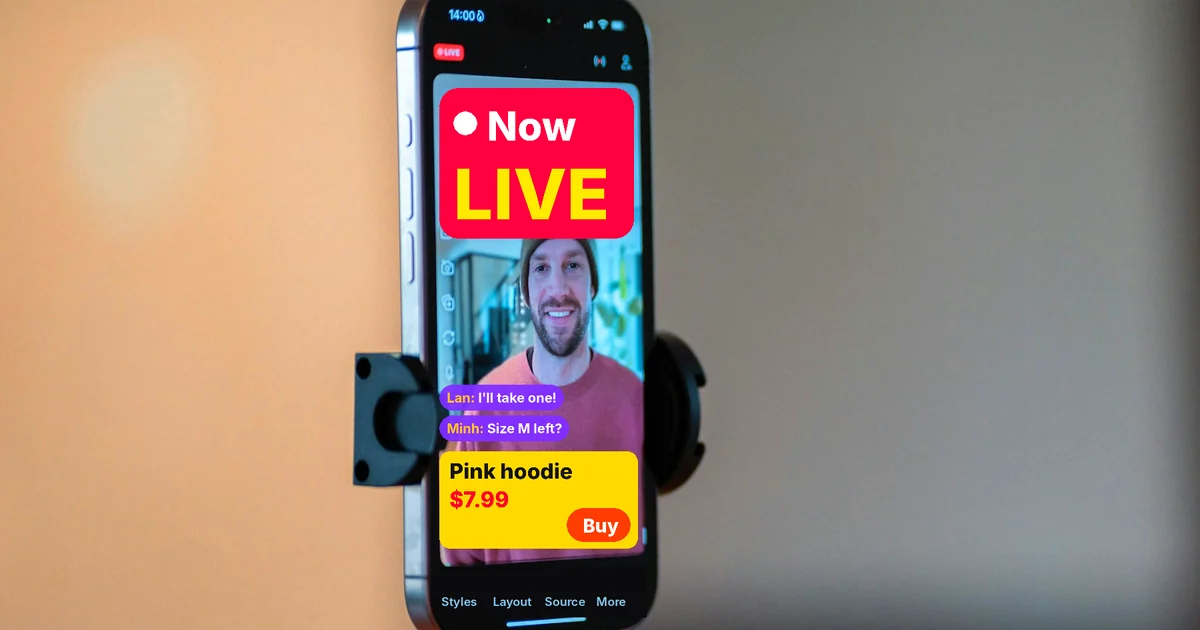
How to Bulk Add Logos and Badges to Shopee Product Photos
Learn how to bulk add store logos, watermarks, and promotional frame badges to Shopee product listings to discourage image theft and boost store recognition.


In this article (5)
How to Bulk Add Logos and Badges to Shopee Product Photos
Listing products without distinct visual branding makes it easy for listings to get lost among thousands of marketplace competitors. Adding a clean store logo or a cohesive promotional badge overlay provides immediate visual differentiation in search feeds while creating a professional storefront presence.
What Is a Product Photo Badge on Shopee and Why It Matters
A product photo badge on Shopee (a promotional frame overlay you design yourself) is a custom graphic layer placed around the perimeter or in a corner of your primary product photo.
Shopee's Vietnamese Seller Education documentation at Shopee Uni (published Mar 26, 2024, reviewed on Oct 22, 2026) describes the built-in Add Logo tool as a way to add a logo to product photos so buyers can recognize the shop more easily (translated from Vietnamese).
Applying consistent logos and frame badges offers three core benefits:
- Discourage Image Theft: Makes it harder for other sellers to take and reuse proprietary product photography.
- Cohesive Brand Identity: Creates a uniform, professional look across your storefront that builds buyer trust.
- Clear Promotional Highlighting: Immediately signals key buying incentives (such as Free Returns, Genuine Product, or Gift with Purchase) directly on thumbnail results. Note: Only show these claims if your shop actually offers them; a false claim misleads buyers.
Technical Specifications for Logos and Frame Badges
To prevent stretched, blurry, or occluded product listings, adhere to technical guidelines:
- Shopee Platform Specifications: According to Shopee Uni, the native "Add Logo" tool supports JPEG, JPG, and PNG files up to 800 x 800 pixels with a maximum file size of 300KB.
- Offline Batch Framing (Our Rule of Thumb): If you apply frames offline before uploading, use PNG files with transparency. Maintain a 1:1 square ratio with a minimum size of 500 x 500 pixels (1024 x 1024 pixels recommended for high-density screens). Keep borders within 5% to 8% of outer margins so the product remains unobstructed.
3 Steps to Bulk Apply Logos and Badge Overlays
Sellers can process images in bulk prior to uploading or utilize the built-in image tools within Shopee Seller Centre.
Step 1: Organize Raw Assets and Frame Templates
Group clean, high-resolution original product photos into a designated project folder. Prepare two template styles: a permanent branding overlay (containing only your logo and verified core promises) and a seasonal campaign overlay (featuring time-sensitive discounts or shipping perks).
Step 2: Bulk Overlay Application
For new listings, use batch image processing software on your computer to overlay the transparent PNG frame onto all product photos before uploading. This ensures the logo is baked into the file before upload across multi-channel inventory.
For active listings, navigate to Shopee Seller Centre > Shop Management > Shop Decoration > Media Space > Add Logo tool (menu names translated from the Vietnamese Seller Centre) to apply promotional overlays (note that according to Shopee Uni, this tool is currently tested with selected sellers).
Step 3: Mobile View Verification
After updating your catalogue, always open the Shopee mobile app to verify real-world presentation. Ensure that:
- Crucial product features and labels are not obscured by the border.
- Text elements within the badge remain legible on small smartphone displays.
- Search grid thumbnails load cleanly without distortion.
Critical Compliance Rules to Avoid Penalties
When designing and applying custom badges, keep these compliance rules in mind:
- Do Not Impersonate Official Badges: Never incorporate counterfeit "Shopee Mall", "Preferred", or official platform insignia unless your shop has been formally granted that status. Shopee Uni itself warns sellers not to misuse Shopee labels and logos (translated from Vietnamese). Misrepresenting seller tiers can violate marketplace policies and mislead shoppers.
- Keep External Contacts Off Images: Never include phone numbers, external website links, social media handles, or off-platform payment QR codes. Such details may violate marketplace listing policies; review current rules and standards in the Seller Centre before applying promotional overlays.
- Revert Frames Post-Campaign: Once a promotional event concludes, prompt removal of expired campaign banners prevents buyer disputes over outdated pricing and expired guarantees.
Adam Uses AI is not affiliated with Shopee. Shopee and related brand marks belong to their respective owners.
The complete guide for this topic: How to Create AI Product Photos for Your Online Store
More reading
 How to Remove the Background From Product Photos for Free
 AI Fashion Model Prompts: Put Your Product on a Model
 How to Take Product Photos With Your Phone, Then Fix Them With AI
 AI Product Photo Background: Put Products in New Scenes
 AI Food Photography Prompts for Restaurants: Ready Templates
 Bulk Add Text to Images: Names and Prices for Product Photos