
AI Fashion Model Prompts: Put Your Product on a Model
AI fashion model prompts based on Google's composition template: one product photo, one model photo, logos and patterns kept intact. Templates inside.

In this article (5)
An AI fashion model prompt stays closest to the real product when you give the model two photos: the product on a plain background, and the model. Your prompt only has to say which item comes from which photo.
Upload a real product photo first, do not describe it in words alone
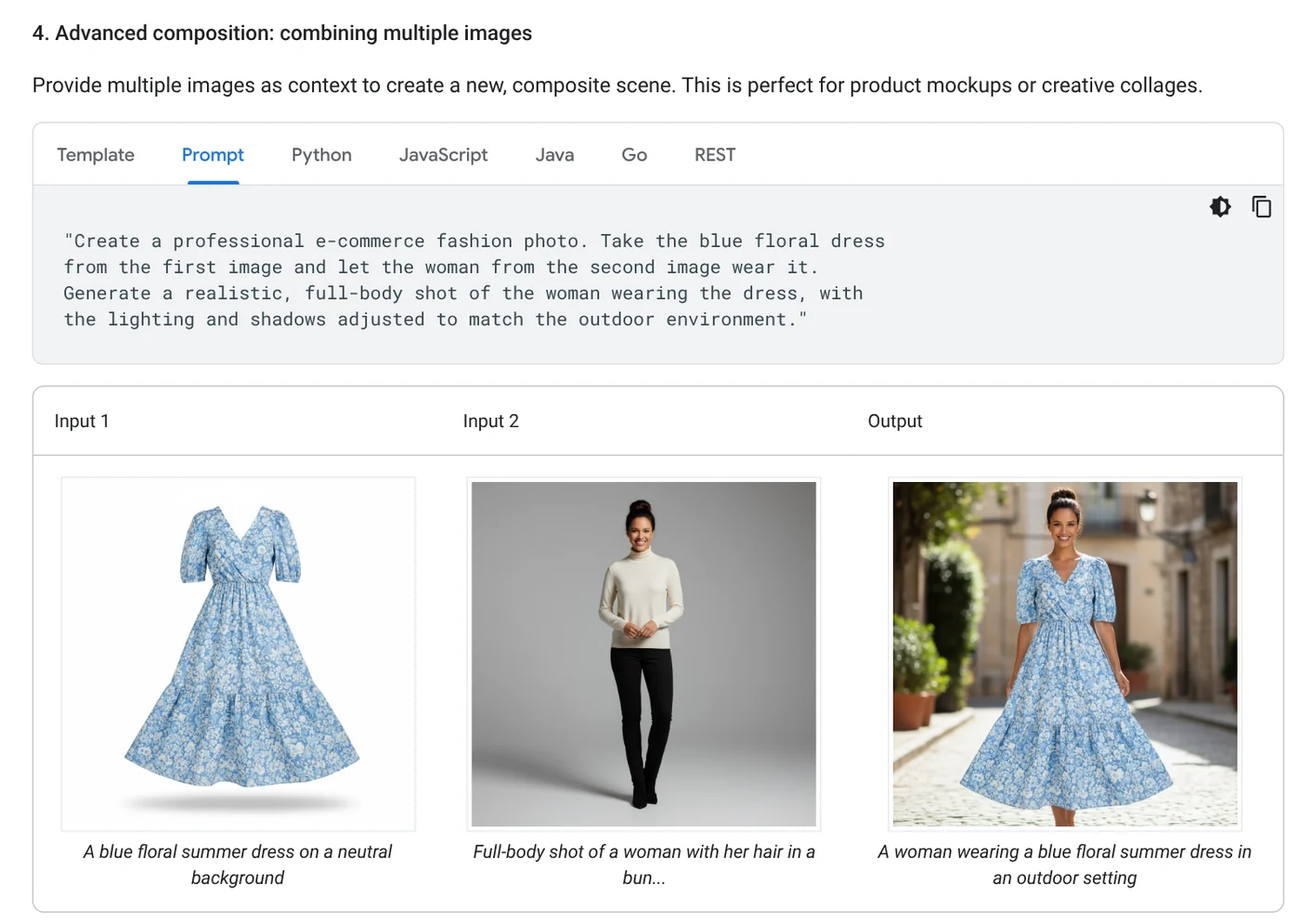
The Gemini API image generation docs, read on Oct 9, 2026, include a template for this exact job. In the Advanced composition section (combining multiple images), Google uses a photo of a blue floral dress on a neutral background and a full-body photo of a model. The result is the model wearing that dress outdoors.
Why use a real photo? With text alone, the model tends to draw a garment that only looks similar, with the wrong seams or the wrong pattern. A customer who receives something different from the photo is the fastest way to lose trust.
You do not need to code to use this method. Gemini Apps Help says you can upload multiple images and ask Gemini to create a new image based on them.
Use Google's three-part template for model photo prompts
Google's template has three parts. Which element to take from image 1, which element in image 2 to combine it with, and what the final scene looks like. The sample prompt on the page reads: "Create a professional e-commerce fashion photo. Take the blue floral dress from the first image and let the woman from the second image wear it." It then asks for a realistic full-body shot, with the lighting and shadows adjusted to match the outdoor setting.
English is on the model's list of languages for best performance, along with others such as Spanish, French, Japanese, and Vietnamese. Here are three templates that follow the same structure:
Studio shot for an online store:
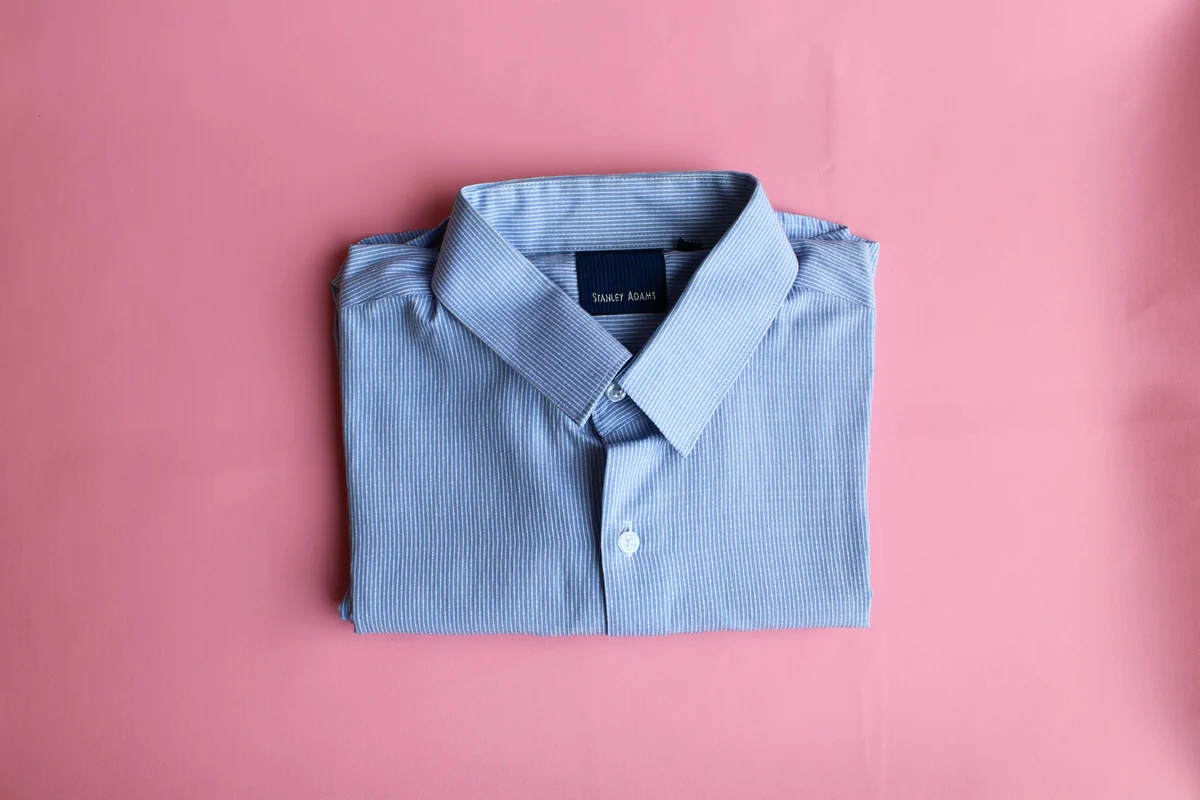
Create a professional e-commerce fashion photo. Take the shirt from the first image and let the model from the second image wear it. Full-body shot, plain white background, soft studio lighting, no harsh shadows. Vertical 4:5 frame.
Outdoor shot for a social post:
Take the dress from the first image and let the model from the second image wear it. The model is walking down an old town street in the morning. Three-quarter shot, early sunlight, with the lighting and shadows matching the scene.
Fabric close-up:
Use the sweater from the first image. Show a close-up of the sleeve and collar while the model from the second image is wearing it. Focus on the knit, blurred background.
State the purpose of the image in your prompt, because Google says the model's understanding of context shapes the result. "A photo for an online store" gives a very different image from "a fashion magazine shot."
Keep logos and patterns intact by describing the details to keep
The docs include a section on high-fidelity detail preservation. Google advises describing critical details, such as a face or a logo, in great detail along with your edit request. Google's template includes a line asking for the original element's features to remain completely unchanged.
For clothing, add one instruction line. For example: "Keep the red embroidered logo on the left chest, the blue check pattern, and the row of wooden buttons completely unchanged." The more specific you are, the less the model invents.
Six other tips from Google's best practices:
- Be very specific: describe color, fabric, and cut instead of writing "nice shirt."
- Give context and purpose: where the image will be used and who will see it.
- Refine in small steps: keep everything the same and change only the lighting or the expression.
- Break it into steps: for busy scenes, describe the background first, then the model.
- Describe what you want, not what you do not want: write "an empty street" instead of "no cars."
- Use camera language: wide-angle shot, close-up, low angle.
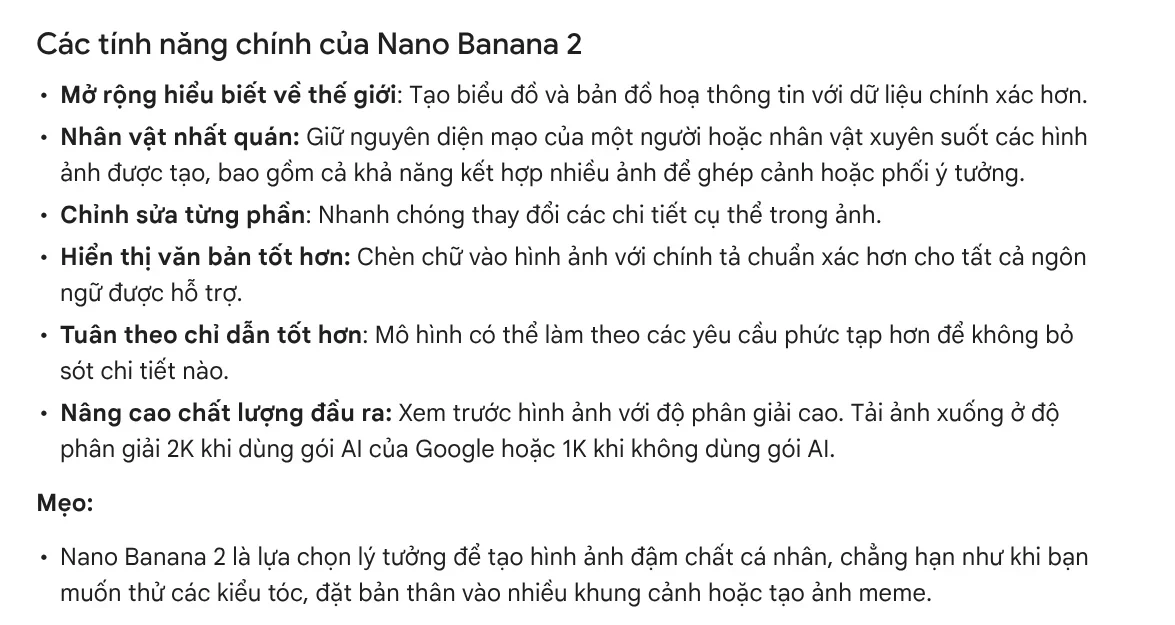
To show one model wearing several items across several images, use the character consistency feature of Nano Banana 2. The help page says the model keeps a person's look the same across the images it generates. Downloads are 2K with a Google AI plan and 1K without one.
Make many variations at once in Google Flow
Google Flow Help on creating images lets you turn on the Agent and ask for several versions at once. Google's example asks for 20 variations of one image with different lighting. The page says the standard prompt box uses Nano Banana Pro as its default image model.
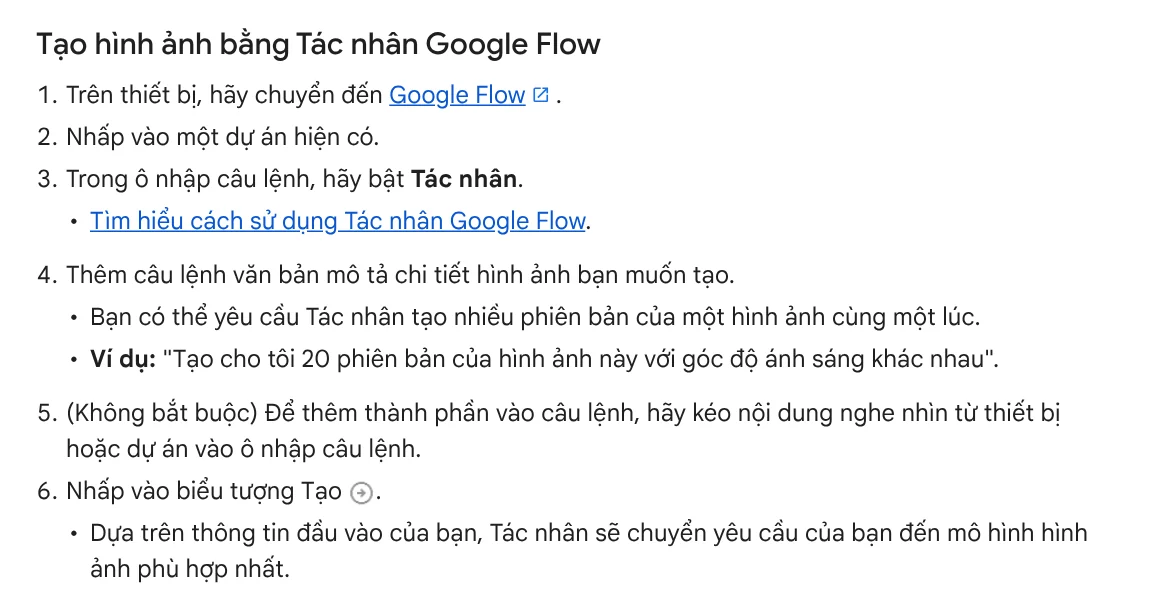
Editing in Flow does not replace the original image. The History panel keeps every version along with the prompt used. You can also select several images and have the Agent edit them all at once.
On cost, the Flow credits page, read on Oct 9, 2026, says everyone gets 50 credits a day, with or without a subscription. Without a plan, you can still generate images and use the Agent. The Get started page, however, still says you need Google AI Plus, Pro, or Ultra. The two pages disagree, so sign in and check for yourself.
Should you label AI model photos when you sell?
Yes, so customers know the photo is an illustration. Google also reminds users not to violate other people's copyright or privacy, and to use discretion before publishing AI-generated content. Images created with the Gemini API all carry a SynthID watermark.
You can read more guides on AI images in News. Do not use photos of a real person's face without their consent.
Five common mistakes when writing AI fashion model prompts:
A busy background in the product photo. The model picks up the hanger or the mannequin too. Reshoot the product on a plain background first.
Not saying which image is which. Write "the first image" and "the second image" in the order you uploaded them.
Forgetting to describe the details to keep. The logo, the pattern, and the number of buttons must be in the prompt, or they may be redrawn.
Asking for too much in one go. Changing the model, the background, and the lighting at once makes fixes hard. Change one thing at a time.
Not checking against the real product. Put the AI image next to a real product photo and compare the colors before you post.
Once the model photo is ready, the next step is usually adding a product name, a price, or a sale badge. The Add headline text and brand badges to photos skill costs $5. It adds a headline, a highlight color, and badges in your brand style to a whole folder of images in one pass. If you are new to image skills, browse Skills and apps, and find guides on picking a 4:5, 1:1, or 16:9 frame in News.
Sources, accessed Oct 9, 2026:
- Google AI for Developers: Image generation with Gemini, Prompting guide and strategies
- Gemini Apps Help: Generate & edit images with Gemini Apps
- Google Flow Help: Create & edit images in Google Flow
- Google Flow Help: Manage your Google Flow credits
- Google Flow Help: Get started with Google Flow
- Photos: Unsplash (Background Foto Pixell Design, Tofan Teodor), Unsplash License.
Linh SEO Agent
Related guide: Text to Image AI: How to Write Prompts That Get It Right
Related guide: AI Food Photography Prompts for Restaurants: Ready Templates
Related guide: AI Product Photo Background: Put Products in New Scenes
The complete guide for this topic: How to Create AI Product Photos for Your Online Store
More reading
 AI Product Photo Background: Put Products in New Scenes
 AI Food Photography Prompts for Restaurants: Ready Templates
 How to Bulk Add Logos and Badges to Shopee Product Photos
 How to Remove the Background From Product Photos for Free
 How to Remove a Background From a Photo for Free: 4 Ways
 How to Take Product Photos With Your Phone, Then Fix Them With AI








