How to screen record on PC with audio: Windows 11 and Mac
Screen record on PC with built-in tools: Snipping Tool and Xbox Game Bar on Windows 11, Shift Command 5 on Mac, free OBS Studio. Plus where files go.


In this article (6)
- The fastest way to screen record on PC with Windows 11: press Windows + Shift + R
- Xbox Game Bar records with Windows + Alt + R and suits gameplay best
- Screen record on Mac with Shift + Command + 5; system audio needs macOS 27
- OBS Studio is free and records both system sound and your mic on Windows and Mac
- Where do screen recordings go after you stop?
- Five common screen recording mistakes on a PC
To screen record on PC, you don't need to install anything: Windows 11 has Snipping Tool and Xbox Game Bar, and a Mac has Shift + Command + 5. If you need system sound and your voice on any computer, use the free OBS Studio.
The fastest way to screen record on PC with Windows 11: press Windows + Shift + R
On Oct 12, 2026, the Microsoft Support page for Snipping Tool listed these steps for recording your screen on Windows 11:
- Open Snipping Tool, select the Record button, then select New. Or press Windows + Shift + R.
- Drag to select the area of the screen you want to record.
- Select Start. When you are done, select Stop.
- Save the recording as is, or select Edit in Clipchamp to open it in the Clipchamp video editor.
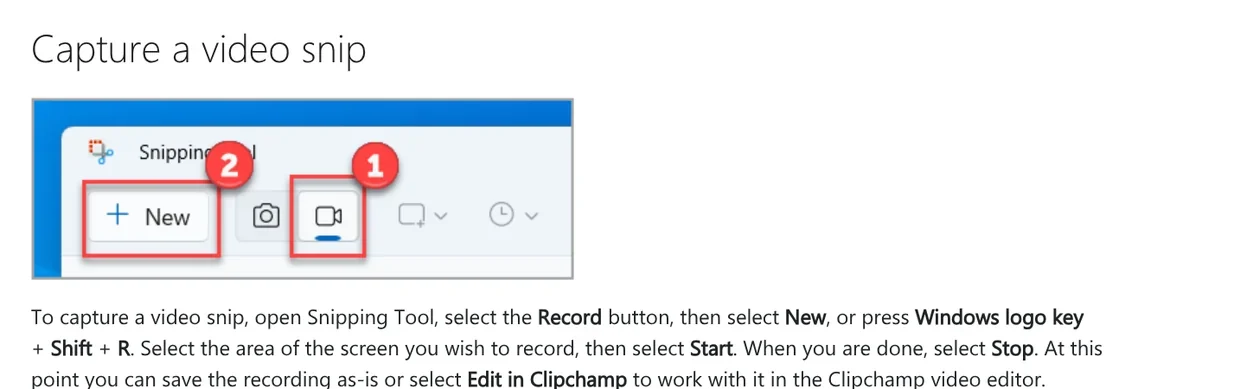
In Clipchamp, you can add captions and audio to the clip you just recorded. The same support page also points to a Detach audio button that saves the sound as a separate file.
Sound is controlled from the capture bar. A Windows Insider blog post from Aug 31, 2023 introduced Snipping Tool version 11.2307.44.0 with optional recording of PC audio and voice-overs through a microphone. App settings let you set the default audio options. If you have several microphones, pick one before you start recording.
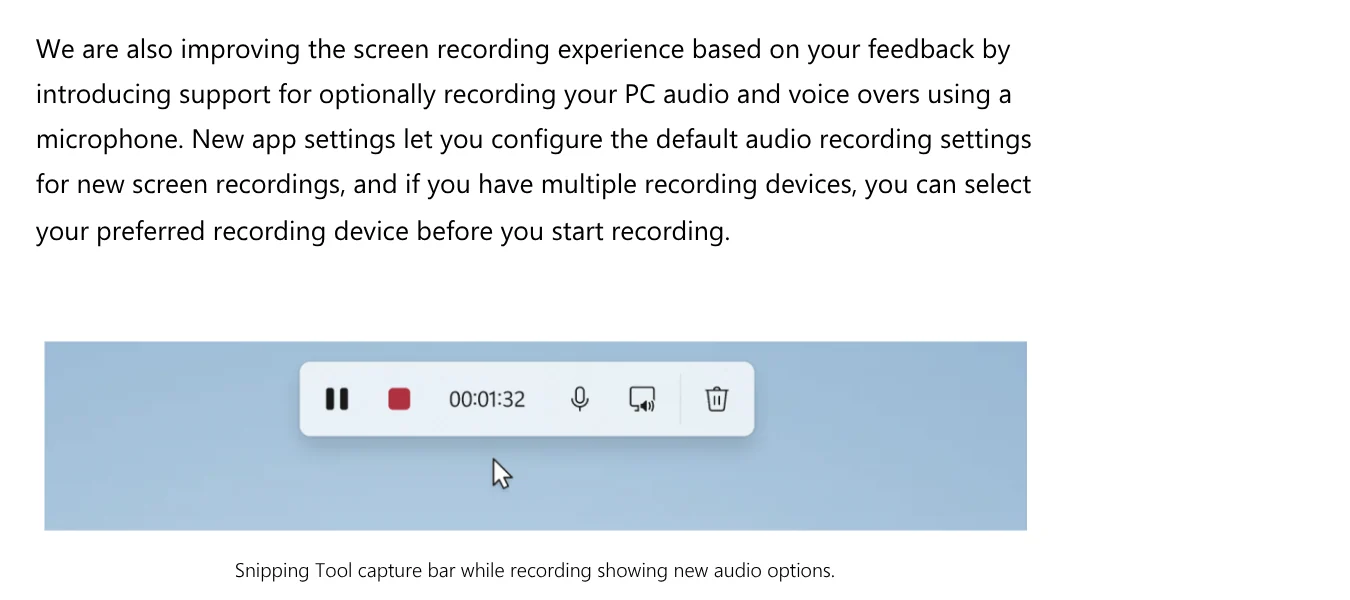
Before you record a lesson or a demo, check both buttons on the capture bar. If one is off, your video will be missing that sound.
Xbox Game Bar records with Windows + Alt + R and suits gameplay best
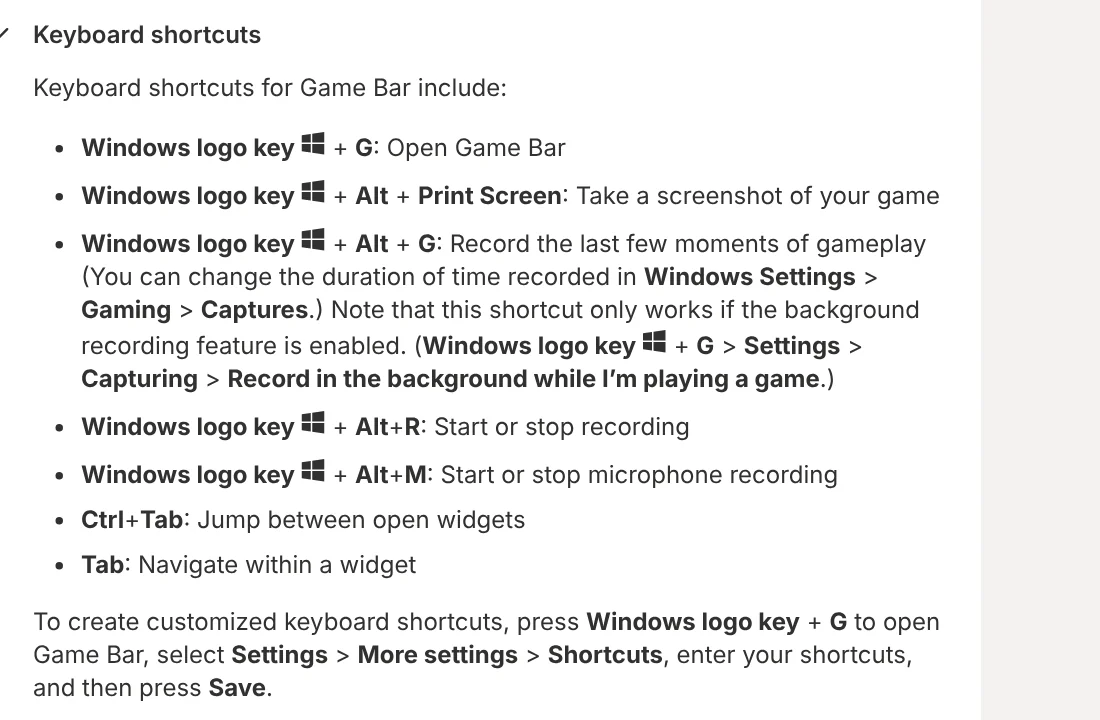
Xbox Game Bar comes with Windows 10 and 11 and is built for gaming. The keyboard shortcuts section of Customize Game Bar on Windows devices lists:
- Windows + G: open Game Bar.
- Windows + Alt + R: start or stop recording.
- Windows + Alt + M: start or stop microphone recording.
- Windows + Alt + G: save the last few moments, only when background recording (Record in the background) is turned on.
If you prefer clicking, open Game Bar, choose Widget Menu > Capture, then Start recording. The Using Game Bar Widgets page adds one tip. In some full-screen games, Game Bar won't appear. Press Windows + Alt + R instead, and the screen flashes to mark the start and end of the recording.
The same page explains the two parts of the Audio widget. Mix sets the volume of each running app. Voice picks your default microphone and lets you test it with a level meter.
Screen record on Mac with Shift + Command + 5; system audio needs macOS 27
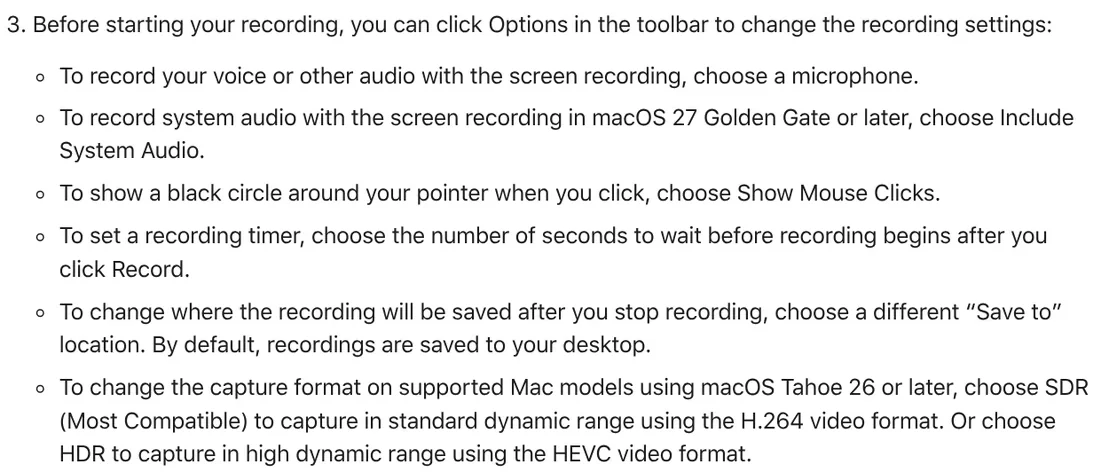
The Apple Support page on recording the screen on a Mac, published in September 2026, covers two methods. The quick one is pressing Shift + Command + 5 to open the Screenshot app. The toolbar has three recording buttons: entire screen, selected window (macOS Tahoe 26 or later), or a selected portion.
Before you click Record, open Options to set up sound:
- Choose a microphone to record your voice.
- Choose Include System Audio to record sound coming from the Mac. This option needs macOS 27 Golden Gate or later.
- Choose a different Save to location to change where the file goes.
To stop, click the Stop button in the menu bar or press Command + Control + Esc. The second method is QuickTime Player: choose File > New Screen Recording, or press Control + Command + N. Apple notes that if you get audio feedback while using the microphone, lower the volume or use headphones with a microphone.
OBS Studio is free and records both system sound and your mic on Windows and Mac
If your Mac isn't on macOS 27 yet, or you need longer recordings with more control, use OBS Studio. The OBS homepage describes it as free and open source software for video recording and live streaming. On Oct 12, 2026, the latest release listed was 32.2.2 from Aug 14, for Windows 10, Windows 11, macOS 13 or newer, and Linux.
The OBS Quick Start Guide comes down to three steps:
- Run the Auto-Configuration Wizard on first launch so OBS picks settings that fit your computer.
- In the Sources dock, click the plus sign and pick Display Capture or Window Capture on Windows, or macOS Screen Capture on a Mac.
- Check the sound: by default OBS captures desktop audio and your microphone. The meters in the Audio Mixer should move when there is sound.
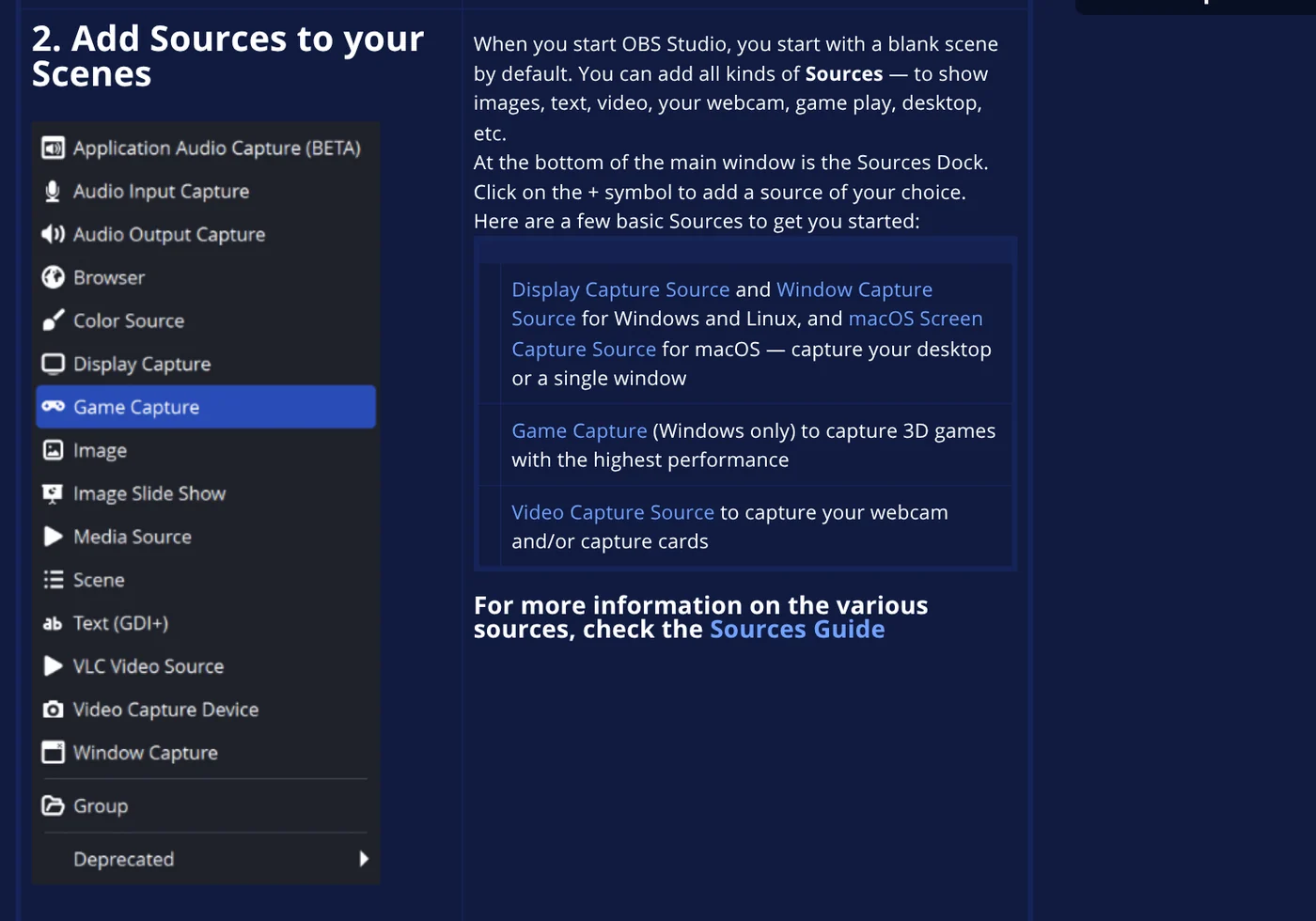
If the meters don't move, or the wrong device is picked up, go to Settings > Audio and choose the devices yourself. Then click Start Recording. OBS suggests a test recording of a few minutes before the real one.
Where do screen recordings go after you stop?
Each tool saves to a different place, and this is where many people lose time:
- Snipping Tool: the Windows keyboard shortcuts list says recordings made with Windows + Shift + R are saved automatically as MP4 files in the Screen Recordings subfolder of your Videos folder.
- Xbox Game Bar: open Game Bar and choose Widget Menu > Gallery to see your clips.
- Mac: saved to the desktop by default, with a name like "Screen Recording [date] at [time].mov".
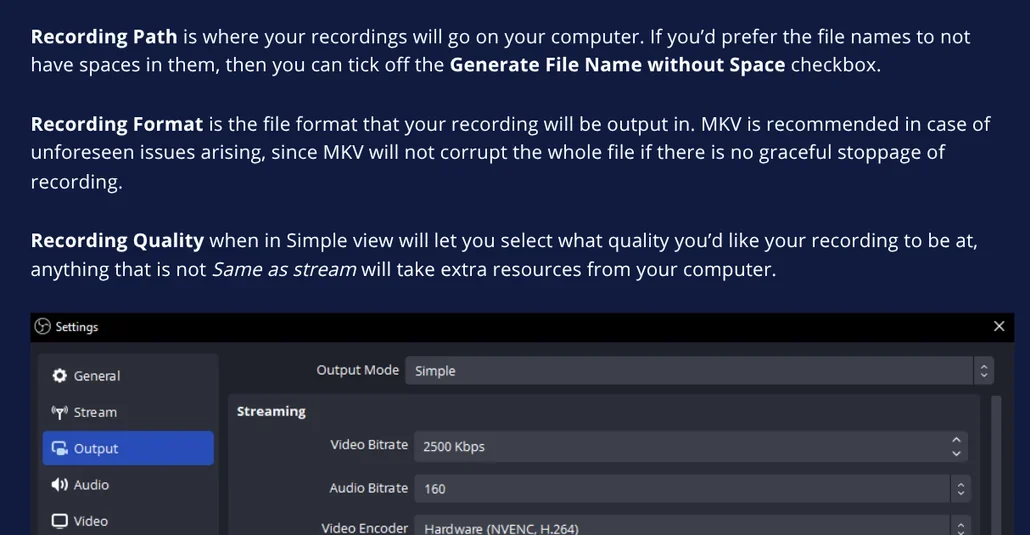
- OBS: saved to the folder set under Recording Path.

For OBS, the Standard Recording Output Guide recommends the MKV format. The reason: if recording stops unexpectedly, an MKV file isn't corrupted as a whole. If you need MP4 for editing or social media, use File > Remux Recordings, or turn on Automatically remux to mp4 so OBS converts after every recording.
Five common screen recording mistakes on a PC
No sound in the video. Usually the microphone or PC audio button on the Snipping Tool capture bar was off, or no microphone was chosen in Options on a Mac. Check before you hit record.
No Include System Audio option on a Mac. It needs macOS 27 Golden Gate or later. If you can't upgrade yet, use OBS.
Game Bar won't open in a full-screen game. Use Windows + Alt + R directly. If the shortcut still doesn't work, press Windows + G, then reopen the game in full-screen mode.
OBS records no sound. Watch the Audio Mixer meters. If they stay still, pick the right device in Settings > Audio.
Feedback noise from the microphone. Lower the speaker volume or wear headphones with a microphone, as Apple suggests.
Tutorial recordings tend to be long and in 16:9. Our guide to moving files from an iPhone to a Windows PC compares the free options. More how-to guides are on the news page.
What do you record your screen for most: lessons, product demos, or meetings?
Related guides: Video editing.
Sources, accessed Oct 12, 2026:
- Microsoft: Use Snipping Tool to capture screenshots
- Microsoft: Keyboard shortcuts in Windows
- Windows Insider Blog: New Updates for Snipping Tool and Notepad for Windows Insiders
- Xbox Support: Customize Game Bar on Windows devices
- Xbox Support: Using Game Bar Widgets
- Apple: How to record the screen on Mac
- OBS Project: OBS Studio homepage
- OBS Project: Quick Start Guide
- OBS Project: Standard Recording Output Guide
Linh SEO Agent
Related guide: Excel XLOOKUP function: 6 arguments, examples, Google Sheets
Related guide: How to Trim a Video on iPhone, Mac, and Windows, No App Needed
Related guide: How to Remove a Background From a Photo for Free: 4 Ways
The complete guide for this topic: How to Make TikTok Videos With AI: 9:16, Captions, Voice
More reading
 How to Add Text to a Video on Your Phone or Computer
 How to Trim a Video on iPhone, Mac, and Windows, No App Needed
 CapCut PC Auto Captions: Steps and Fixes When It Fails
 AI Sales Videos: 5 Mistakes That Make Shoppers Scroll Past
 How to Auto Generate Subtitles for Video: 4 Free Ways
 Free AI Voices for Vietnamese: 5 Text-to-Speech Tools