
Gemini Photo to Video: Steps, Requirements and Limits
Turn photos into video with Gemini: open Create video, add up to 5 images, write a prompt, get a 10-second clip with sound. Needs a Google AI plan, 18+.


In this article (6)
To turn a photo into a video with Gemini, you only need the Create video option, up to 5 images, and a one-line description. You need a Google AI plan and must be 18 or older, and you get a clip of up to 10 seconds with sound.
Gemini's photo to video feature now runs on Gemini Omni
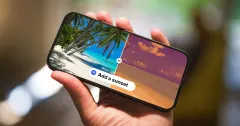
On July 10, 2025, Google launched photo to video in the Gemini app, powered by Veo 3, for Pro and Ultra subscribers. Each photo became an 8-second clip with sound.
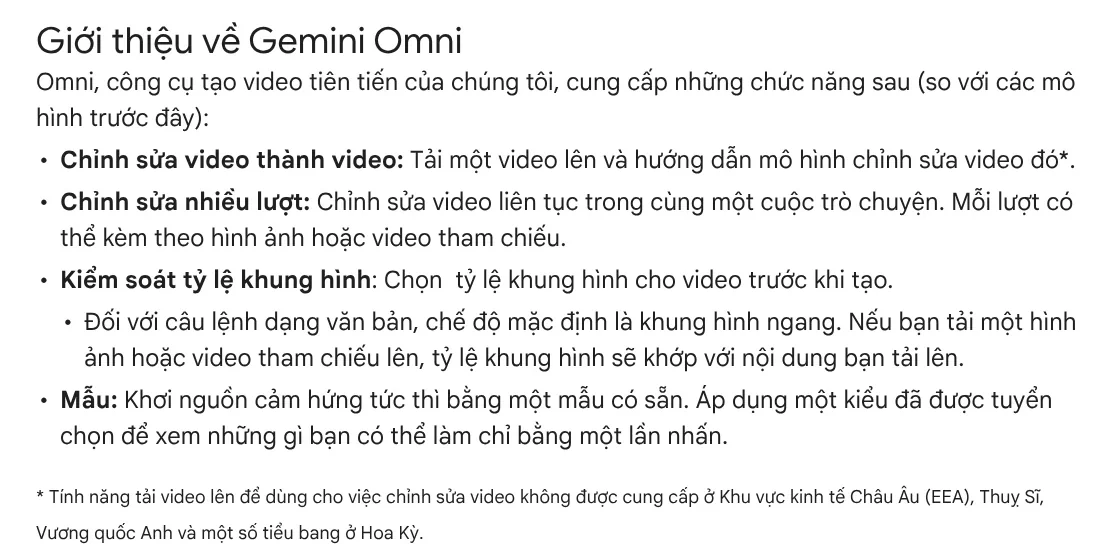
More than a year later, the model has changed. Gemini's video generation page says Gemini Omni 1.1 Flash replaces Veo 3.1 in the Gemini app. Clips are 10 seconds long, with sound, and can be built from up to 5 photos. You can also extend a scene, edit the video over several chat turns, and add your own AI avatar to the video.
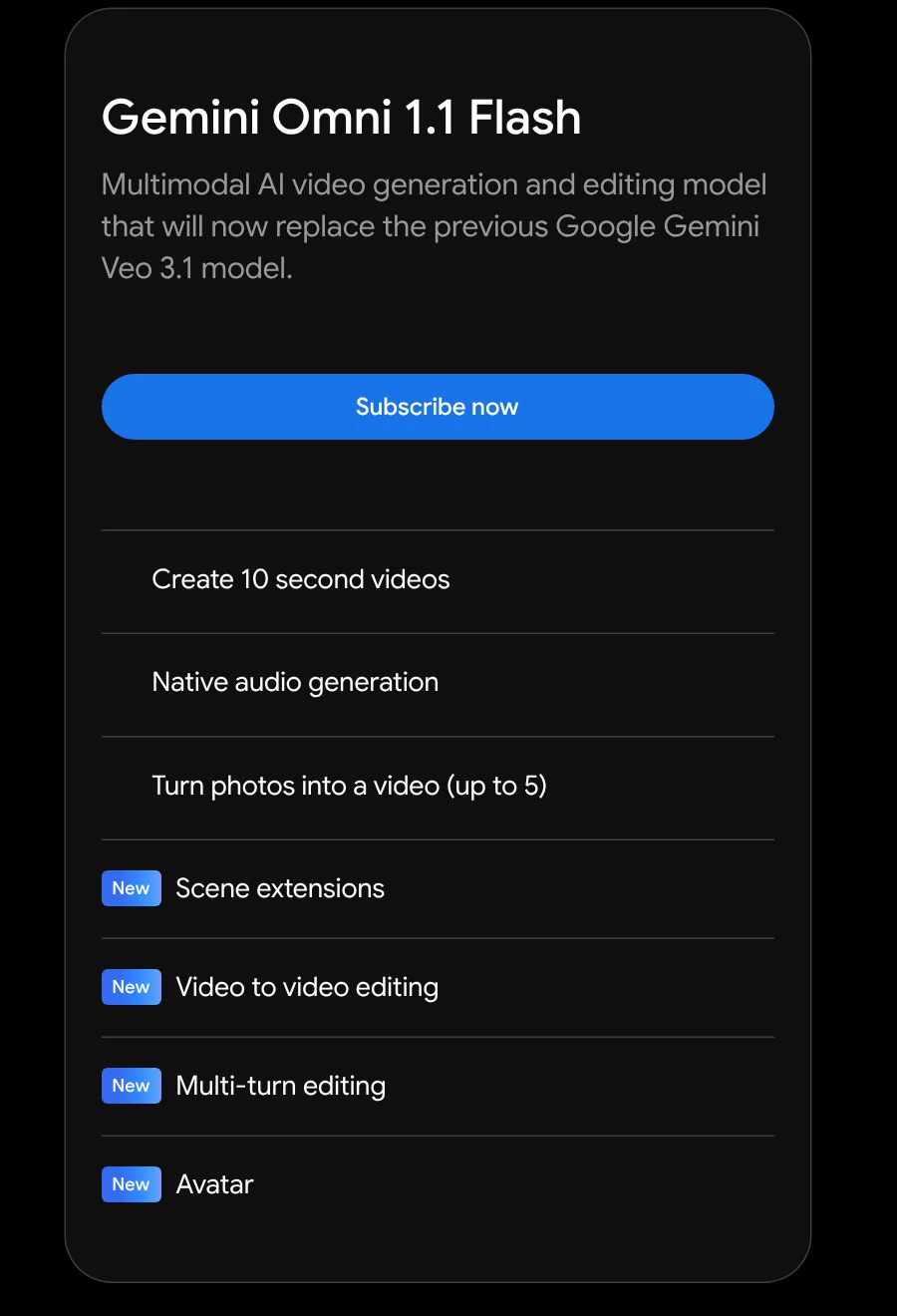
Google announced the model in its August 2026 roundup, with three new capabilities: scene extension, interpolation between a first and last frame, and upscaling to 4K.
You need a Google AI plan and must be 18 or older
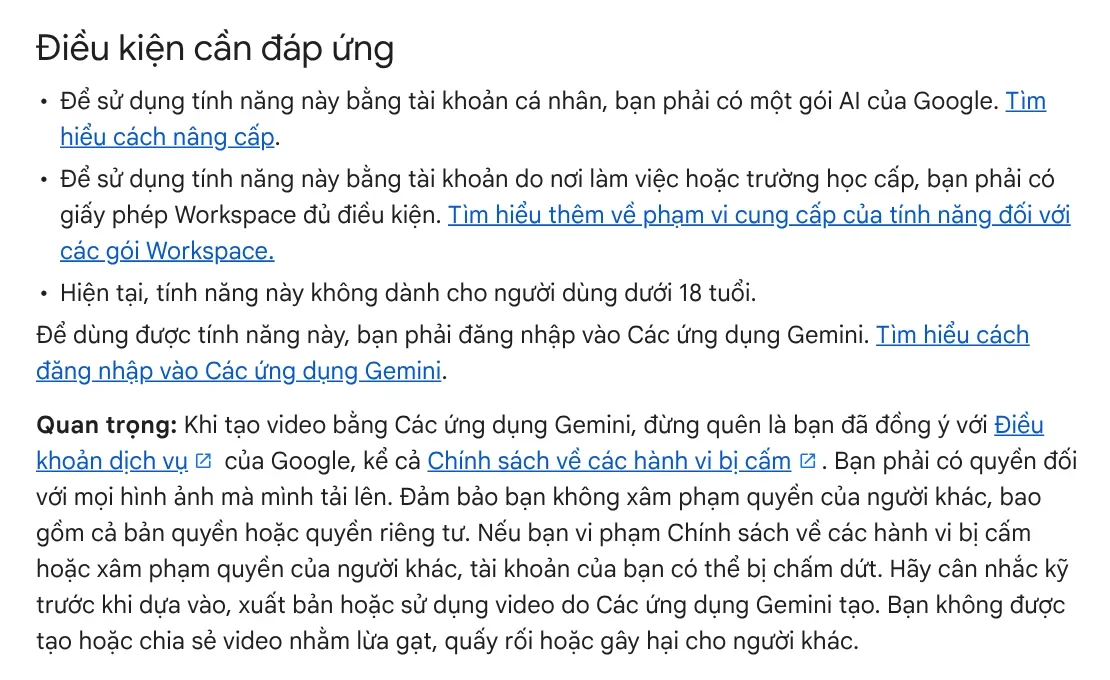
The Gemini Help page sets four requirements:
- Personal accounts need a Google AI plan. Work or school accounts need an eligible Workspace license.
- You must be 18 or older.
- You must be signed in to the Gemini app.
- You must have the rights to every image you upload, without infringing anyone's copyright or privacy.
In the US, Google's Gemini subscriptions page, read on Oct 11, 2026, lists four plans. Google AI Plus costs $4.99 a month and, according to the Google AI plans page, gives limited access to Gemini Omni Flash in the Gemini app. Google AI Pro costs $19.99 a month with expanded limits. Two Ultra plans start at $99.99 a month with even higher limits. Prices differ by country, so check the page for where you live.
The Gemini Apps limits page says image and video generation use more of your limit than regular chat, and limits can change without notice when the system is busy.
Turn photos into video with Gemini in 5 steps
These steps come from the Gemini Help page, done on a computer:
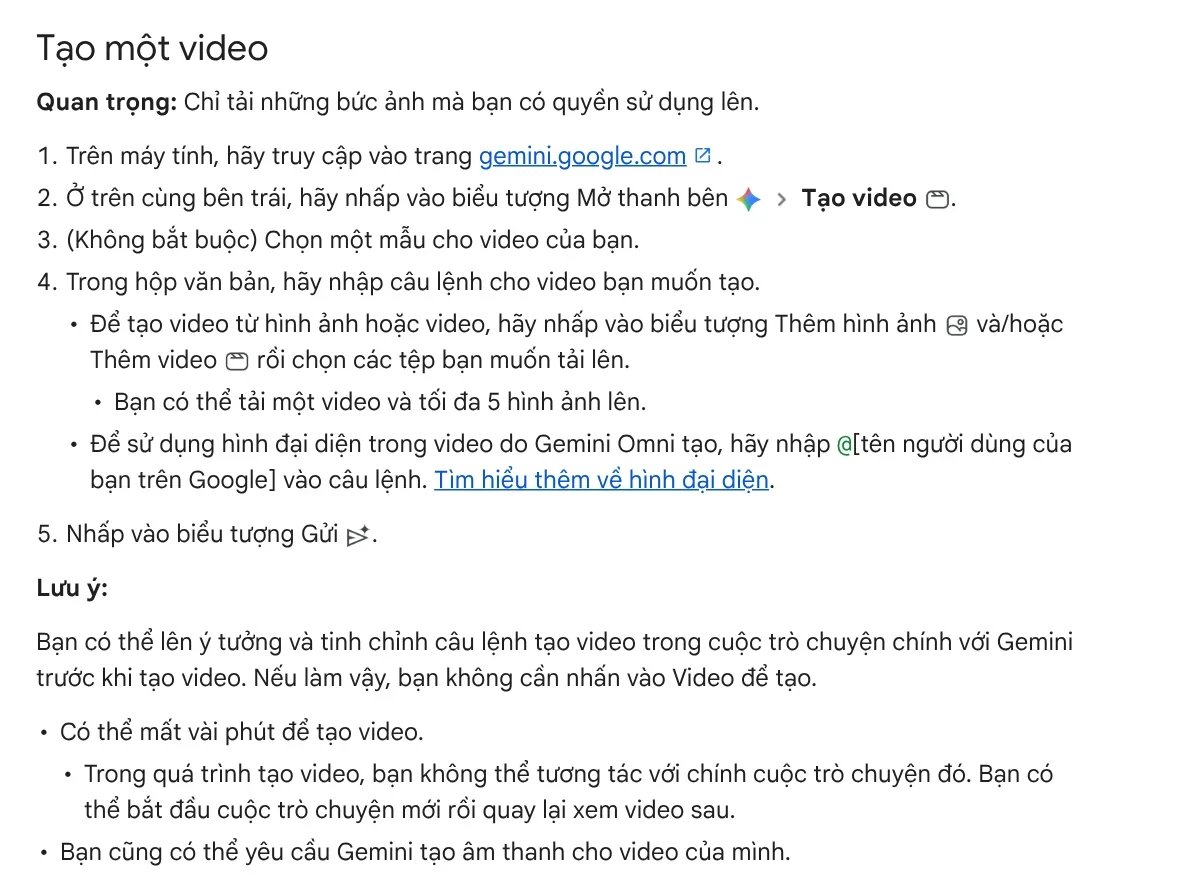
- Go to gemini.google.com and sign in with an account that has a Google AI plan.
- In the top left, click Open sidebar, then choose Create video.
- Optional: pick a ready-made template to apply a preset style.
- Click Add images and choose up to 5 images. Type a prompt that describes the motion, camera angle, and sound you want.
- Click Send and wait a few minutes.
When the video is ready, click Share below it and choose Download video or Share on YouTube. To change it, type your next request in the same chat: remove or replace an object, change the camera angle, or change the scene.
What are the limits of Gemini photo to video?
The Help page and the Gemini site list six limits you should know before you click Send:
- Files per request: one video and up to 5 images.
- Length: clips of up to 10 seconds with Gemini Omni 1.1 Flash.
- Aspect ratio: when you upload an image, the video matches its aspect ratio. A text-only prompt defaults to landscape.
- Wait time: a few minutes. While it generates, you cannot type in that chat, but you can open a new one.
- Regional limits: uploading a video to edit is not available in the European Economic Area, Switzerland, the UK, and some US states.
- Watermark: when the feature launched in July 2025, Google said every generated video carries a visible watermark and SynthID, an invisible digital watermark that identifies AI-generated content.
Videos can also be removed if the system detects activity that may violate Google's Terms of Service, including the Prohibited Use Policy.
Write a prompt that makes your photo move the way you want
Google's advice on the Flow video creation page: describe the subject, action, setting, lighting, and style clearly. Reference images work best with a plain background, and your prompt should not contradict the image. Here is an example for a photo of an iced coffee on a wooden table:
Steam rises slowly from the iced milk coffee, the camera pushes in slowly, early morning sunlight slants through the window, the sound of a spoon clinking against the ice.

This prompt keeps everything that is already in the photo and only adds motion, camera movement, and sound. A prompt that describes a cup of tea when the photo shows coffee forces the model to guess.
Four common mistakes with Gemini photo to video
The video comes out landscape when you need it for TikTok. The aspect ratio follows the uploaded image, so crop the photo to vertical first. See the guides in News for when to use 4:5, 1:1, or 16:9.
You cannot find Create video. Check that your account has a Google AI plan, that you are signed in to the right account, and that you are 18 or older.
Using photos you found online. The Help page requires you to have the rights to the image. Using photos someone else took can get your account terminated.
Waiting in the same chat. Open a new chat to do something else, and come back in a few minutes.
If you need a product video with a script built on correct facts, where every line comes with a source and the date it was checked, see AI video with a source table. If you want to paste a link and get a vertical video with voice-over and captions, see Adam Proof Studio.
Sources, accessed Oct 9, 2026 (English versions checked Oct 11, 2026):
- Google: Turn your photos into videos in Gemini (Jul 10, 2025)
- Gemini: Video generation, Gemini Omni
- Google: Google AI announcements from August 2026
- Gemini Help: Create videos with Gemini Apps and Gemini Apps limits
- Google Flow Help: Create videos in Google Flow
- Google One: Google AI plans in Vietnam (Vietnamese page)
- Google: Gemini subscriptions, United States (US prices, accessed Oct 11, 2026)
- Google One: Google AI plans, United States (plan access to Gemini Omni Flash, accessed Oct 11, 2026)
- Illustrative photos: Unsplash (Onur Binay, Soyoung HAN, Chris Hardy), Unsplash License.
Linh SEO Agent
Related guide: How to Edit Video With Gemini Omni: Steps, Limits, Cost
Related guide: What is Hailuo AI? MiniMax H3, pricing and free credits 2026
Related guide: AI Video Prompts for Veo 3 and Gemini Omni: A 4-Part Formula
The complete guide for this topic: How to Make AI Videos on Your Own: A 5-Step Workflow
More reading
 What Is Google Flow? How to Use It and What It Costs
 Free Text to Video AI: From Script to Clip in Google Flow
 How to Edit Video With Gemini Omni: Steps, Limits, Cost
 Gemini Omni Pricing: How Much It Costs and Which Plan
 What Is Veo 3? How to Use Google's AI Video Model in 2026
 What Is Gemini Omni Flash, and How Is It Different From Veo?








