
How to Trim a Video on iPhone, Mac, and Windows, No App Needed
Trim a video with tools you already have: Photos on iPhone, QuickTime on Mac, Clipchamp on Windows or in a browser. Plus 4 common trimming mistakes.


In this article (5)
You don't need extra software to trim a video. On iPhone, use the Photos app. On Mac, use QuickTime Player. On Windows, use Clipchamp. All three work the same way: drag the two ends of the timeline, then save.
On iPhone, trim the video in Photos and save it as a new clip
Apple's iPhone User Guide, updated for iOS 27, still trims videos right in the Photos app. According to Apple Support, the steps are:
- Open the Photos app and pick the video you want to trim.
- Tap the edit button (three horizontal sliders).
- Drag either end of the frame viewer below the video to set the start and stop times.
- Tap Done.
- Tap Save Video to keep only the trimmed version, or Save Video as New Clip to keep both versions.
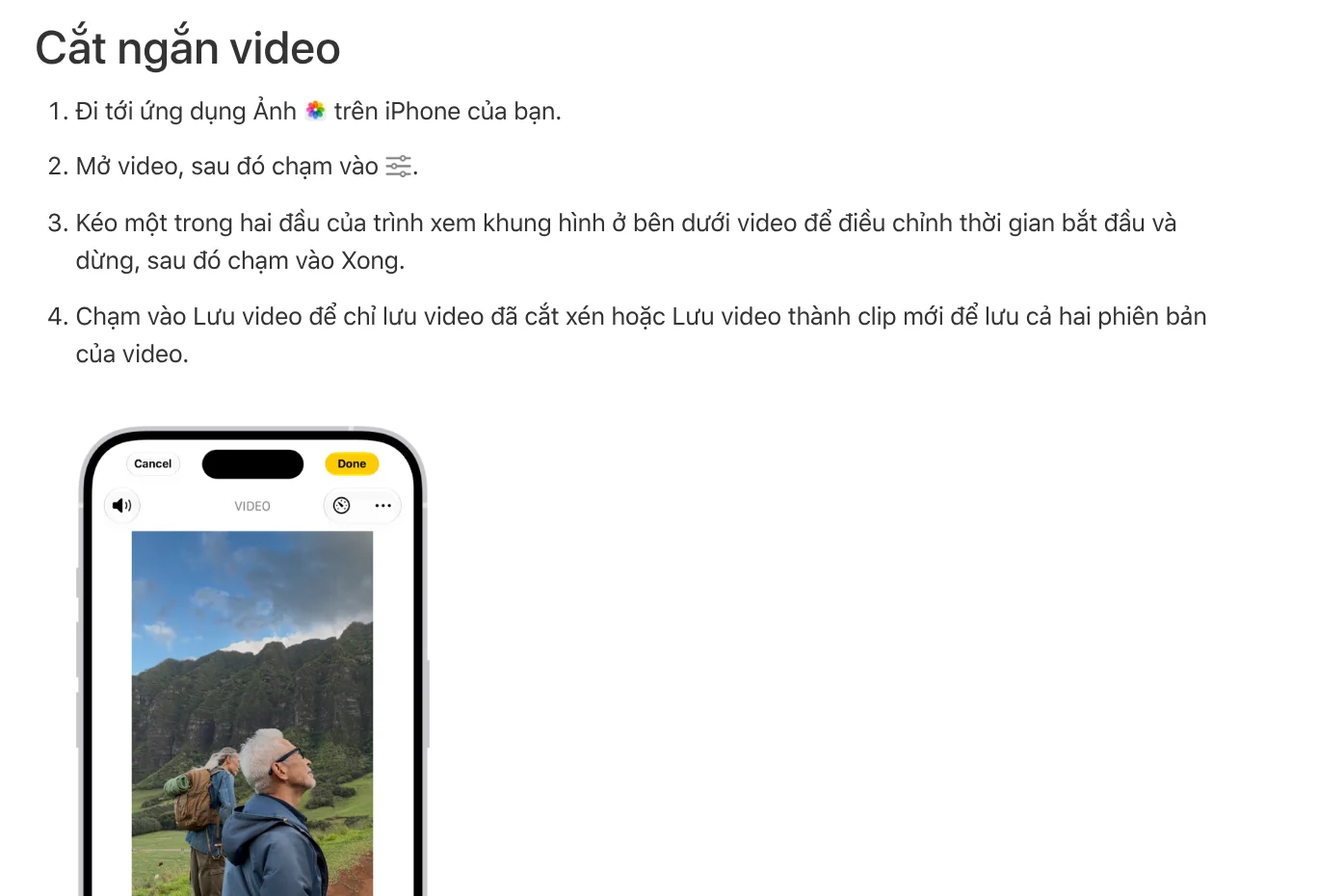
If you tap Save Video and change your mind, open the video again, tap the edit button, and tap Revert to go back to the original. Apple notes that a video saved as a new clip can't be reverted, because the original stays as a separate file in your library.
The same screen also lets you change the playback speed and the slow motion section of a Slo-mo video. On iPhone 16 or later, for videos recorded with Spatial Audio, Audio Mix reduces background noise or voices from people outside the frame.
On Mac, QuickTime Player trims a video with one command
Every Mac comes with QuickTime Player. The QuickTime Player guide for macOS Tahoe 26 lists three steps:
- Open the video in QuickTime Player and choose Edit > Trim.
- Drag the two yellow handles in the trimming bar. Anything outside the yellow handles gets removed.
- Click Trim.

A tip from Apple: click and hold a handle to see individual frames, so you can cut right where the speaker finishes a sentence. If you split the video into clips, choose View > Show Clips, double-click the clip you want to trim, and do the same.
On Windows and in a browser, free Clipchamp exports up to 1080p
On Windows, you have Clipchamp, Microsoft's video editor. According to the Clipchamp plans page, you can use it with a personal Microsoft account at app.clipchamp.com or in the Clipchamp app for Windows. The free plan exports videos without a watermark, up to 1080p.
Because it runs in a browser, Clipchamp is also a way to trim a video online when you're on someone else's computer. Here is how to trim, based on Microsoft Support:
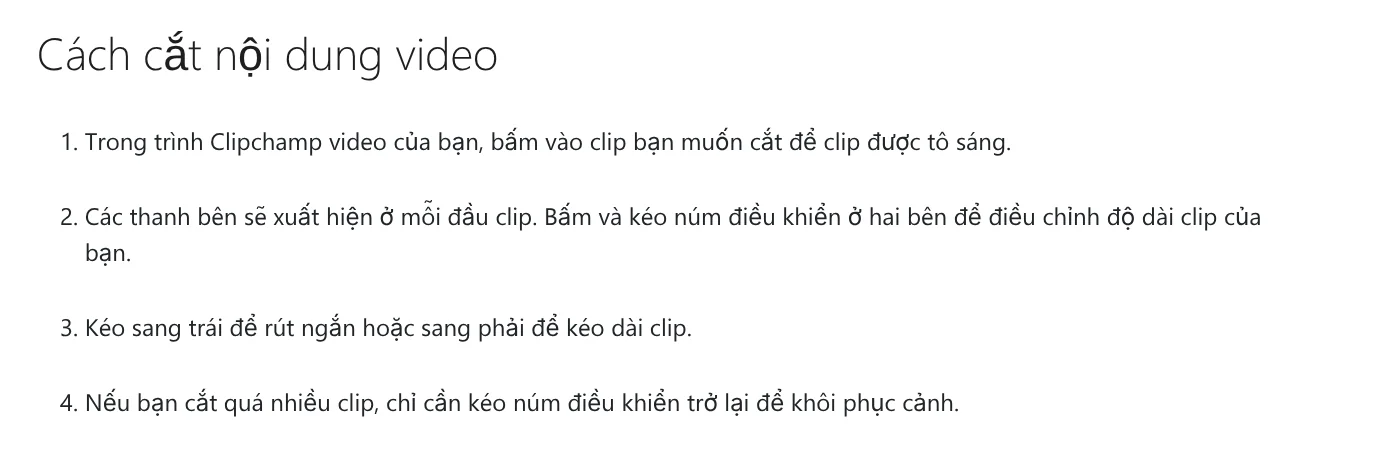
- In the Clipchamp editor, click the clip on the timeline so it's highlighted.
- Drag the handles on either end of the clip. Drag left to shorten it.
- If you trim too much, drag the handle back and the footage comes back.
To remove a section in the middle, split the clip instead of trimming it: split at two points, then delete the part in between. Microsoft draws a clear line here. Trimming shortens a clip's duration, while cropping only removes black bars or unwanted edges from the frame.
Which resolution should you export your video in?
The Clipchamp export guide suggests 480p for drafts, 720p for social media, and 1080p for video streaming platforms and presentations. According to the Clipchamp plans page, 4K export is a premium feature for personal accounts, available through qualifying Microsoft 365 subscriptions.
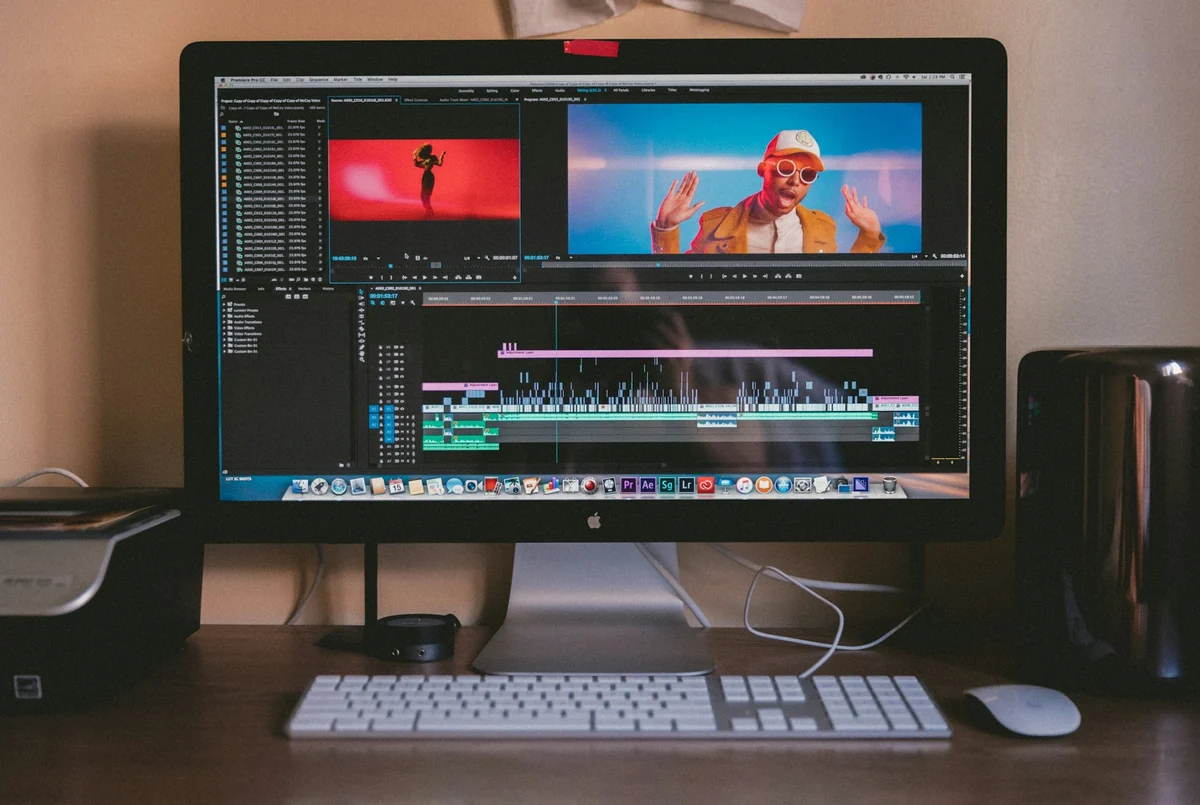
If your trimmed clip is 15 seconds or less, Clipchamp can also export it as a GIF. Finished videos export as MP4 files and save to your Downloads folder.
Videos for TikTok, Reels, or Shorts should be vertical from the start. A guide on when to use the 4:5, 1:1, and 16:9 aspect ratios is in News, so read it before you export.
Four common mistakes when you trim a video
Tapping Save Video, then wanting the cut part back. On iPhone, the Revert button is still there. But if you already shared the file or copied it somewhere else, that copy is the trimmed one. Next time, choose Save Video as New Clip to be safe.
Cutting off the last word of a sentence. Dragging the timeline fast can clip the dialogue. On Mac, click and hold a handle to see individual frames. In Clipchamp, click the plus button at the right end of the timeline to zoom in.
Mixing up trimming and cropping. To make a video shorter, trim it. Cropping only changes the frame, and the length stays the same.
Using a premium effect on the free Clipchamp plan. You'll see diamond-shaped symbols next to the export options. Remove that effect and you can export as usual, or upgrade your plan.
Shot the video on iPhone but want to trim it on a Windows PC? AdamDrop sends photos, videos, and files from iPhone to a Windows PC over Wi-Fi with a QR code, with no cable, no account, and no server. Your video keeps its original quality and file name, with no compression.
If you need to cut a long video into several short clips to post over time, the skill Cut long videos into shorts is still in development, and the early version is free before launch. For a ready-made vertical video from a link, see Adam Proof Studio.
Sources, accessed Oct 9, 2026:
- Apple: Trim video length, adjust speed, and edit audio on iPhone
- Apple: Trim a movie or clip in QuickTime Player on Mac
- Microsoft: How to trim video, images, or audio assets in Clipchamp
- Microsoft: Clipchamp paid plans
- Microsoft: Exporting and saving a video in Clipchamp
- Photos: Unsplash (Jakob Owens, Vitaly Gariev), Unsplash License.
Linh SEO Agent
Related guide: How to Add Text to a Video on Your Phone or Computer
Related guide: How to Add Text to a Photo on iPhone Without an App
Related guide: How to screen record on PC with audio: Windows 11 and Mac
The complete guide for this topic: How to Make TikTok Videos With AI: 9:16, Captions, Voice
More reading
 How to Add Text to a Video on Your Phone or Computer
 How to screen record on PC with audio: Windows 11 and Mac
 How to Auto Generate Subtitles for Video: 4 Free Ways
 AI Sales Videos: 5 Mistakes That Make Shoppers Scroll Past
 AI Dubbing for Videos: Steps and Common Mistakes
 Free AI Voices for Vietnamese: 5 Text-to-Speech Tools








