
How to Add Text to a Photo on iPhone Without an App
How to add text to a photo on iPhone with Markup in the Photos app: steps to add text, duplicate to keep the original, add a dark shape behind text.


In this article (6)
- The Photos app on iOS 27 already has the tools to add text to a photo
- How to add text to a photo on iPhone: six actions in the text box
- Duplicate the photo before you add text, so you always keep the original
- Put a dark, semi-transparent shape under the text so it stands out on any background
- Why does the text disappear or look different on another device?
- Daily product photos need a fixed template
The fastest way to add text to a photo on iPhone is the Markup tool built into the Photos app. Open the photo, go into Edit, choose Markup, then add text.
The Photos app on iOS 27 already has the tools to add text to a photo
Apple's iPhone User Guide for iOS 27 has its own section on editing photos and videos, and it includes a part on adding stickers and text. Because the tool lives right inside the Photos app, you do not need to download a text app from the App Store.
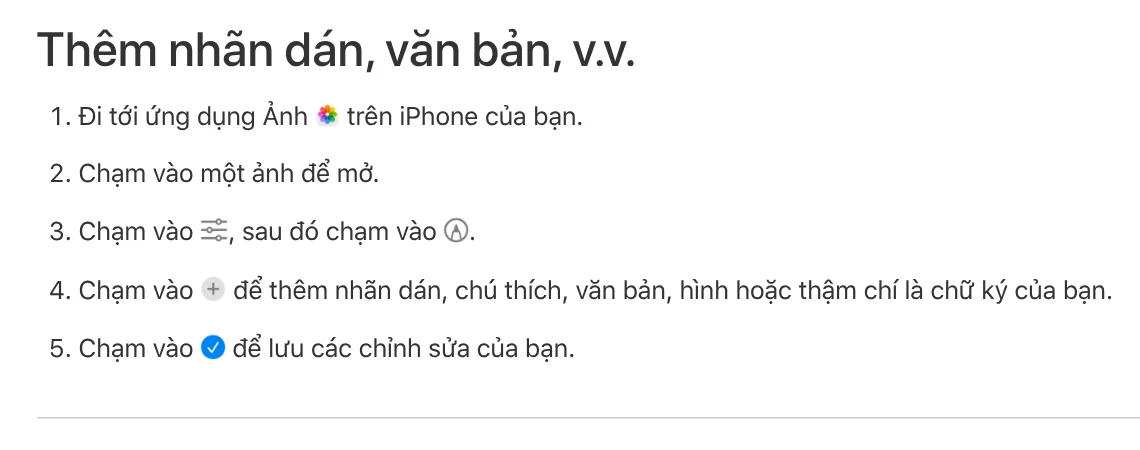
Here is how to open the tool:
- Open the Photos app and tap the photo you want to add text to.
- Tap the Edit button (the slider icon), then tap the Markup button (a pen tip in a circle).
- Tap the plus button to add stickers, captions, text, shapes, or a signature.
- Tap the blue checkmark to save.
How to add text to a photo on iPhone: six actions in the text box
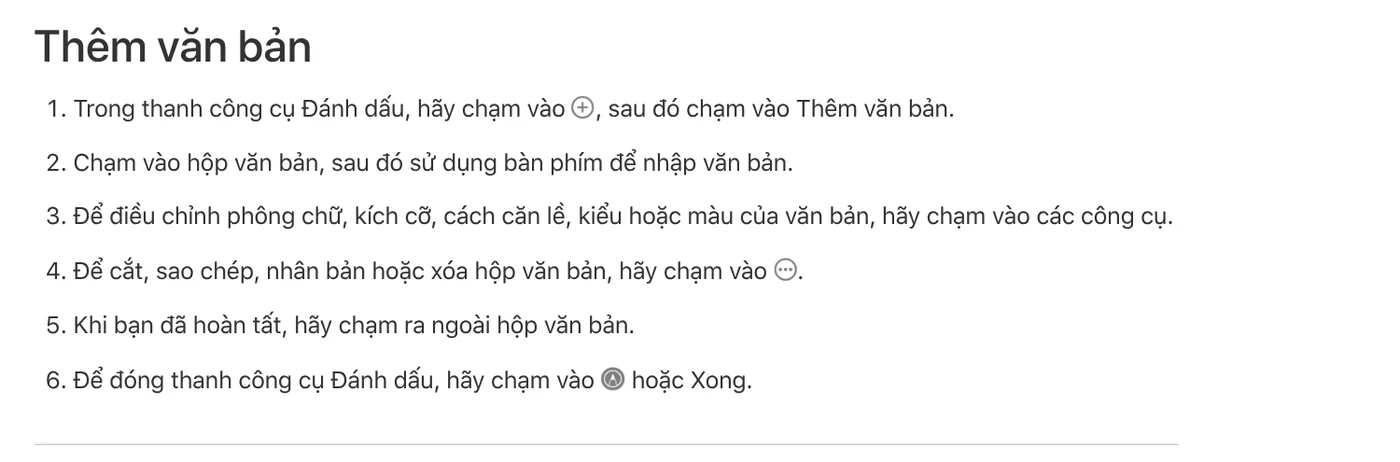
Once the Markup toolbar is open, the rest is working with the text box. Apple's page Add text, shapes, stickers, and more with Markup lists these actions:
- Tap the plus button, then choose Add Text.
- Tap the text box, then type with the keyboard.
- Use the tools below to change the font, size, justification, style, or color.
- Tap the three-dot button next to the box to cut, copy, duplicate, or delete the text box.
- Tap outside the box when you finish typing.
- Tap Done to close the Markup toolbar.
Duplicating a text box is handy when you need two lines with the same font and color. Style the first line, duplicate it, then change the words in the second line. Both lines keep the same look.
Cannot see the toolbar? Apple notes that you can tap the Markup button to show it again. If the toolbar is minimized, tap its minimized version to expand it.
Duplicate the photo before you add text, so you always keep the original
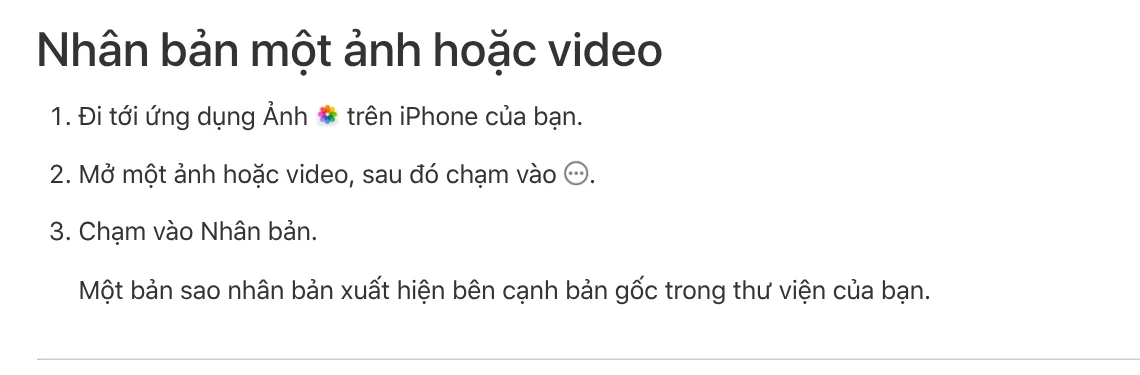
A product photo often needs a few text versions, for example one with the price and one with a promotion. Apple's page on duplicating and copying photos shows how to make a copy: open the photo, tap the three-dot button, then choose Duplicate. The copy appears right next to the original in your library.
If you already added text straight onto the original, nothing is lost. According to Apple's page on undoing and reverting photo edits, open the edited photo, tap the three-dot button, then choose Revert to Original. While you edit, the undo and redo buttons at the top of the screen let you step back several times.
Put a dark, semi-transparent shape under the text so it stands out on any background
White text on a bright sky or a white wall almost disappears. To get a dark band under your text, make one yourself with the Add Shape tool on the same toolbar.
Apple says that for a shape you add, you can adjust the border color, border width, fill color, and opacity. A quick way to do it:
- Add a rectangle and drag the dots on its outline to cover the bottom of the photo.
- Choose a black fill and lower the opacity so the photo still shows through.
- Add white text and drag it on top of the rectangle.
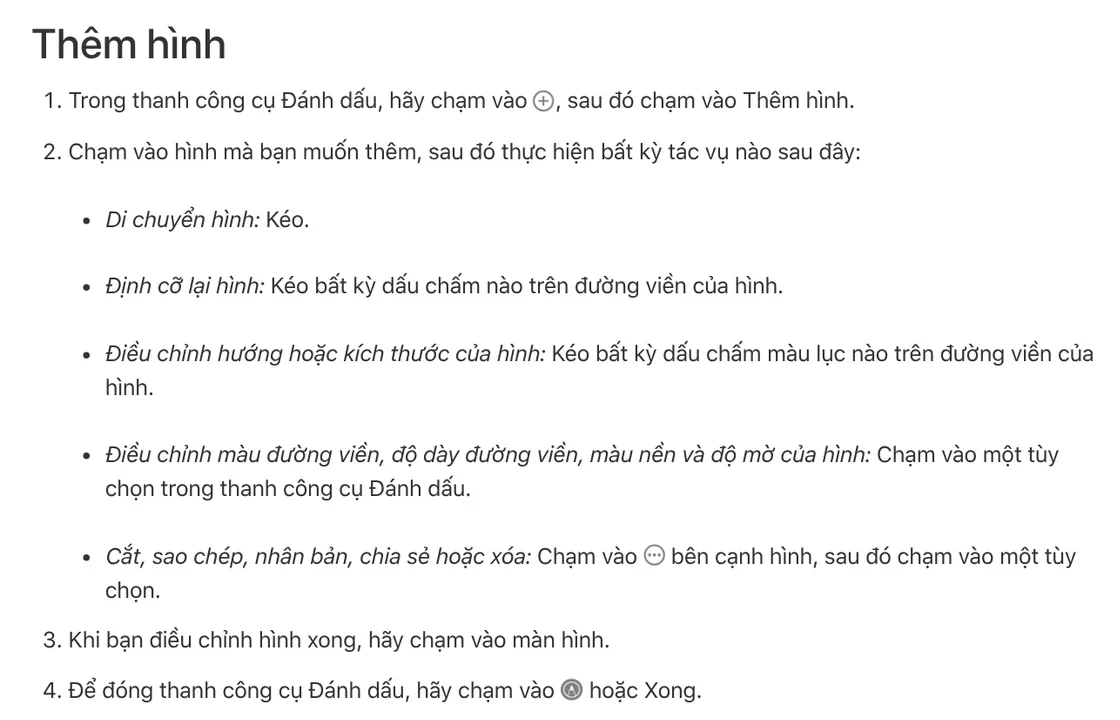
The same way, a circle or a chat bubble in a bright color becomes a small corner label such as "New" or "Sale."
Why does the text disappear or look different on another device?
You forgot to save. Tapping outside the text box only ends typing. You still have to tap the checkmark or Done for the edit to be saved to the photo.
The photo changes on every device. When iCloud Photos is on, any edits you make are saved across all your devices. To keep a clean photo on your Mac or iPad, duplicate it first, then add the text.

The photo is in the Files app, not in your library. Open it with the Preview app. Apple's page on annotating a PDF or image in Preview says this app can also add stickers, signatures, shapes, or text.
The text is hard to read even after saving. This usually happens when the text color is close to the background color, or when the text is too small on the viewer's phone screen. The News section covers more mistakes with fonts and colors.
Daily product photos need a fixed template
Markup works well for a few photos a day. When you have dozens, adding text by hand to each one makes the text shift in position and size from photo to photo. If your photos also go to several platforms, choose the aspect ratio (4:5, 1:1, or 16:9) before you add text. The News section explains when to use each one.
The Add headline text and brand badges to photos skill adds a headline, one highlighted phrase, and a badge in your brand look to a whole folder of photos in one run. The skill has three frames: 4:5, 1:1, and 16:9. On bright photos, it automatically strengthens the dark layer so the text stays easy to read. If you are new to photo skills, browse Skills and apps first.
Sources, accessed Oct 9, 2026:
- Apple: Edit photos and videos on iPhone
- Apple: Add text, shapes, stickers, and more with Markup on iPhone
- Apple: Duplicate and copy photos and videos on iPhone
- Apple: Undo and revert photo edits on iPhone
- Apple: Annotate a PDF or image in Preview on iPhone
- Illustrative photos: Unsplash (Oleg Ivanov, Towfiqu barbhuiya, Mauro Lima), Unsplash License.
Linh SEO Agent
Related guide: How to Trim a Video on iPhone, Mac, and Windows, No App Needed
Related guide: CapCut PC Auto Captions: Steps and Fixes When It Fails
Related guide: How to Take Product Photos With Your Phone, Then Fix Them With AI
The complete guide for this topic: How to Add Text to a Photo on Your Phone or Computer
More reading
 How to Add Text to a Picture in PowerPoint and Word
 Bulk Add Text to Images: Names and Prices for Product Photos
 How to Add a Signature to a Photo, Plus Your Phone Number
 6 Common Mistakes When Adding Text to Photos
 How to Add a Logo to Photos Online, One at a Time or in Bulk
 How to Add Text to a Video on Your Phone or Computer








