
How to Add Text to a Video on Your Phone or Computer
Add text to a video with free built-in tools: iMovie on iPhone and Mac, Google Photos on Android, Clipchamp on Windows. Plus common text mistakes.

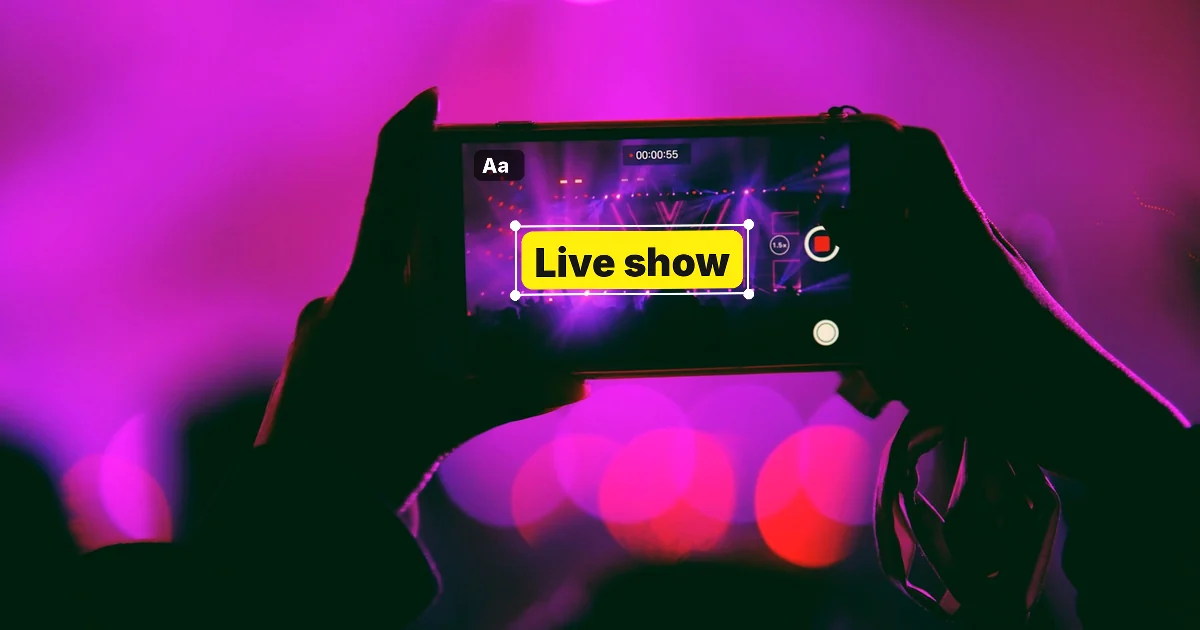
In this article (6)
- On iPhone, add text to a video with the Titles button in iMovie
- On Android, Google Photos has a Text button in its video editor
- On a Windows PC, Clipchamp lets you drag text onto the timeline
- On a Mac, iMovie places the title where the playhead sits
- Where should text go on a video so it is not covered?
- Five common mistakes when you add text to a video
You can add text to a video with tools the platform makers already give you: iMovie on iPhone and Mac, Google Photos on Android, and Clipchamp on Windows. The last part of this guide covers the mistakes that make text hard to read.
On iPhone, add text to a video with the Titles button in iMovie
According to Apple's iMovie for iPhone guide, read on Oct 9, 2026, iMovie comes with a set of animated titles. You can add a title to any video clip, photo, or background in a movie project, then change its text, color, size, or font.
- Open a movie project in iMovie.
- Tap a clip in the timeline to show the inspector at the bottom of the screen.
- Tap the Titles button, then tap a title style.
- Tap the sample title in the viewer, tap Edit, and type your text.
- Drag the title where you want it, pinch to resize it, then tap Done.
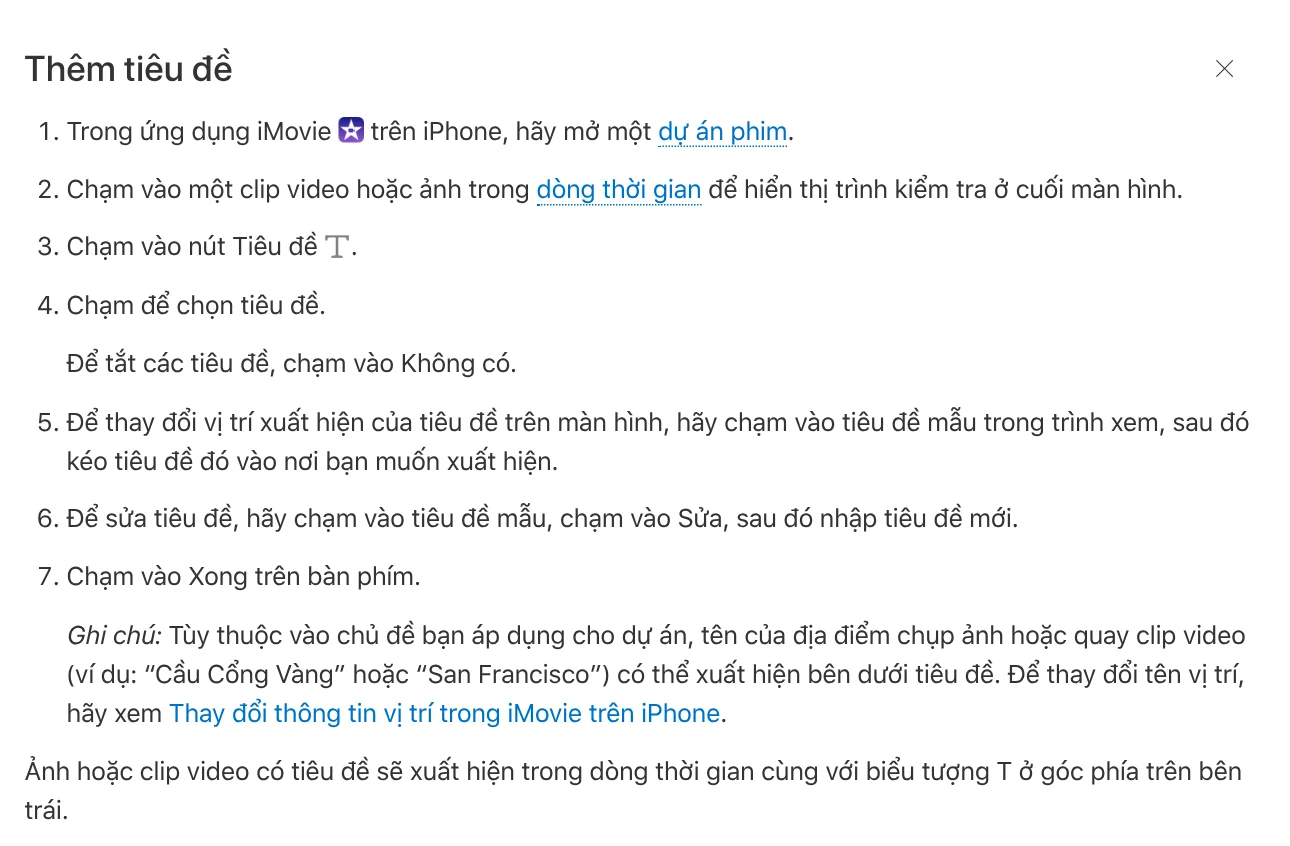
A clip with a title shows a T icon in its upper-left corner in the timeline. One small catch: depending on the theme you apply to the project, the name of the place where you filmed may appear under the title. If you do not want that, change the location information in iMovie.
On Android, Google Photos has a Text button in its video editor
Most Android phones come with Google Photos. The Google Photos Help page on editing videos explains how to add text:
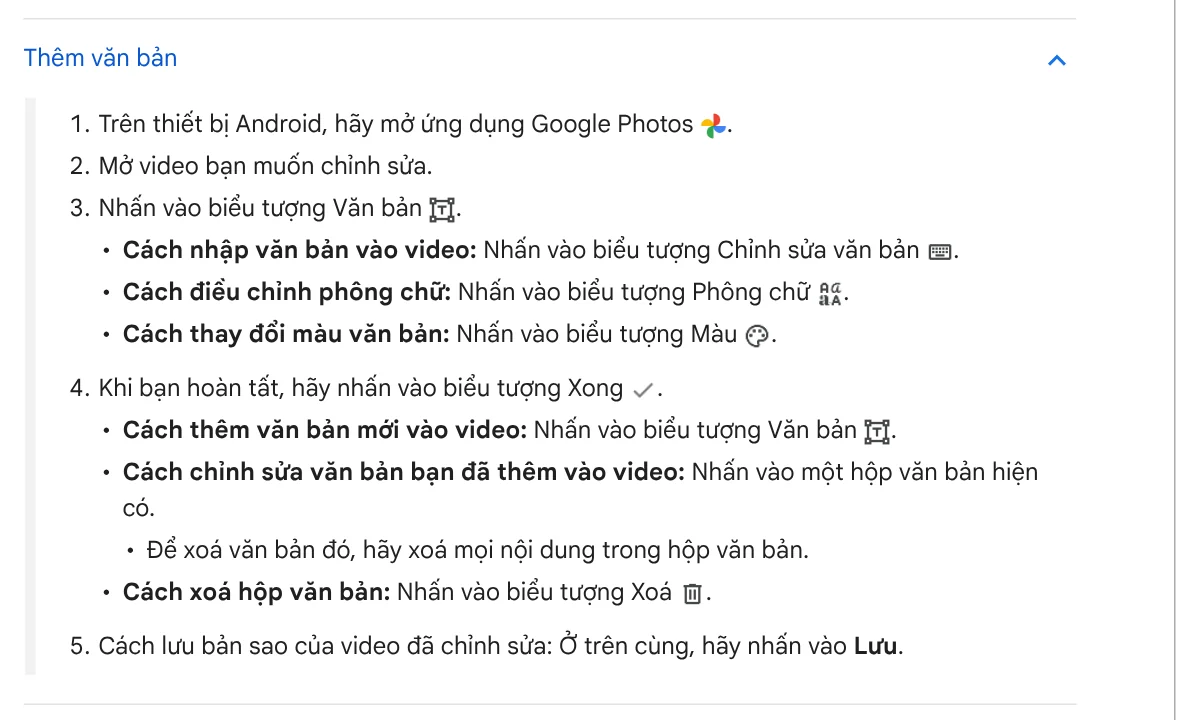
- Open the video in Google Photos and tap the Text icon.
- Tap Edit text to type, Fonts to change the typeface, and Color to change the color.
- Tap Done. To add another text box, tap Text again.
- Tap Save at the top to save a copy of the edited video.
Check your phone before you start. Google says some video editing features work only on devices running Android 6.0 or later with at least 1 GB of RAM. Non-Pixel Android devices running Android 9 do not have video editing.
On a Windows PC, Clipchamp lets you drag text onto the timeline
Clipchamp is Microsoft's video editor. The Clipchamp page on adding text to video says you can overlay animated text on videos for free and change the font, size, and color. The steps:
- Select the text tab on the toolbar.
- Hover over the styles to preview the titles.
- Drag a text style and drop it on your video in the timeline.
- Edit the words in the property panel.
- Change the font, color, and size, and add animations, in the same property panel.

Text animations include fade, slide, bounce, and typewriter. You can also upload a brand font. The FAQ on the page says Clipchamp supports scripts in languages other than English. Still, type a test sentence with every accented character your language uses before you style a whole video.
On a Mac, iMovie places the title where the playhead sits
On a Mac, the iMovie for Mac guide gives two ways. First, click Titles above the browser, place the playhead where you want text, then double-click a title style. Second, drag a title style and drop it above a clip in the timeline.
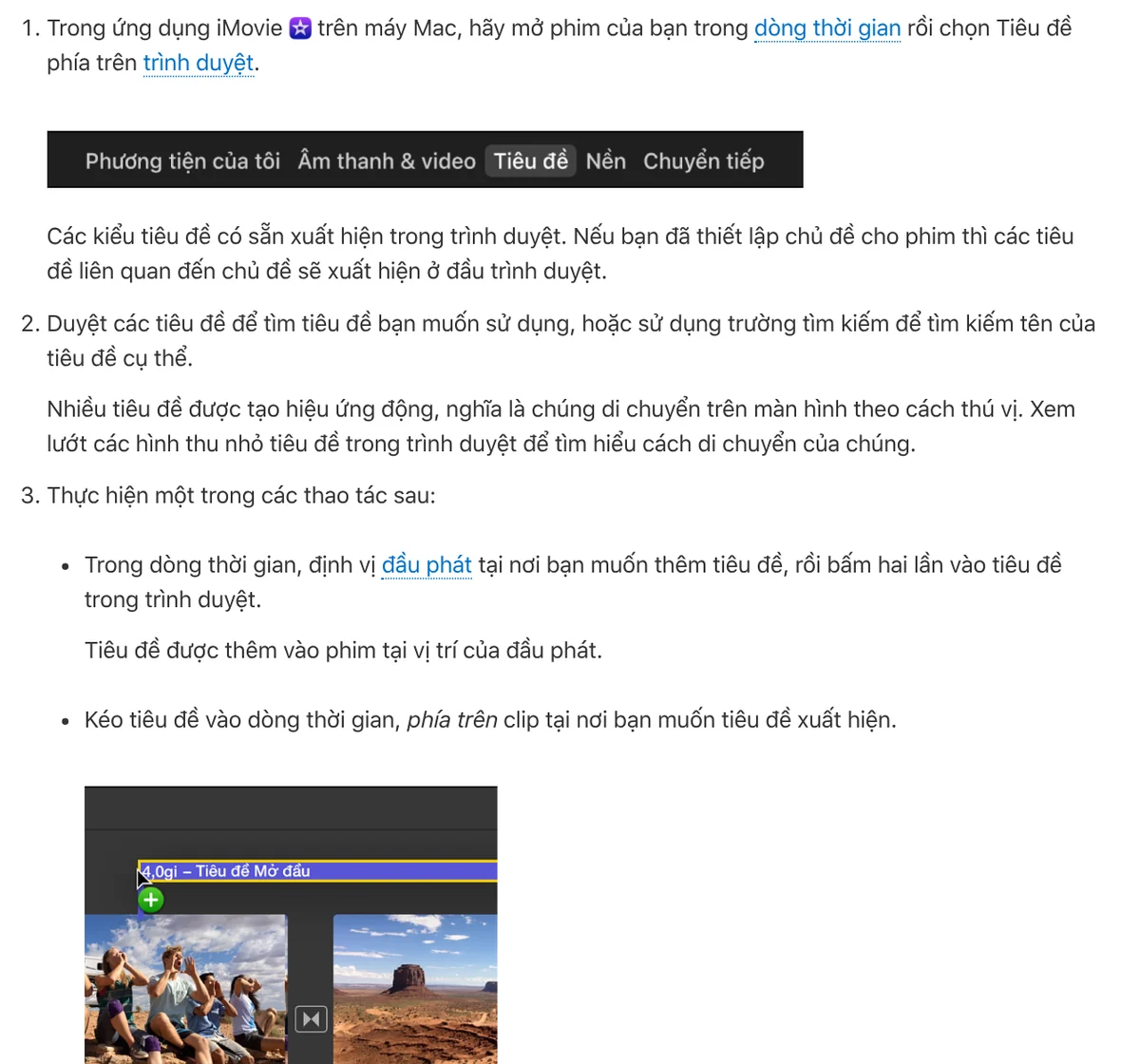
Next, double-click the placeholder text in the viewer to type your words, change the font, color, and size with the controls above the viewer, then click Apply. If you drop a title in the first or last third of a clip, iMovie shows the text only during that third. Drop it in the middle and the text stays on for the whole clip.
Where should text go on a video so it is not covered?
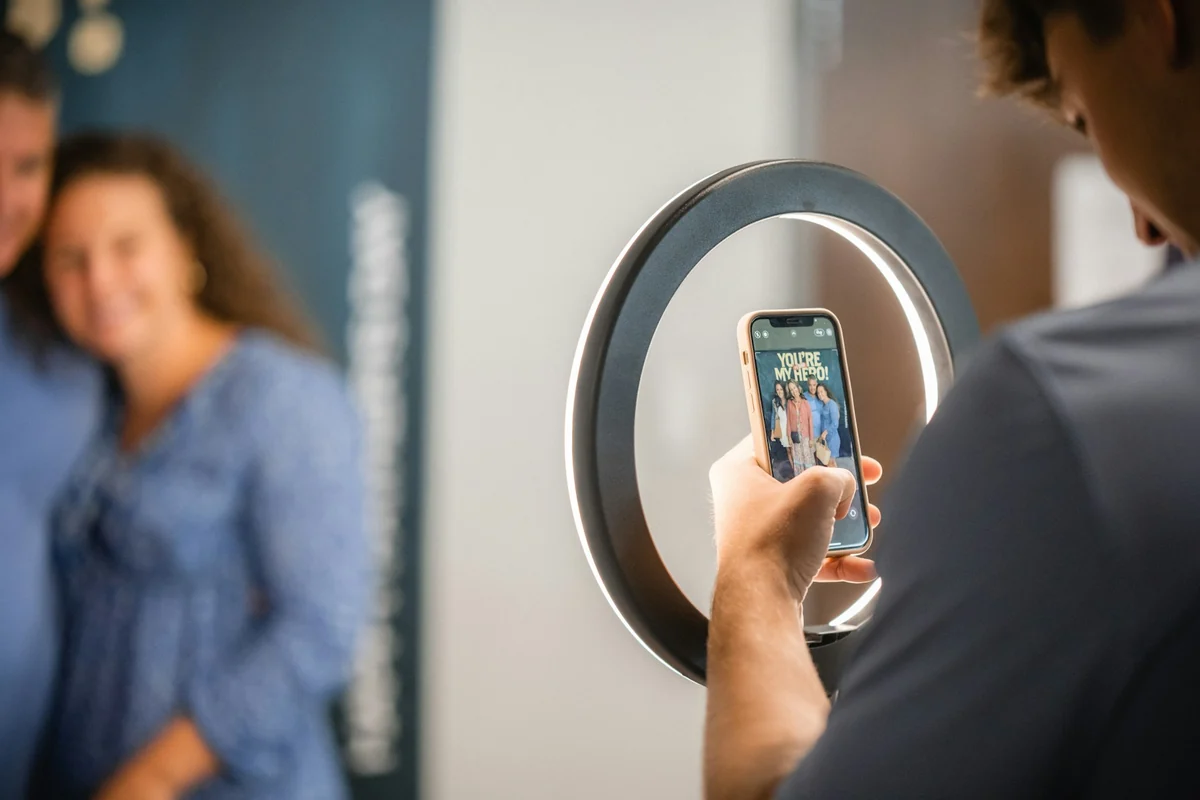
Social platforms often cover the bottom and right edges of a video with buttons, the account name, and the caption. Placing your main text near the middle or the upper part of the frame is safer. Choose the aspect ratio first, then place the text, because changing the frame later can cut your text off. The aspect ratio guides in News help you pick the right frame from the start.
Timing matters too. A line of text needs to stay on screen long enough for viewers to read all of it. If text flashes past too fast, viewers see it but do not take it in.
Five common mistakes when you add text to a video
White text on a bright background. A sky or a white wall makes white text disappear. Add an outline, a drop shadow, or a dark text box. More color examples are in the text guides in News.
A font that lacks your language's characters. Type a test sentence with every accent mark before you finish the whole video. Apple notes that you cannot change the font in certain theme-styled titles and some animated titles in iMovie on Mac, so pick a style that lets you change fonts.
Too much text in one scene. A video is not a page of text. Keep one idea per scene and no more than two lines.
Forgetting to save a copy in Google Photos. If you leave halfway through, your edits are gone. Tap Save at the top before you leave the screen.
Text too close to the edge of the frame. Edges get cut when a platform zooms or scales the video. Leave a margin around your text.
If you need the same text style on your video thumbnails and post images, the headline text and brand badge skill ($5) runs on a whole folder of photos at once. If you want a vertical video with captions, voice-over, and music made straight from a product link, see Adam Proof Studio.
Sources, accessed Oct 9, 2026 (English versions checked Oct 11, 2026):
- Apple: Add titles to a movie in iMovie on iPhone
- Apple: Add titles in iMovie on Mac
- Google Photos Help: Edit your videos with Google Photos (Android)
- Microsoft Clipchamp: Add text to video
- Skill price, accessed Oct 11, 2026: Add headline text and brand badges to photos
- Illustrative photos: Unsplash (NATHAN MULLET, Edward Xu), Unsplash License.
Linh SEO Agent
Related guide: How to Auto Generate Subtitles for Video: 4 Free Ways
Related guide: How to Create a Consistent AI Character Across Images and Videos
Related guide: How to Add a Signature to a Photo, Plus Your Phone Number
The complete guide for this topic: How to Make TikTok Videos With AI: 9:16, Captions, Voice
More reading
 How to Add Text to a Photo on Your Phone or Computer
 How to Trim a Video on iPhone, Mac, and Windows, No App Needed
 How to screen record on PC with audio: Windows 11 and Mac
 How to Auto Generate Subtitles for Video: 4 Free Ways
 Free AI Voices for Vietnamese: 5 Text-to-Speech Tools
 How to Add a Signature to a Photo, Plus Your Phone Number








