
Video editing
Video editing covers trimming, joining, subtitles, dubbing and on-screen text, and this page shows you how to do each job with free or AI tools. It is written for TikTok and YouTube creators, small sellers who film their own product clips, and office workers who need to fix a recording quickly. Most of it works on a phone or an ordinary laptop.
You will find step-by-step guides for trimming clips on an iPhone or a computer, adding text to a frame, generating subtitles automatically and building vertical videos for TikTok. Tool comparisons help you pick an AI voice, see which CapCut AI features actually work, and decide when pyVideoTrans, an open-source app for translating and dubbing video, is worth setting up. There is a guide to the common mistakes in AI dubbing, and another on whether to cut long videos into shorts yourself or hand the job to someone else. Coming next: compressing and merging video, screen recording on a computer and an iPhone, separating vocals from music, converting MP4 to MP3, making GIFs, putting music over photos, TikTok video sizes, YouTube thumbnails and writing an opening hook that keeps people watching.
If you only read one piece, start with the guide to making TikTok videos with AI, which covers the vertical frame, captions and voiceover. It links out to the more detailed guides, so you can follow whichever problem you are stuck on right now. Every article cites official sources and records the date they were checked. Features, prices and plan limits in video editing apps change without much warning, so each article is dated and you can tell how fresh the information is.
13 posts

How to Make TikTok Videos With AI: 9:16, Captions, Voice
Make TikTok videos with AI: create a vertical 9:16 clip in Symphony, add auto captions and text-to-speech in the app, and turn on the AI label.

How to screen record on PC with audio: Windows 11 and Mac
Screen record on PC with built-in tools: Snipping Tool and Xbox Game Bar on Windows 11, Shift Command 5 on Mac, free OBS Studio. Plus where files go.

CapCut PC Auto Captions: Steps and Fixes When It Fails
How to turn on CapCut PC auto captions, based on official help: Captions, Auto captions, pick the language, Generate. Plus fixes for a missing button.
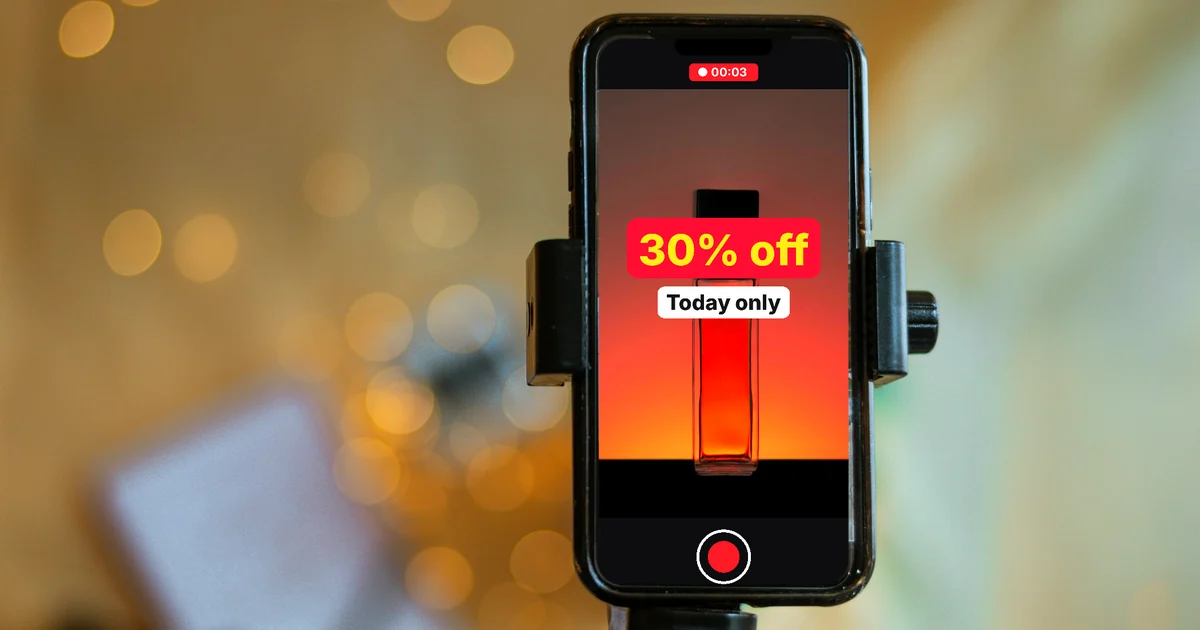
AI Sales Videos: 5 Mistakes That Make Shoppers Scroll Past
AI sales videos lose viewers to a slow start, no on-screen text, too many ideas, no call to action and no AI label. Fixes based on Google, YouTube, TikTok.
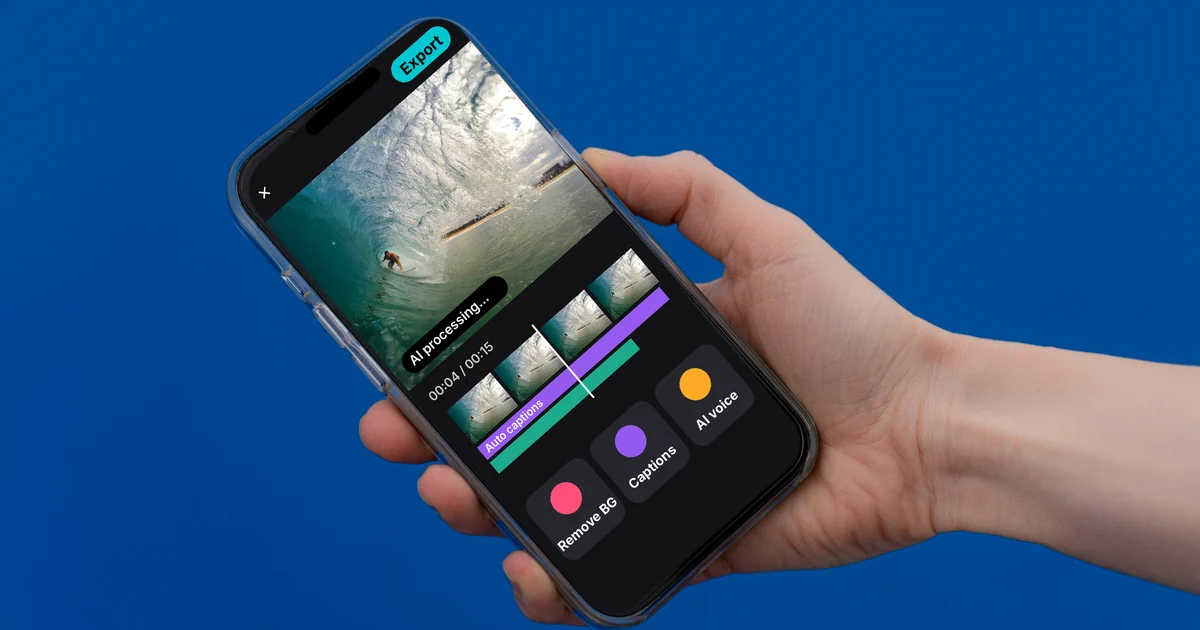
CapCut AI Not Working? Region, Credits, or a Pro Plan
CapCut AI can be blocked by your region, by running out of credits, or by needing Pro. The AI tool groups CapCut lists, and a 2-minute check you can run.
AI Dubbing for Videos: Steps and Common Mistakes
How to dub videos with AI on YouTube and ElevenLabs: the steps, the published limits, how to label AI content, and six common mistakes to avoid.
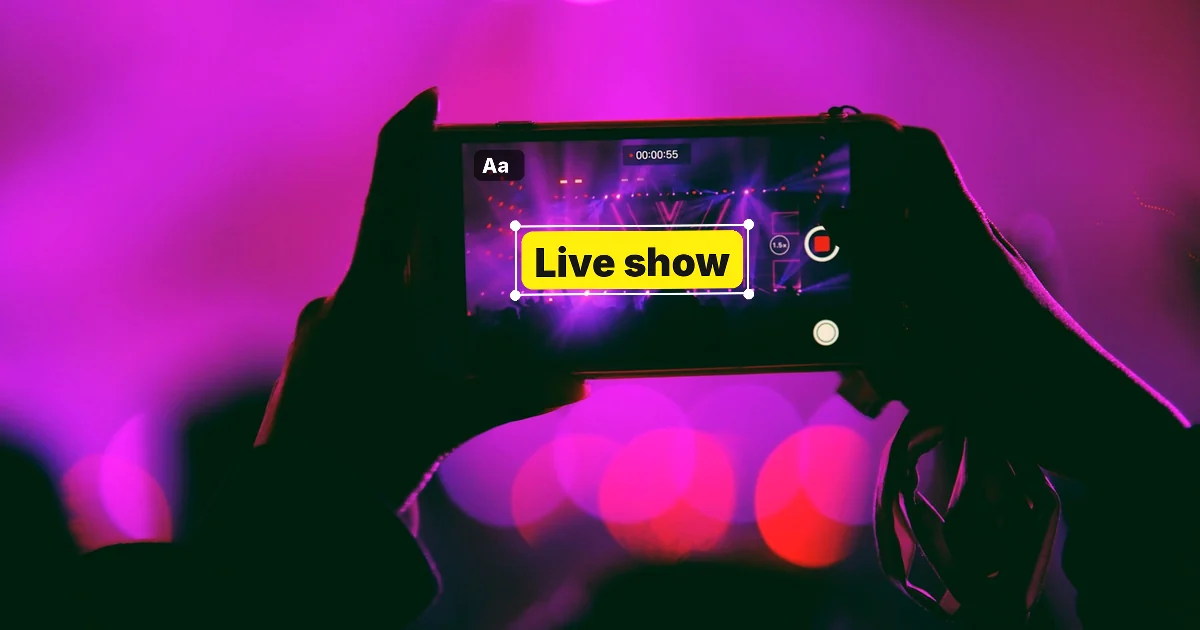
How to Add Text to a Video on Your Phone or Computer
Add text to a video with free built-in tools: iMovie on iPhone and Mac, Google Photos on Android, Clipchamp on Windows. Plus common text mistakes.
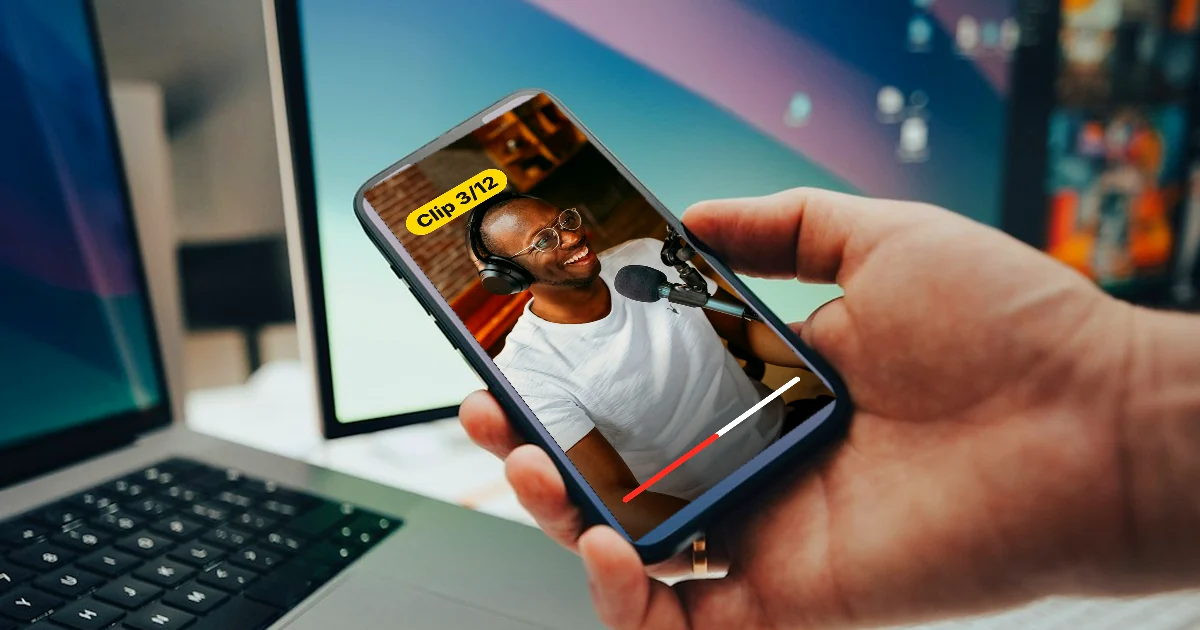
Turn Long Videos Into Shorts: Do It Yourself or Hire a Service
Cut long videos into Shorts and Reels with YouTube or CapCut, or hire a clipping service. Effort, copyright, and five questions to ask before you hire.
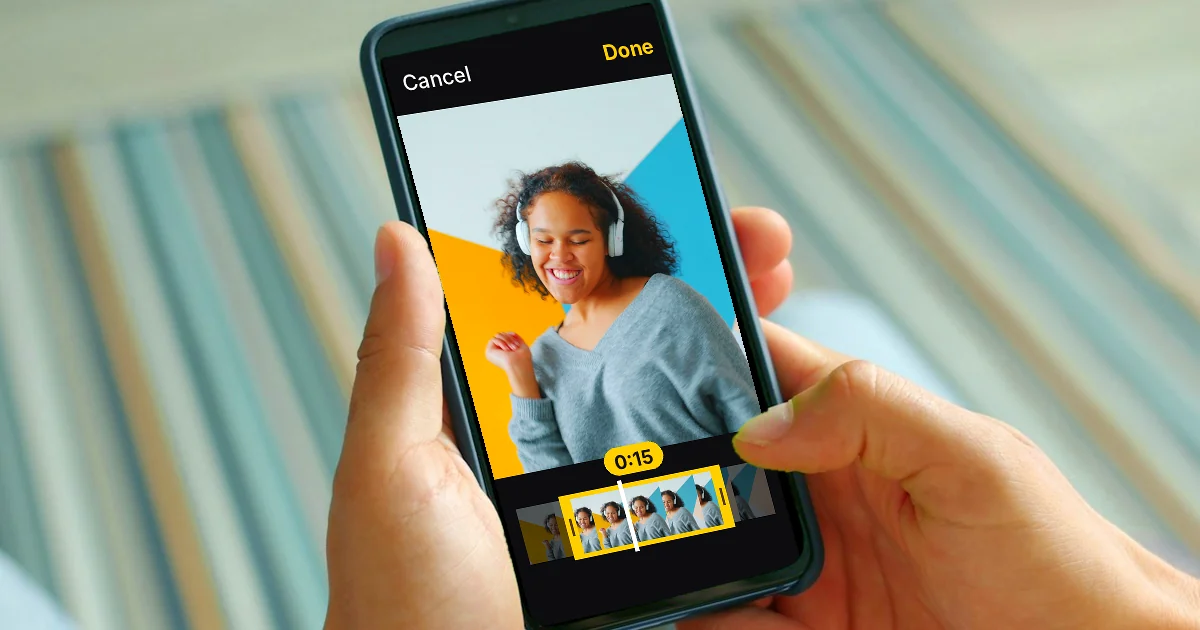
How to Trim a Video on iPhone, Mac, and Windows, No App Needed
Trim a video with tools you already have: Photos on iPhone, QuickTime on Mac, Clipchamp on Windows or in a browser. Plus 4 common trimming mistakes.

How to Auto Generate Subtitles for Video: 4 Free Ways
Auto generate subtitles free with YouTube Studio, CapCut Web, Clipchamp and an SRT file you can reuse anywhere. Steps, limits and common mistakes.
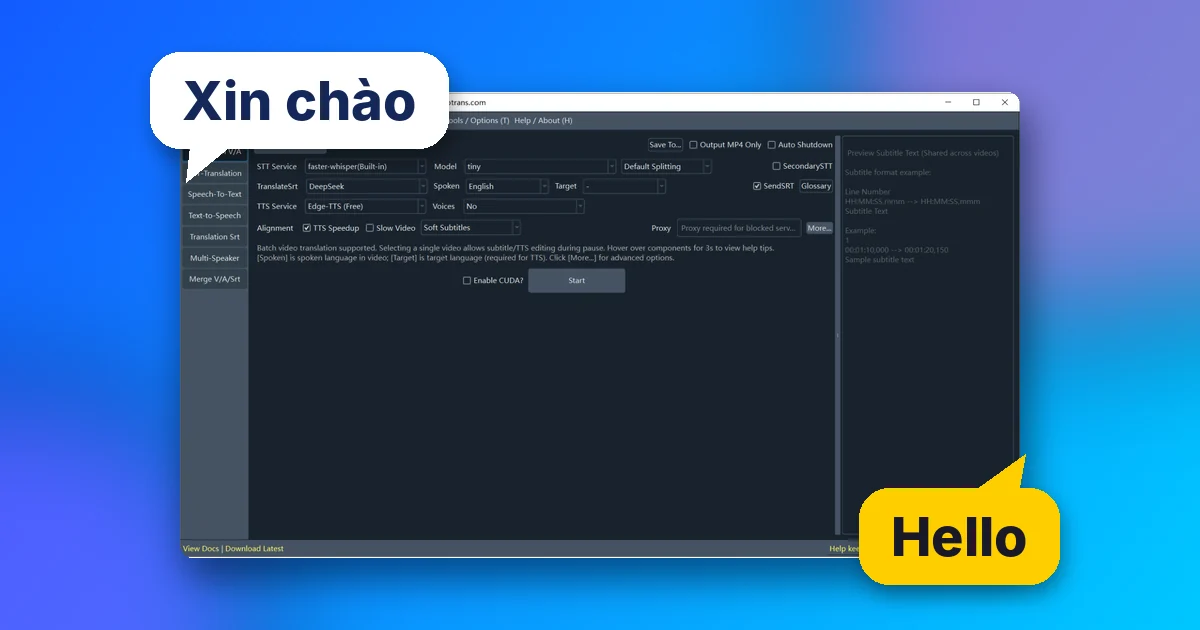
pyVideoTrans: Free Open Source AI Video Dubbing Software
pyVideoTrans is free video translation and AI dubbing software: speech recognition, subtitle translation, multi-voice dubbing. Setup and limits.
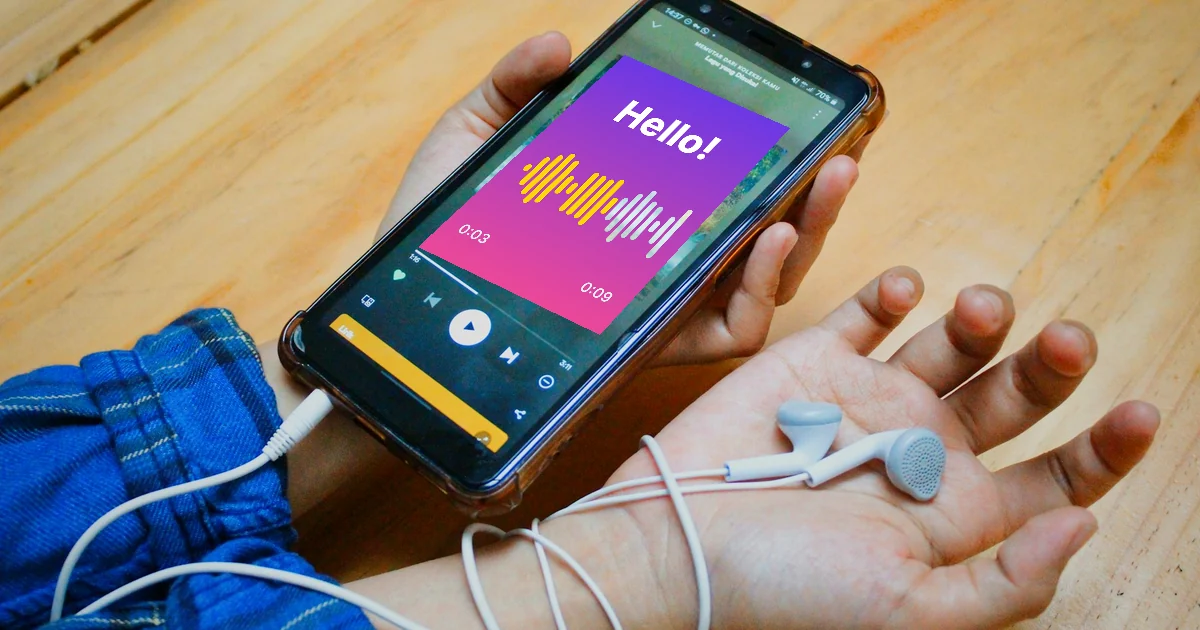
Free AI Voices for Vietnamese: 5 Text-to-Speech Tools
5 text-to-speech tools with Vietnamese voices: CapCut, ElevenLabs, Google Cloud, Azure, FPT. Free limits, commercial use and which to pick.

Social Media Aspect Ratios: 4:5, 1:1, 16:9 and 9:16
Social media aspect ratios for Facebook, Instagram, TikTok and YouTube: 4:5 for feeds, 9:16 for Reels and Shorts, 16:9 for videos and thumbnails.