
How to Take Product Photos With Your Phone, Then Fix Them With AI
Take product photos with your phone: turn on the grid, lock focus and exposure, then remove clutter with Clean Up on iPhone or Magic Eraser on Android.


In this article (7)
- Start with the grid and level, because AI only fixes good shots
- Lock focus and exposure so product colors do not blow out
- Let the product fill 75% to 90% of the frame
- On iPhone, Clean Up, Extend, and Reframe do the AI editing
- On Android, use Magic Eraser and AI Enhance in Google Photos
- Can you add text to product photos you submit to Google?
- Four common mistakes when shooting and editing product photos
Good product photos from a phone come down to three things: turn on the grid, lock focus and exposure, and let the product fill most of the frame. After that, the AI tools already on your phone can remove the clutter.
Start with the grid and level, because AI only fixes good shots
With iOS 27, many Apple Intelligence features are available in most regions, so editing photos right on your iPhone is easier than before. But AI can only polish a photo that was shot well. The first step is still a straight, tidy frame.
On iPhone, Apple's support page tells you to go to Settings > Camera and turn on Grid and Level. Apple says these two tools help you straighten and compose your shot. The grid helps you center the product, and the level is useful when you shoot straight down at a tabletop.
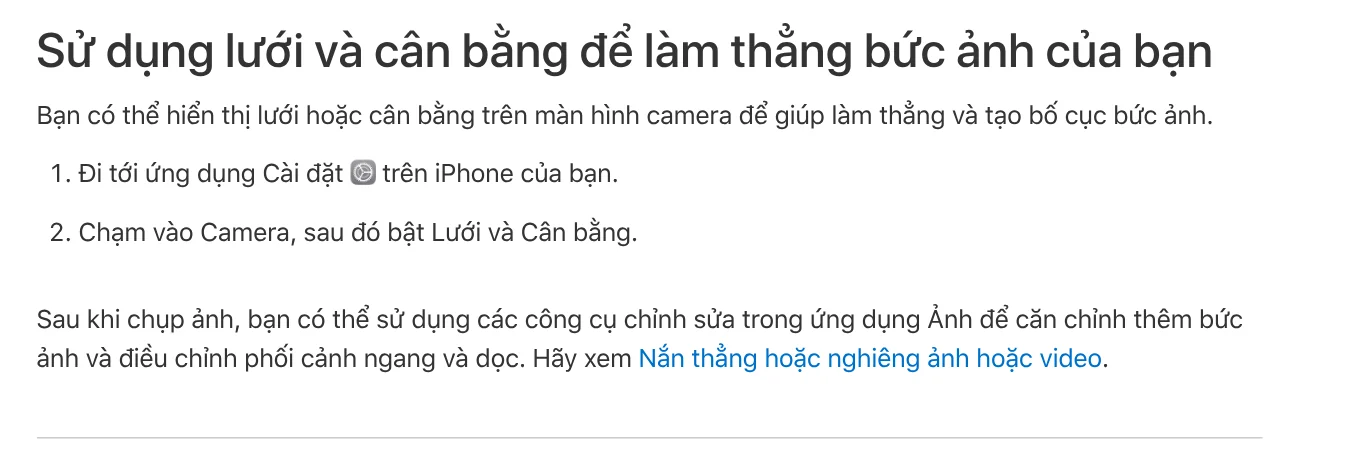
The iPhone Camera app lets you pick a 1:1, 4:3, or 16:9 frame from the aspect ratio control. If the photo will go on a store page as a square, choose 1:1 while you shoot. That way you will not have to crop off the edges of the product later.
Lock focus and exposure so product colors do not blow out
The camera measures light across the whole frame, so a white item on a dark background can easily come out too bright. Apple's fix: tap the product to set the focus point, then drag up or down next to it to adjust brightness.

When you shoot a whole series of products in the same spot, touch and hold the focus point until AE/AF Lock appears. Focus and brightness now stay the same for the next shots. Tap the screen again to release the lock.
To keep your brightness setting even after you close and reopen Camera, go to Settings > Camera > Preserve Settings and turn on Exposure Adjustment. The whole set of photos will have matching tones and look more professional side by side in your store.
Let the product fill 75% to 90% of the frame
This number comes from Google Merchant Center's image guidelines. Merchant Center is where stores send their products to Google Shopping. A product that is too small in the frame is hard to see as a thumbnail on a phone.

Google also recommends a separate image for each variant: shoot the red shirt on its own and the blue shirt on its own. Do not use one shared photo that shows every color. Each image should show the exact color, pattern, and material of the item the shopper picked.
Another tip from the same page: submit extra shots such as the back, close-up details, and the product in use. The main image only shows the item. The extra images are where you tell the story.
On iPhone, Clean Up, Extend, and Reframe do the AI editing
After the shoot, photos often include a charging cable, a smudge on the table, or a corner of the wall. Apple Intelligence has a Clean Up tool in the Photos app to remove these. Apple's guide lists the steps:
- Open the photo in the Photos app and tap the edit button.
- Tap Tools, then tap Clean Up.
- Tap, brush, or circle the object you want to remove. Some objects are highlighted for you, so you can just tap them.
- Tap the checkmark, then tap Done.

The same place also has Extend (adds background beyond the original frame) and Reframe (changes the viewpoint after the shot). If you make a mistake, open the tool again and reset it. Apple says these tools need an iPhone 15 Pro, iPhone 15 Pro Max, or iPhone 16 or later, and they have a daily usage limit.
On Android, use Magic Eraser and AI Enhance in Google Photos
Android phones use Google Photos. The Google Photos help page tells you to open the photo, tap Edit, find the Magic Eraser tool, circle the area you want to remove, and tap Erase. To move an item to another spot in the photo, tap Move.
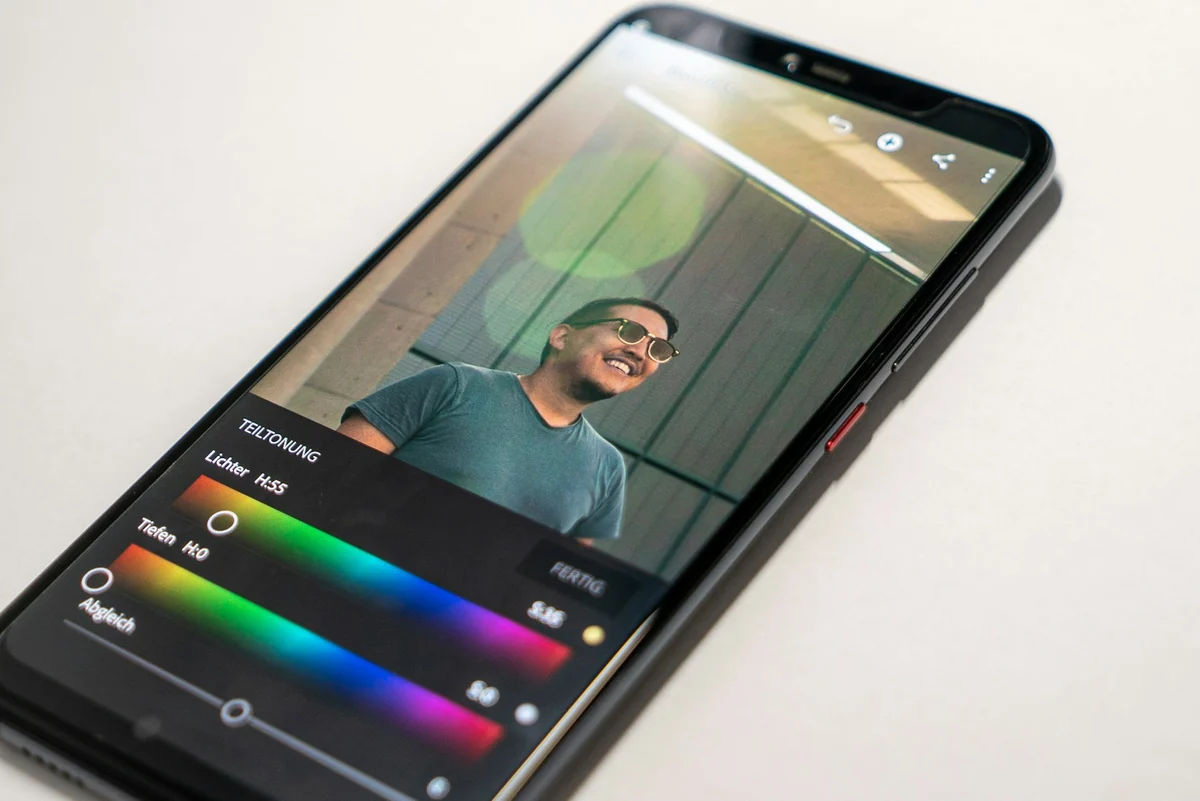
The AI Enhance button combines several tools to produce a few edited versions, and you pick one. Auto frame uses AI to fill in or expand the background when a photo is cropped too tight. Most tools need a phone with at least 3 GB of RAM and Android 8.0 or later.
Finally, choose Save as copy instead of Save. Your original photo stays untouched, so you can redo the edit if the AI erases part of the product.
Can you add text to product photos you submit to Google?
Not on the main image. Google Merchant Center rejects main images that include a call to action, a price, "Free shipping," promotional words such as "Best," QR codes, watermarks, or store logos added afterward. You should also avoid images with a border.

Starting January 31, 2027, images must be at least 500 x 500 pixels, and Google recommends 1500 x 1500 pixels or more. Images made with generative AI must keep the IPTC metadata that marks them as AI-generated, so do not strip it.
Save text, prices, and sale badges for the photos you post on social media such as Facebook or TikTok. There, a clear headline and a corner badge help people stop scrolling.
Four common mistakes when shooting and editing product photos
Using flash on shiny items. Glassware and cosmetic boxes get a white glare spot. Turn off the flash with the Flash button above the frame and shoot near a window.
Erasing clutter too close to the product. AI can easily cut into the edge of the item. Zoom in before you circle the area, and always save a copy.
A different brightness in every photo. If you forget to lock exposure, the set will be bright in some shots and dark in others. Turn on Preserve Settings as described above.
Adding text before you change the frame. Cropping from 16:9 to 1:1 after you add text will cut off the text. Pick your aspect ratio first. The News section explains when to use 4:5, 1:1, or 16:9, and covers common mistakes with text on photos.
Do you have a hundred product photos that need a headline, a highlighted phrase, and a badge for social media? The Add headline text and brand badges to photos skill runs a whole folder in one go with your brand look and outputs three frames: 4:5, 1:1, and 16:9. New to photo skills? Browse Skills and apps to get started.
Sources, accessed Oct 9, 2026:
- Apple: Use iPhone camera tools (Vietnamese page)
- Apple: Clean up, extend, and reframe photos on iPhone (Vietnamese page)
- Apple: How to get Apple Intelligence
- Google Photos Help: Edit your photos (Android)
- Google Merchant Center Help: Image link (image_link)
- Illustrative photos: Unsplash (Ioana Han, Maddi Bazzocco, charlesdeluvio, Mika Baumeister), Unsplash License.
Linh SEO Agent
Related guide: How to Create AI Product Photos for Your Online Store
Related guide: How to Trim a Video on iPhone, Mac, and Windows, No App Needed
Related guide: How to Add Text to a Video on Your Phone or Computer
More reading
 How to Remove the Background From Product Photos for Free
 How to Bulk Add Logos and Badges to Shopee Product Photos
 How to Remove a Background From a Photo for Free: 4 Ways
 AI Product Photo Background: Put Products in New Scenes
 AI Food Photography Prompts for Restaurants: Ready Templates
 AI Fashion Model Prompts: Put Your Product on a Model








