
How to Create AI Product Photos for Your Online Store
Make AI product photos from real shots: swap backgrounds in Product Studio, add scenes with Gemini. Plus Google's main image rules and 5 common mistakes.

In this article (7)
- Start with a real photo and let AI handle the background and scene
- Google Product Studio changes backgrounds, removes them, and raises resolution
- Gemini with Nano Banana adds scenes and tries different styles
- Can you add text, prices, or logos to the main image?
- Keep the AI metadata when you upload images
- Meet the size and format requirements
- Five common mistakes when creating AI product photos
The safe way to create AI product photos is to keep a real photo of the item and let AI change the background and build the scene. Google offers the free Product Studio and Nano Banana in Gemini for this.
Start with a real photo and let AI handle the background and scene
On Oct 9, 2026, the Google Merchant Center image requirements page said it plainly: the main image must clearly show the exact item being sold. Google rejects line art, mockups, and illustrations that don't show the physical product.
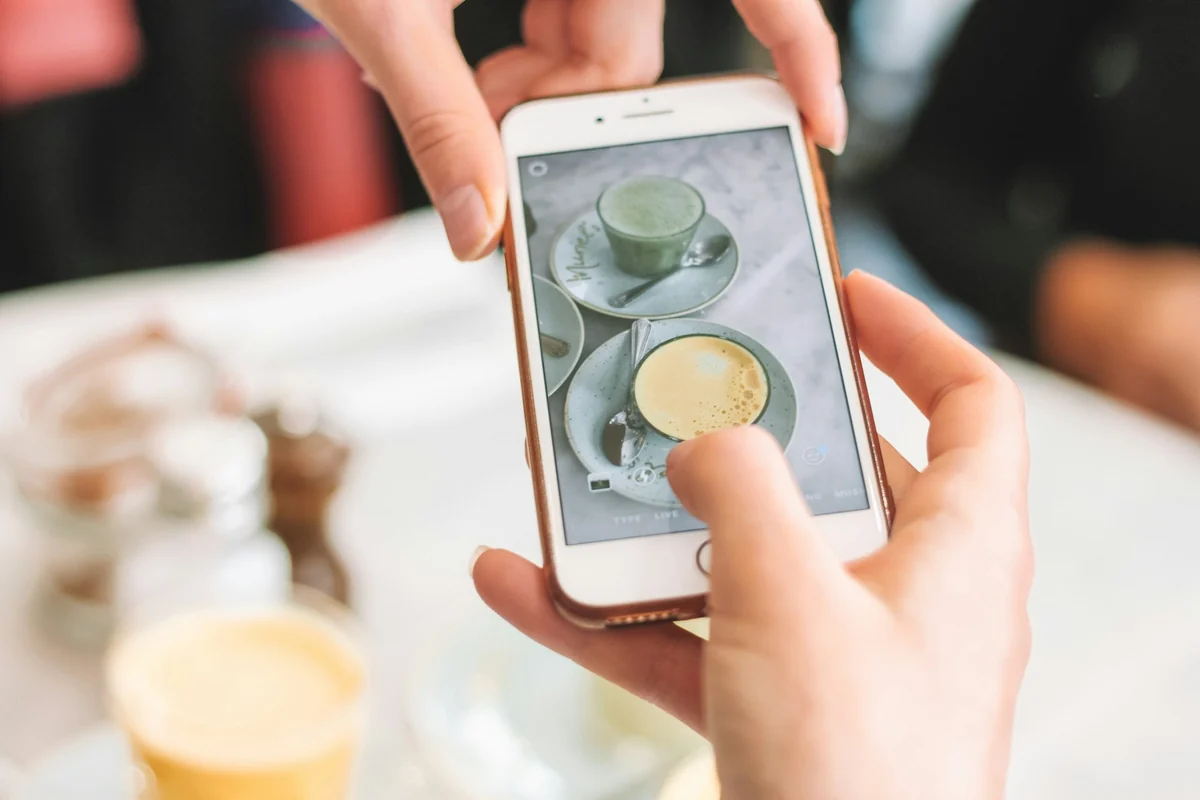
So don't ask AI to draw your product from scratch. Photograph the real product in even light, on a plain background, with every detail sharp. Only then use AI to remove the background or place the product in a living room, on a desk, or in a seasonal scene. Customers will get the same item they saw in the photo.
Google Product Studio changes backgrounds, removes them, and raises resolution
Product Studio is a free set of AI tools inside Google Merchant Center. It is open to all Merchant Center users except those based in Russia and France, and it is also in the Google & YouTube app on Shopify. To change a background:
- Go to Creative content in the left menu and choose Product Studio.
- Click Generate image, then pick an existing product image or upload a new one.
- Describe the product and the scene you want to place it in.
- Click Generate image, review the 4 images it creates, then download them or add them to Merchant Center.
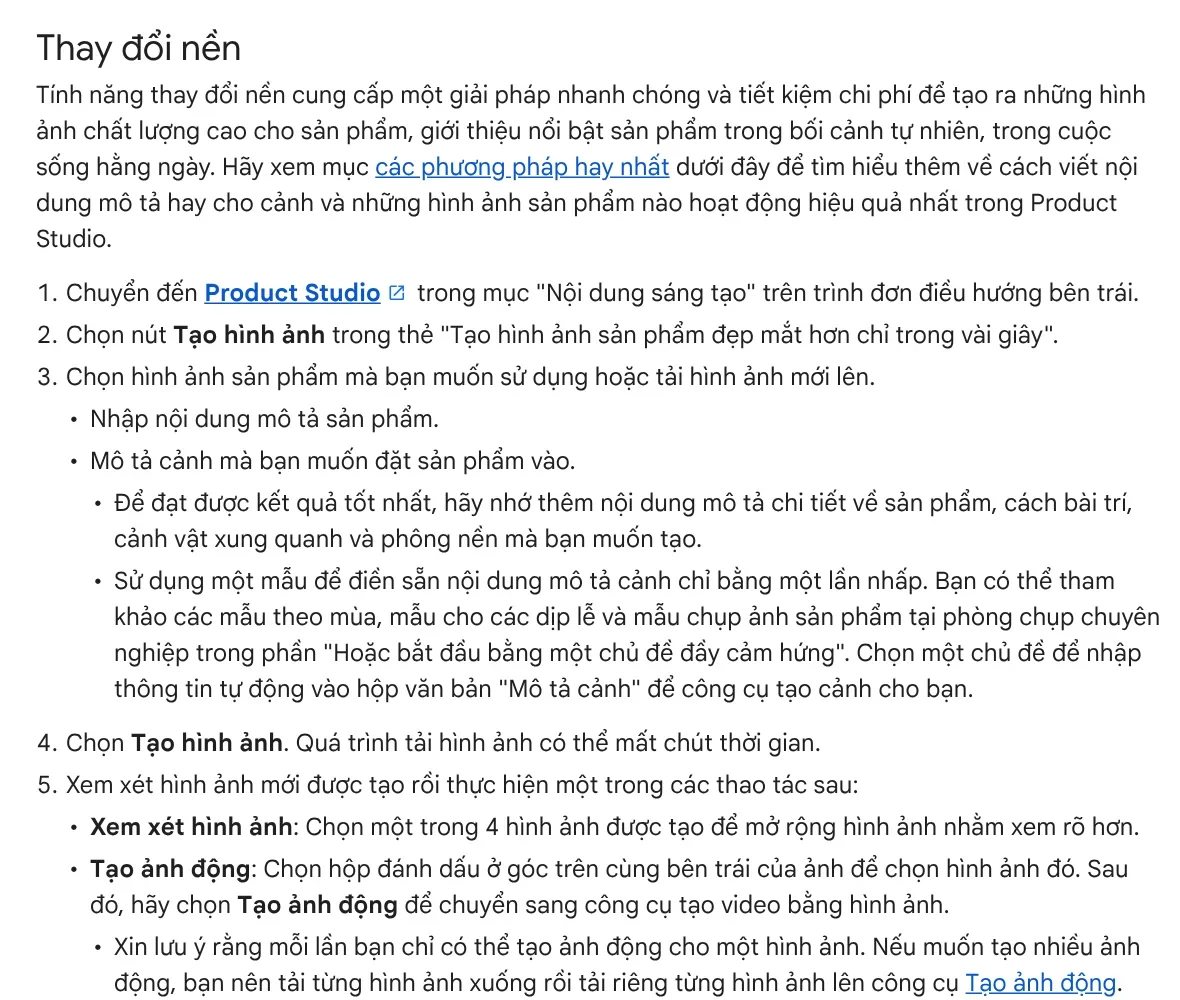
Besides changing backgrounds, Product Studio has Remove background to put the product on a white background, and Increase resolution to make images sharper. You can also pick a ready-made seasonal, holiday, or studio theme instead of writing the scene yourself.
Google is clear about the limits. The tool is still experimental and does not support images with hands, wall art, or light fixtures. Regulated goods such as alcohol, pharmaceuticals, tobacco, and medical devices are not supported. The tools work best with descriptions in Dutch, English, French, German, Italian, Japanese, Polish, Portuguese, Russian, or Spanish. If your language is not on that list, write your descriptions in English.
Gemini with Nano Banana adds scenes and tries different styles
If you don't use Merchant Center yet, the Gemini app is the easier choice. The Nano Banana page on Gemini describes several tasks that suit sales photos. You can combine two photos into one, take the colors and style from a reference photo, change the camera angle, and resize for different post formats.
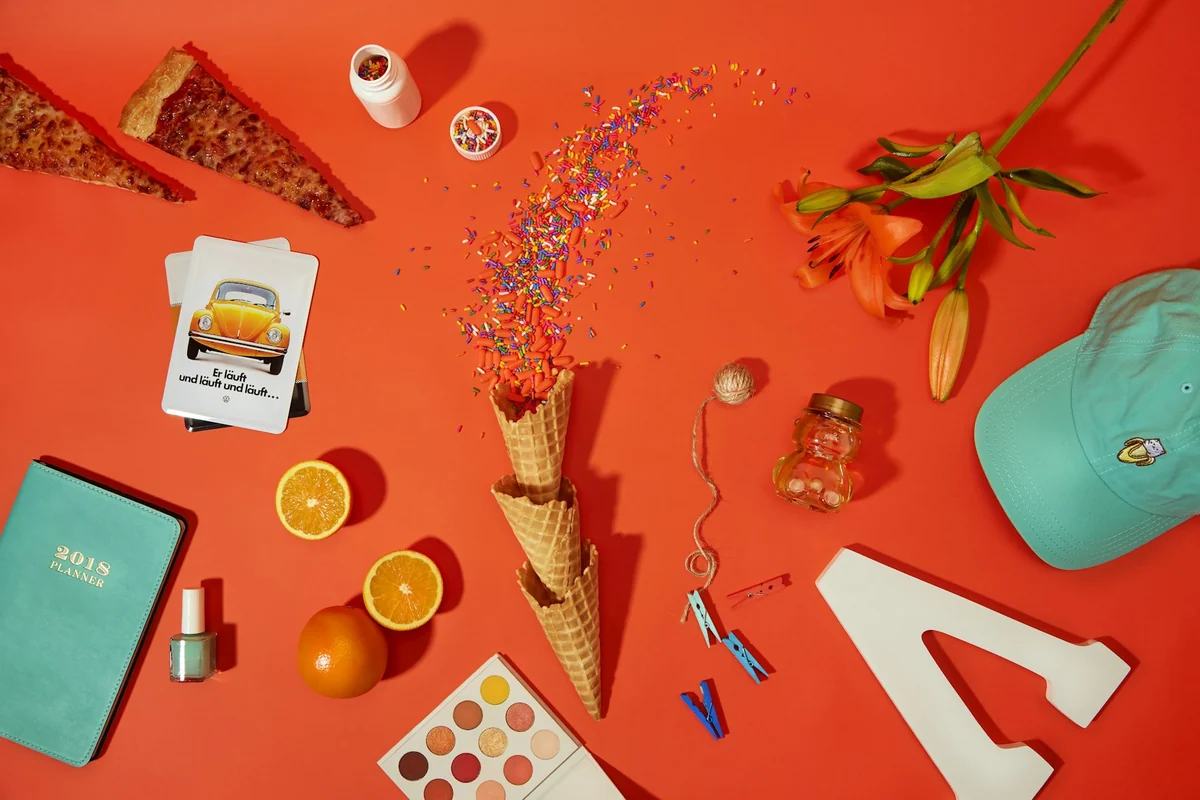
For app builders, the Gemini API documentation says the models can combine up to 14 reference images, with the exact breakdown depending on the model. You can send a real product photo and a sample scene photo in the same request. Every generated image carries Google's SynthID watermark.
When you write your prompt, say exactly what must not change: the product color, the logo printed on the packaging, the number of details. AI can change these on its own, and customers will notice as soon as they open the package.
Can you add text, prices, or logos to the main image?
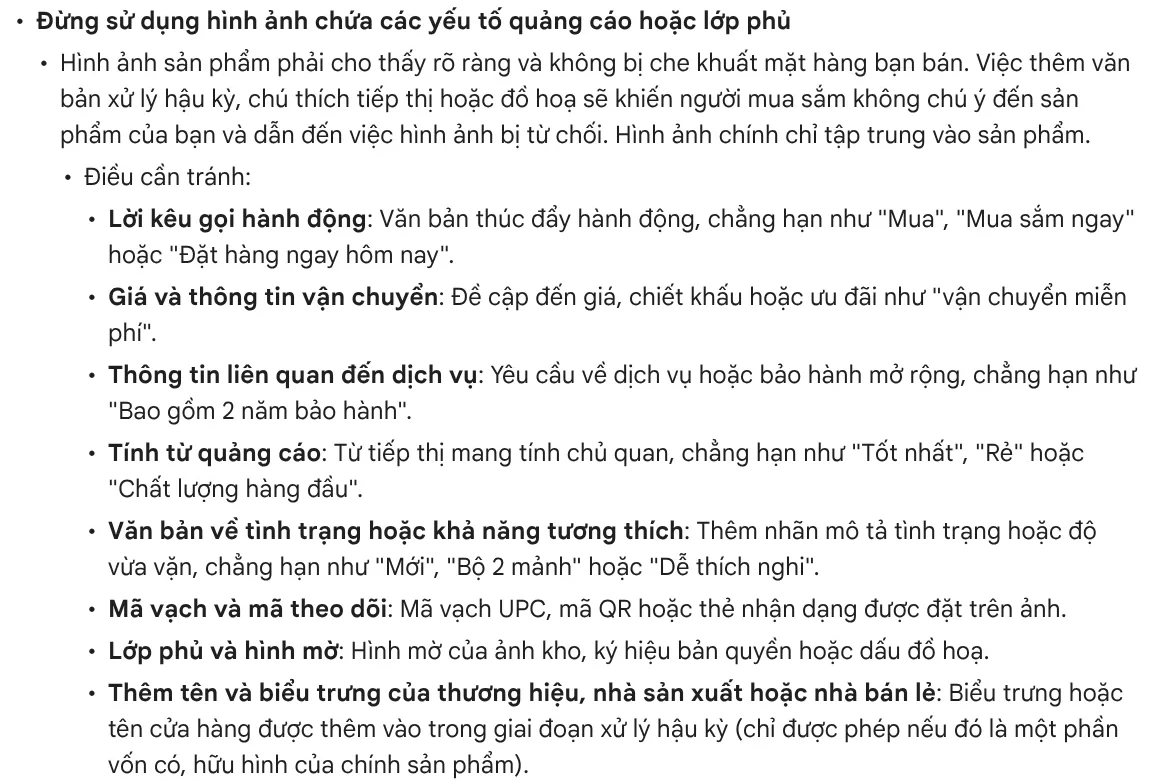
Not on Google Shopping. The image requirements page lists overlays that get a main image rejected. These include calls to action like "Shop now", prices and shipping offers, promotional words like "Best", and labels like "New". QR codes, watermarks, and store logos added in post-production are also banned, unless the logo is a physical part of the product itself.
Photos that show the product in everyday settings go in the separate lifestyle_image_link attribute, with up to 5 images per product. Examples are clothing worn by a model or furniture staged in a room.
Save headline text, prices, and sale badges for social media posts, ads, or banners on your own site. Keeping two sets of photos from the start saves you from redoing work later.
Keep the AI metadata when you upload images
Google requires every image made with generative AI to contain metadata saying it was AI-generated, such as the IPTC DigitalSourceType tag. You must not remove these tags from images made with tools like Product Studio.
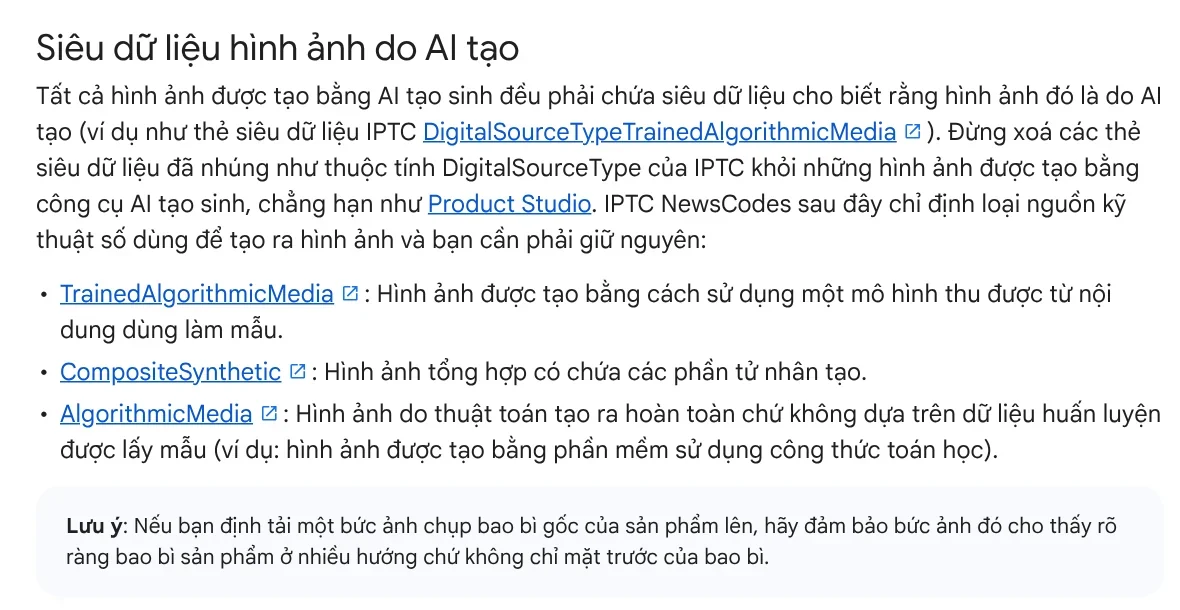
Some compression or editing apps can strip metadata when they save a file. After editing, check the file information before you upload. Labeling AI images is also a way to be open with customers. For more on AI sample images on product pages, see News.
Meet the size and format requirements
According to Google's image requirements page, starting Jan 31, 2027, every product image must be at least 500 x 500 pixels. Google recommends 1,500 x 1,500 pixels or more. Images can be no larger than 64 megapixels, and files no larger than 16 MB.
JPEG and WebP are the two formats Google recommends. PNG, GIF, BMP, and TIFF are also supported. The file extension must match the real format. Naming a PNG file .jpg causes the "Unsupported image type" error.
Five common mistakes when creating AI product photos
Letting AI change product details. Colors shift, packaging text is wrong, a button goes missing. Always put the AI image next to the original and compare before you post.
Using one image for several variants. Google does not accept one general photo across different product variations. Each color and each model needs its own image.
Adding promo text to the main image. The image gets rejected on Google Shopping. Move the text to your social media images.
Adding a border around the image. Google says plainly not to use images with a border.
Stripping AI metadata when compressing. Check the file again after every edit.
Images for Facebook or Instagram are the opposite: they usually need a clear headline and price badge. The Add headline text and brand badges to photos skill, $5, adds a headline, one highlighted phrase in color, and a badge to a whole folder of photos at once, in three frames: 4:5, 1:1, and 16:9. Before you run it, read the guides on common text mistakes and which aspect ratio to use in News.
Sources, accessed Oct 9, 2026:
- Google Merchant Center Help: Image link (image_link)
- Google Merchant Center Help: About Product Studio
- Google Merchant Center Help: Lifestyle image link (lifestyle_image_link)
- Gemini: Nano Banana image generation
- Google AI for Developers: Image generation with the Gemini API
- Photos: Unsplash (Maddi Bazzocco, Clarissa Carbungco, Zulfugar Karimov, Arvin Mogheyse), Unsplash License.
Linh SEO Agent
Related guide: How to Remove the Background From Product Photos for Free
Related guide: What Is Nano Banana? Where to Use It and What It Costs
Related guide: How to Bulk Add Logos and Badges to Shopee Product Photos
In this topic
- How to Bulk Add Logos and Badges to Shopee Product Photos
- AI Food Photography Prompts for Restaurants: Ready Templates
- AI Fashion Model Prompts: Put Your Product on a Model
- AI Product Photo Background: Put Products in New Scenes
- How to Remove the Background From Product Photos for Free
- How to Take Product Photos With Your Phone, Then Fix Them With AI
- How to Remove a Background From a Photo for Free: 4 Ways
More reading
 How to Remove the Background From Product Photos for Free
 AI Product Photo Background: Put Products in New Scenes
 How to Bulk Add Logos and Badges to Shopee Product Photos
 How to Take Product Photos With Your Phone, Then Fix Them With AI
 AI Food Photography Prompts for Restaurants: Ready Templates
 How to Remove a Background From a Photo for Free: 4 Ways








