
AI Product Photo Background: Put Products in New Scenes
Place a product in a new scene with Gemini or Google Product Studio, write a scene prompt, and follow the AI image rules for Google Shopping.

In this article (5)
- Place a product in a scene with Gemini: upload the photo, then describe the scene
- Product Studio changes product backgrounds for free for Google sellers
- Write the scene prompt: product, arrangement, surroundings, background
- Can AI composite photos be used as product images on Google Shopping?
- Five common mistakes when you composite product photos with AI
You can put a product photo into a new AI background for free with Gemini or Google's Product Studio. The hard part is not making a pretty scene. It is keeping the product exactly like the real item.
Place a product in a scene with Gemini: upload the photo, then describe the scene
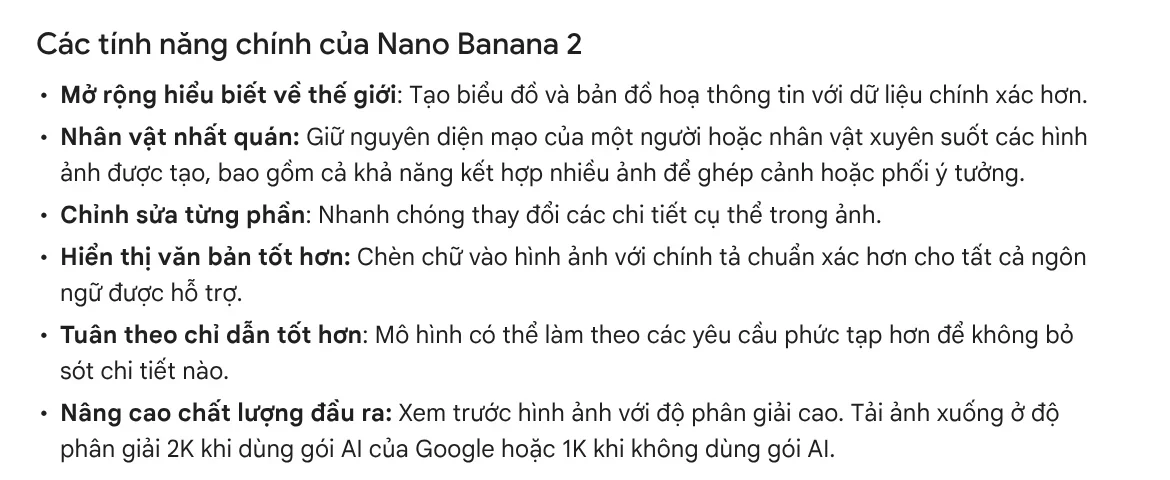
As of Oct 9, 2026, the Gemini Help page on creating and editing images says Gemini creates and edits images with Nano Banana 2 when you use the Flash or Pro model. This model can combine several images to blend scenes, and it can make specific changes to parts of an image. Those are the two things you need to place a product in a new setting.
The steps on a computer, based on the help page:
- Go to gemini.google.com and open the sidebar.
- Upload your product photo. If you have a background photo, upload it too, since Gemini can create a new image from several images.
- Type a prompt that describes the scene and where the product sits, then click Submit.
- If something is off, type a follow-up request that fixes that exact spot.
Google's US plans page, read on Oct 11, 2026, lists image generation and editing in the Free plan. According to the help page, the difference is download resolution: 1K without a Google AI plan, 2K with one. Image editing is only for users 18 and older.
Product Studio changes product backgrounds for free for Google sellers
If you sell through Google Merchant Center, Product Studio is a free set of AI tools inside your account. It creates images, changes backgrounds, increases resolution, removes backgrounds, and generates product videos. Google says Product Studio is available to all Merchant Center users except those in Russia and France.
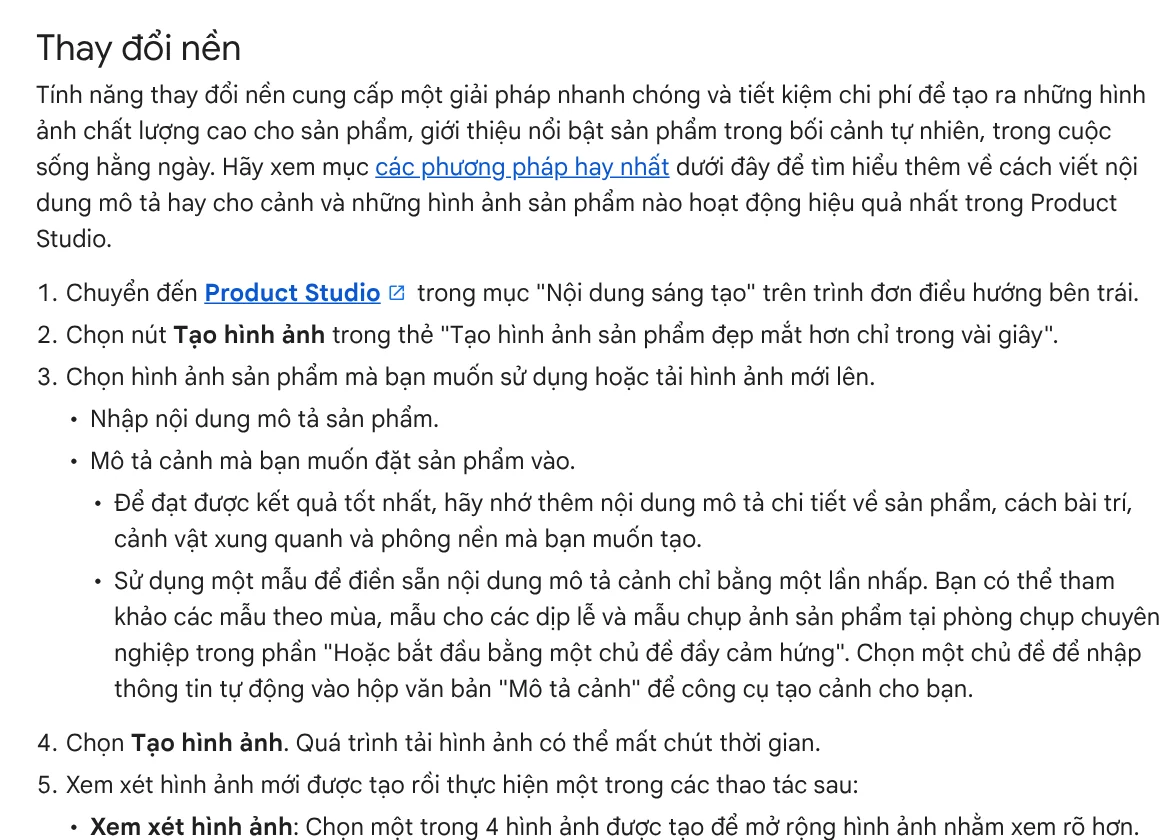
The steps to change a background:
- Go to Creative content in the left menu and choose Product Studio.
- Choose Generate image, then pick an existing product image or upload a new one.
- Enter a description of the product and the scene you want to place it in.
- Choose Generate image, review the 4 images it creates, and download the one you like.
Know three limits up front. The tool works best with descriptions in English and a handful of other languages, including Spanish and Japanese, so write your scene description in English. Images with hands, wall art, and light fixtures are not supported yet. Regulated products such as alcohol, pharmaceuticals, and tobacco cannot be generated either.
Write the scene prompt: product, arrangement, surroundings, background
Google advises describing four things in detail: the product, how it is arranged, the surroundings, and the background. Leave one out and the model will guess that part. For Gemini, the help page adds: say what style of image you want, such as photorealistic, and describe where the subject is and what is around it.
A prompt with all four parts might look like this. "Keep the fish sauce bottle in the photo exactly as it is. Place the bottle on a light wooden kitchen counter, next to a bowl of rice and fresh herbs. The background is a sunny window, photorealistic." The first sentence, "keep it exactly as it is," matters most, because you are selling that exact bottle.
Can AI composite photos be used as product images on Google Shopping?
Yes, if you follow the rules. Merchant Center's AI-generated content page says every AI-generated image must contain IPTC metadata showing it was made with AI. You must not remove these metadata tags from images made with Product Studio or other AI tools.
AI images can be used as the main image, additional images, and lifestyle images. But the product image requirements still apply: the main image must clearly show the exact item you sell, with the right color, pattern, and material for each variant.
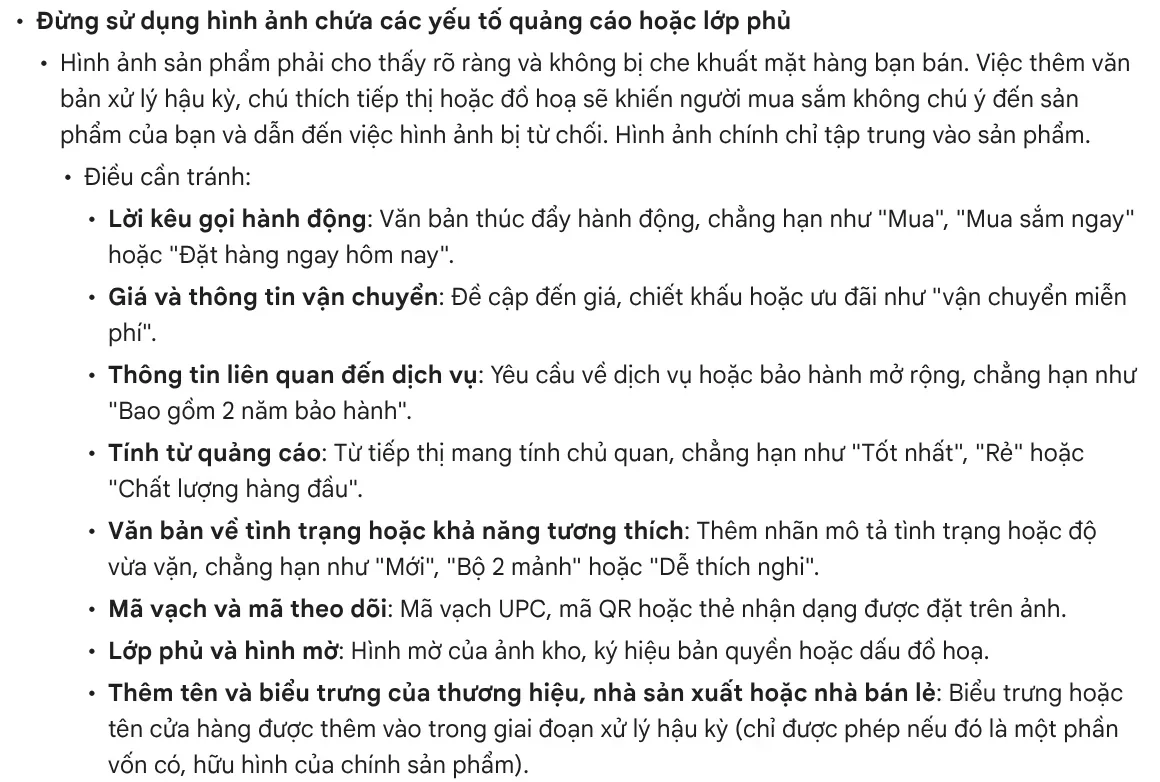
The main image also cannot carry an added call to action, price, shipping offer, label such as "New," watermark, or logo. So keep two sets of images: clean images for the product page, and images with text and badges for social media posts.
Five common mistakes when you composite product photos with AI
The product details change. AI can redraw a bottle cap, a seam, or the color of a case differently. Compare every detail with the original before you use the image. If something is off, ask for a fix to that exact spot.
The text on the packaging is wrong. Nano Banana 2 renders text with more accurate spelling than before, but you still need to reread the product name and ingredients. Packaging with misprinted text makes the image unusable.
The light on the product does not match the scene. If the product is lit from the left but the shadow also falls to the left, it looks pasted in. State the direction of the light in your prompt.
One image for several variants. Google asks for a separate image for each color and each version. Composite each variant on its own.
The AI image metadata gets removed. Compression or editing software can strip this information. Check before you upload to Merchant Center.
A pretty image of the wrong item costs you customer trust. More guides on AI images and product photos are in News.
Does your finished composite need a headline, an accent phrase, and a badge for social media? The add headline text and brand badges to photos skill does that for a whole folder of photos at once, in three frames: 4:5, 1:1, and 16:9. It costs $5. Guides on which frame fits which platform are also in News.
Sources, accessed Oct 9, 2026:
- Google: Create and edit images with Gemini Apps (English page, accessed Oct 11, 2026; Vietnamese version read Oct 9, 2026)
- Google: Google AI plans in Vietnam (Vietnamese page)
- Google: Google AI plans, US, accessed Oct 11, 2026
- Google Merchant Center: About Product Studio (English page, accessed Oct 11, 2026)
- Google Merchant Center: AI-generated content (English page, accessed Oct 11, 2026)
- Google Merchant Center: Image link, image requirements (English page, accessed Oct 11, 2026)
- Illustrative photos: Unsplash (Viktor Forgacs, Rohit Dey), Unsplash License.
Linh SEO Agent
Related guide: AI for Online Sellers: 5 Jobs to Hand Off to AI
Related guide: How to Remove the Background From Product Photos for Free
Related guide: How to Create AI Product Photos for Your Online Store
More reading
 How to Remove the Background From Product Photos for Free
 AI Fashion Model Prompts: Put Your Product on a Model
 How to Remove a Background From a Photo for Free: 4 Ways
 AI Food Photography Prompts for Restaurants: Ready Templates
 How to Bulk Add Logos and Badges to Shopee Product Photos
 How to Take Product Photos With Your Phone, Then Fix Them With AI








