
How to Remove the Background From Product Photos for Free
Remove the background from product photos for free with Google Product Studio, Windows Photos, or Preview on Mac. Plus Google's main image rules.

In this article (6)
- A good main image shows the product at 75 to 90% of the frame on a plain background
- Google Product Studio removes product photo backgrounds for free
- No Merchant Center? Use Photos on Windows or Preview on Mac
- Should you add text or a price to a product photo after removing the background?
- Common mistakes when you remove the background from product photos
- For social posts, add text and badges to a whole folder at once
An online store can remove the background from product photos for free with Google's Product Studio, the Photos app on Windows, or Preview on Mac. Keep the main product image clean, with no promotional text on it.
Starting Jan 31, 2027, Google Merchant Center requires every product image to be at least 500x500 pixels. That makes now a good time to redo your photo set: remove the background, fix the size, and keep your main images separate from the images you use for ads. This guide covers three free tools and the most common mistakes.
A good main image shows the product at 75 to 90% of the frame on a plain background
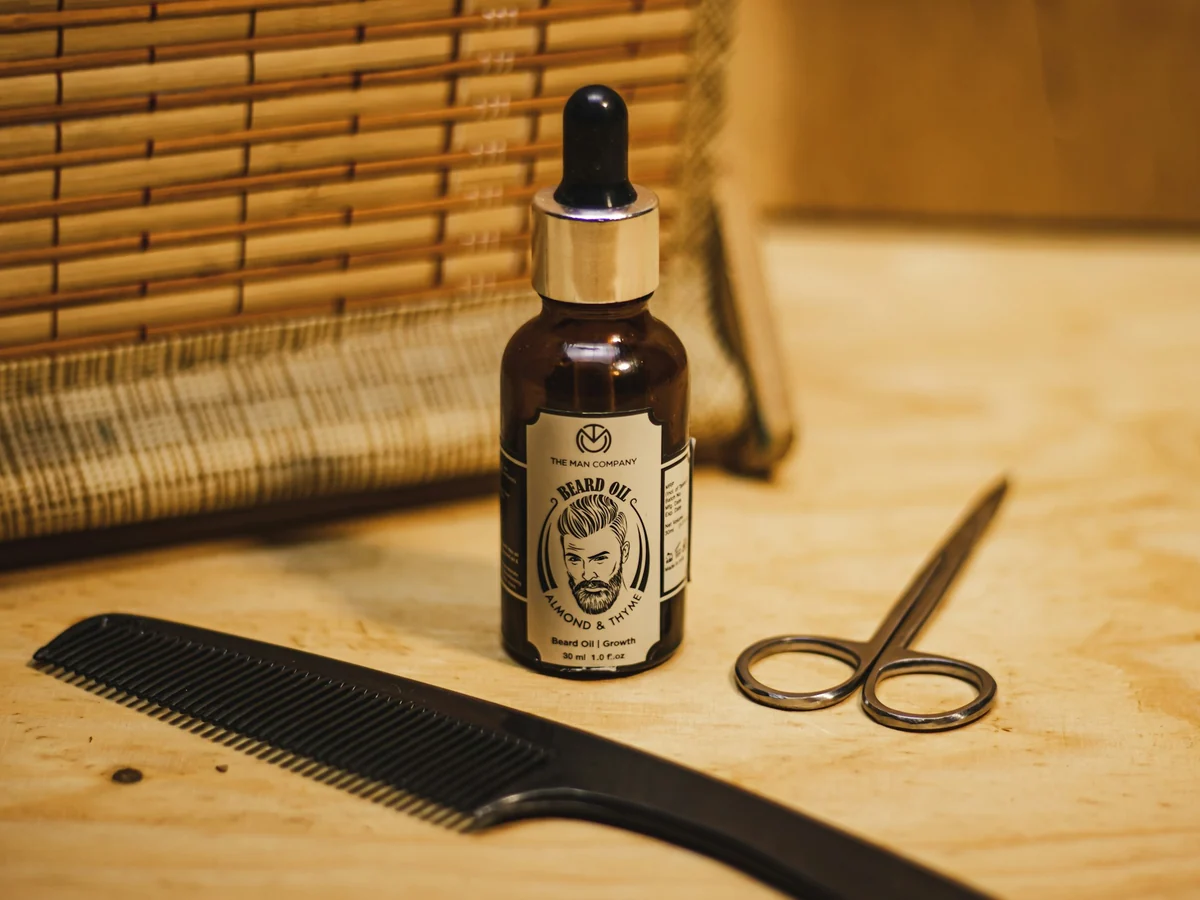
The Google Merchant Center image guidelines recommend that your product take up no less than 75% and no more than 90% of the full image. Google also recommends images of 1500x1500 pixels or more, no larger than 64 megapixels, with a file size of 16 MB or less.
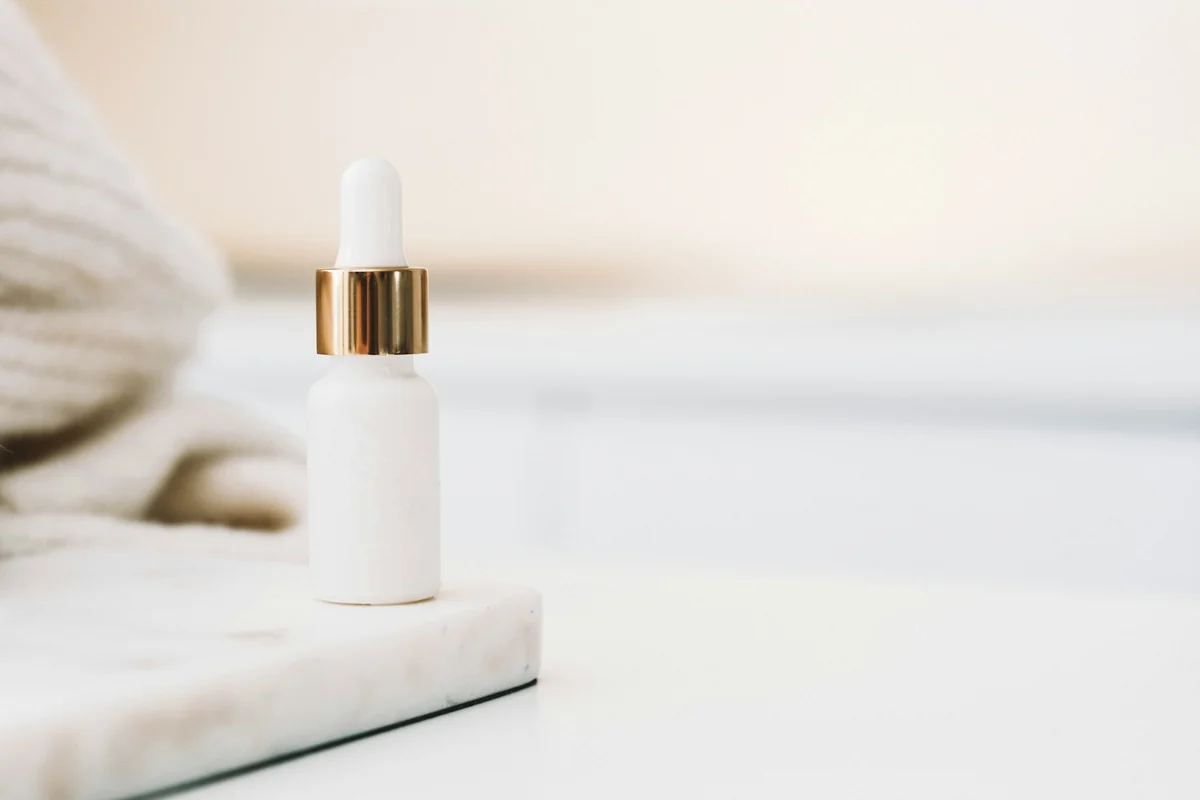
Removing the background makes these targets easier to hit. Once the background is clean, you can crop close to the product without showing a room corner, a desk, or stray objects. Google says clearly that the main image must not include any product that isn't sold together with the main product.
The recommended formats are JPEG and WebP. If you save a PNG with a transparent background, make sure the file extension is really .png.
Google Product Studio removes product photo backgrounds for free
If your store already has a Merchant Center account, Product Studio is the first tool to try. Google describes it as a suite of free, AI-powered tools that can remove backgrounds, change backgrounds, increase resolution, and generate product videos. A Merchant Center account is also free to create.
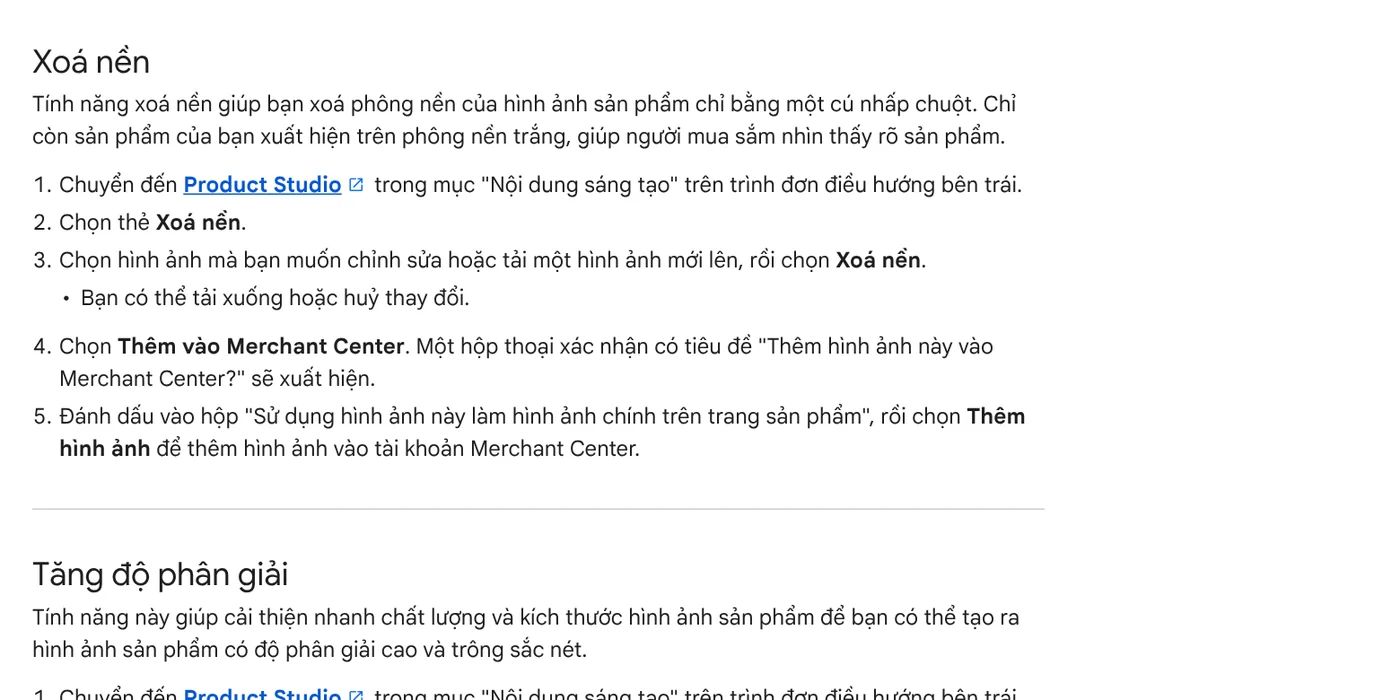
To remove a background:
- In Merchant Center, go to Creative content in the left menu and select Product Studio.
- Select the Remove background card.
- Pick an existing image or upload a new one, then select Remove background. You can download the result or undo your changes.
- Select Add to Merchant Center, check the box to use the image as your main product image, then select Add image.
The result is your product on a white background. Product Studio is available to all Merchant Center users except those based in Russia and France.
Google also lists limits. The tool doesn't yet support images with hands, wall art, or light fixtures. It also doesn't work for regulated goods such as alcohol, pharmaceuticals, tobacco, and medical devices.
No Merchant Center? Use Photos on Windows or Preview on Mac
If you only post on Facebook, Instagram, or an online marketplace, you don't need Merchant Center. Your computer already has a tool to remove the background from an image.
Windows: The Photos app on Windows 11 can remove and replace backgrounds. The feature arrived in an update for Windows Insiders in November 2023, according to Microsoft's Windows Insider blog. One click removes the background, then you save the image or copy it to the clipboard. The part that suits product photos: you can replace the background with a solid color, picked from the palette, a hex code, or RGB values. For pure white, enter #FFFFFF.
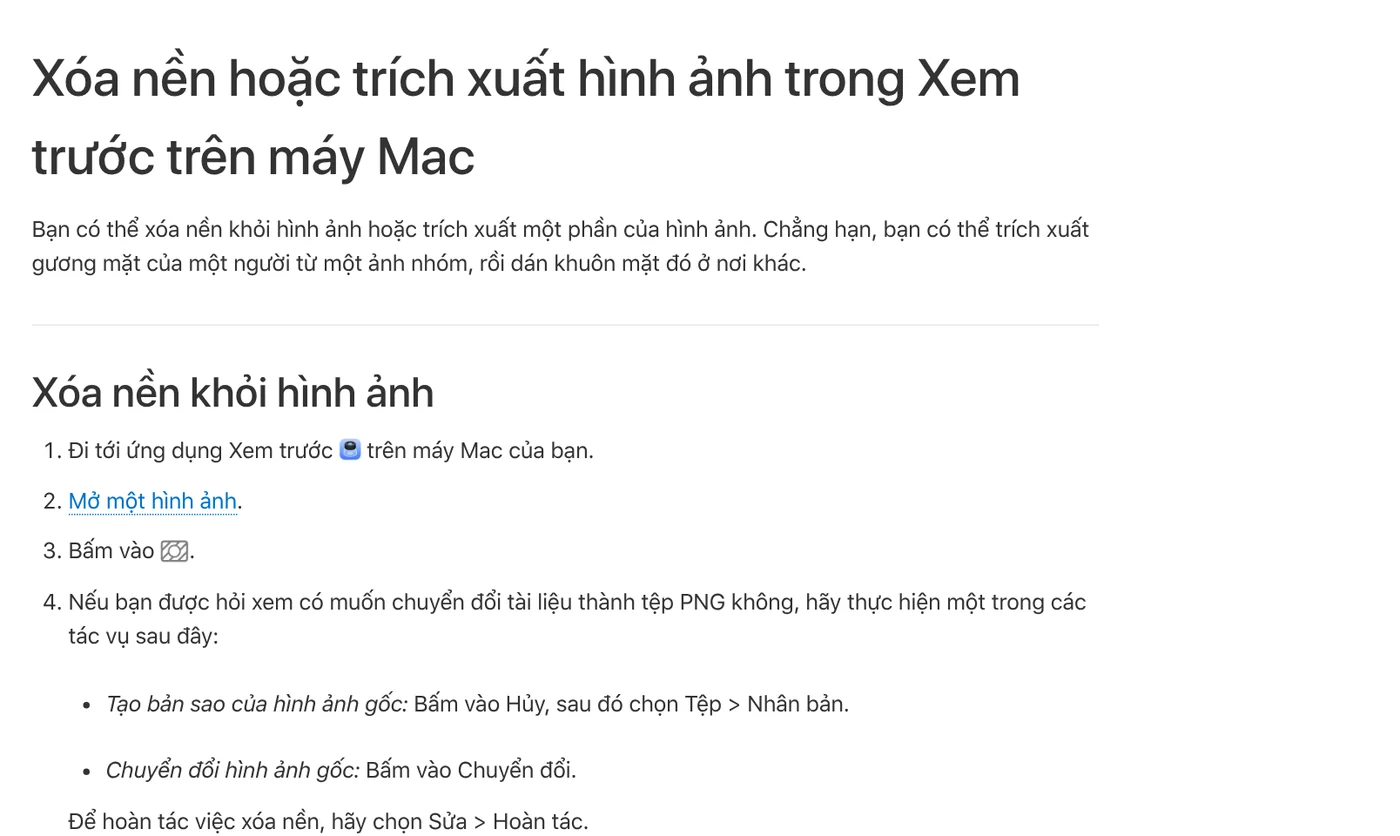
Mac: Apple's Preview guide gives these steps:
- Open the image in Preview.
- Click the remove background button in the toolbar.
- If you're asked to convert the document to a PNG file, click Cancel, then choose File > Duplicate to keep the original. If you click Convert, the original image is replaced.
- To go back, choose Edit > Undo.
Should you add text or a price to a product photo after removing the background?
Not on your main image for Google. Merchant Center rejects main images with calls to action such as "Shop now", prices or offers such as "Free shipping", and marketing words such as "Best". A logo or store name added after the shoot also counts as a violation, unless the logo is printed on the product itself.
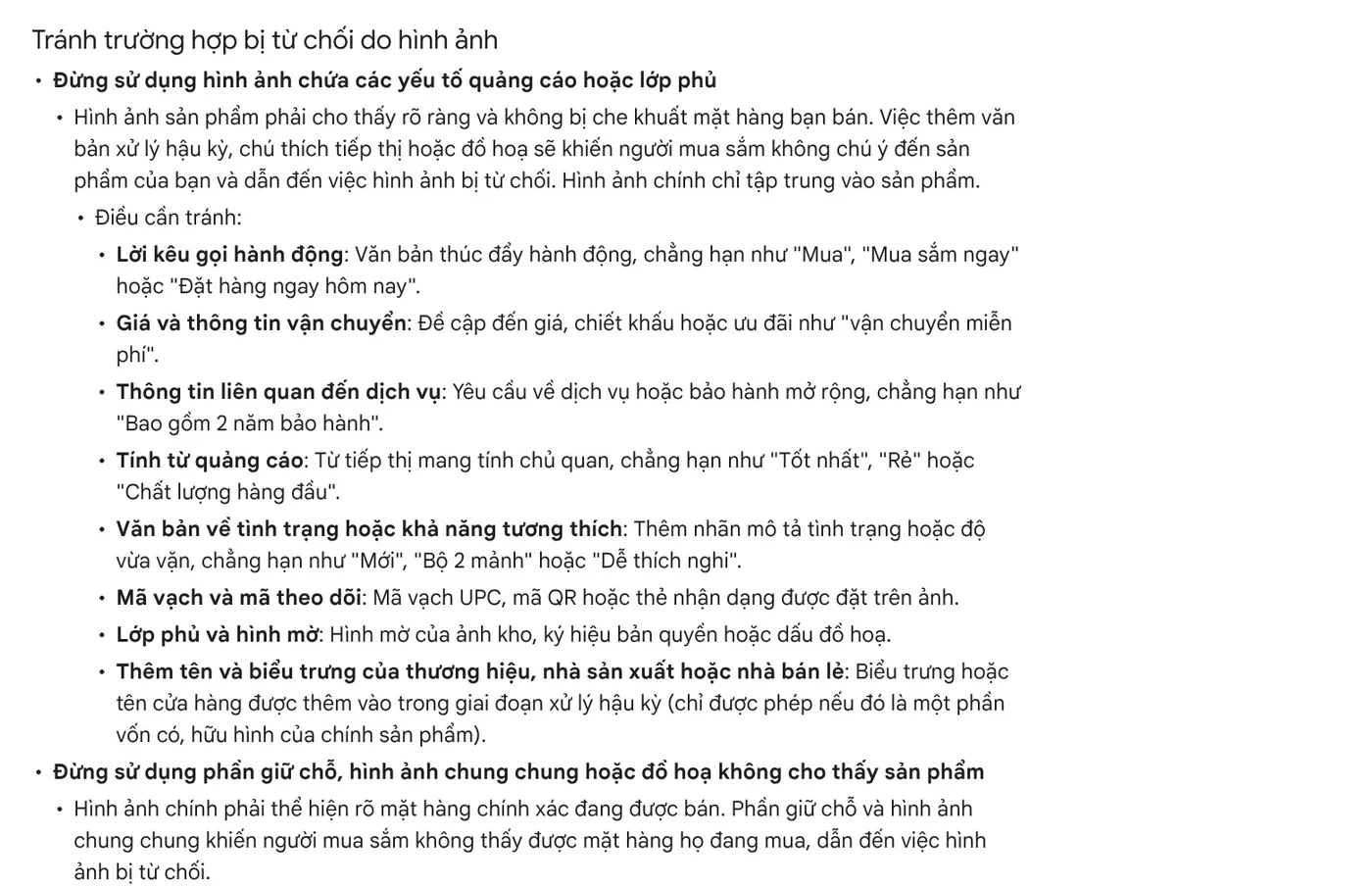
Images for social posts, banners, or ads are different. There, a short headline and a price badge help people who scroll past understand the product at a glance. The simple approach is to keep two sets: clean images for product pages, and images with text for posts.
Common mistakes when you remove the background from product photos
Saving over the original. On a Mac, clicking Convert replaces the original image. Always make a copy first, because you may need a different background later.
The product is too small in the frame. If the product fills only half the image after you remove the background, shoppers still have to zoom in. Crop again so the product takes up 75 to 90% of the frame.
Using one photo for several colors. Google wants a separate image for each color variant, with the right color and finish. Remove the background from each variant photo instead of recoloring one shared image.
The wrong file extension. A PNG file named .jpg triggers an "Unsupported image type" error in Merchant Center.
A hand holding the product. Product Studio doesn't yet support images with hands. Shoot the product again on a table for a cleaner result.
For social posts, add text and badges to a whole folder at once
Once you have a set of clean product photos, the next slow step is adding text to the images for your posts. The skill Add headline text and brand badges to photos costs $5. It adds a headline, a highlighted phrase in color, and a badge in your brand style to a whole folder of photos in one pass, with three frames: 4:5, 1:1, and 16:9. Guides on when to use each aspect ratio and on six common mistakes when adding text to photos are in News.
Sources, accessed Oct 9, 2026:
- Google Merchant Center Help: Image link (image_link)
- Google Merchant Center Help: About Product Studio for Merchant Center
- Windows Insider Blog: Windows Photos gets background remove and replace
- Apple: Remove a background or extract an image in Preview on Mac
- Photos: Unsplash (KOBU Agency, Content Pixie, Harshit Suryawanshi), Unsplash License.
Linh SEO Agent
Related guide: How to Take Product Photos With Your Phone, Then Fix Them With AI
Related guide: AI Product Photo Background: Put Products in New Scenes
Related guide: How to Create AI Product Photos for Your Online Store
More reading
 How to Remove a Background From a Photo for Free: 4 Ways
 AI Product Photo Background: Put Products in New Scenes
 How to Take Product Photos With Your Phone, Then Fix Them With AI
 How to Bulk Add Logos and Badges to Shopee Product Photos
 AI Food Photography Prompts for Restaurants: Ready Templates
 AI Fashion Model Prompts: Put Your Product on a Model








