
How to Remove a Background From a Photo for Free: 4 Ways
Remove a photo background for free with Paint on Windows, iPhone subject lifting, Google Photos stickers, or remove.bg. Plus the most common mistakes.


In this article (7)
- On Windows, Paint removes the background in one click
- On iPhone, touch and hold the subject to lift it
- On Android, Google Photos turns the subject into a sticker
- Online, remove.bg gives you a free preview, but the site closes on Dec 1, 2026
- Which background removal method fits your task?
- Common background removal mistakes and how to avoid them
- After you remove the background, add text and badges to a whole batch of photos
To remove a photo background for free, use a tool you already have: Paint on Windows, subject lifting on iPhone, Google Photos stickers, or the remove.bg website.
As of October 2026, all four methods below cost nothing for basic use. Each one fits a different device and a different kind of task, so pick based on the device in your hand and where the photo will go. The last part of this guide covers common background removal mistakes so you don't have to redo your work.
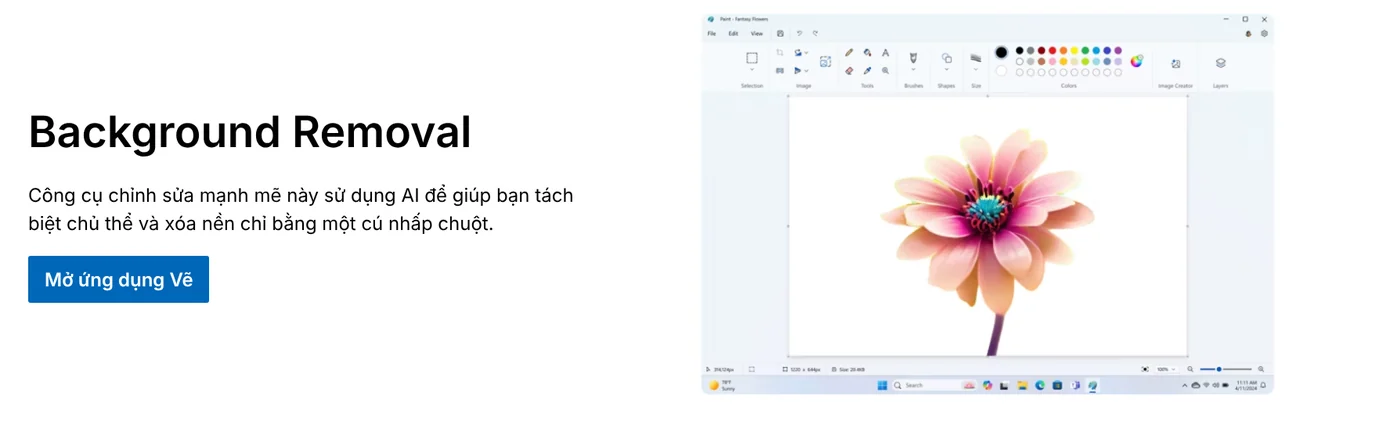
On Windows, Paint removes the background in one click
Paint comes with Windows, as the Microsoft Paint page says in its answer about pricing. The page describes Background Removal, a feature that uses AI to separate the subject and remove the background with a single click. The feature is part of the latest Windows 11 update.
Microsoft explained how to use it in a Windows Insider blog post when the feature launched:
- Open the image in Paint, or paste it onto the canvas.
- Click the background removal button on the toolbar to remove the background from the whole image.
- To remove the background from only part of the image, draw a box around that area with the rectangle select tool first, then click the button.
When you save, Paint lets you choose from several formats, such as PNG, JPEG, BMP, and GIF.
On iPhone, touch and hold the subject to lift it
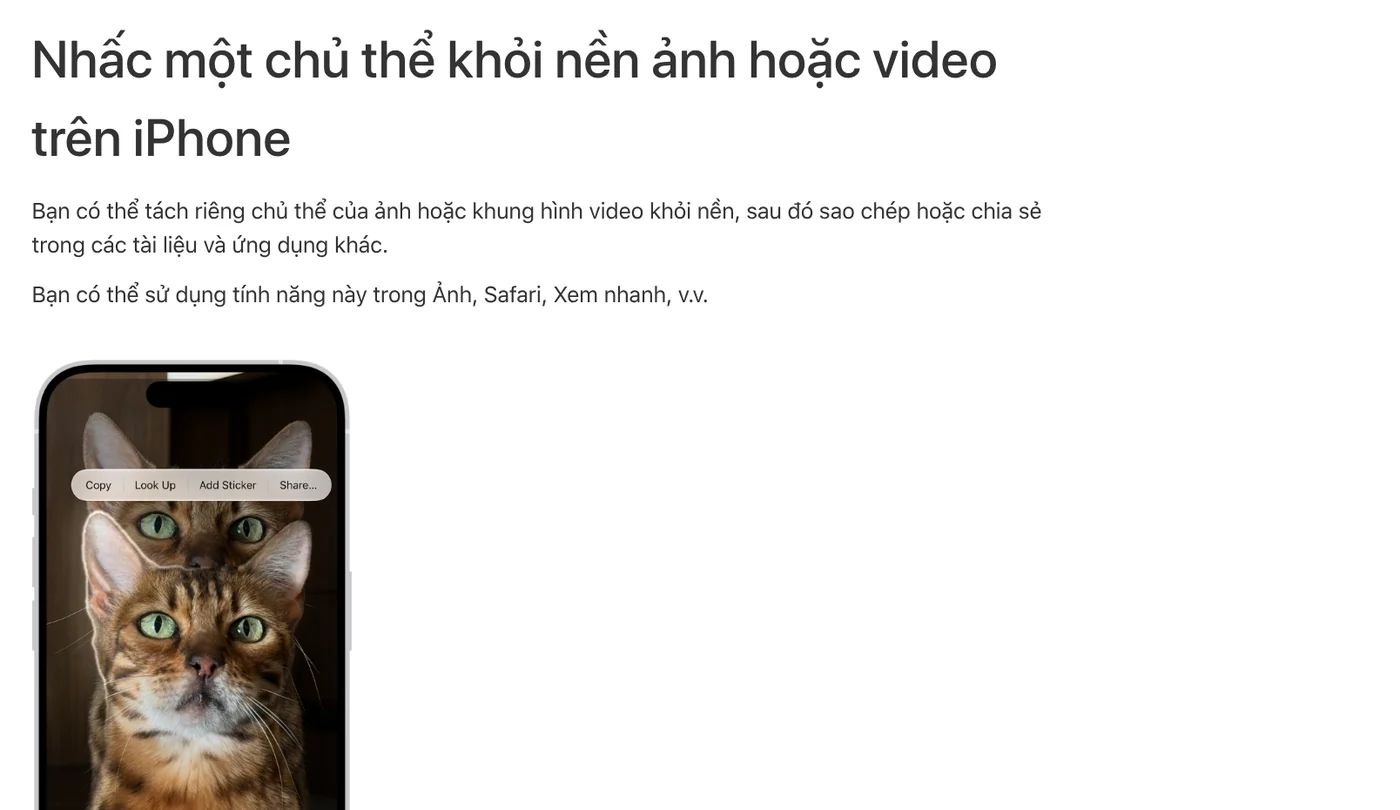
iPhone separates a subject from its background right in the Photos app, with nothing extra to install. Apple's iPhone User Guide lists the steps:
- Open the photo in full screen, or pause a video on the frame you want.
- Touch and hold the subject until an outline appears around it.
- Tap Copy to paste it into an email, message, or note. Tap Add Sticker to save it as a sticker. Or tap Share to send it with AirDrop or Mail.
The feature also works in Safari and Quick Look. According to Apple's support page on cutouts, you need iOS 16 or later on an iPhone XS, iPhone XR, or a newer model.
On Android, Google Photos turns the subject into a sticker
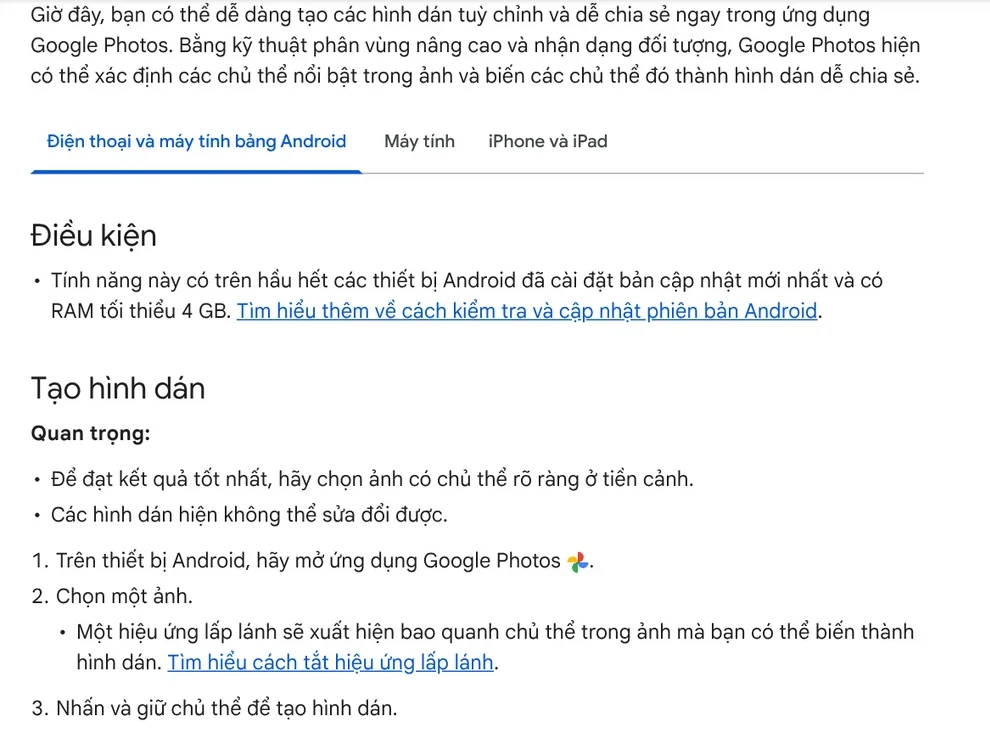
Google Photos can create a sticker from a photo, which means it separates the subject from the background and lets you copy it. The Google Photos help page says the feature is available on most Android phones that run the latest update and have at least 4 GB of RAM. On iPhone, the Google Photos app needs iOS 17 or later.
Steps on Android:
- Open Google Photos and pick a photo. A shimmer effect appears around any subject that can be lifted.
- Press and hold the subject to create a sticker.
- Tap Copy or Share, then paste it straight into WhatsApp, Instagram, or Messages.
Google notes two limits: you can't edit the sticker for now, and the feature does not work on a computer.
Online, remove.bg gives you a free preview, but the site closes on Dec 1, 2026
If you don't want to install anything, upload your photo to remove.bg. The site says it works fully automatically and for free. You get an image with a transparent background (PNG) or a white background.
The free part has limits. The remove.bg pricing page says preview images are always free on the web. To download the full resolution version, you spend 1 credit per image. The pay as you go option is $3 for 3 credits, and the subscription is $9 a month for 40 credits.
The most important point: remove.bg is moving its background removal feature to Canva. The standalone site shuts down at 9:00 AM CET on Dec 1, 2026, and your credits expire at the same moment. So don't buy a lot of credits right now.

Which background removal method fits your task?
Choose based on the device that holds the photo:
- The photo is on a Windows PC: use Paint, then save it as a file for a post or a document.
- The photo is on your iPhone: touch and hold the subject, then paste it straight into a message or a note.
- The photo is on an Android phone: make a sticker in Google Photos and share it through a messaging app.
- You're on a borrowed computer and can't install anything: use remove.bg, and remember that the free version is a preview.

Photos with the background removed often end up in social media posts. Before you place the subject on a new background, pick your frame first. You can find a guide on when to use the 4:5, 1:1, and 16:9 aspect ratios in News.
Common background removal mistakes and how to avoid them
The subject gets cut off or keeps bits of the background. Google recommends photos with a clear subject in the foreground. When the subject has the same colors as the background, or several objects overlap, most tools leave a rough edge.
You want to place the subject into another photo right on your iPhone. Apple's support page says clearly that you can't paste the subject into another photo. Paste it into another app, such as Notes, or move the photo to a computer to combine them.
You download the preview and send it to print. The free remove.bg file is a preview image. For photos you need to print or enlarge, use Paint, iPhone, or Google Photos on the original image.
You can't find the background removal button in Paint. Background Removal comes with the latest Windows 11 update. A computer that hasn't been updated won't have the button.
You can't adjust a Google Photos sticker. If the cutout looks wrong, create a new sticker from the original photo.
After you remove the background, add text and badges to a whole batch of photos
A clean background is the right moment to add a headline and a price badge to your photo. Doing it by hand, one photo at a time, often leaves the text in slightly different spots, especially when you post product photos every day. A guide to six common mistakes when adding text to photos, covering fonts and colors, is in News.
The skill Add headline text and brand badges to photos costs $5. It adds a headline, a highlighted phrase in color, and a badge to a whole folder of photos at once. The skill comes with three frames ready to use: 4:5, 1:1, and 16:9. Other photo skills are on the Skills and apps page.
Sources, accessed Oct 9, 2026:
- Microsoft: Paint (Vietnamese page)
- Windows Insider Blog: Background Removal in Paint begins rolling out to Windows Insiders
- Apple: Lift a subject from the photo background on iPhone (Vietnamese page)
- Apple: Create and share cutouts on your iPhone (Vietnamese page)
- Google Photos Help: Create stickers from your photos (Vietnamese page)
- remove.bg: Home (Vietnamese page) and Pricing (English page)
- Photos: Unsplash (charlesdeluvio, Karolina Grabowska, Eric Balshin), Unsplash License.
Linh SEO Agent
Related guide: How to Remove the Background From Product Photos for Free
Related guide: How to Send Large Files From iPhone to PC Over Wi-Fi
Related guide: How to Add a Logo to Photos Online, One at a Time or in Bulk
The complete guide for this topic: How to Create AI Product Photos for Your Online Store
More reading
 How to Remove the Background From Product Photos for Free
 AI Product Photo Background: Put Products in New Scenes
 How to Take Product Photos With Your Phone, Then Fix Them With AI
 AI Food Photography Prompts for Restaurants: Ready Templates
 How to Add Text to a Photo on Your Phone or Computer
 AI Fashion Model Prompts: Put Your Product on a Model








