
Free Text to Video AI: From Script to Clip in Google Flow
Make free AI videos from text with Google Flow: 50 credits a day, split your script into 8 to 10 second scenes, and join clips in Scenebuilder.


In this article (7)
- Gemini needs a paid plan, Google Flow gives you 50 free credits a day
- How many clips do 50 free credits make?
- Split your script into 8 to 10 second scenes before you open Flow
- Write each scene's prompt around Google's five elements
- Join the clips into a finished video with Scenebuilder
- Common mistakes when you make free AI videos from text
- What if you need a sales video with voice-over and sources?
The easiest free way to turn text into an AI video right now is Google Flow: you get 50 credits a day, enough for a few clips of 8 to 10 seconds.
As of October 2026, the Google Flow help page says people without a subscription still receive 50 credits per day.
Gemini needs a paid plan, Google Flow gives you 50 free credits a day
The Gemini Apps help page is clear: to create videos with a personal account, you must have a Google AI plan.
Google Flow is different. The Google Flow credits page says that with or without a subscription, you receive 50 credits per day. The Google AI Plus plan adds 200 credits per month, and the Pro plan adds 1,000.
Non-subscribers face two limits. During peak hours, roughly 2 PM to 5 PM UTC, you may not be able to generate videos. Unused daily credits also do not roll over to the next day.
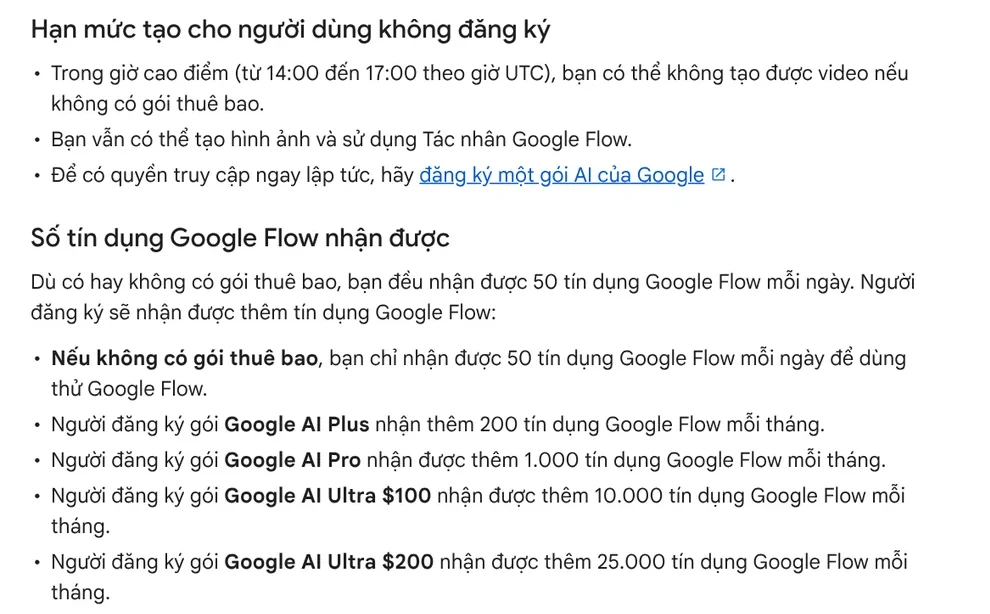
One thing to watch: the Get started with Google Flow page lists requirements that include being 18 or older, being in a supported region, and having a Google AI plan. The two official pages do not match yet. Sign in with your own account to find out for sure whether you can use the free credits. Google Flow lists its supported countries and territories, which include the United States, the United Kingdom, Canada, Australia, and India.
How many clips do 50 free credits make?
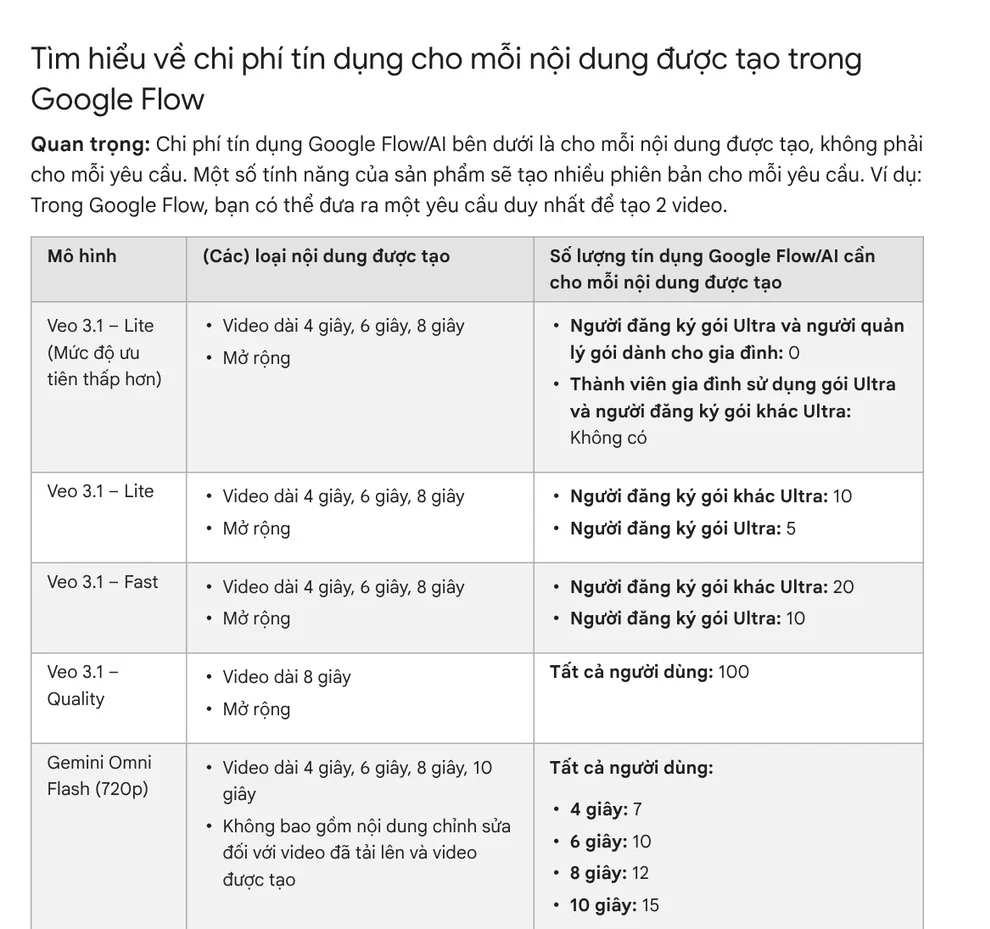
Costs are per video generated, not per request. Here is the price list on the credits page for people who are not on the Ultra plan:
- Veo 3.1 Lite: 10 credits per clip of 4, 6, or 8 seconds. 50 credits get you 5 clips.
- Veo 3.1 Fast: 20 credits per clip, so 2 clips.
- Gemini Omni Flash 720p: 12 credits for an 8-second clip, 15 credits for a 10-second clip.
- Gemini Omni Flash 360p: 6 credits for an 8-second clip, 7 credits for a 10-second clip. This is the cheapest option and suits testing ideas.
The page lists the Veo 3.1 Lite and Fast prices for "non-Ultra subscribers" and does not say clearly what applies to accounts with no plan. Gemini Omni Flash prices are listed for all users.
Veo 3.1 Quality costs 100 credits, more than one day's allowance. Upscaling to 1080p is also only for Plus, Pro, and Ultra subscribers.
Split your script into 8 to 10 second scenes before you open Flow
The Google Flow models page says Veo 3.1 makes clips of up to 8 seconds and Gemini Omni Flash makes clips of up to 10 seconds. So a 30-second script needs about three or four separate scenes.

Before you generate anything, write the script on paper and split it into scenes. Each scene gets only one main action. For example, in a clip that introduces a cup of coffee: scene 1 pours the coffee, scene 2 is a close-up of the cup on a wooden table, scene 3 shows a hand carrying the cup out to a balcony.
If a product or character has to look the same across scenes, use the ingredients feature (reference images). Google recommends subject or product references on a plain or segmented background.
Write each scene's prompt around Google's five elements
The guide to creating videos in Google Flow recommends describing the scene in detail and being specific about the subject, action, environment, lighting, and style.
On language, the Where you can use Google Flow page recommends English prompts for best results. Other languages still work, but output quality may vary. If English is not your first language, you can draft the idea in your own language, then translate it into English before you paste it into the prompt box.
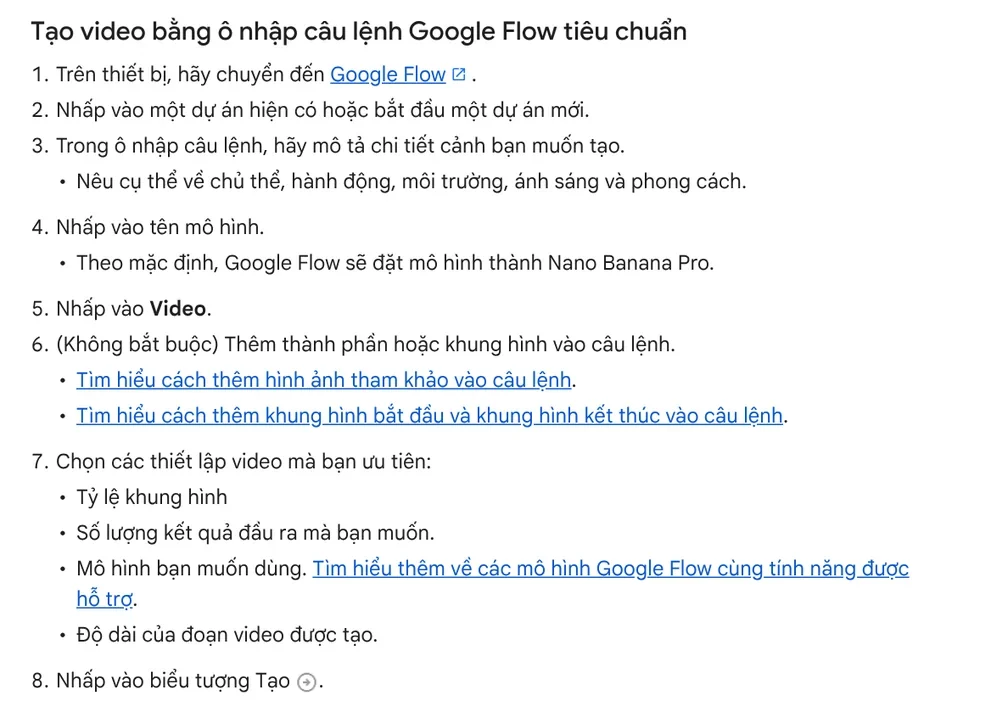
Steps to create a clip with the standard prompt box:
- Go to Google Flow and open an existing project or start a new one.
- Describe the scene in detail in the prompt box.
- Click the model name. By default, Flow sets the image model Nano Banana Pro, so choose Video.
- Choose the aspect ratio, number of outputs, model, and clip length.
- Click Generate.
Join the clips into a finished video with Scenebuilder
Once you have enough clips, use Scenebuilder right inside Flow. According to the editing and scene building page, this tool arranges multiple clips in a sequence, trims the start and end of each clip, previews the whole sequence, and downloads the scene.
To add a clip, hover over it, click More, then choose Add to Scene. An 8-second Veo clip can also be lengthened with the Extend button, but you must use Veo 3.1 Lite. Each extension also costs credits, the same as a new clip.
Every output made in Google Flow with Veo, Omni, or Nano Banana carries an invisible SynthID watermark, and a visible watermark can also appear on generated videos, according to the Google Flow FAQ.
Common mistakes when you make free AI videos from text
Setting the number of outputs above 1. Credits are charged per video, so a request for 2 videos costs twice as much. When you test ideas, set the number of outputs to 1.
Generating during peak hours. Between roughly 2 PM and 5 PM UTC, people without a plan may be blocked from generating videos. Check what that window is in your time zone and work outside it.
Testing with an expensive model. Test the composition with Omni Flash 360p, and only make the 720p version once you are happy with it.
The character's face changes between scenes. Add an ingredient that shows the character on a plain background, and mention that ingredient by name in every scene's prompt.
Clicking Generate over and over. Flow may show "You're requesting generations too quickly" and lower the number of generations you can make per minute.

What if you need a sales video with voice-over and sources?
Flow gives you good-looking clips, but you still have to make the voice-over, captions, and supporting sources yourself. Adam Proof Studio takes a product link or an article and returns a vertical video with voice-over, captions, and music, in English or Vietnamese. Videos come in 9:16, 16:9, or 1:1 and include quotes backed by sources. If you need every line of voice-over to carry a source and an access date, see the AI video with a source table service. To pick a frame before you create clips, the News section explains when to use 4:5, 1:1, or 16:9.
Sources, accessed Oct 9, 2026:
- Google Flow Help: Manage your Google Flow credits
- Google Flow Help: Get started with Google Flow
- Google Flow Help: Create videos in Google Flow
- Google Flow Help: Learn about Google Flow models & supported features
- Google Flow Help: Edit videos & build scenes in Google Flow
- Google Flow Help: Where you can use Google Flow
- Gemini Apps Help: Generate videos with Gemini Apps
- Illustrative photos: Unsplash (Jakob Owens, Kaleidico, Vitaly Gariev, Julio Lopez), Unsplash License.
Linh SEO Agent
Related guide: Veo 3.1 vs Veo 3: What's New and Where You Can Still Use It
Related guide: Gemini Omni Pricing: How Much It Costs and Which Plan
Related guide: How to Make AI Videos on Your Own: A 5-Step Workflow
More reading
 Free Image to Video AI: Beginner Steps in Google Flow
 What is Hailuo AI? MiniMax H3, pricing and free credits 2026
 Gemini Photo to Video: Steps, Requirements and Limits
 What Is Google Flow? How to Use It and What It Costs
 What Is Gemini Omni Flash, and How Is It Different From Veo?
 How to Make a Product Video With AI: a 30-Second Script








