
Free Image to Video AI: Beginner Steps in Google Flow
Free image to video AI with Google Flow: 50 credits a day, free image generation, then use your image as the start frame. Plus the steps in Gemini.

In this article (7)
- Google Flow gives you 50 credits a day, enough to try free image to video AI
- Before you start: an account for ages 18 and up, plus Chrome or Edge
- Step 1: create an image in Flow or upload your own
- Step 2: turn the image into video with Frames
- Step 3: use Ingredients to keep a character the same across scenes
- Can Gemini turn a photo into a video for free?
- Common mistakes when making video from a photo
To make an AI video from a photo for free, use Google Flow. You get 50 credits a day, creating images costs nothing, and you drag your image into the start frame slot.
Google Flow gives you 50 credits a day, enough to try free image to video AI
Since Feb 25, 2026, Google has built its Nano Banana image model right into Flow. According to Google's blog post, the images you create work right away as ingredients and frames for video, and creating images in Flow is free.
Video is paid for with credits. The Google Flow credits page says that with or without a subscription, you get 50 credits a day. Daily credits you do not use do not roll over to the next day.
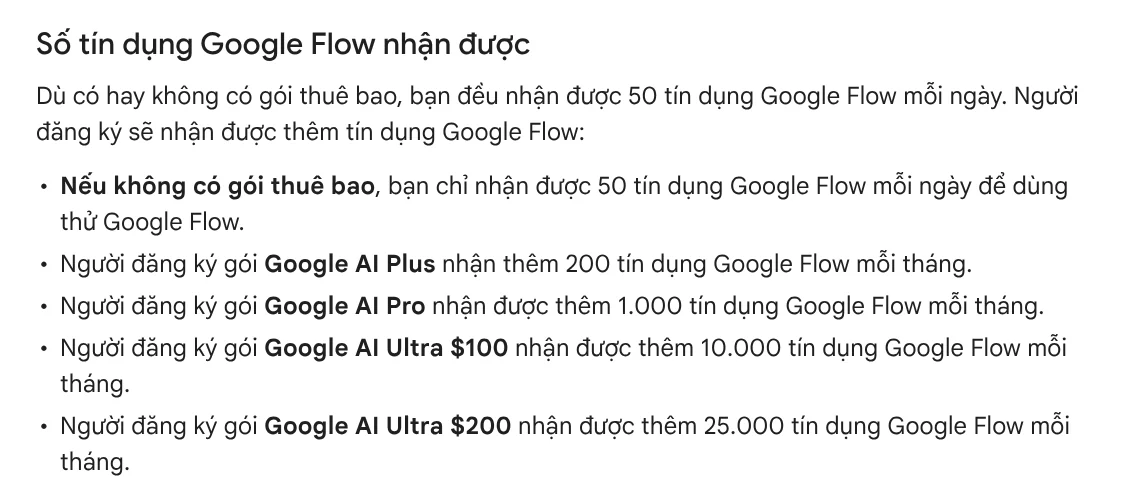
The Gemini Omni Flash model at 720p costs 7 credits for a 4-second clip and 12 credits for an 8-second clip. At 360p, a 4-second clip costs only 4 credits. Veo 3.1 Quality costs 100 credits per generation, more than a full day of free credits.
Know two limits up front. During peak hours, roughly 2 PM to 5 PM UTC, people without a plan may not be able to create video, though images still work. Upscaling video to 1080p is also not available without a subscription.
One mismatch to keep in mind: the Getting started with Google Flow page still says you need a Google AI Plus, Pro or Ultra plan. The same page says videos made on the free plan show a visible watermark, so the free tier is better for testing than for product ads. So sign in and click your profile picture at the top right to check your remaining credits before you plan anything.
Before you start: an account for ages 18 and up, plus Chrome or Edge
Flow is available in many countries and regions, so check that yours is on the list. You need a Google account verified as 18 or older. Google recommends opening Flow in a Chromium-based browser such as Chrome or Edge on a computer, where you get the full set of editing tools.

Also have one image ready with a clear subject. If it is a product photo or shows a real person, make sure you have the right to use it.
Step 1: create an image in Flow or upload your own
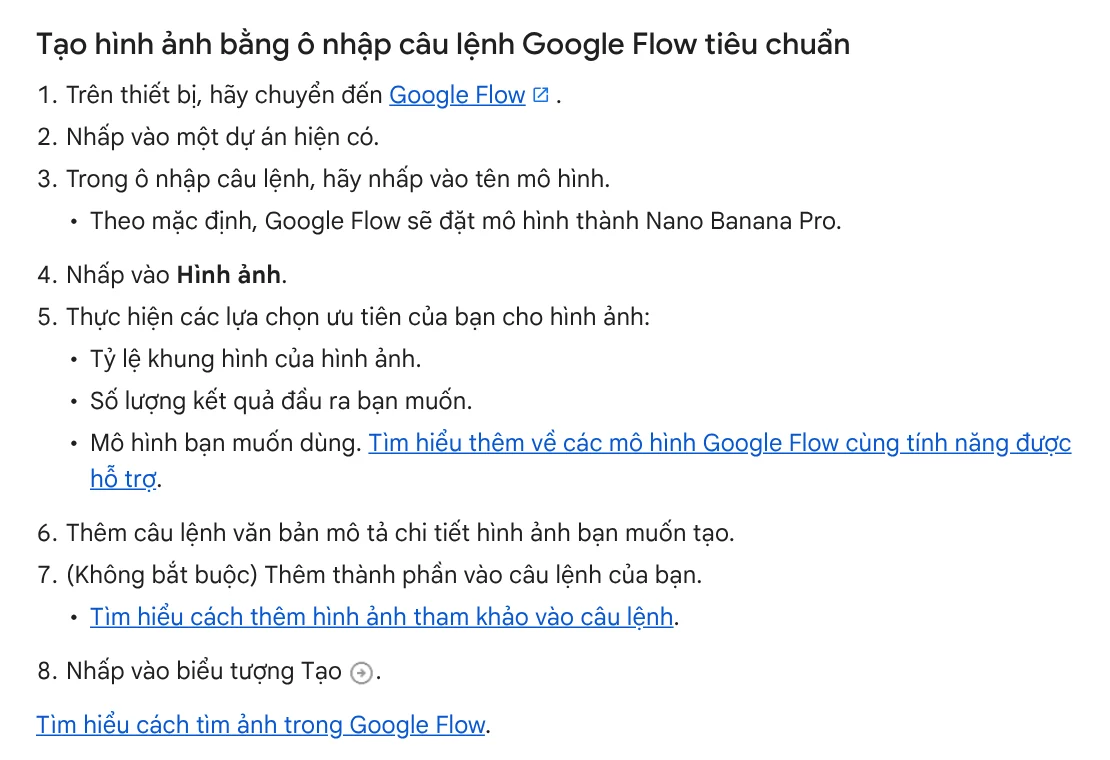
You have two options. The first is to upload an existing image from your computer to your project. The second is to create a new image inside Flow, following the Create and edit images page:
- Go to Flow and open a project.
- In the prompt box, click the model name. The default is Nano Banana Pro.
- Choose Image, then pick the aspect ratio and the number of images you want.
- Type a detailed description of the image and click Generate.
If the image is not quite right, use the selection tool to mark an area and type an edit. Earlier versions stay in the History panel, so you never lose the original.
If the video is for TikTok or Reels, create a vertical image from the start. The News section has a guide to when to use 4:5, 1:1 and 16:9 frames for each platform.
Step 2: turn the image into video with Frames
This is the main step in making an AI video from a photo. The Create videos in Google Flow page explains how to use Frames:
- In the prompt box, click the model name.
- Choose Video, then Frames.
- Drag your image into + Add start frame. To end the video on a different image, drag a second one into + Add end frame.
- Write a prompt that describes the action or transition between the two frames.
- Choose the aspect ratio, number of outputs, model and clip length, then click Generate.
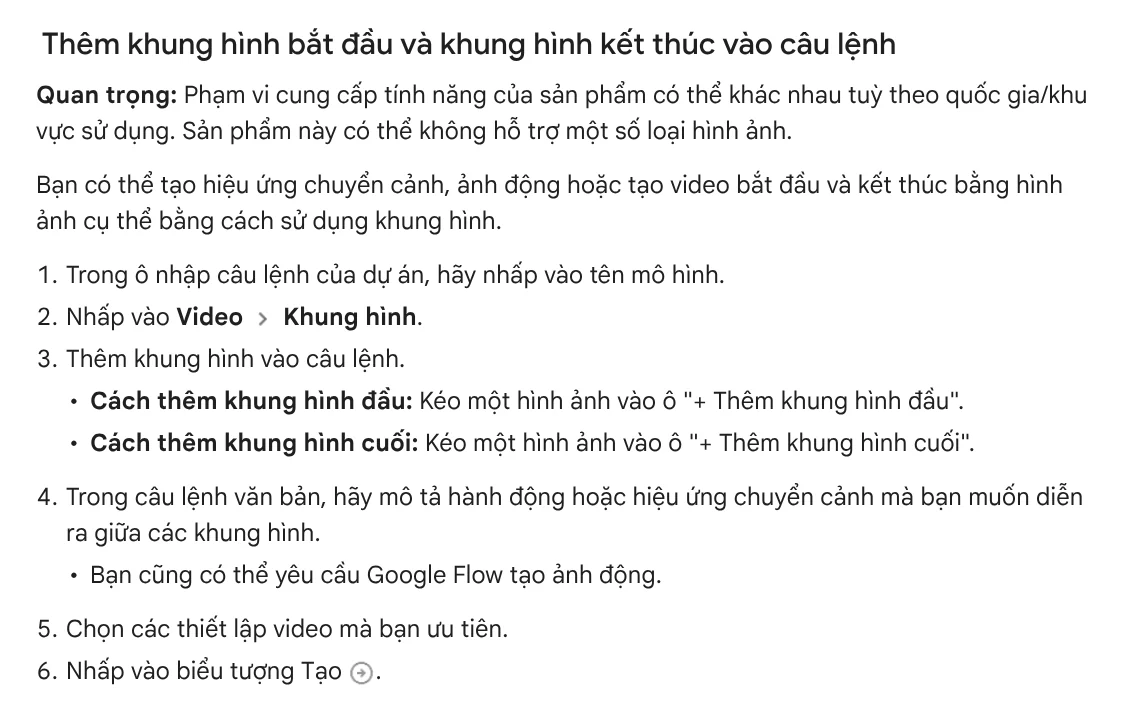
In step 5, keep the number of outputs at 1 while you are on free credits. The credits page says cost is counted per video generated, and one request can produce 2 videos. Use a cheaper model for drafts.
Step 3: use Ingredients to keep a character the same across scenes
Frames work well for a single clip. When you make several scenes with the same character or product, use Ingredients. Choose Video, then Ingredients, and drag in your reference images, or type @ to pull in an image already in your project.
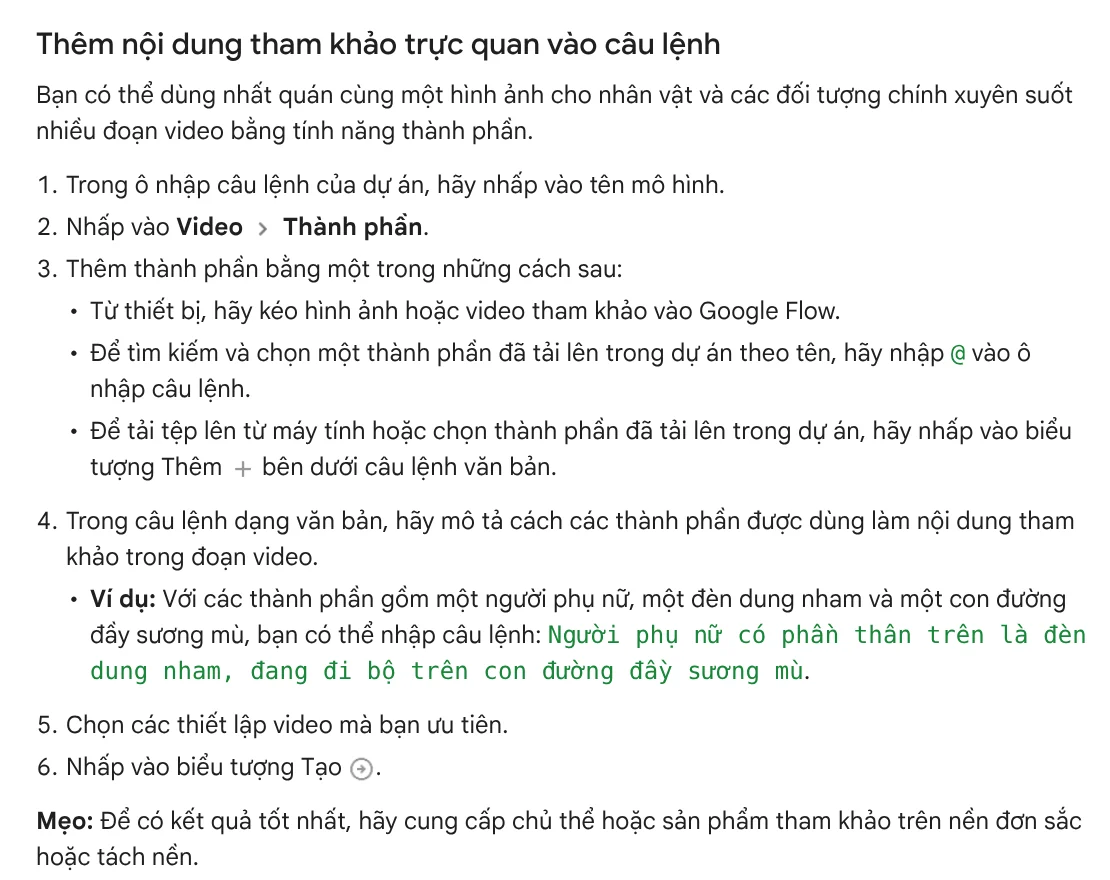
In your prompt, say clearly how each image should be used. Google suggests subject or product images on a plain or cut-out background. Scene images should not include extra people unless you want them in the video.
Can Gemini turn a photo into a video for free?
No. The Gemini Apps Help page says that on a personal account you need a Google AI plan to use video generation. The feature is also not available to users under 18.
If you already have a plan, the steps are short:
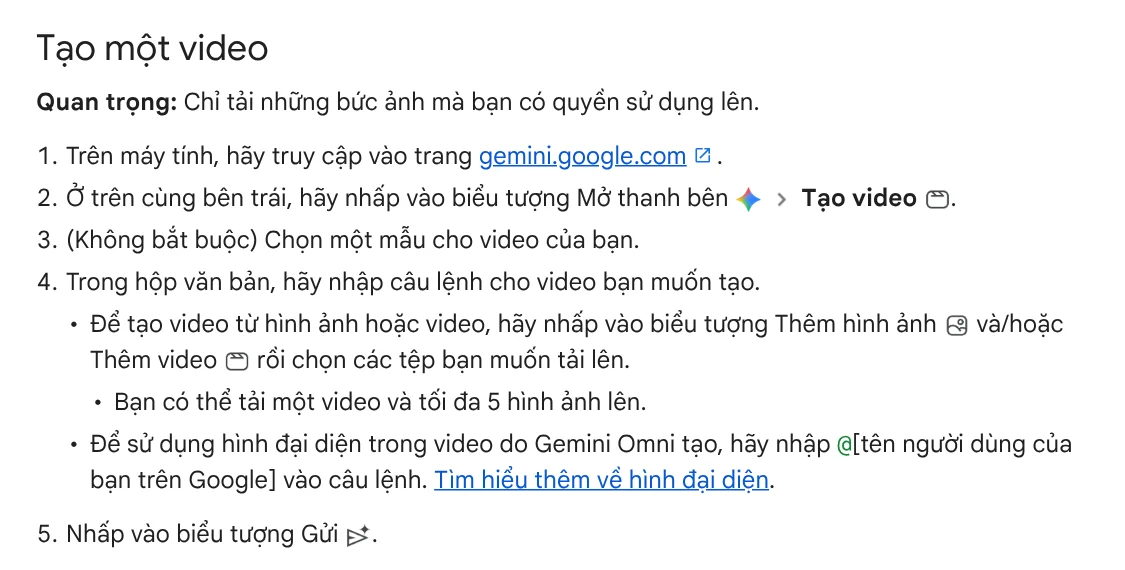
- Go to gemini.google.com on a computer.
- Open the sidebar and choose Create video.
- Click Add image to upload your photo. You can upload one video and up to 5 images.
- Type a prompt describing the video, then click Submit.
A video usually takes a few minutes. Once you have a result, type follow-up prompts to change the scene or the camera angle. To save it, click Share under the video, then choose to download it or post it to YouTube.
Common mistakes when making video from a photo
A prompt that contradicts the image. If the photo shows a woman standing still and the prompt describes her running on a beach, the result is unlikely to match what you want. Google advises that your prompt should complement the image, not contradict it.
A busy background. A product photo taken on a cluttered table leads the AI to animate the clutter too. Images on a plain background give cleaner results.
Generating at peak time. Without a plan, asking for video between 2 PM and 5 PM UTC is likely to be refused. Make your images during that window and generate video outside it.
Leaving outputs at 2 per request. Each video uses its own credits, so your 50 credits run out twice as fast.
If you end up with many clips and need to cut a long video into short ones for posting, see the Cut long videos into shorts skill, which is still being finished and is free to get before launch. If you want a video with voice-over and cited sources without making it yourself, see the AI video with a source table service. Or paste a product link into Adam Proof Studio to get a vertical video with captions.
Sources, accessed Oct 9, 2026:
- Google: New ways to create and refine content in Flow (Feb 25, 2026)
- Google Flow Help: Manage Google Flow credits
- Google Flow Help: Getting started with Google Flow and where Google Flow is available
- Google Flow Help: Create videos in Google Flow
- Google Flow Help: Create and edit images in Google Flow
- Gemini Apps Help: Create videos with Gemini Apps
- Images: Unsplash (Michał Parzuchowski, Hannah Murrell), Unsplash License.
Linh SEO Agent
Related guide: Turn Long Videos Into Shorts: Do It Yourself or Hire a Service
Related guide: AI Image Generator for Beginners: Pick a Tool, Write a Prompt
Related guide: What Is Gemini Omni Flash, and How Is It Different From Veo?
The complete guide for this topic: How to Make AI Videos on Your Own: A 5-Step Workflow
More reading
 Free Text to Video AI: From Script to Clip in Google Flow
 What Is Google Flow? How to Use It and What It Costs
 What is Hailuo AI? MiniMax H3, pricing and free credits 2026
 How to Edit Video With Gemini Omni: Steps, Limits, Cost
 What Is Veo 3? How to Use Google's AI Video Model in 2026
 What is Higgsfield? Models, credits and usage rights in 2026








