
What Is Veo 3? How to Use Google's AI Video Model in 2026
Veo 3 is Google's AI video model with sound. Gemini now uses Gemini Omni and Flow uses Veo 3.1. Where to use it, US prices and steps.

In this article (6)
Veo 3 is Google's model for making videos with sound, launched in May 2025. As of October 2026, you use Veo 3.1 in Google Flow, and the Gemini app has moved to Gemini Omni.
Veo 3 was Google's first model to make video with sound
On May 20, 2025, at Google I/O, Google introduced Veo 3 along with a set of new image and video models. The biggest change from Veo 2 was that videos came with audio built in.

At launch, Veo 3 was only for Ultra subscribers in the US, in the Gemini app and in Flow. The Google DeepMind Veo page says Veo 3 can add sound effects, ambient noise and dialogue to a video. The page now features the latest version, Veo 3.1, which outputs 1080p and 4K.
For developers, the Gemini API docs say Veo makes clips up to 8 seconds long, in 16:9 landscape or 9:16 portrait, at 24 frames per second. Every Veo video carries SynthID, an invisible watermark that helps identify content made by AI.
Veo 3 has given way to Veo 3.1 and Gemini Omni
Veo 3.1 reached the Gemini API as a preview on October 15, 2025. Google then moved to the Gemini Omni line. Google's August 2026 roundup introduced Gemini Omni 1.1 Flash. It extends scenes, fills in the motion between a first and a last frame, and upscales to 4K. The model is available in the Gemini app, Google Flow and Google AI Studio.
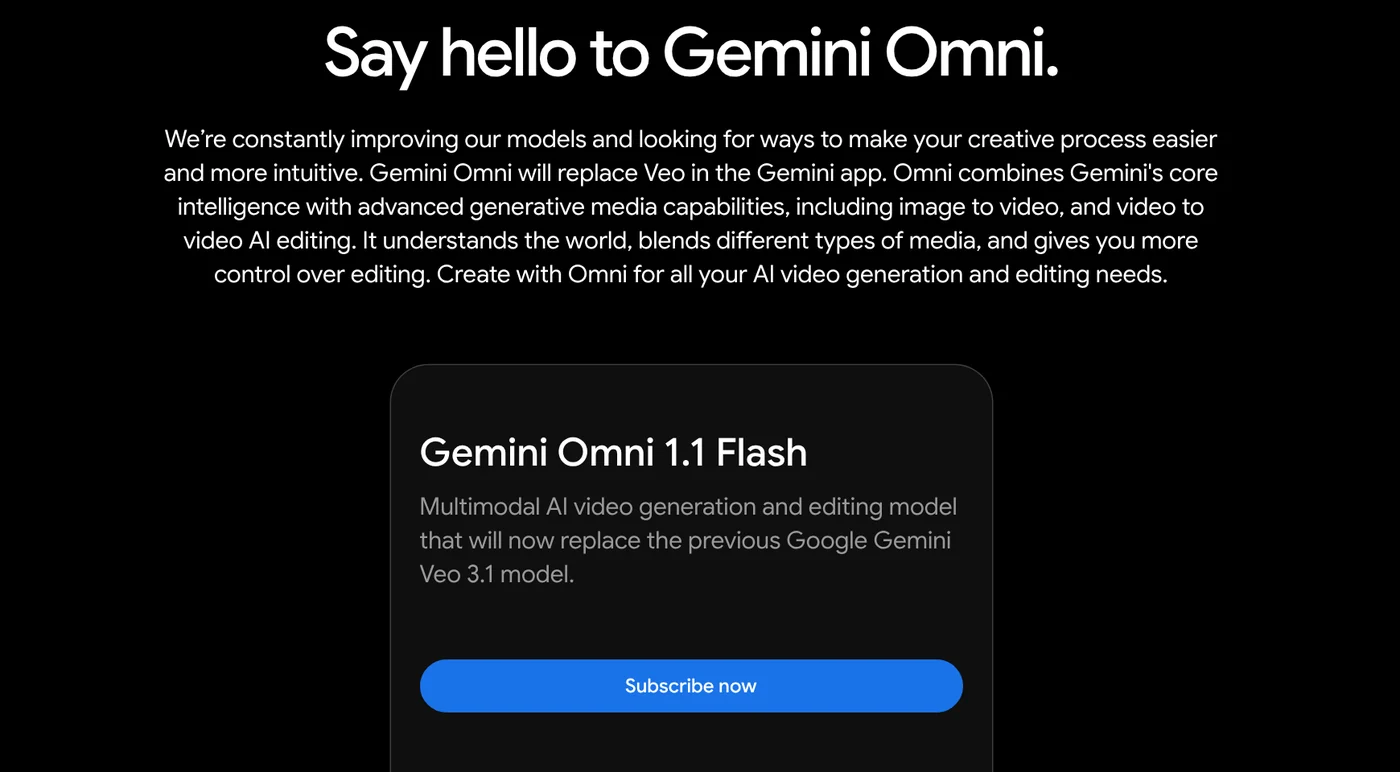
The Gemini video generation page says it plainly: Gemini Omni will replace Veo in the Gemini app. Gemini Omni 1.1 Flash replaces the earlier Veo 3.1 model. It makes 10-second videos with sound, builds a video from up to 5 images, and edits a video over several chat turns.
Where can you still use Veo 3?
The model named exactly Veo 3 is close to gone for everyday users. The table below sums up each place, based on Google's official pages read on Oct 9, 2026:
| Where | Video model available now | Notes |
|---|---|---|
| Gemini app | Gemini Omni 1.1 Flash | Needs a Google AI plan, age 18 or older |
| Google Flow | Veo 3.1 Lite, Fast, Quality and Gemini Omni Flash 1.1 | No separate Veo 3 option |
| Gemini API | Veo 3.1 preview, Gemini Omni Flash | Veo 3 earliest shutdown date is June 30, 2026 |
| Google Photos | Veo 3 for photo-to-video | US only |
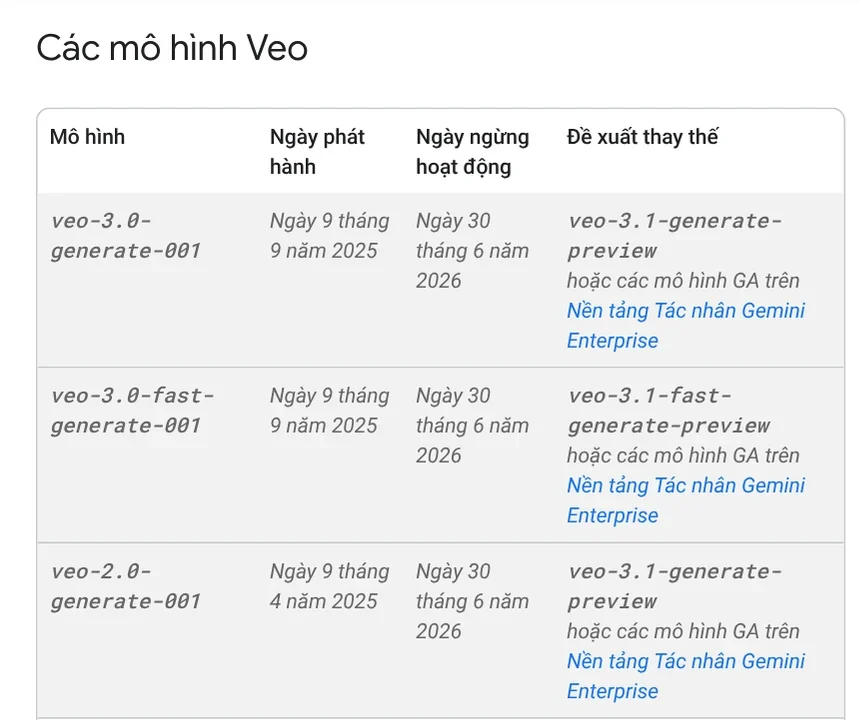
The Gemini API deprecations page lists the earliest shutdown date for Veo 3 as June 30, 2026, and for the Veo 3.1 preview as October 22, 2026. It suggests moving to Gemini Omni 1.1 Flash. The only place that still names Veo 3 is Google Photos. The Google AI plans page lists photo-to-video with Veo 3, available in the US only.
So when someone says they made a video "with Veo 3", they are usually using Veo 3.1 in Flow or Gemini Omni in Gemini.
You use Veo 3.1 through Flow, and a Google AI plan adds credits
Flow works only in supported countries and regions, and Vietnam is on that list. Google AI Plus, Pro and Ultra plans are sold in more than 140 countries and territories, according to the Gemini subscriptions page. The Flow getting started page sets three conditions: you are 18 or older with a verified age, you are in a supported region, and you have a Google AI Plus, Pro or Ultra plan. A VPN will not get you into Flow from a place that is not supported.
That said, the Vietnamese version of the Flow credits page, read on Oct 9, 2026, says you get 50 Flow credits a day with or without a plan, and unused credits do not roll over. Without a plan you can still make images, but video may not be available at peak hours, 9 PM to midnight Vietnam time (UTC+7). The two pages disagree, so sign in to Flow and test it before you buy a plan.
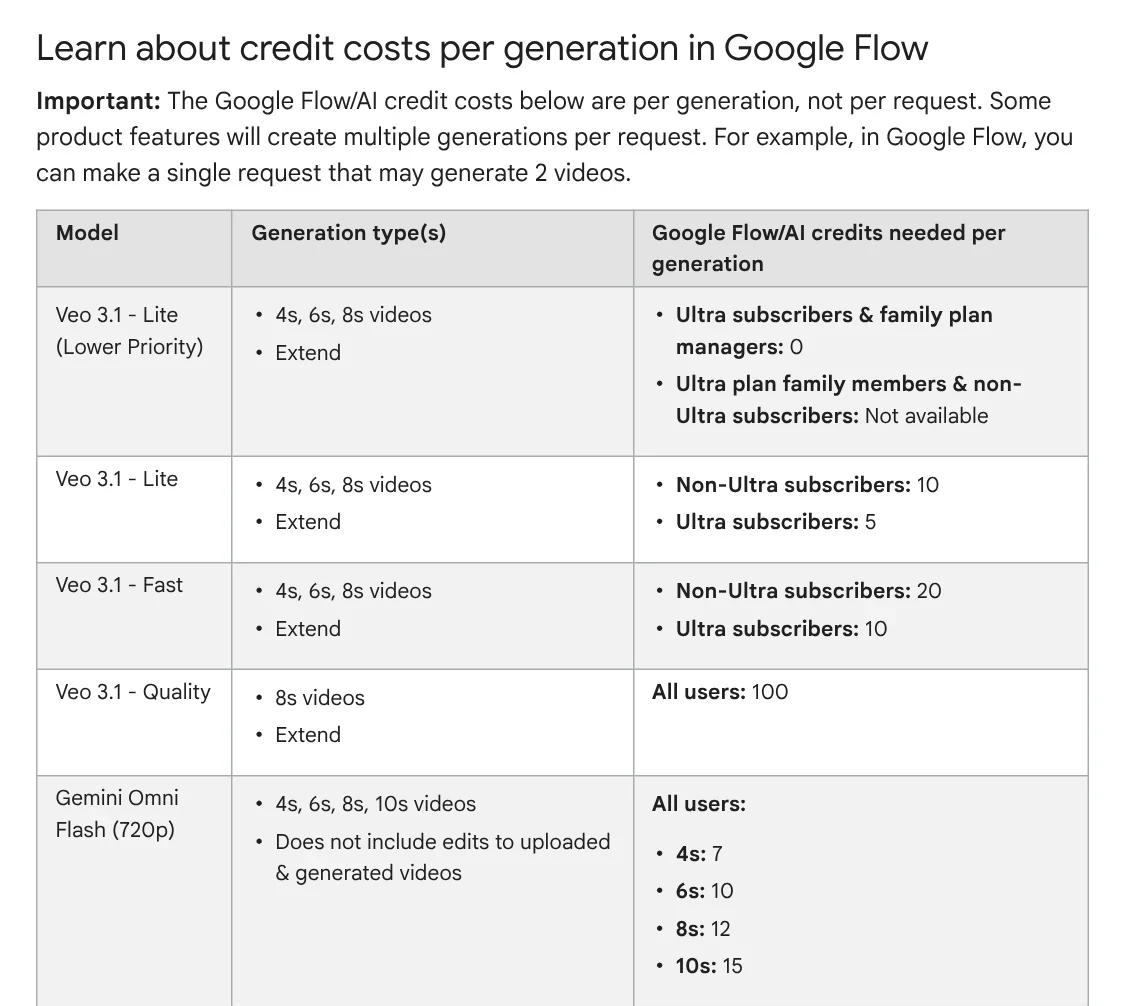
Each generation uses credits, the unit Flow uses to count generations. The credits page says one Veo 3.1 Fast clip costs 20 credits for anyone without an Ultra plan. Gemini Omni Flash at 720p costs from 7 credits for a 4-second clip to 15 credits for a 10-second clip.
US prices below come from Google's Gemini subscriptions page, read on Oct 11, 2026. Monthly Flow credits come from the Google One plans page for Vietnam and match the US page. All four plans include access to the Omni Flash video model:
| Plan | US price per month | Flow credits per month |
|---|---|---|
| Google AI Plus | $4.99 | 200 |
| Google AI Pro | $19.99 | 1,000 |
| Google AI Ultra 5x | $99.99 | 10,000 |
| Google AI Ultra 20x | $199.99 | 25,000 |
In Vietnam, the same four plans are priced in VND: 132,000, 489,000, 2,250,000 and 5,500,000 VND a month. Prices differ by country, so check the plans page for your country before you subscribe.
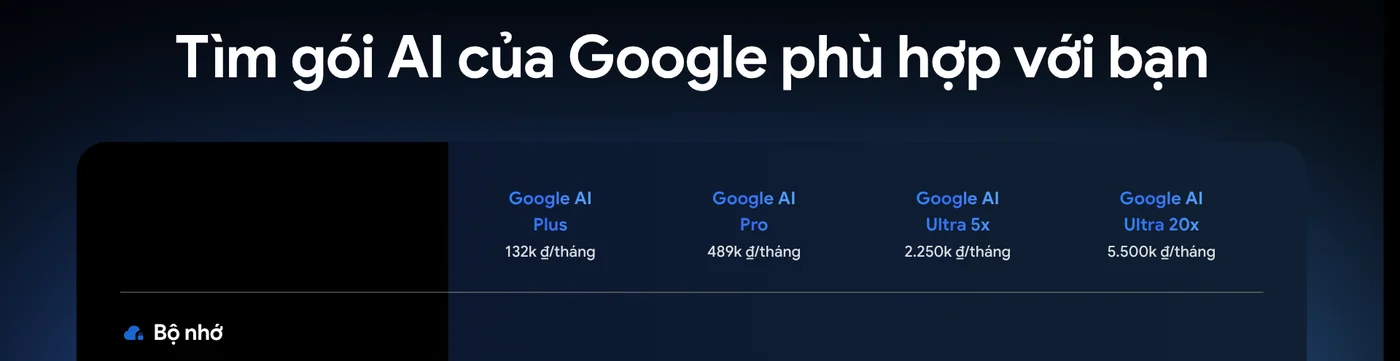
One rule depends on where you live. The English Flow getting started page says Flow adds a visible watermark automatically if you live in India, South Korea or Vietnam. The Vietnamese version of that page says videos made on the free tier, Plus and Pro all carry a visible watermark, while Ultra videos carry one only when local law requires it.
You can make a video in the Gemini app in 5 steps
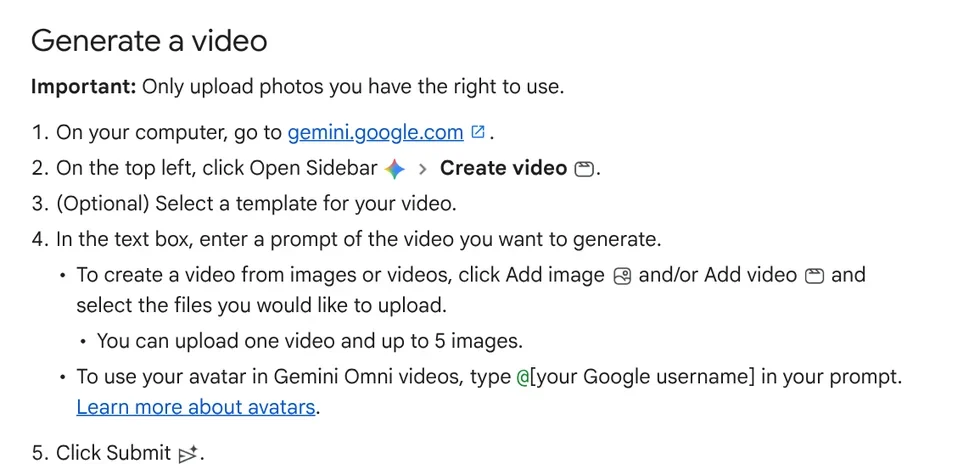
The Gemini Help page explains how to make a video on a computer:
- Go to gemini.google.com and sign in with an account that has a Google AI plan.
- Open the sidebar and choose Create video. You can pick a ready-made template.
- Type a description of the scene. To start from an image or a video, click Add image or Add video.
- Click Submit and wait a few minutes.
- Click Share under the video and choose Download video to save it, or post it straight to YouTube.
You can keep editing a finished video with a new prompt. If the video is going to TikTok or Reels, read the guide on when to use 4:5, 1:1 or 16:9 frames in News before you generate.
Most Veo and Omni errors have a quick fix
You bought a plan but still cannot open Flow. Check that your age is verified, and turn off any VPN. A VPN can also trigger an "unusual activity" message.
You see "You're requesting generations too quickly". You made too many generations in one day and hit the rate limit. Wait a few minutes, then try again.
You see "Audio Generation Failed". Veo sometimes produces poor audio and cancels the video. Your credits come back, so change the prompt and try again.
Prompts in Vietnamese or other languages give off results. The Flow supported countries page recommends English prompts for the best results. Other languages still work, but quality may vary.
If you need a video with narration that sticks to the facts, and you do not want to manage credits yourself, see AI video with a source table. Every line of narration comes with its source, link and access date. To paste a link and get a vertical video with voice-over, captions, music and quotes backed by sources, see Adam Proof Studio.
Sources, accessed Oct 9, 2026:
- Google: Generative media models at I/O 2025 (May 20, 2025)
- Google DeepMind: Veo
- Google: Google AI announcements from August 2026
- Gemini: Video generation, Gemini Omni
- Gemini Help: Create videos with Gemini Apps
- Google Flow Help: Get started, Models, Credits, Supported countries
- Google AI for Developers: Veo in the Gemini API and Deprecations
- Google One: Google AI plans in Vietnam
- Gemini: Subscriptions, US prices (accessed Oct 11, 2026)
- Images: Unsplash (Vitaly Gariev, Tini Phone), Unsplash License.
Linh SEO Agent
Related guide: Veo 3.1 vs Veo 3: What's New and Where You Can Still Use It
Related guide: Gemini Photo to Video: Steps, Requirements and Limits
Related guide: What Is NotebookLM, Now Gemini Notebook: Use It for Work
The complete guide for this topic: How to Make AI Videos on Your Own: A 5-Step Workflow
More reading
 What is Seedance? ByteDance's AI video model, pricing 2026
 AI Video Prompts for Veo 3 and Gemini Omni: A 4-Part Formula
 What Is Gemini Omni Flash, and How Is It Different From Veo?
 Gemini Omni Pricing: How Much It Costs and Which Plan
 What Is Google Flow? How to Use It and What It Costs
 How to Edit Video With Gemini Omni: Steps, Limits, Cost








