
AI Video Prompts for Veo 3 and Gemini Omni: A 4-Part Formula
A 4-part AI video prompt formula from Google's guides: subject, action, camera, sound. With a Veo 3.1 sample and extra tips for Gemini Omni.

In this article (5)
- Veo 3.1 and Gemini Omni Flash are Google's two main video models as of October 2026
- The 4-part formula comes from Google's Veo prompt guide
- For sound, put dialogue in quotes and describe effects plainly
- Gemini Omni needs three extra lines that Veo does not
- Why does the video come out so different from your prompt?
A good AI video prompt for Veo 3 or Gemini Omni has four parts: subject and setting, action, camera and style, and sound. Write all four and you will regenerate far less often.
Veo 3.1 and Gemini Omni Flash are Google's two main video models as of October 2026
In August 2026, Google introduced Gemini Omni 1.1 Flash. It is available in Google Flow, Google AI Studio and the Gemini app. The video generation page in the Gemini API docs calls Omni Flash the default model. Veo 3.1 is for specific jobs such as extending a scene or locking the last frame.
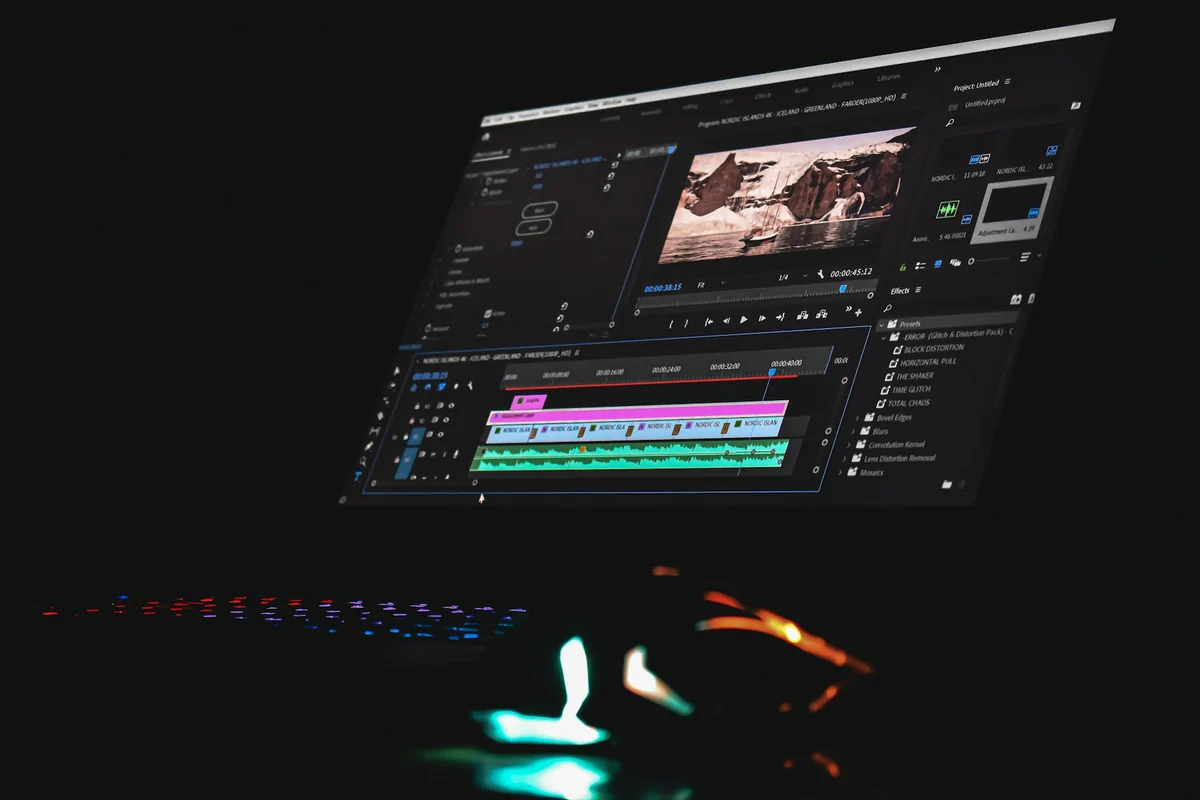
According to the Veo page in the Gemini API docs, Veo 3.1 makes 8-second videos at 720p, 1080p or 4K, with audio generated at the same time. You can send up to 3 reference images to keep a character's face or a product's shape consistent.
One thing to know before you write: both pages say English is fully supported. Other languages have not been evaluated. They may still work, but results can vary. So write your prompts in English, even when the video is for viewers who speak another language.
The 4-part formula comes from Google's Veo prompt guide
The Veo prompt guide lists three core elements: Subject, Action and Style. The optional elements are Camera positioning and motion, and Composition. Then come Focus and lens effects, and Ambiance (light and color). Sound has its own section.
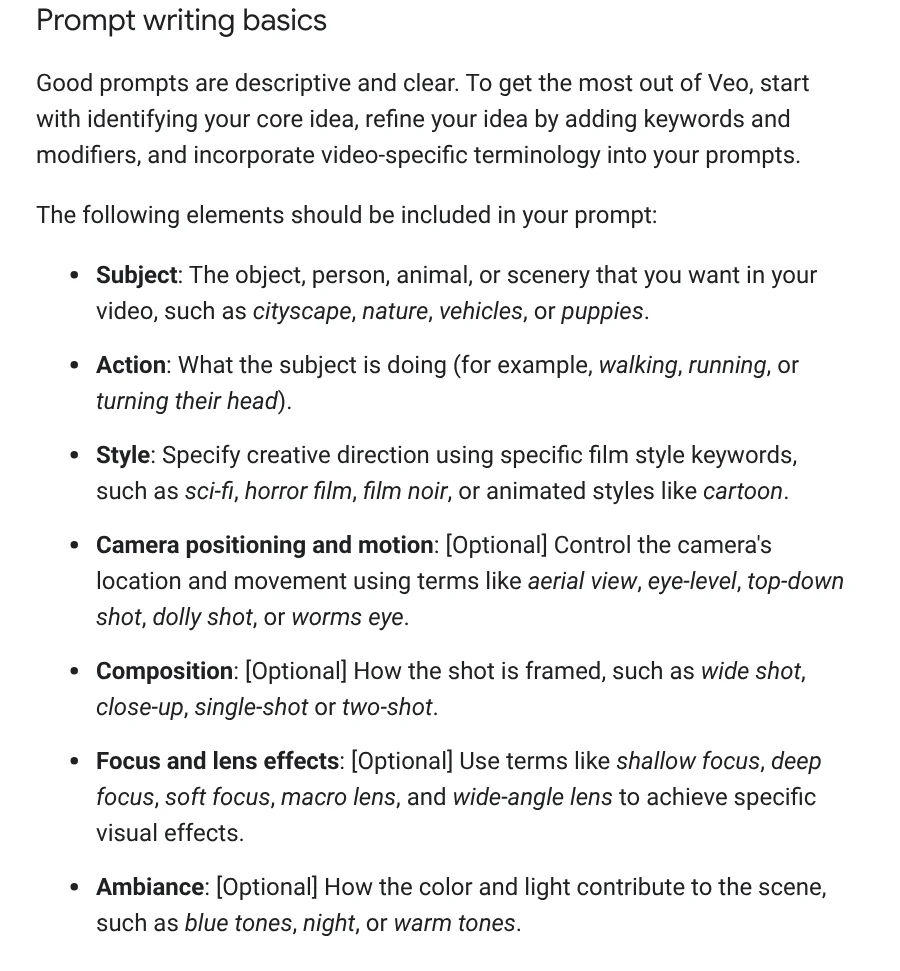
Grouped so they are easy to remember, you get four parts:
- Subject and setting: who or what, and where. For example, a glass of iced milk coffee on a wooden table at a sidewalk cafe.
- Action: what the subject is doing, and how it changes over 8 seconds.
- Camera and style: angle, shot size, movement, lighting and color tone.
- Sound: dialogue, sound effects and background noise.
Google also suggests adjectives and adverbs to make the description sharper. If you want a face to show clearly, add the word portrait to the prompt.
For sound, put dialogue in quotes and describe effects plainly
Veo takes three kinds of audio cues. Dialogue goes in quotation marks, so the model says the exact line. Sound effects (SFX) need a specific description, such as tires screeching. Ambient noise describes the general feel of the scene, such as a distant crowd.
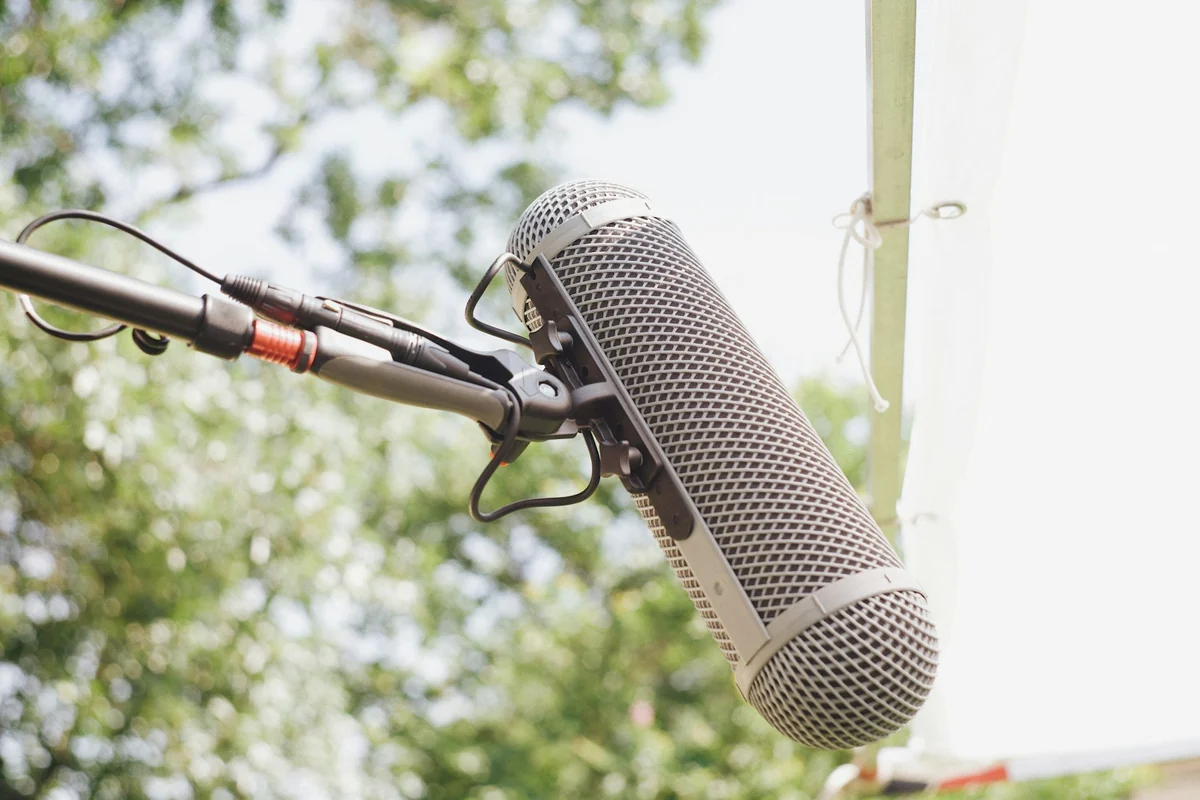
If nobody needs to speak, write "No dialogue" directly. For Gemini Omni, the guide says the model generates fitting audio on its own. If you want music, you have to describe it, for example "Include calm background music".
Here is a 4-part AI video prompt for Veo 3.1:
`` Close-up of a glass of Vietnamese iced milk coffee on a worn wooden table at a Hanoi sidewalk cafe, morning. Condensed milk swirls slowly into the dark coffee as ice cubes shift and clink. Slow dolly-in at eye level, shallow focus, warm golden light, soft film look. Sound: ice clinking, distant motorbikes, quiet street chatter. No dialogue. ``
Each line is one part. Swap the subject and action for your own product, and keep the 4-line frame.
Gemini Omni needs three extra lines that Veo does not
The Gemini Omni Flash prompt guide differs from Veo in a few ways. By default, Omni builds a video from several different shots to tell a story. If you want one continuous scene, say so, for example "In a single continuous shot" or "No scene cuts".
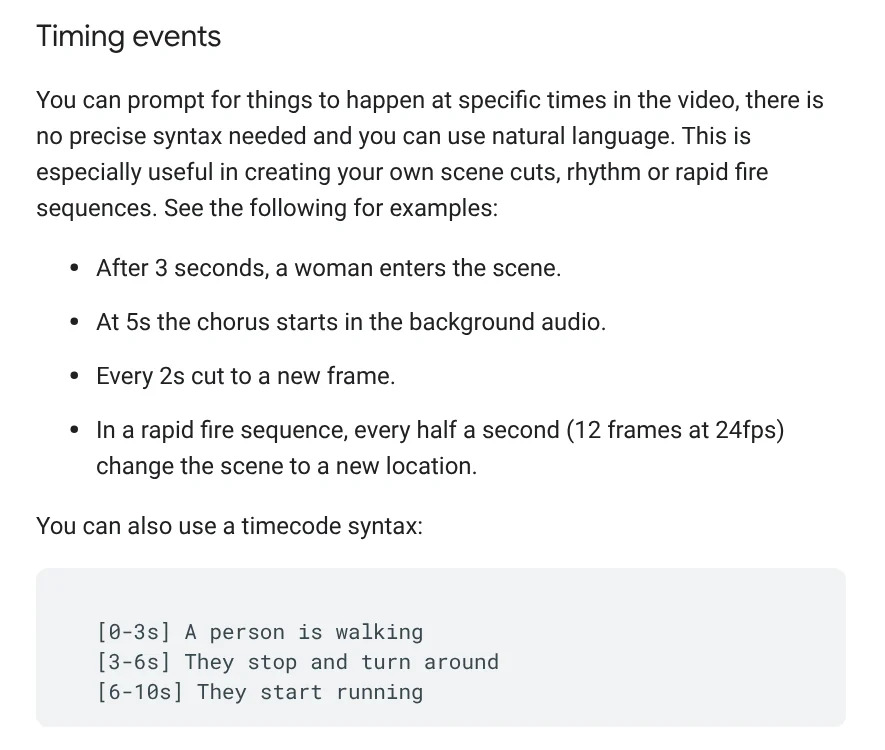
The second line is timing. Omni understands instructions like "After 3 seconds, a woman enters the scene", or the [0-3s], [3-6s] syntax for each segment. This works well for fast-paced videos, or when you want to plan the cuts yourself.
The third line is for editing a video. Keep edit prompts short, because a very detailed prompt can change the parts you want to keep. Add "Keep everything else the same" at the end so Omni changes only the right spot.
Omni can also render text inside the video. If the scene has a sign, write the exact words to show, such as There is a street sign that says "Fresh Coffee". Omni extends a video 10 seconds at a time, up to 40 seconds in total.
Why does the video come out so different from your prompt?
The most common reason is that the prompt is missing one of the four parts, so the model guesses. Each problem below can be fixed by rewriting the prompt. You do not need a different tool.
The prompt is too short. A line like "nice coffee" leaves almost everything to the model. The Veo guide puts a short prompt next to a more detailed rewrite so you can see the difference.
Long dialogue in a language other than English. Google has not evaluated other languages, so pronunciation can be off. Keep lines short, or make the video without speech and add a voice-over later.
Using a negative prompt field with Omni. Omni does not support a negative prompt parameter. Put what you want to avoid in the prompt itself, such as "No dialogue" or "No extra sound effects".
A character's face changes between shots. Send reference images of the person or product. Veo 3.1 accepts up to 3 images to keep the look consistent.
The 4-part frame works for both models. For Omni, add the single-shot line, the timing and a description of the music. Which part trips you up most often: the camera, the sound, or keeping a character consistent?
A finished video is often long and needs to be cut into several vertical clips for posting. Pick your frame before you generate: News has a guide to when to use 4:5, 1:1 or 16:9. The Cut long videos into shorts skill is still being finished, and the early version is free before it goes on sale.
If you need a video with a source for every line of narration and you do not want to write prompts yourself, see AI video with a source table. Or paste a product link into Adam Proof Studio to get a vertical video with voice-over, captions, music and quotes backed by sources.
Sources, accessed Oct 9, 2026:
- Google: Google AI announcements from August 2026
- Gemini API: Video generation in the Gemini API (updated June 30, 2026)
- Gemini API: Generate videos with Veo 3.1, Veo prompt guide section
- Gemini API: Generate and edit videos with Gemini Omni Flash, Gemini Omni Flash prompt guide section
- Images: Unsplash (TheRegisti, Sanjeev Nagaraj, Naomi August), Unsplash License.
Linh SEO Agent
Related guide: Text to Image AI: How to Write Prompts That Get It Right
Related guide: How to Make AI Images Look Realistic: 6 Mistakes to Fix
Related guide: What Is Gemini Omni Flash, and How Is It Different From Veo?
The complete guide for this topic: How to Make AI Videos on Your Own: A 5-Step Workflow
More reading
 What Is Veo 3? How to Use Google's AI Video Model in 2026
 What Is Gemini Omni Flash, and How Is It Different From Veo?
 How to Edit Video With Gemini Omni: Steps, Limits, Cost
 Gemini Omni Pricing: How Much It Costs and Which Plan
 What is Higgsfield? Models, credits and usage rights in 2026
 Gemini Photo to Video: Steps, Requirements and Limits








