
What Is Gemini Omni Flash, and How Is It Different From Veo?
Gemini Omni Flash is Google's video model that edits video with words, like Nano Banana for photos. Vs Veo 3.1: 10-second clips, video edits, cheap 360p.


In this article (6)
Gemini Omni Flash is Google's video model that both creates and edits video from plain language. It differs from Veo 3.1 in three ways: it can edit an existing video, it makes 10-second clips, and it has a cheap 360p option for drafts.
Gemini Omni is "Nano Banana for video," launched on May 19, 2026
On May 19, 2026, Google introduced Gemini Omni in Flow. According to the blog post, Omni Flash is a model that "can create anything from any input, starting with video." It combines Gemini's intelligence with Google's image and video generation models.
Google sums it up simply: think of Omni like Nano Banana, but for video. Nano Banana lets you edit photos with a prompt, and Omni does the same for clips. Google DeepMind's model page says every edit builds on the one before, keeping the scene consistent and coherent.
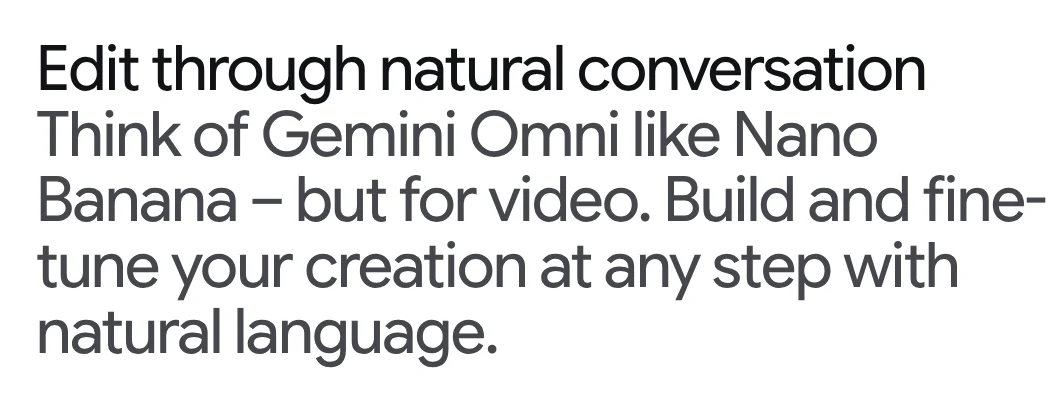
Beyond video editing, the DeepMind page says Gemini Omni takes several types of input in one prompt and combines them into a single clip. The May blog post also says Omni Flash preserves a character's identity and voice across every scene.
Omni 1.1 Flash adds scene extension and 4K output
On August 27, 2026, Google released Gemini Omni 1.1 Flash. For developers on the Gemini API, this version reads up to 10 seconds of the previous video when it extends a scene, instead of only the final second like the older model. Each extension adds 10 seconds, up to 40 seconds in total.
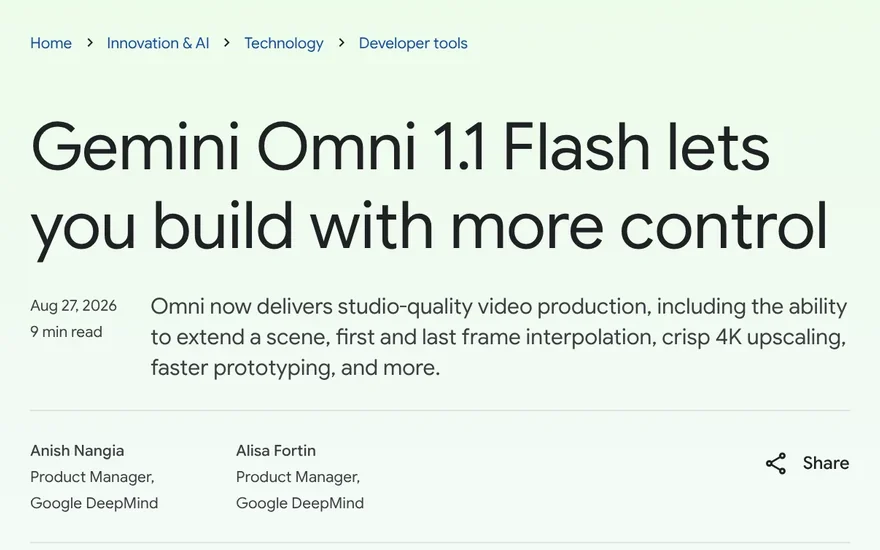
Version 1.1 also adds interpolation between a first frame and a last frame, outputs in 1080p or 4K, and accepts up to 3 seconds of video as a reference. Google says Omni 1.1 is available in Flow for all Google AI Plus, Pro, and Ultra subscribers from launch day. Scene extension is also in the Gemini app for these plans.
How is Gemini Omni different from Veo 3.1?
The most reliable comparison is Google Flow's page on models and features. Flow runs the Veo 3.1 models (Lite, Fast, Quality) side by side with Gemini Omni Flash 1.1. The page lists what each model supports:
| Feature in Flow | Veo 3.1 | Gemini Omni Flash 1.1 |
|---|---|---|
| Clip length | 4, 6, 8 seconds | 4, 6, 8, 10 seconds |
| First and last frames | Yes | Yes |
| Ingredients (reference images) | Lite and Fast, 8-second clips only; not in Quality | Yes, any length |
| Video-to-video editing | No | Yes, up to 10 seconds |
| Extend video in Flow | Yes, with Veo 3.1 Lite only | Coming soon |
| 360p for drafts | No | Yes, half the cost of 720p |
The biggest difference is video editing (video to video). Veo 3.1 does not support it. Omni Flash takes a video you upload or one you just generated, then edits it based on your prompt and new reference images.
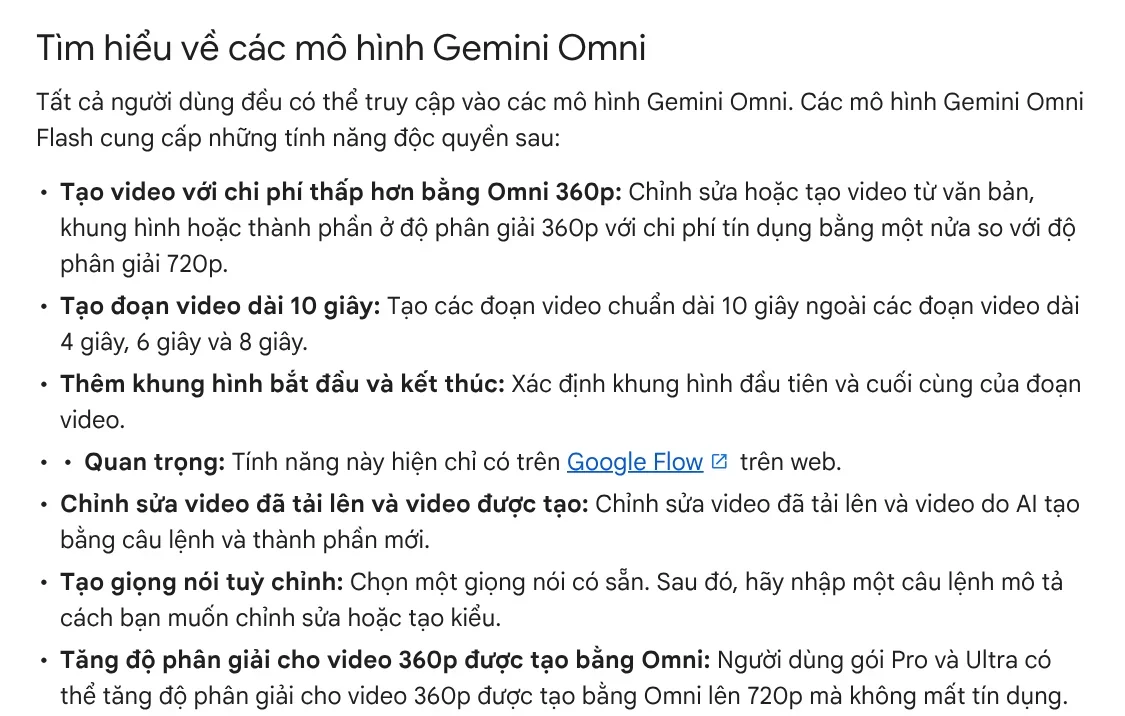
Omni Flash also lets you create custom voices: choose a preset voice, then describe how to change it. Pro and Ultra subscribers can upscale Omni 360p videos to 720p at no credit cost. Google notes that some Omni features and voice customizations are only available in certain regions.
Outside the Ultra plan, Omni 360p is the cheapest way to draft in Flow
Flow charges in credits. The credit table on the Flow help page shows clear gaps, counted per video generated:
- Veo 3.1 Lite: 10 credits on plans other than Ultra, 5 on Ultra.
- Veo 3.1 Fast: 20 credits, or 10 on Ultra.
- Veo 3.1 Quality: 100 credits for all users.
- Gemini Omni Flash 720p: 7 credits for a 4-second clip, 12 for 8 seconds, 15 for 10 seconds.
- Gemini Omni Flash 360p: 4 credits for a 4-second clip, 6 for 8 seconds.
- Video editing with Omni Flash: 40 credits per edit, any length.
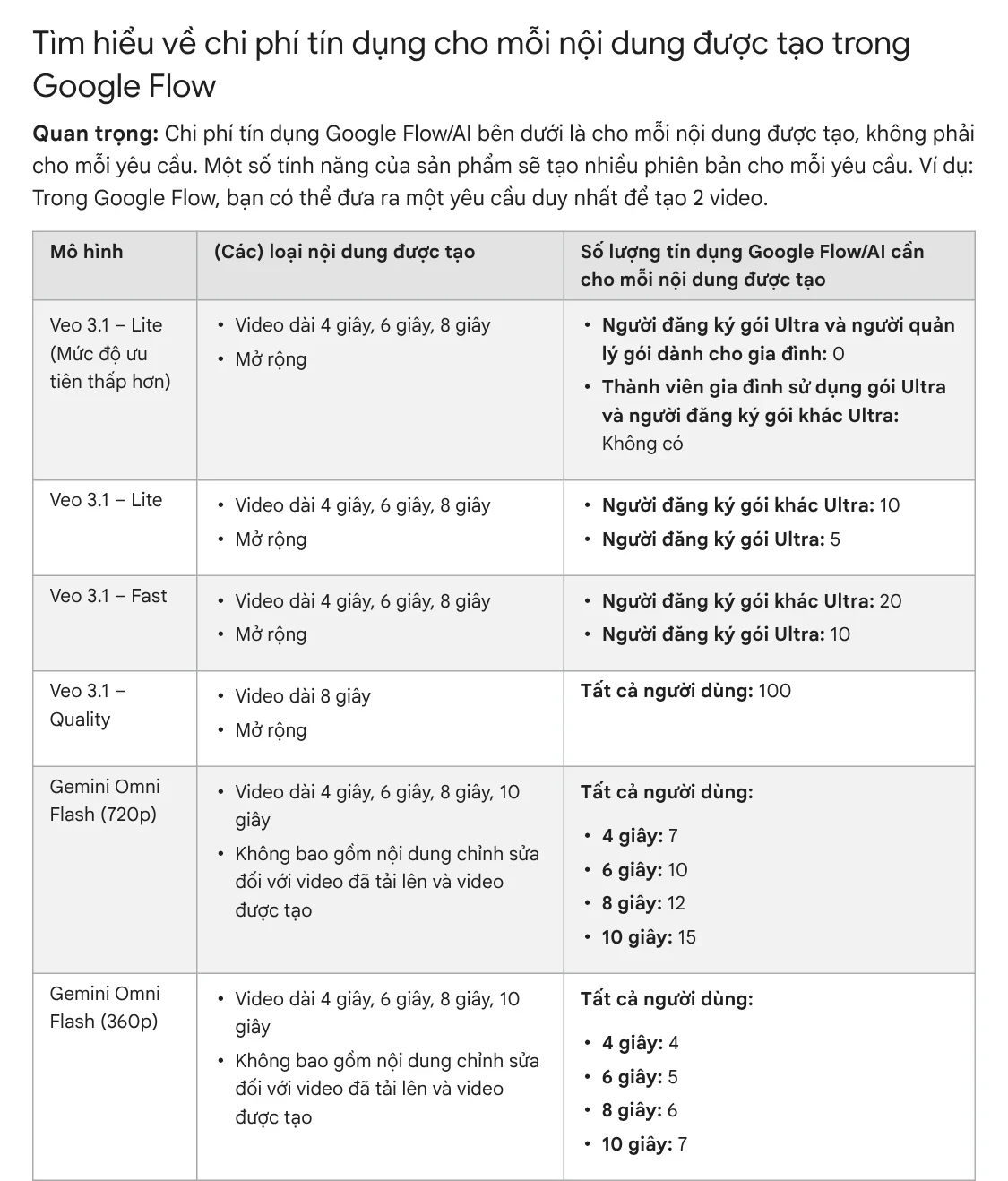
Keep in mind that one request can produce 2 videos, and Google states that costs can change at any time. Before you generate, click the Settings icon at the top right of the prompt box to see the latest cost.
Where you can use Gemini Omni
Google Flow. This is where you can pick both Veo and Omni in the same project. You need to be in a supported region and 18 or older. The models page says all users can access Gemini Omni. The credits page (read on Oct 9, 2026) says everyone gets 50 credits a day, with or without a plan, which is enough for a few Omni 360p drafts. However, the Get started with Google Flow page still says you need a Google AI Plus, Pro, or Ultra plan. The two pages disagree, so sign in to see what your account can use.
The Gemini app. The Gemini Apps Help page says video generation in Gemini uses Gemini Omni. Personal accounts need a Google AI plan. Each time, you can upload one video and up to 5 images, then keep editing with words in the same chat.
Google AI Studio. Developers call Omni 1.1 through the Gemini API, according to the August 2026 blog post.

If you make vertical videos for TikTok or Reels, choose the aspect ratio before you generate. The News section explains when to use 4:5, 1:1, or 16:9.
Choose Omni Flash or Veo 3.1 based on the job
Choose Gemini Omni Flash if you need to edit an existing video, need a 10-second clip, or want many cheap 360p drafts. Choose Veo 3.1 if you already know the Veo workflow, need to extend a clip right inside Flow, or want to compare quality with Veo 3.1 Quality for an important shot.
What will you try first with Gemini Omni's word-based video editing: changing the setting, adding an object, or changing the camera angle?
If you finish a long video and need to cut it into short clips, see the Cut long videos into shorts skill. It is still being finished, and the early version is free before it goes on sale. If you need a video with voice-over where every line has a source, see the AI video with a source table service. Or paste a product link into Adam Proof Studio to get a vertical video with captions.
Sources, accessed Oct 9, 2026:
- Google: New agents, mobile apps and Gemini Omni for Google Flow and Google Flow Music (May 19, 2026)
- Google: Gemini Omni 1.1 Flash lets you build with more control (Aug 27, 2026)
- Google DeepMind: Gemini Omni
- Google Flow Help: Learn about Google Flow models & supported features
- Google Flow Help: Manage your Google Flow credits and Get started with Google Flow
- Gemini Apps Help: Generate videos with Gemini Apps
- Illustrative photos: Unsplash (Nitin Verma, Jakub Żerdzicki), Unsplash License.
Linh SEO Agent
Related guide: Veo 3.1 vs Veo 3: What's New and Where You Can Still Use It
Related guide: Gemini Omni Pricing: How Much It Costs and Which Plan
Related guide: How to Make AI Videos on Your Own: A 5-Step Workflow
More reading
 What Is Veo 3? How to Use Google's AI Video Model in 2026
 How to Edit Video With Gemini Omni: Steps, Limits, Cost
 AI Video Prompts for Veo 3 and Gemini Omni: A 4-Part Formula
 Veo 3.1 vs Veo 3: What's New and Where You Can Still Use It
 Gemini Omni Pricing: How Much It Costs and Which Plan
 Free Text to Video AI: From Script to Clip in Google Flow








