
What Is NotebookLM, Now Gemini Notebook: Use It for Work
NotebookLM is Google's AI research assistant, renamed Gemini Notebook in July 2026. It answers from your own documents, with citations, for free.


In this article (6)
- NotebookLM became Gemini Notebook in July 2026
- NotebookLM answers only from the sources you add, with citations
- Five office tasks NotebookLM speeds up
- The free version is enough for one person, paid plans raise the limits
- Are the work documents you add to NotebookLM used to train AI?
- Common mistakes when you start using NotebookLM
NotebookLM is Google's AI research assistant. It answers questions based on the documents you give it, with citations. Since July 2026, the tool has a new name, Gemini Notebook, and you can still use it for free with a Google account.
NotebookLM became Gemini Notebook in July 2026
The FAQ on the Gemini Notebook home page confirms that NotebookLM was renamed Gemini Notebook in July 2026. Google says it's still the same product, and you keep full access to all the notebooks you created before.
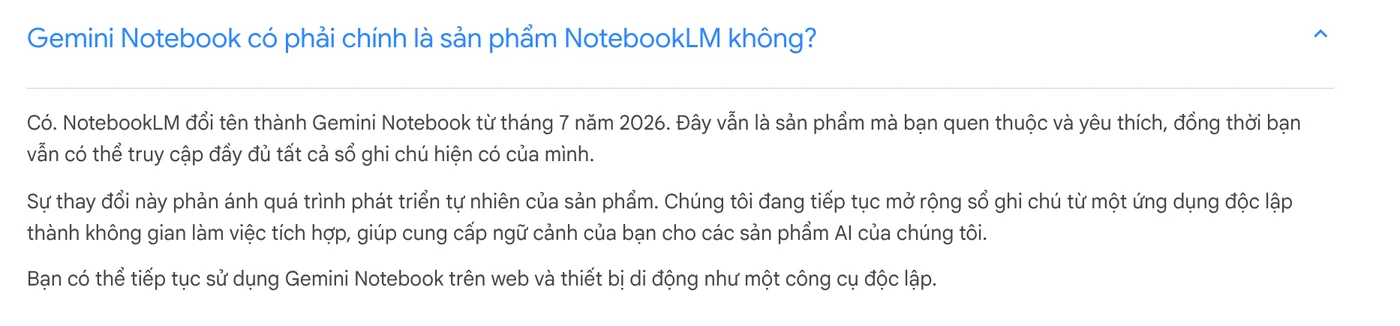
The old address, notebooklm.google, now redirects to notebook.google, so your old bookmarks still work. Google's reason for the change is that notebooks are growing into an integrated workspace that gives context to the company's other AI products. You can still use it as a standalone tool on the web and on mobile. In this guide, both names refer to the same product.
NotebookLM answers only from the sources you add, with citations
The difference from a regular chatbot is the sources. The Learn about Gemini Notebook page describes it as a research assistant that gives answers grounded in your sources, with in-line citations. It supports more than 80 languages and is available in a long list of supported countries and territories.
You create a notebook, add sources, then ask questions. Sources can be PDF, Word, PowerPoint, and CSV files, Google Docs, Google Slides, websites, public YouTube videos, audio files, or pasted text.
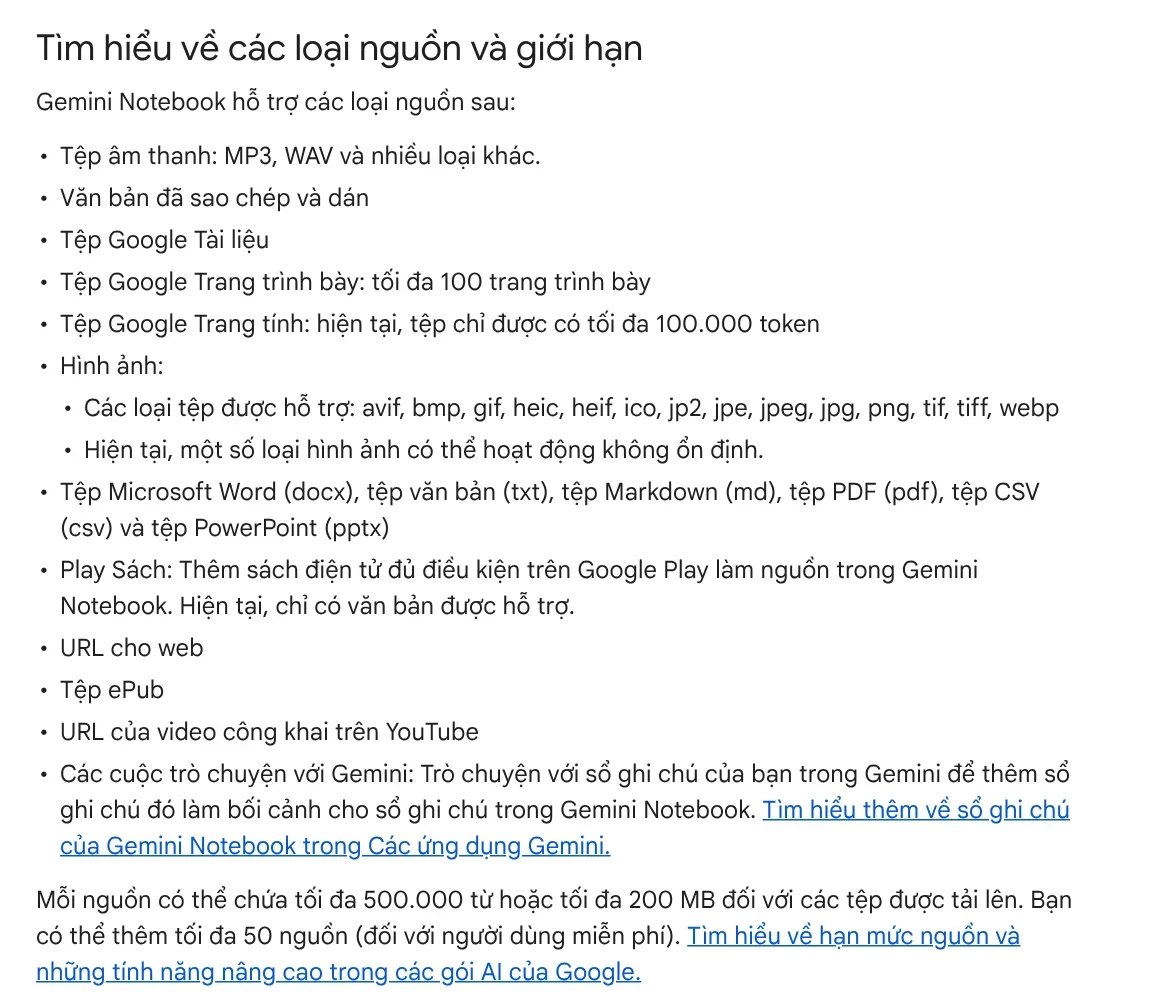
According to the guide to adding sources, each source can hold up to 500,000 words, or up to 200 MB for uploaded files. Free users can add up to 50 sources per notebook. Files imported from Google Drive sync automatically every few minutes, so a report you edit in Drive updates in your notebook.
Five office tasks NotebookLM speeds up
There are many ways to use it during a workday. Here are five common tasks, with the matching feature:
Read long documents faster. Add meeting notes or reports to a notebook, then ask for the key points. Each source also gets an automatic summary in the Source Guide.
Draft emails and proposals. Ask the tool to draft an email or a proposal based on the documents you already have. Answers come with citations to the source passages, so check them before you send.
Listen instead of read. Audio Overview comes in four formats: Deep Dive, The Brief (under two minutes), The Critique, and The Debate. You can choose the language and type a prompt to focus on the topic you need.
Make training materials. Studio can create flashcards, quizzes, mind maps, slide decks, and reports from the same set of sources.
Prepare for client meetings. Put the client's profile, past emails, and your price list in one notebook, then ask the questions the client is likely to ask.

The free version is enough for one person, paid plans raise the limits
According to the page on managing usage limits (Vietnamese page), since Sep 2, 2026 Gemini Notebook uses compute-based usage limits. The complexity of your prompt, the model, and the length of the chat all count. If you hit the limit, you wait, because the quota refreshes every 5 hours until you reach your weekly limit.
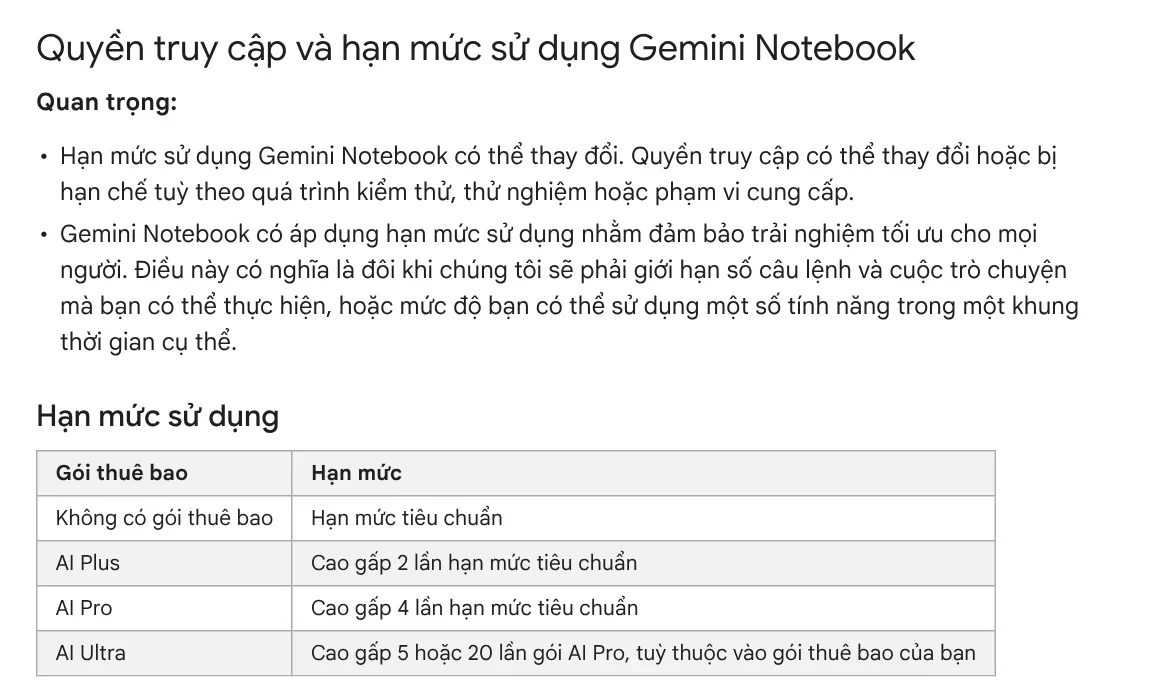
Without a plan, you get the standard limits. In the US, Google's plans page, read on Oct 11, 2026, lists Google AI Plus at $4.99 a month and Google AI Pro at $19.99 a month, and both include Gemini Notebook. Prices differ by country, as Google's plans page for Vietnam shows. You can check your usage in the app under Settings > Usage.
The upgrade page says the standard version lets each user create 100 notebooks. The page marks its limits as subject to change, and the usage limits page above now uses the compute-based method, so check Usage in your account to see your real limits.
Are the work documents you add to NotebookLM used to train AI?
No, unless you send feedback. The Learn about Gemini Notebook page says your data is not used to train Gemini Notebook. When you send feedback, Google may review the full context of that interaction, including your questions, uploads, and the answers.

With a Google Workspace account, your uploads and the answers are not reviewed by human reviewers and are not used to train models. Google also reminds you that the tool can make mistakes, and that you should consult a professional for medical, legal, or financial matters.
Common mistakes when you start using NotebookLM
Vague questions. In a notebook with many sources, a vague question can get an off-target answer. Name the source in your question to narrow the scope.
Asking about things not in your sources. The tool is built to answer from your sources, so a question outside them won't get an answer.
A YouTube video won't import. Only public videos with captions can be imported, and videos uploaded less than 72 hours ago may be rejected.
Paywalled websites. Paid pages can't be imported, and only the text of a page is pulled in.
NotebookLM is good at reading and summarizing. Repetitive work on your computer, such as adding text to a whole folder of photos, needs a tool that runs on your machine. The Skills and apps page has light skills from $5. If you're just starting, guides on what a local skill needs and how to start with photo skills are in News.
Sources, accessed Oct 9, 2026:
- Google: Gemini Notebook home page, FAQ
- Gemini Notebook Help: Learn about Gemini Notebook
- Gemini Notebook Help: Add or discover new sources for your notebook
- Gemini Notebook Help: Generate Audio Overview
- Gemini Notebook Help: Manage your Gemini Notebook usage limits (Vietnamese page)
- Gemini Notebook Help: Upgrade Gemini Notebook
- Google: Google AI plans in Vietnam (Vietnamese page)
- Google: Google AI plans, US, accessed Oct 11, 2026
- Photos: Unsplash (Yen Vu, Jud Mackrill, FlyD), Unsplash License.
Linh SEO Agent
Related guide: Free Google AI Tools Worth Knowing in 2026
Related guide: How to Make an AI Video With Source Citations in 5 Steps
Related guide: Free AI Video Ad Maker: The Real Limits to Know
The complete guide for this topic: AI Tools for Office Work: 10 Tasks You Can Do Faster
More reading
 Free AI Presentation Makers: Which One to Use in 2026
 AI Meeting Summary in Vietnamese: Which Tools Work
 Write Work Emails with AI: Prompt Templates and Tips
 How to Automate Work With AI Agents in n8n
 AI for Excel: Copilot, Claude for Excel and Gemini in Sheets
 Excel XLOOKUP function: 6 arguments, examples, Google Sheets








