
How to Edit Video With Gemini Omni: Steps, Limits, Cost
Gemini Omni edits video from a text prompt: change the scene or camera angle, add or remove objects. How it works in Gemini and Google Flow, limits, cost.

In this article (6)
- Gemini Omni edits video with words, and each prompt builds on the last
- In the Gemini app, you upload one video and up to 5 images
- In Google Flow, videos can run up to 60 seconds, and you edit 10 seconds at a time
- Where does Gemini Omni video editing cost the least?
- A good edit prompt says what to keep and what to change
- Common mistakes when you edit video with Gemini Omni
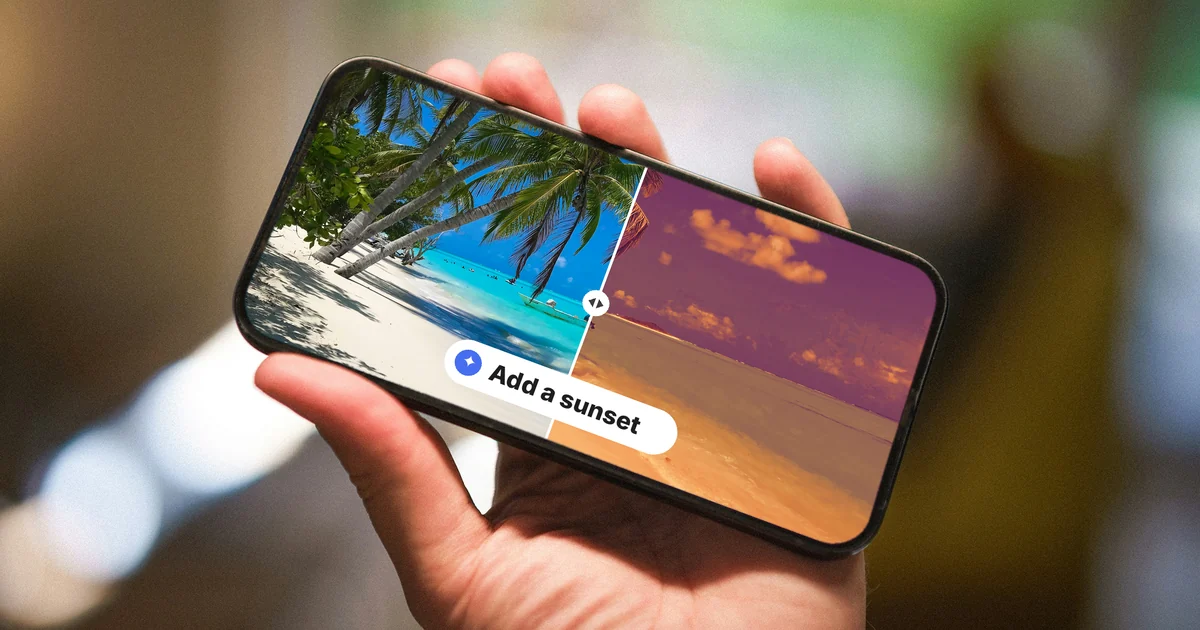
Gemini Omni video editing lets you change a clip with one prompt: swap the setting, change the camera angle, or add and remove objects. You can use it in the Gemini app and in Google Flow.
On May 19, 2026, Google introduced Gemini Omni and released its first model, Gemini Omni Flash. What sets it apart from earlier video models is that it edits existing video, including footage you shot yourself, over several turns of conversation.
Gemini Omni edits video with words, and each prompt builds on the last
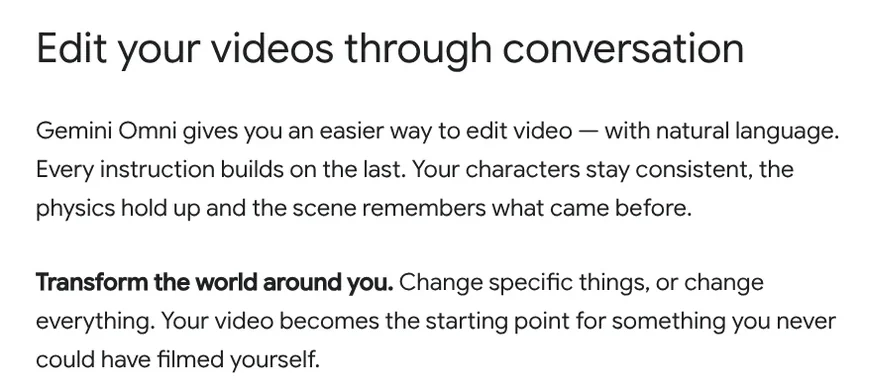
According to Google's announcement post, Omni takes images, audio, video, and text as input, and it generates video. You edit in plain language, and every instruction builds on the one before.
Google describes three main kinds of edits. First, change a few specific things or the whole setting. Second, change the action in a video you filmed, or add new characters and objects. Third, refine over several turns: change the environment, the camera angle, or the style while the original scene stays intact.
One important limit: Google says editing video to change audio and speech is still being tested. Outside of the avatar feature, which uses your own voice and likeness, Omni does not change the voices in a video yet.
In the Gemini app, you upload one video and up to 5 images
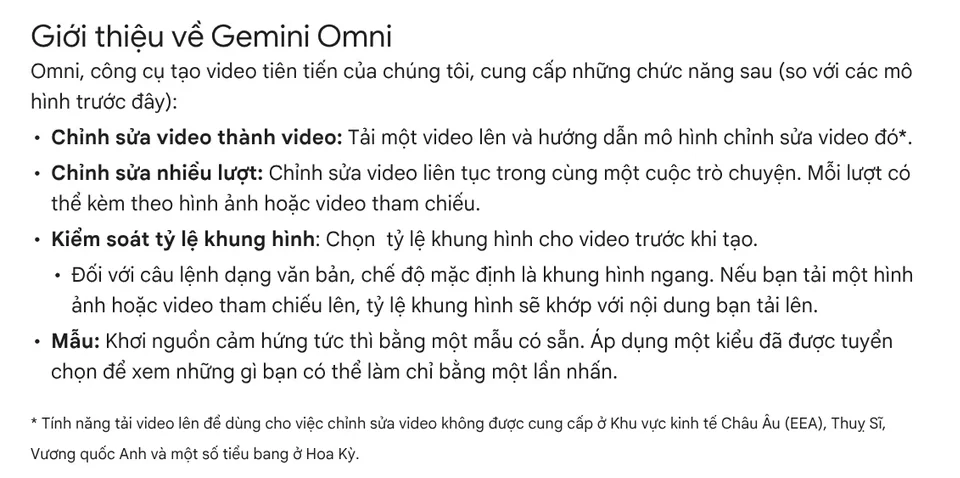
The Gemini Apps Help page lists what Omni can do: video to video editing, multi-turn editing in the same conversation, and choosing the aspect ratio before you generate. Once you have a video, you can prompt it to remove or replace objects and characters, change the camera angle, or modify the scene.
Steps on a computer:
- Go to gemini.google.com, open the sidebar, and select Create video.
- Click Add video to upload the clip you want to edit, and add reference images if you need them. Each upload takes one video and up to 5 images.
- Type a prompt that describes the change, then click Submit.
- When you are done, click Share and choose Download video, or share it on YouTube.
Requirements: personal accounts need a Google AI plan, and you must be 18 or older. Uploading video for editing is not available in the European Economic Area, Switzerland, the United Kingdom, and some US states.
In Google Flow, videos can run up to 60 seconds, and you edit 10 seconds at a time
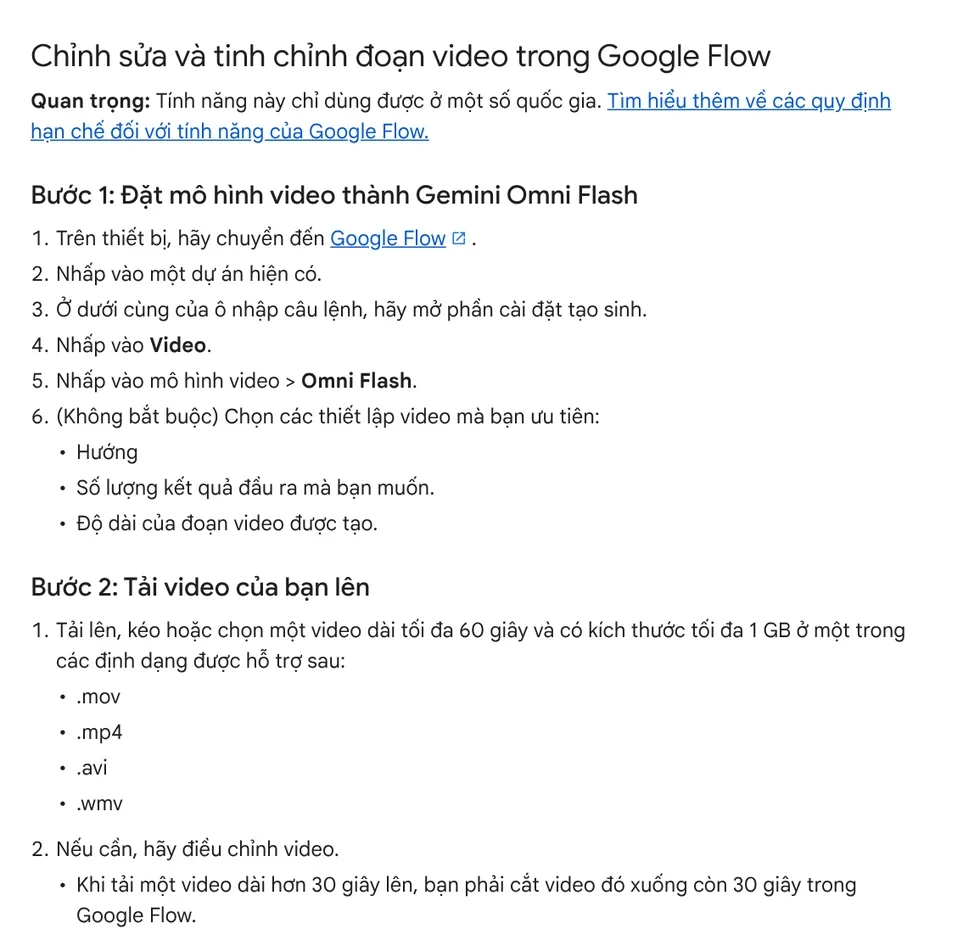
The Google Flow page on editing videos gives more detail:
- Open a project, open the generation settings at the bottom of the prompt box, select Video, then choose the Omni Flash model.
- Upload a video up to 60 seconds long and up to 1 GB, in .mov, .mp4, .avi, or .wmv format. A video longer than 30 seconds must be trimmed to 30 seconds in Flow.
- Select a segment of up to 10 seconds, type a prompt, and click Generate.
- Refine with up to 3 more turns without losing the context of your earlier edits.
Flow keeps your original video. Every earlier version and prompt sits in the History panel, and you can save any version back to your project.
Where does Gemini Omni video editing cost the least?
The Google Flow credits page says each Omni Flash edit of an uploaded or generated video costs 40 credits, for any length and resolution. With or without a plan, you get 50 Flow credits per day. Unused daily credits do not roll over, so that covers one edit a day. Subscribers get extra credits each month: 200 on Plus and 1,000 on Pro.
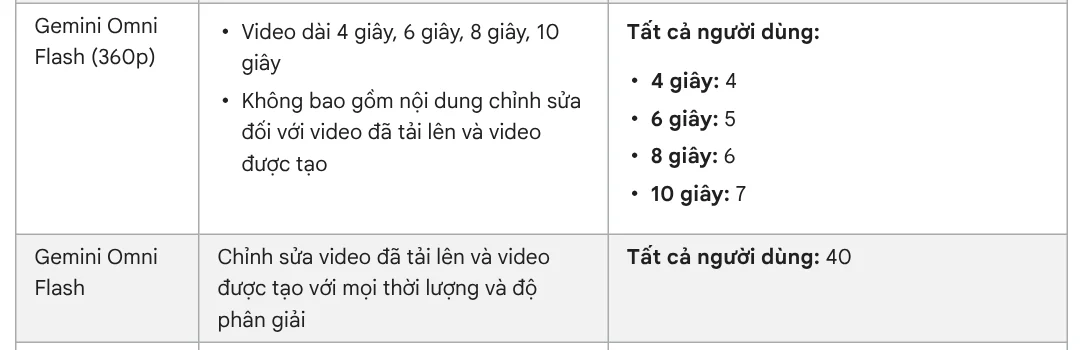
The same page says users without a plan may not be able to generate videos during peak hours, roughly 2 PM to 5 PM UTC. They can still generate images and use the Google Flow Agent.
Google's blog also says Omni Flash is rolling out free to YouTube Shorts and the YouTube Create app. At launch, Omni Flash in the Gemini app and Flow was for Google AI Plus, Pro, and Ultra subscribers. As of Oct 9, 2026, Flow's models page says all users can access Gemini Omni models. But the Get started with Google Flow page still says you need Google AI Plus, Pro, or Ultra. The two pages disagree, so sign in and check what your own account can do.
A good edit prompt says what to keep and what to change
When you edit video with Gemini Omni, you can copy the pattern of Google's own example. The sample prompt asks Omni to edit the clip "keeping everything the same" and add animated motion effects coming off the skateboard. It names what stays first, then what changes. The Flow page adds another example: "Change the lighting to a cinematic sunset."

A few prompts you can adapt:
- "Keep the person and the movement the same. Change the living room into a cafe in the morning."
- "Keep the scene the same. Remove the glass on the left side of the table."
- "Keep the action the same. Change the camera to an over-the-shoulder shot of the speaker."
Common mistakes when you edit video with Gemini Omni
Uploading a whole long recording. Flow takes videos up to 60 seconds and edits a 10-second segment at a time. Trim the part you need first.
Editing a video with a clearly visible child. The Google Flow page on where you can use Flow says editing uploaded videos of identifiable minors is not supported in any region. Those uploads cannot be edited.
Trying to change the dialogue or the voice. Google has not opened audio and speech editing yet. Only the avatar feature, with your own voice, is available.
Stacking too many turns. Flow keeps context for up to 3 follow-up edits. Settle each change clearly before the next one.
Forgetting that the video carries SynthID. Every video made with Omni carries an invisible SynthID digital watermark. Viewers can check it in the Gemini app, Gemini in Chrome, and Google Search. The Get started with Google Flow page also says Flow can add a visible watermark to generated images and videos, and applies one automatically for users who live in India, South Korea, or Vietnam.
If you need a sales video where every spoken line has a source, a link, and an access date, see the AI video with a source table service. If you want a vertical video with voice-over and captions made from a product link, see Adam Proof Studio. For more guides, browse News.
Sources, accessed Oct 9, 2026:
- Google blog: Introducing Gemini Omni
- Gemini Apps Help: Generate videos with Gemini Apps
- Google Flow Help: Edit videos and build scenes in Google Flow
- Google Flow Help: Learn about Google Flow models and supported features
- Google Flow Help: Manage your Google Flow credits
- Google Flow Help: Where you can use Google Flow
- Google Flow Help: Get started with Google Flow
- Illustrations: Unsplash (Oleksandr Kurchev, Jakub Żerdzicki, Ittemaldiviano), Unsplash License.
Linh SEO Agent
Related guide: Gemini Photo to Video: Steps, Requirements and Limits
Related guide: Turn Long Videos Into Shorts: Do It Yourself or Hire a Service
Related guide: How to Make AI Videos on Your Own: A 5-Step Workflow
More reading
 What Is Gemini Omni Flash, and How Is It Different From Veo?
 AI Video Prompts for Veo 3 and Gemini Omni: A 4-Part Formula
 Gemini Omni Pricing: How Much It Costs and Which Plan
 What Is Veo 3? How to Use Google's AI Video Model in 2026
 Gemini Photo to Video: Steps, Requirements and Limits
 Free Image to Video AI: Beginner Steps in Google Flow








