
How to Add a Logo to Photos Online, One at a Time or in Bulk
Add a logo to photos online with Adobe Express or Canva, or stamp 30 photos per task for free with iLoveIMG. How to batch it, plus 4 common mistakes.

In this article (7)
- How to Add a Logo to Photos Online, One at a Time or in Bulk
- Prepare a PNG logo with a transparent background first
- For a single photo, add the logo online with Adobe Express or Canva
- iLoveIMG stamps a logo on up to 30 photos per task for free
- Canva Bulk Create works when each photo needs different text
- Where should you put the logo so it does not spoil the photo?
- Four common mistakes when you add a logo in bulk
How to Add a Logo to Photos Online, One at a Time or in Bulk
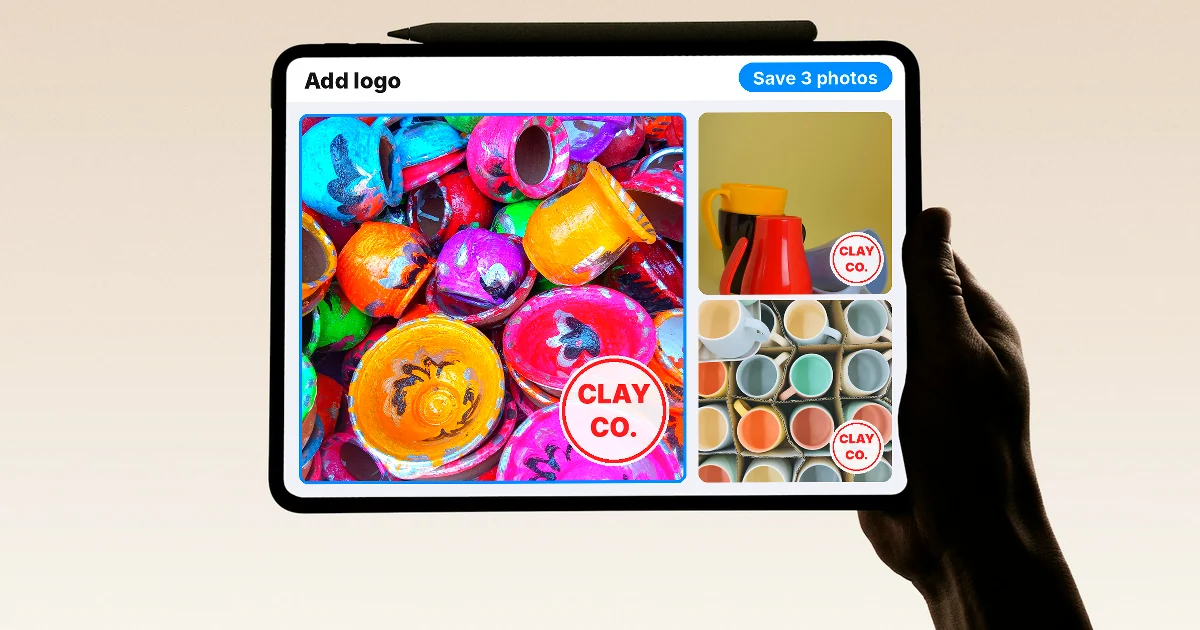
To add a logo to a few photos online, use Adobe Express or Canva. For many photos, iLoveIMG stamps up to 30 images per task on its free plan.
Prepare a PNG logo with a transparent background first
As of October 2026, all three tools in this article run in a web browser. The first step is the same for each: have a PNG logo file with a transparent background. A JPG logo always comes with a white or colored block behind it, so on a product photo it looks like a sticker.

If you do not have a PNG file yet, Adobe Express's watermark maker lets you save your logo as a PNG with a transparent background. The page says the tool is free to use and needs no credit card. Keep a white version of your logo as well, for photos with dark backgrounds.
For a single photo, add the logo online with Adobe Express or Canva
In Adobe Express, open the tool on the web or on your phone, choose a logo template, then drag the opacity slider to make the logo more transparent. Next, place the logo on your photo, adjust the blend settings so the logo matches the tones, and download it.

The free Adobe Express plan is enough for this job. The Premium plan adds Resize and Brand Kit, which apply your logo, colors, and fonts in one click.
In Canva, upload your logo, drag it into your design, then adjust its transparency. According to Canva's help page on transparency, you select the element, click the Transparency icon on the toolbar, then drag the slider or type a value. Hold Shift to select several elements at once.
iLoveIMG stamps a logo on up to 30 photos per task for free
The iLoveIMG Watermark image tool accepts JPG, PNG, or GIF images. It stamps the same image or text watermark on many pictures at once. This is the fastest way to add a logo to photos online in batches without installing anything.
The steps:
- Click Select images and choose your whole set of product photos. The number of images shows on the corner of the plus button.
- Click Add image in the right column and choose your PNG logo file.
- Drag the logo to the corner you want, and drag the blue dots to resize it.
- Use the toolbar at the top to change transparency, move the logo forward or back, or delete it.
- Click the Watermark IMAGES button, then download the result.

According to the iLoveIMG plan comparison, the free Basic plan watermarks 30 images per task, with a total size of 200 MB. The Premium plan costs $5 a month billed yearly, or $9 billed monthly, and raises the limit to 120 images and 4 GB per task.

Does iLoveIMG keep your photos? The iLoveIMG FAQ says files stay on its servers only so you can download your edited images, and are then deleted from the system. For sensitive photos, it is still better to edit on your own computer.
Canva Bulk Create works when each photo needs different text
If each photo also needs its own product name or price besides the logo, Canva's Bulk Create is a better fit. You build one template with a fixed logo, text boxes, and an image frame, then connect your data. Each row of data becomes one page, or its own design if you choose individual designs.

The feature is desktop only and comes with Canva Pro, Teams, Business, Enterprise, Education, and Nonprofits. Data can come from a Canva Sheet, a CSV file, or an XLSX file. Each image must sit inside a single cell, and image links from cloud photo storage are read as plain text. You can select up to 300 rows from a Canva Sheet at a time.
Where should you put the logo so it does not spoil the photo?
Put the logo in one corner, at the same distance from the edges in every photo, and never on top of the product. Viewers look at the product first. The logo only needs to be visible enough for people to recognize your store.

Professional photo software works the same way. The Watermark Editor in Lightroom Classic accepts a PNG or JPEG logo. It has nine anchor points to choose the corner, plus settings for opacity, size, and inset from the edge.
If you post the same photo on several platforms, choose the frame first and add the logo after. The News section explains when to use 4:5, 1:1, and 16:9, and why cropping later can cut off a corner logo.
Four common mistakes when you add a logo in bulk
A logo with a white background. A JPG file has no transparent background. Export the logo again as a PNG before you stamp the whole batch.
A logo that suddenly shrinks. A logo bigger than the photo is scaled down to keep its proportions. Check the first few results, especially when your photos come in different sizes.
A logo that shifts between photos. When portrait, landscape, and square photos are mixed in one batch, the same position looks different on each. Split the batch by frame shape.
A logo that disappears on a matching background. A dark logo on a dark photo almost vanishes. Use the white version of your logo, or do the dark photos as a separate batch. The News section has more tips on contrast when you put text on photos.
For a few photos, Adobe Express or Canva is enough. For up to 30 photos per task that only need a logo, the free iLoveIMG plan is the fastest.
If your photos also need a headline, a highlighted phrase, and a badge, see the Add headline text and brand badges to photos skill, $5. It runs a whole folder of photos in one go, using the brand look you set up.
Sources, accessed Oct 9, 2026:
- Adobe Express: Free watermark maker
- Canva Help Center: Adjust element transparency
- Canva Help Center: Bulk Create
- iLoveIMG: Watermark image, Pricing, FAQ
- Adobe Help: Watermark your photos in Lightroom Classic
- Illustrative photos: Unsplash (Kelly Sikkema, Ofspace LLC, Sticker it, Lorin Both, vable studio, shailaja patel, Sunrise King), Unsplash License.
Linh SEO Agent
Related guide: How to Bulk Add Logos and Badges to Shopee Product Photos
Related guide: Bulk Add Text to Images: Names and Prices for Product Photos
Related guide: How to Add a Signature to a Photo, Plus Your Phone Number
The complete guide for this topic: How to Add Text to a Photo on Your Phone or Computer
More reading
 How to Add a Signature to a Photo, Plus Your Phone Number
 Bulk Add Text to Images: Names and Prices for Product Photos
 6 Common Mistakes When Adding Text to Photos
 How to Add Text to a Photo on iPhone Without an App
 How to Add Text to a Picture in PowerPoint and Word
 How to Create AI Product Photos for Your Online Store








