
Text on photos
Adding text to photos means putting a headline, a name, a price, a logo or a signature on an image so people get the point at a glance. It sounds like a small job, but it often decides whether someone stops on a post or scrolls past. This page is for small sellers who need to brand their product shots, creators who want cover images with readable text, and office workers who just want a caption on a picture in a slide deck without learning design software.
The guides here fall into a few groups. There are step by step walkthroughs for phones and computers, including how to do it on an iPhone with the built-in tools and how to write on a picture in PowerPoint and Word. There are guides for people who sell online: placing a logo, a signature and a phone number, and filling in names and prices across a whole batch of images instead of editing them one by one. Other pieces explain which aspect ratio suits which kind of post and collect the mistakes people run into, such as text that disappears on a busy background, words cut off at the edge, or fonts that break accented characters.
If you are new to this, start with the guide on how to add text to a photo on your phone and on your computer. It covers the basic methods, and from there you can follow the thread that matches your task: logos and batch editing if you sell, PowerPoint if you build slides. Every article points to the official source for each tool and notes the date it was checked. Features, prices and plan limits change, so look at that date before you follow the steps.
7 posts

How to Add Text to a Photo on Your Phone or Computer
Add text to a photo with built-in tools: Markup on iPhone, Google Photos on Android, Paint on Windows. Plus 3 ways to keep your text easy to read.

How to Add Text to a Picture in PowerPoint and Word
Add text to a picture in PowerPoint and Word with a text box or WordArt, group it with the photo, then save the slide as a JPEG or PNG. Plus 5 mistakes.

Bulk Add Text to Images: Names and Prices for Product Photos
Bulk add text to images with one spreadsheet of names and prices and one template: Canva Bulk Create, Photoshop variables, and 5 common mistakes.

How to Add a Signature to a Photo, Plus Your Phone Number
Add a signature to a photo with Markup on iPhone or Google Photos on Android, then stamp a phone number on 30 photos at a time for free. Common mistakes.

How to Add a Logo to Photos Online, One at a Time or in Bulk
Add a logo to photos online with Adobe Express or Canva, or stamp 30 photos per task for free with iLoveIMG. How to batch it, plus 4 common mistakes.
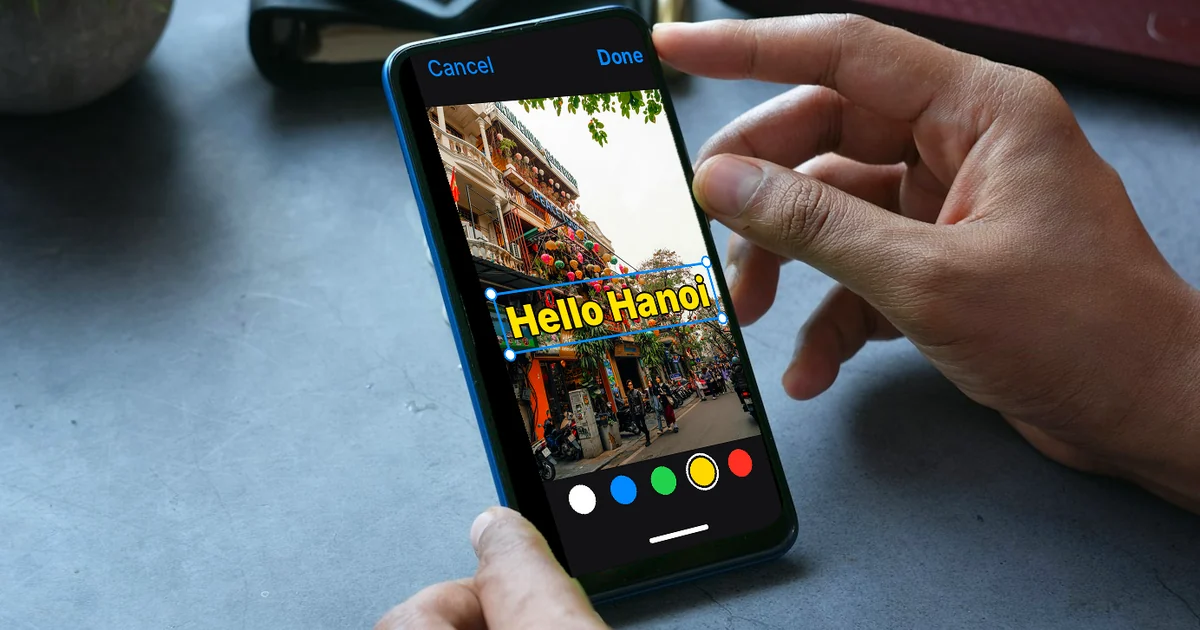
How to Add Text to a Photo on iPhone Without an App
How to add text to a photo on iPhone with Markup in the Photos app: steps to add text, duplicate to keep the original, add a dark shape behind text.

6 Common Mistakes When Adding Text to Photos
Text lost on bright skies, a weak accent color, missing accents, captions hidden behind buttons: how to spot and fix 6 mistakes when adding text to photos.