
Bulk Add Text to Images: Names and Prices for Product Photos
Bulk add text to images with one spreadsheet of names and prices and one template: Canva Bulk Create, Photoshop variables, and 5 common mistakes.


In this article (5)
- Bulk text on images needs two things: a data table and a template
- Canva Bulk Create takes an Excel file and makes one design per row
- Photoshop uses data variables to turn each row into a PSD file
- How do you keep names and prices readable on every image?
- Five common mistakes when you bulk add text to images
To bulk add text to images, you need a spreadsheet of names and prices and one image template with text boxes ready. The tool turns each row of the spreadsheet into its own image.
Bulk text on images needs two things: a data table and a template
The Canva Help page, read on Oct 9, 2026, explains the idea in a few lines. Each column in your table is a data field, such as "Name" or "Price". Each row holds the information for one finished design.
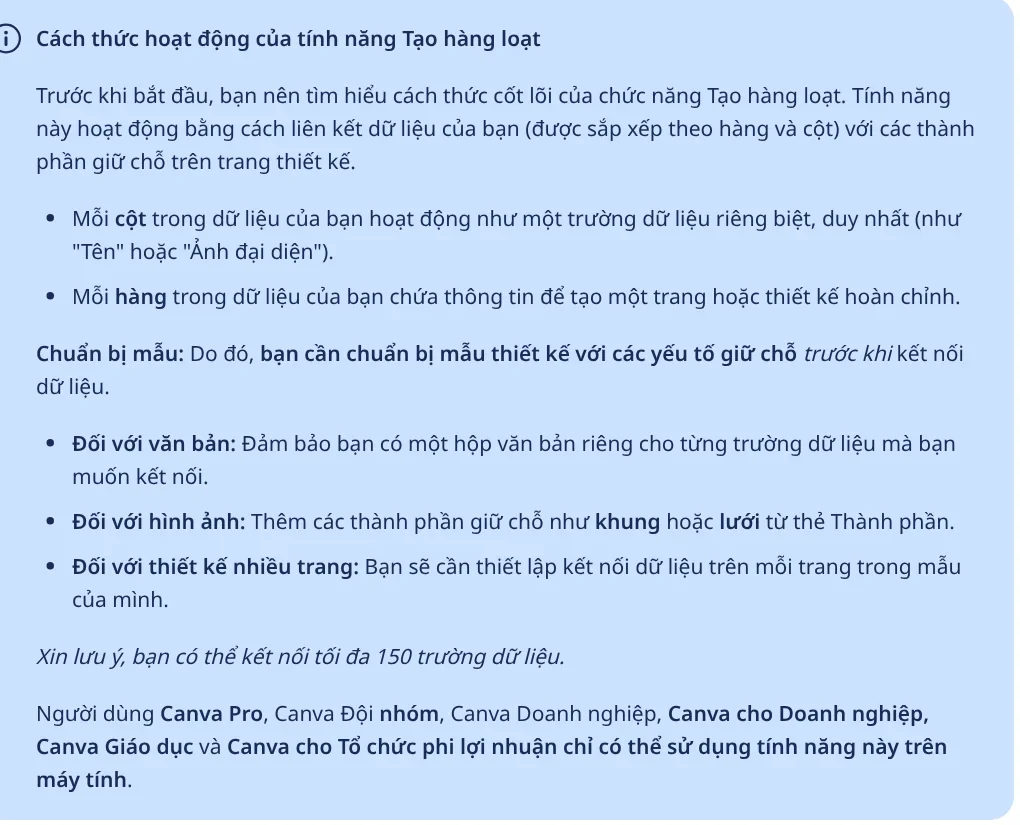
For a clothing store, the table could have four columns: product name, price, old price, and photo. The template needs its own text box for each text column, plus a placeholder frame for the photo. Get this step right and the rest almost runs by itself.
Prepare the table before you open the tool. Type each price exactly as it should appear on the image, for example "$18.90", instead of a bare number that the spreadsheet may reformat.
Canva Bulk Create takes an Excel file and makes one design per row
Canva's Bulk Create works on desktop only. It is available on Canva Pro, Teams, Business, Enterprise, Education, and Nonprofits plans. On the US pricing page, read on Oct 11, 2026, Canva Pro costs US$144 a year for one person.
The main steps:
- Open your template, click the page background, choose Edit, then Bulk create. Or open the Apps tab and choose Bulk create.
- Choose Upload data and pick a .csv or .xlsx file. You can also type data by hand or use Canva Sheets.
- Select Auto-match fields to let AI connect columns to text boxes, or drag and drop each field yourself.
- Select Preview to see how each row looks.
- Open Advanced options, choose the output type, then select the Create button with the number of designs to finish.
If your data comes from Canva Sheets, you can select up to 300 rows and 150 columns at a time. Split a longer catalog into several batches.
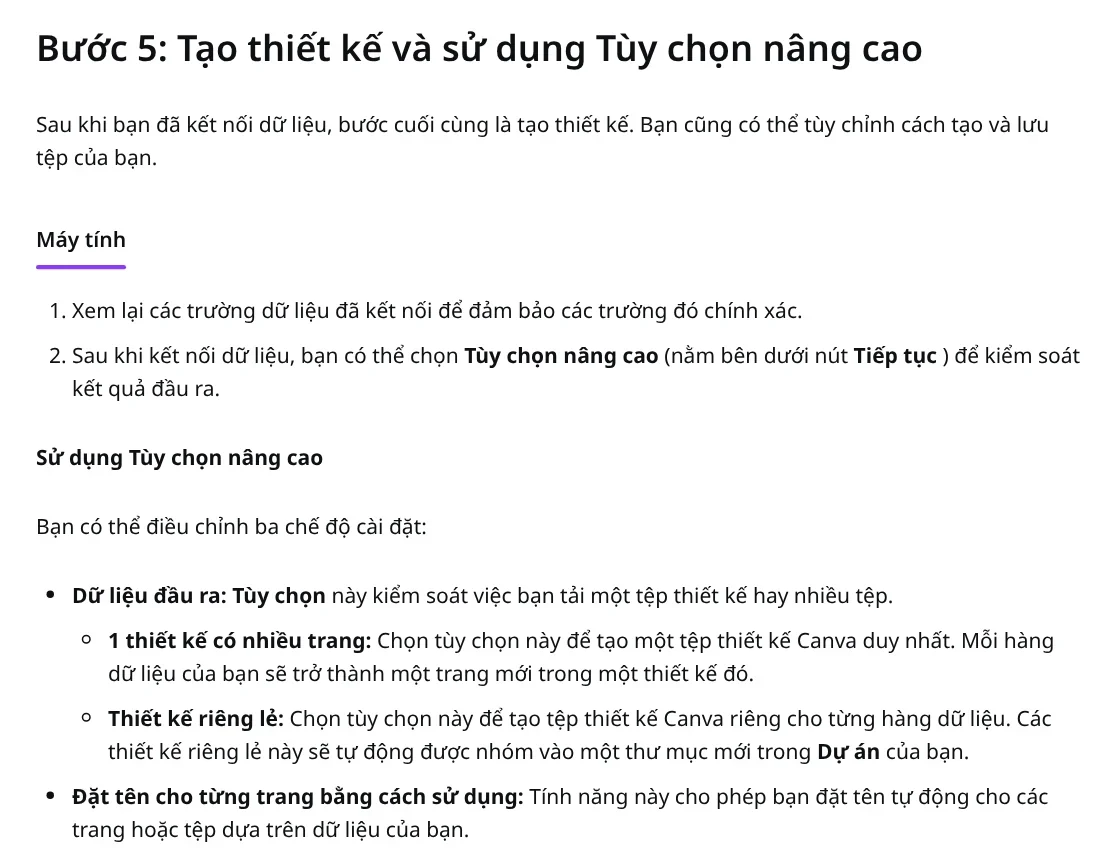
In the last step, choose Individual designs if each product needs its own file. The Name each page using option names each file after a column, such as the product name column. That way you do not have to rename a hundred files after you download them.
Photoshop uses data variables to turn each row into a PSD file
Photoshop has a similar method called data-driven graphics. Adobe's help page describes the steps. You mark the name text layer and the price text layer as variables, then load a data file.
Photoshop has three variable types: Text Replacement, Pixel Replacement, and Visibility, which shows or hides a layer. You define variables in Image > Variables > Define. You cannot add a variable to the Background layer.
The data file can be CSV or tab-delimited. The first line holds the variable names, and each line after it is one data set. Every variable in the PSD file must have a column in the data file, or you get an error. Load the file through File > Import > Variable Data Sets, then export with File > Export > Data Sets As Files. The result is one PSD file per row.
How do you keep names and prices readable on every image?
A batch template differs from a hand-made image because you do not adjust each picture. So the template has to work on light and dark backgrounds, with short names and long names.
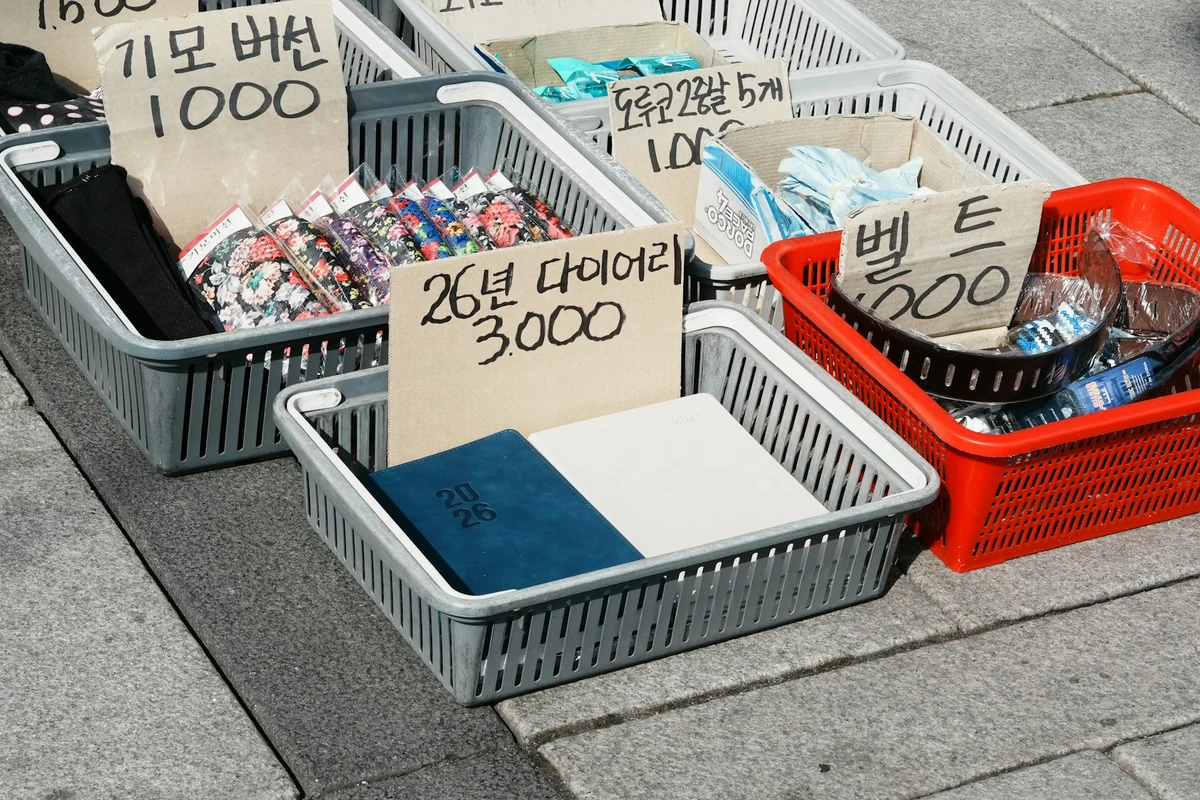
Three ways to keep text readable: place it on a fixed semi-dark band, use an accent color only for the price, and choose a font that covers every character your language needs, including accents. The guides in News have more examples of fonts and colors, and explain how to pick 4:5, 1:1, or 16:9. If your images go to several platforms, choose the frame first, because changing it later can crop your text.
Five common mistakes when you bulk add text to images
Long names overflow the frame. A 40-character product name pushes the price off the image. Test the template with the longest name in your table before you run the whole batch.
Prices in the wrong format. Spreadsheets can change number formats on their own and drop separators or the currency symbol. Format the price column as text, or type the currency symbol into each cell.
Images in the table do not show. Canva states that image URLs from cloud photo storage are treated as plain text. Images must be embedded directly in the sheet, each one inside a single cell.
AI connects the wrong fields. Auto-matching can connect the price column to the name box. If most fields are wrong, choose Connect manually instead. If only a few are wrong, remove those connections and connect them again.
Skipping the preview. A mistake in row 87 only shows up after you post. Click through a few rows at the start, middle, and end of the table before you create.
Do you need to add a headline, a highlighted phrase, and a brand badge to a whole folder of photos? The Add headline text and brand badges to photos skill costs $5 and processes a whole folder in one pass. It has three frames, 4:5, 1:1, and 16:9, and darkens the overlay automatically when the background is bright.
Sources, accessed Oct 9, 2026 (English versions checked Oct 11, 2026):
- Canva Help: Bulk create designs
- Canva: Pricing in Vietnam (Vietnamese page)
- Canva: Pricing, United States (US price, accessed Oct 11, 2026)
- Adobe Photoshop Help: Creating data-driven graphics
- Skill prices, accessed Oct 11, 2026: Skills and apps
- Illustrative photos: Unsplash (S O C I A L . C U T, Theme Photos, mindeurle lee), Unsplash License.
Linh SEO Agent
Related guide: 6 Common Mistakes When Adding Text to Photos
Related guide: How to Add a Logo to Photos Online, One at a Time or in Bulk
The complete guide for this topic: How to Add Text to a Photo on Your Phone or Computer
More reading
 How to Add a Logo to Photos Online, One at a Time or in Bulk
 How to Add Text to a Photo on iPhone Without an App
 How to Add Text to a Picture in PowerPoint and Word
 6 Common Mistakes When Adding Text to Photos
 How to Add a Signature to a Photo, Plus Your Phone Number
 How to Bulk Add Logos and Badges to Shopee Product Photos








