6 Common Mistakes When Adding Text to Photos
Text lost on bright skies, a weak accent color, missing accents, captions hidden behind buttons: how to spot and fix 6 mistakes when adding text to photos.


In this article (4)
Text that is hard to read on a photo usually comes down to six mistakes: a bright background, a weak color, the wrong accent, a missing font, buttons on top, and resizing. Each one takes a few minutes to fix.
W3C sets a minimum contrast of 4.5:1 for regular text, and Instagram scales any photo wider than 1080 pixels down to 1080. Those two numbers explain why text that looks fine on a laptop can be hard to read on a phone.
If you still need a tool for adding text to photos, the how-to guides in News cover iPhone, Android and Windows. This article picks up after that: the text is on the photo, now check it for each mistake.
Text that blends into the background is the most common mistake when adding text to photos
Mistake 1: white text over a bright part of the photo
How to spot it: shrink the photo to thumbnail size, or squint at it. Any letters that melt into a sky, a white wall or a bright tabletop will disappear on a phone.
How to fix it: move the text to a darker area if the layout allows. If it does not, add a dark, semi-transparent layer (a scrim) right under the text, then darken it until the letters separate cleanly from the background. The scrim only needs to cover the text area, not the whole photo.
Mistake 2: too little contrast between text color and background
Success Criterion 1.4.3 Contrast (Minimum) from W3C asks for a contrast ratio of at least 4.5:1 for text and images of text. Large text, meaning at least 18 point or 14 point bold, needs 3:1.
How to spot it: pick the text color and the brightest background color right behind it, then calculate the ratio with the WCAG formula. With that formula, white text on light gray #CCCCCC reaches only about 1.6:1. Gold #D89B2B on cream #FBF7EE reaches about 2.3:1, below even the 3:1 bar for large text.
How to fix it: white text needs a background at least as dark as #767676 to reach 4.5:1. If your accent color is too light, switch to a deeper shade: on the same cream, #B47C15 reaches about 3.4:1.
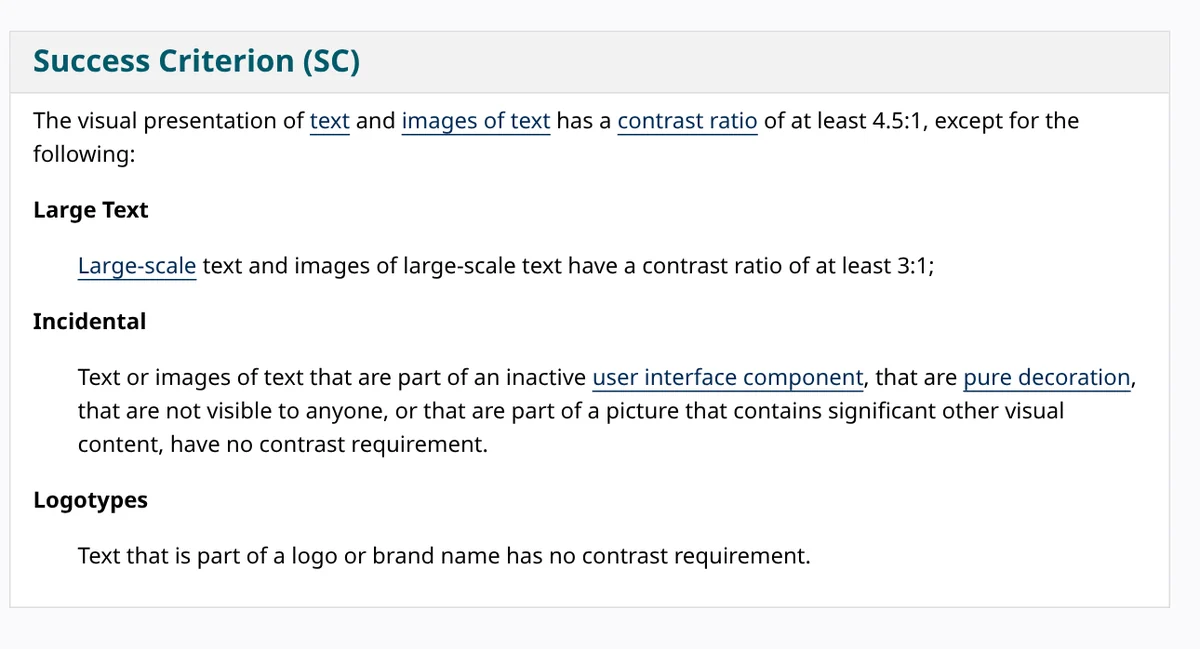
WCAG was written for web content, but it is still the easiest objective yardstick for text on a photo.
Accent color and font: two mistakes hiding in the headline itself
Mistake 3: highlighting the wrong phrase, or too many phrases
How to spot it: look at the photo for one second and ask where your eye lands first. If it lands on "for", "of" or "save" instead of the product name or the price, the accent is in the wrong place. Color three or four phrases and none of them stands out.
How to fix it: pick exactly one phrase the viewer should remember, usually the benefit or the number. In "30% OFF YOUR FIRST ORDER", highlight "30%", not the whole line. In the headline skill sold on this site, the accent phrase goes inside a pair of ...; without that pair, the phrase never gets its color.
Mistake 4: accented letters turn into empty boxes because the font lacks them
How to spot it: accented letters show up as empty boxes, accents drift away from their letters, or a single letter switches to a different font. The problem can hit only a few letters, which makes it easy to miss. In the image below, Bebas Neue renders most of a Vietnamese headline but shows a box for the capital Ả.
How to fix it: choose a font that declares the character set your language needs. In the official Google Fonts repository, the metadata file for Anton lists the "vietnamese" subset, while Bebas Neue lists only latin and latin-ext. Before a batch run, type a test line that uses every accent you need, especially on capital letters.
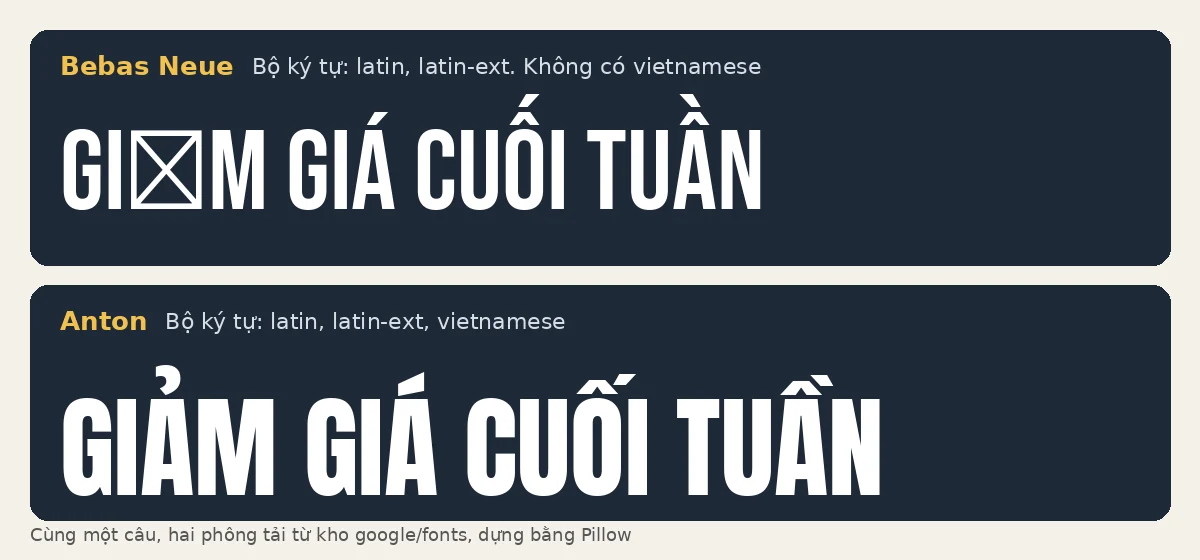
A computer missing fonts causes the same problem when you run a script. The guide that ships with the skill gives the Linux fix: run sudo apt install fonts-dejavu.
Why does text that looks fine on a computer break once it is posted?
The last two mistakes only show up after posting, when the app lays its buttons over your text and scales the image down.
Mistake 5: text sits where buttons and captions cover it
How to spot it: vertical photos and videos carry the account name and caption at the bottom and a column of buttons on the right. Text near the bottom edge or the right edge gets covered.
How to fix it: keep a safe zone. The Meta ads guide for Instagram Reels suggests leaving at least 14% at the top, 35% at the bottom and 6% on each side free of text. That keeps key parts from being cropped or covered by the profile icon and call to action.
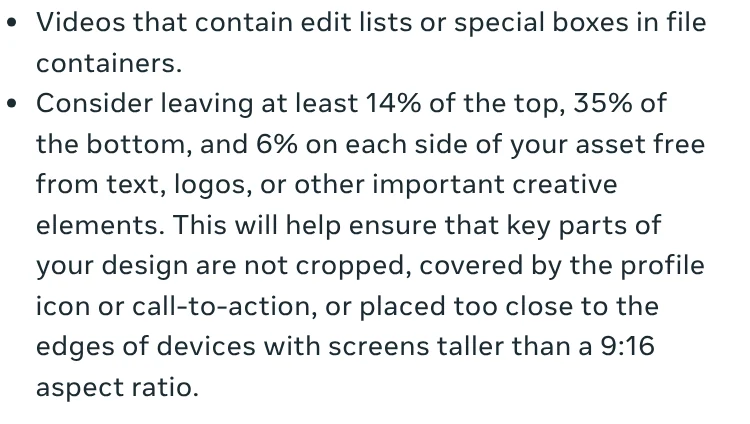
TikTok says its safe zone depends on the dimension and the ad caption length, and offers safe zone files to download. For Shorts, Google Ads Help notes that the right-hand panel holds the like, dislike, comment and share buttons. These numbers were written for ads, but they work as a safe frame for regular posts too.
Mistake 6: small text and long lines that blur when the photo is resized
How to spot it: open the photo on a phone at actual size, without zooming. If you have to read it twice, the text is too small or the line is too long.
How to fix it: export at the size the platform expects so the app does not have to shrink it. The Instagram Help Center says photos between 320 and 1080 pixels wide keep their original resolution when the aspect ratio is between 1.91:1 and 3:4. Larger photos are sized down to 1080 pixels wide, and unsupported ratios are cropped.
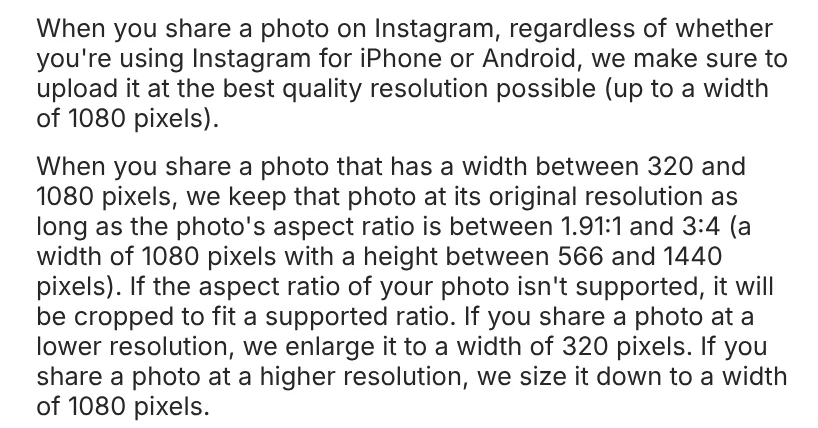
The guide for the headline skill recommends 3 to 6 words per headline; longer lines force the script to shrink the text. Pick your frame before adding text, because changing the frame later can crop the words off.
Check all six in one minute before you post
Run through this list on your phone before posting:
- Shrunk to thumbnail size, the text still stands apart from the background.
- Contrast reaches 4.5:1, or 3:1 for large text.
- Only one accent phrase, and it is the idea people should remember.
- A test line with every accent you need renders correctly.
- On vertical images, no text in the top 14%, bottom 35% or 6% on each side.
- The export is 1080 pixels wide and the headline is short.
Checking a few photos by hand is quick; adding text to photos by the hundred is not. For a whole folder, pick a tool that adds a headline with exactly one accent phrase, builds three separate frames (4:5, 1:1, 16:9), and darkens the scrim automatically on bright photos so the text stays readable. The basic steps are in How to Add Text to a Photo on Your Phone or Computer.
Which of these six mistakes shows up most in your photos?
Sources, accessed Oct 12, 2026:
- W3C WAI: Understanding Success Criterion 1.4.3: Contrast (Minimum)
- Google Fonts (google/fonts repository): Anton METADATA, Bebas Neue METADATA
- Meta: Video Ad Specs on Instagram Reels, Facebook Ads Guide
- TikTok Ads Manager: TikTok Auction In-Feed Ads (video specifications)
- Google Ads Help: YouTube Shorts ads: Asset specs and best practices
- Instagram Help Center: Image resolution of photos you share on Instagram
Linh SEO Agent
Related guide: Bulk Add Text to Images: Names and Prices for Product Photos
Related guide: How to Add Text to a Video on Your Phone or Computer
Related guide: Social Media Aspect Ratios: 4:5, 1:1, 16:9 and 9:16