How to Make an AI Video With Source Citations in 5 Steps
Make an AI video with source citations: build a source table, write a grounded script in Gemini Notebook, show sources on screen, disclose AI use.

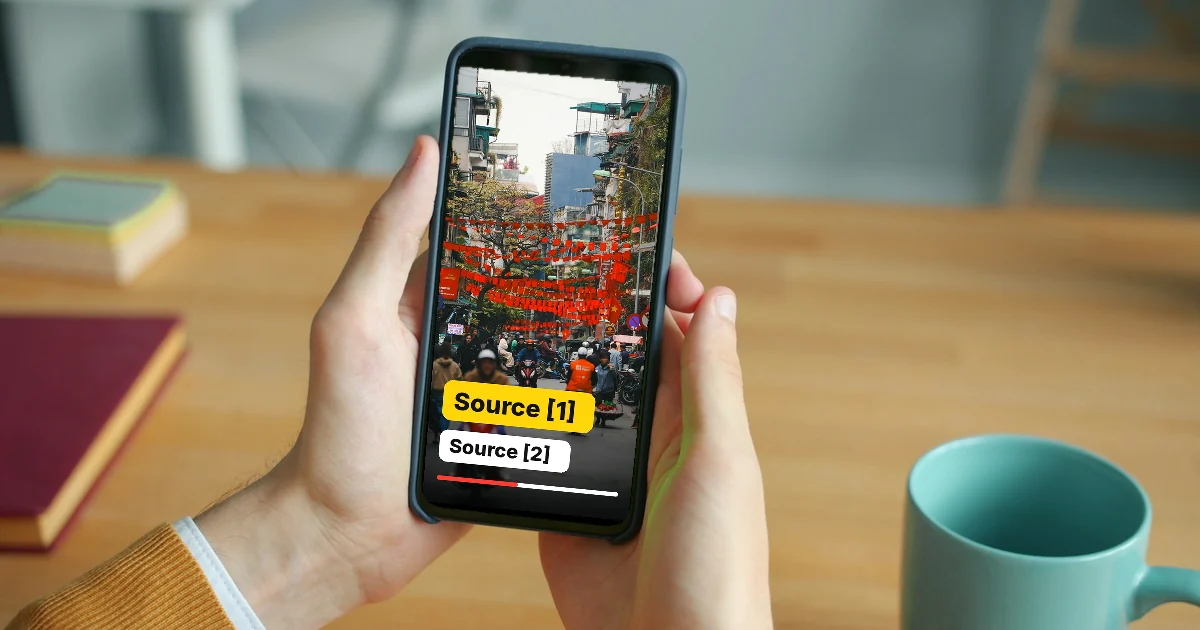
In this article (6)
- Step 1: Build the source table first, write the prompt second
- Step 2: Write a source-grounded script in Gemini Notebook
- Step 3: Create a draft with Video Overview, then review it
- Step 4: Where should sources appear in an AI video?
- Step 5: Disclose AI content the way YouTube requires when you post
- Four common mistakes when you make an AI video with source citations
Making an AI video with source citations takes five steps: build a source table, write a script that sticks to the sources, create a draft, show the sources on screen, then disclose AI use when you post.
Step 1: Build the source table first, write the prompt second
As of October 2026, AI video tools can write a smooth script from a single prompt. A smooth script is not always a correct one. So your first step is not to open a video tool. Open a blank spreadsheet and write down what you plan to say.
Each fact gets one row with four columns: the line you will say in the video, the source name, the link, and the date you read it. Prefer official pages such as help pages, pricing pages, and company announcements. If you cannot find a source for a line yet, flag it or cut it from the script.

When you make an AI video with source citations, this table is the backbone of the video. When a viewer asks "where does this number come from," you can answer in a minute.
Step 2: Write a source-grounded script in Gemini Notebook
Gemini Notebook is Google's AI research assistant, and it works on the sources you give it. According to the Gemini Notebook overview page, you can upload PDFs, websites, YouTube videos, audio files, Google Docs, and Google Slides.
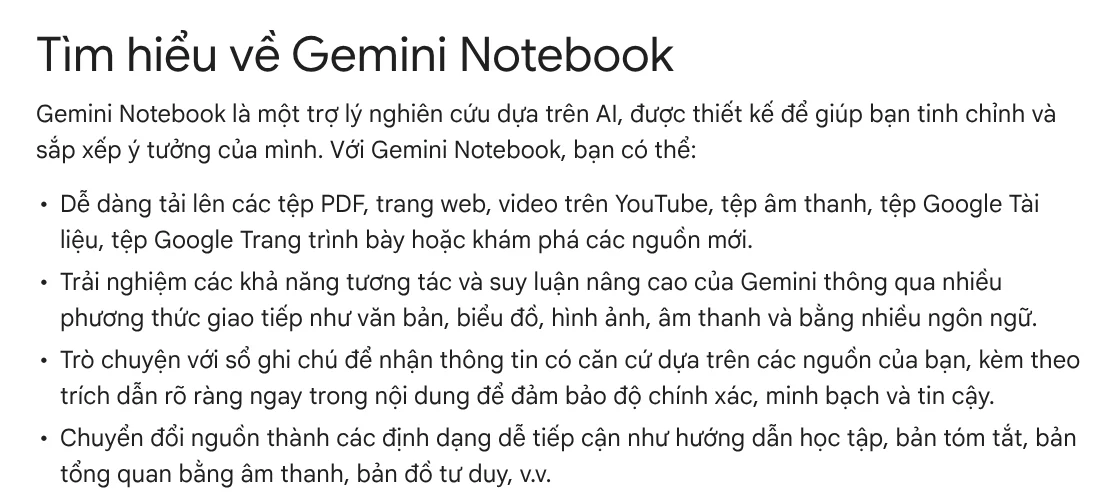
This is what makes it a good fit for sourced videos: chat answers are grounded in your sources and come with clear in-line citations. Add the links from your source table to a notebook, then ask for a 60-second script that uses only information from those sources. Delete any line that has no citation attached.
Gemini Notebook supports more than 80 languages and is available in a long list of countries and territories, including the United States, the United Kingdom, and Vietnam. The Standard plan is free to sign up for with a Gmail account, according to the Gemini Notebook plans page (Vietnamese page).
Step 3: Create a draft with Video Overview, then review it
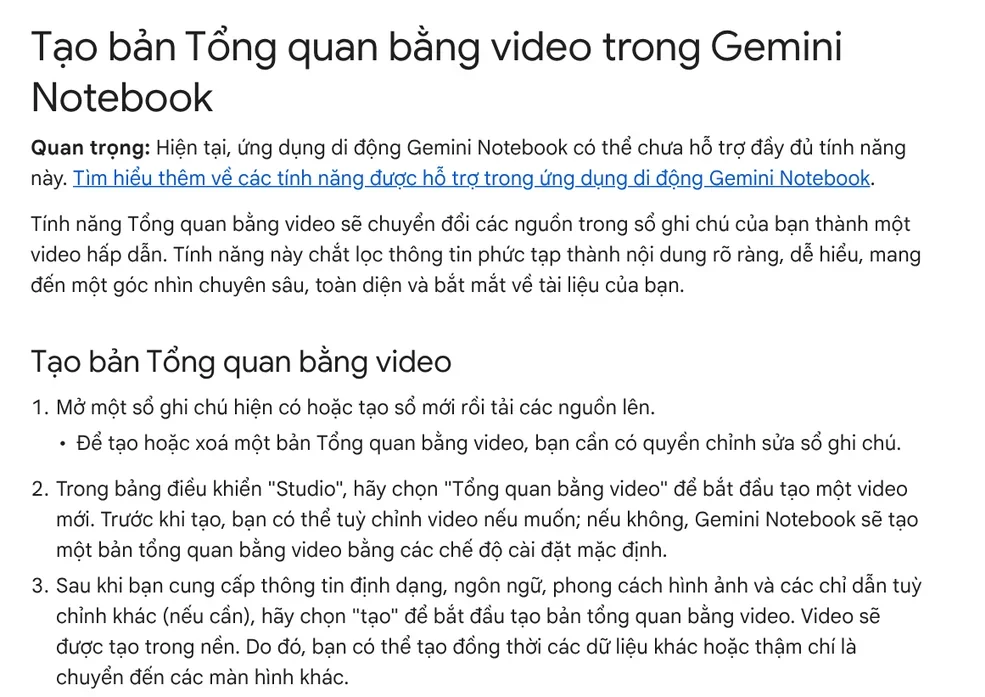
The Video Overview feature turns the sources in a notebook into a narrated video. Here are the steps from the Video Overview help page:
- Open a notebook that already has sources. You need edit access to that notebook.
- In the Studio panel, select Video Overview.
- Choose the format, language, visual style, and custom instructions if you need them.
- Select Generate. The video is made in the background and can take more than 30 minutes.
There are three formats. Explainer is a structured overview that connects the dots across your sources. Short runs about 60 seconds. Cinematic supports English only and is only for users 18 and older. Explainer and Short each support dozens of narration languages.
Google states that these videos, including the voices and visuals, are AI-generated and may contain inaccuracies. So watch the draft with your source table open next to it. If a line drifts from the source, adjust your instructions and generate again.
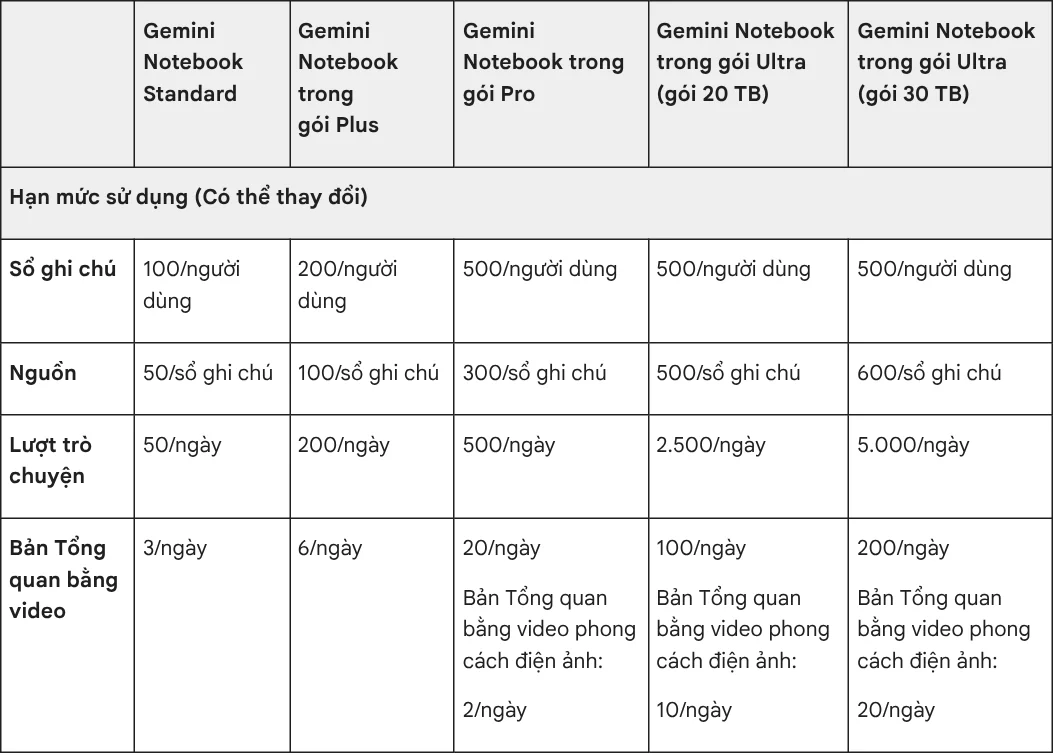
The Standard plan allows 50 sources per notebook, 50 chats, and 3 Video Overviews per day. Cinematic videos start with the Pro plan, at 2 per day. Google notes that these limits may change.
Step 4: Where should sources appear in an AI video?
Short answer: in two places, on screen and in the description. Each place does a different job.

On screen, place a small line of text at the moment the voice-over states the fact, for example "Source: Google help page, accessed Oct 9, 2026." Even a viewer who scrolls fast sees that the line has support. Keep the source line in the same spot in every scene so the eye gets used to it.
In the description, paste every link in the order it appears in the video, with the date you read it. Long links do not fit on screen, but people can click them in the description. For vertical social videos, keep the source line clear of the buttons along the bottom edge. Pick your aspect ratio (4:5, 1:1, or 16:9) before you place text; the News section explains when to use each one.
Step 5: Disclose AI content the way YouTube requires when you post
YouTube requires creators to disclose when they use AI to generate or meaningfully alter content that looks realistic. YouTube's AI disclosure policy page lists four cases that need disclosure: a real person appears to say or do something they did not, footage of a real event or place is altered, a realistic scene that did not happen is generated, and AI-generated music is the main focus of the video.
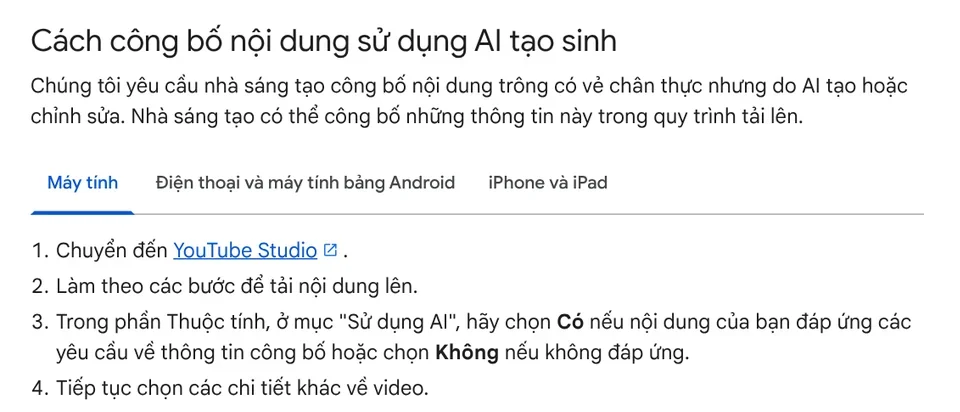
How to do it: in YouTube Studio, while you upload, go to the Attributes section, find AI use, and choose Yes if your video meets the disclosure requirements.
YouTube says disclosure does not limit a video's audience or affect its eligibility to earn money. On the other hand, creators who consistently choose not to disclose may have content removed or be suspended from the YouTube Partner Program. If you only use AI to write the script or create captions, you do not need to disclose.
Four common mistakes when you make an AI video with source citations
Letting the AI add numbers. AI scripts often slip in a number that sounds plausible but is not in any source. Check every number against your source table before you create the video.
Linking to the homepage instead of the page with the fact. A homepage link makes viewers search for themselves. Link to the exact help page or pricing page that contains that line.
Forgetting the access date. Prices and limits change often. An access date tells viewers when the fact was true.
Using roundup blogs as your main source. Blogs can copy facts wrong or go out of date. Take facts from the company's own pages, and use blogs only to find leads.
If you need a video where every line of voice-over comes with a source, a link, and an access date, see the AI video with a source table service. To make one yourself from a product link or an article, Adam Proof Studio turns a link into a vertical video with voice-over, captions, and quotes backed by sources.
Sources, accessed Oct 9, 2026:
- Google: Learn about Gemini Notebook
- Google: Generate Video Overviews in Gemini Notebook
- Google: Learn about Gemini Notebook's plans (Vietnamese page)
- YouTube: Disclosing use of GenAI content
- Illustrative photos: Unsplash (Vitaly Gariev, Sortter, Kevin Charit), Unsplash License.
Linh SEO Agent
Related guide: AI Video With Sources: Why You Need a Source Table
Related guide: AI Sales Videos: 5 Mistakes That Make Shoppers Scroll Past
Related guide: Claude Skill for Research: Find and Summarize Sources