
AI for Excel: Copilot, Claude for Excel and Gemini in Sheets
AI for Excel in 2026 means Copilot in Excel, the Claude for Excel add-in or Gemini in Google Sheets. Which plan you need, what each does, where it slips.


In this article (6)
- The three popular AI for Excel options all run inside the spreadsheet
- Copilot in Excel has Edit, Plan and Chat modes
- Claude for Excel is an add-in that reads the whole workbook and cites cells
- Gemini in Google Sheets fits teams that work in Google Workspace
- Why do AI for Excel results still need your review?
- Which AI for Excel tool should you choose?
AI for Excel is the umbrella term for AI assistants that work right inside your spreadsheet. You describe the task, and the AI writes formulas, builds summary tables, draws charts or finds errors for you.
The three popular AI for Excel options all run inside the spreadsheet
As of Oct 9, 2026, there are three main ways to use AI with a spreadsheet: Copilot built into Excel, Anthropic's Claude for Excel add-in, and Gemini in Google Sheets. All three sit in a panel next to your sheet, so you do not have to copy data into a separate chat window.

They differ in the paid plan you need, the platforms they run on, and how much the AI is allowed to change your sheet on its own. Below, each tool gets its own section, followed by the common mistakes people make when they hand a spreadsheet to AI.
Copilot in Excel has Edit, Plan and Chat modes
The Get started with Copilot in Excel page says Copilot uses Excel's own features, such as tables, charts, PivotTables and formulas, to carry out your request. You can still edit whatever it creates by hand, as usual.
Copilot has three modes. Edit changes the sheet directly and is the default. Plan lays out the steps for you to approve first. Chat only analyzes and answers, without touching the sheet. You open Copilot with the icon in the lower right corner of Excel.
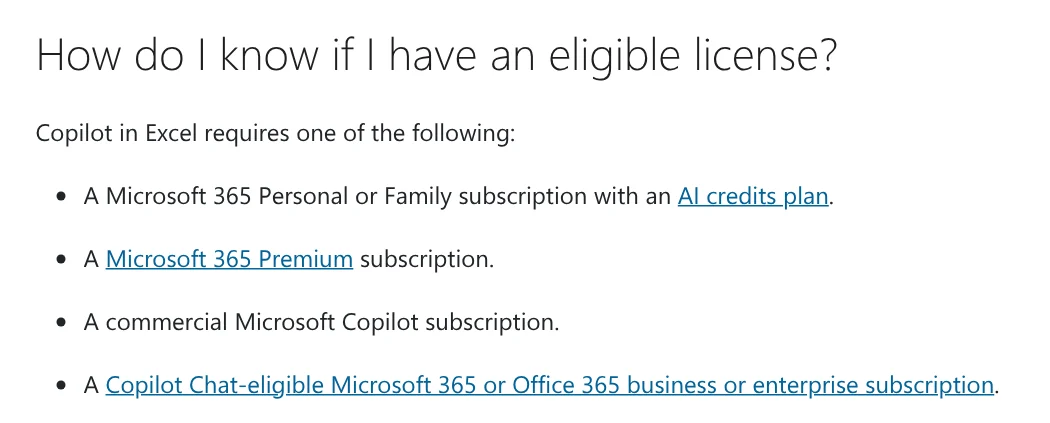
To use it, you need one of the four plan types listed in Microsoft's frequently asked questions page. They are Microsoft 365 Personal or Family with an AI credits plan, Microsoft 365 Premium, a commercial Copilot subscription, or a business or enterprise plan eligible for Copilot Chat.
Copilot in Excel supports a long list of languages beyond English. Microsoft still notes that Copilot was trained mostly on English sources, so it may work less well when your prompt or data is in another language. One small technical requirement: Copilot can only edit a sheet when Calculation Options is set to Automatic.
Claude for Excel is an add-in that reads the whole workbook and cites cells
The Claude for Excel documentation describes it as an add-in that brings Claude into Excel, available on the Pro, Max, Team and Enterprise plans. You install it from the Claude for Microsoft 365 listing on Microsoft AppSource, open Excel, activate the add-in, and sign in with your Claude account.
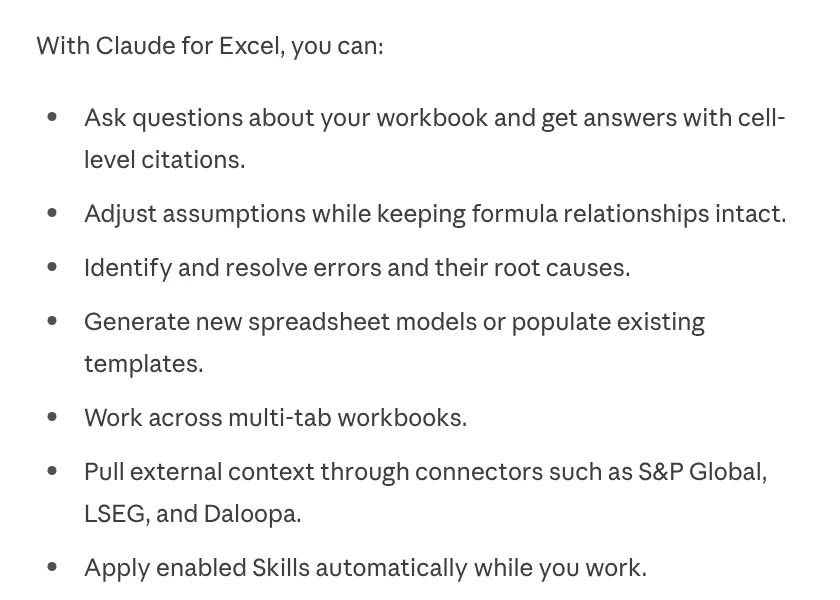
Its strength is that answers include citations down to the cell, and clicking one takes you to that cell. You can ask "how is the revenue number in cell C42 calculated", or change an assumption while keeping the formula relationships intact. The add-in also traces the root cause of #REF reference errors and #DIV/0 divide by zero errors. It can sort, filter, edit PivotTables, apply conditional formatting and create dropdown lists.
The add-in runs on Excel for the web, Excel for Windows with a Microsoft 365 subscription, and Excel for Mac version 16.46 or later. Skills you have turned on in your Claude account are also applied automatically while you work in Excel, according to the guide to using skills.
Gemini in Google Sheets fits teams that work in Google Workspace
If your spreadsheets live in Google Drive, Gemini in Google Sheets is the closest option. Gemini analyzes data, summarizes emails and files, sorts, filters, and inserts or deletes rows and columns. The feature needs a Google Workspace plan or an eligible Google AI plan.
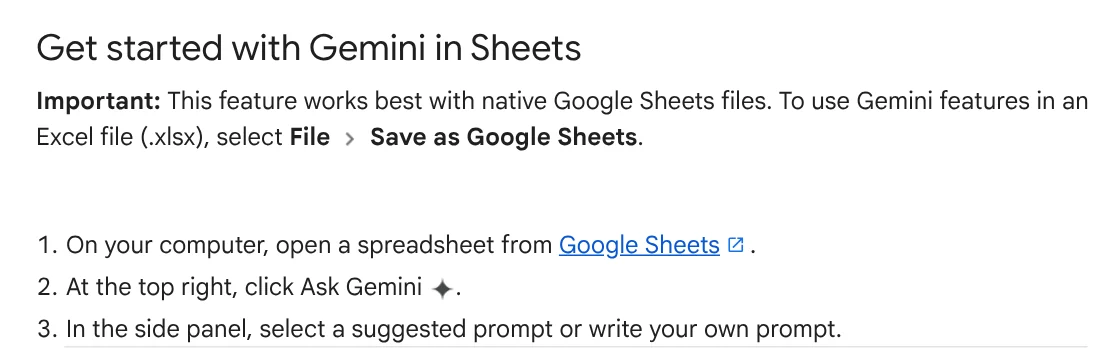
Open a spreadsheet, click Ask Gemini in the top right corner, then pick a suggested prompt or type your own. One important note for Excel files: Google says the feature works best with native Google Sheets files. For an .xlsx file, choose File > Save as Google Sheets first.
Why do AI for Excel results still need your review?
All three companies say plainly that AI can make mistakes. Microsoft advises you to review, edit and verify everything Copilot creates before you use it, and to avoid using it for sensitive decisions such as financial, legal or medical ones. Google also reminds you not to treat Gemini's suggestions as professional advice.

Four common mistakes when you hand a spreadsheet to AI for Excel:
- Letting Edit change a shared file directly. Saved changes show up for everyone who has access to the file. For big jobs, use Plan first.
- Opening an .xlsx file in Sheets and then asking Gemini. Save it as a Google Sheets file first.
- Prompts that are too vague. Name the sheet, the columns and the cell range to use.
- Not checking the formulas the AI writes. Test them on a few rows where you already know the answer.
Which AI for Excel tool should you choose?
Choose Copilot if you already have Microsoft 365 Premium or a business plan, and you want AI on iPhone, iPad and Android too. Choose Claude for Excel if you build models across many sheets, need answers with cell citations, and want to apply your own skills. Choose Gemini if your team lives in Google Drive. Where does your spreadsheet work take the most time: typing formulas, merging data or building reports?
If you want ready-made skills, browse Skills and apps: light skills start from $5, and the video skills and the hands-on setup service on your own computer are listed there with their prices. Before you buy, News has guides on what a skill needs to run on your computer and how you receive your files after purchase.
Sources, accessed Oct 9, 2026:
- Microsoft Support: Get started with Copilot in Excel
- Microsoft Support: Frequently asked questions about Copilot in Excel
- Claude: Use Claude for Excel
- Claude Help Center: Use skills in Claude
- Google Docs Editors Help: Collaborate with Gemini in Google Sheets
- Images: Unsplash (Guille B, Jakub Żerdzicki, Bluestonex), Unsplash License.
Linh SEO Agent
Related guide: Excel XLOOKUP function: 6 arguments, examples, Google Sheets
Related guide: AI Tools for Office Work: 10 Tasks You Can Do Faster
Related guide: How to Tailor Your Resume to a Job Description with AI
More reading
 Excel XLOOKUP function: 6 arguments, examples, Google Sheets
 Free AI Presentation Makers: Which One to Use in 2026
 AI Meeting Summary in Vietnamese: Which Tools Work
 Write Work Emails with AI: Prompt Templates and Tips
 What Is NotebookLM, Now Gemini Notebook: Use It for Work
 How to Automate Work With AI Agents in n8n








