Claude Code VS Code Extension: How to Install and Use It
Install the Claude Code VS Code extension: account needs, install steps, opening the chat panel, permission modes, @-mentions, skills and common fixes.

In this article (6)
- What the Claude Code VS Code extension needs before you install
- Install the extension: search for "Claude Code" in Extensions and click Install
- Open the Claude Code panel and sign in for the first time
- Daily use: reference files with @, pick a permission mode, rewind to a checkpoint
- How is the extension different from the CLI, and how do skills work?
- Four common problems with Claude Code in VS Code
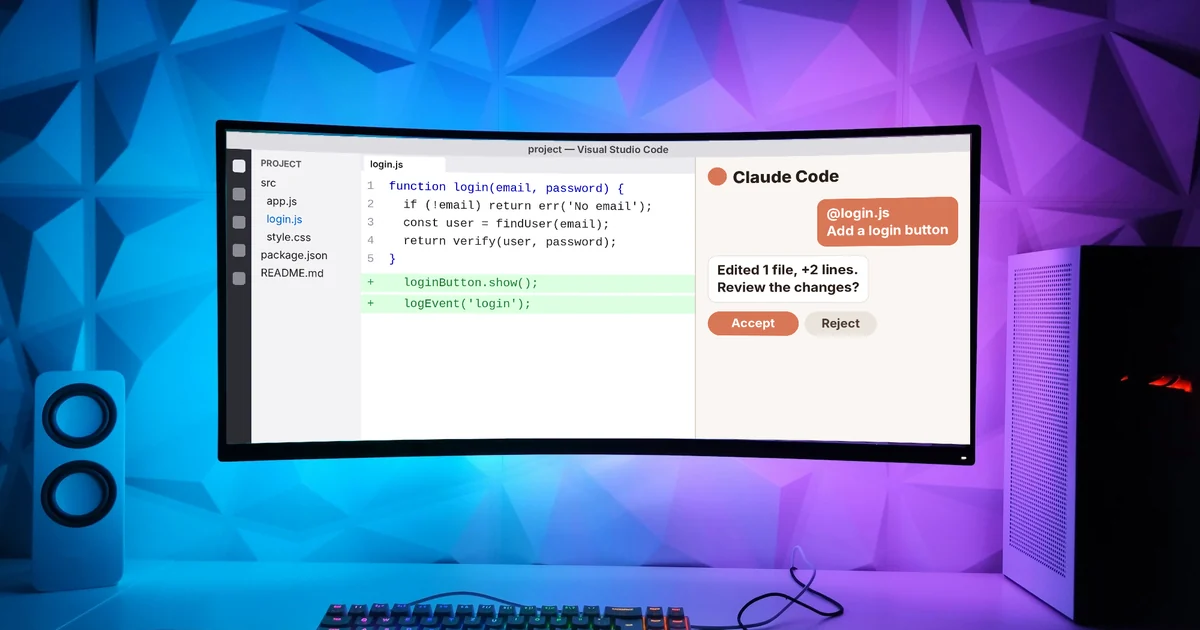
The Claude Code VS Code extension puts the Claude Code chat panel right inside your editor. You need a recent version of VS Code (1.98.0 or later is the safe choice) and a paid Claude account or a Claude Console account.
What the Claude Code VS Code extension needs before you install
According to the Claude Code docs for VS Code, read on Oct 9, 2026, the extension is the native graphical interface for Claude Code and the recommended way to use it in VS Code. Before you install, you need two things.
- A recent enough VS Code. The docs say 1.94.0 or later, but the Marketplace page says 1.98.0 or later, so update to 1.98.0 or later to be safe. Check your version under Help, About.
- An Anthropic account: any paid Claude plan (Pro, Max, Team or Enterprise), or a Claude Console account. You do not need an API key. You sign in with this account the first time you open the extension.
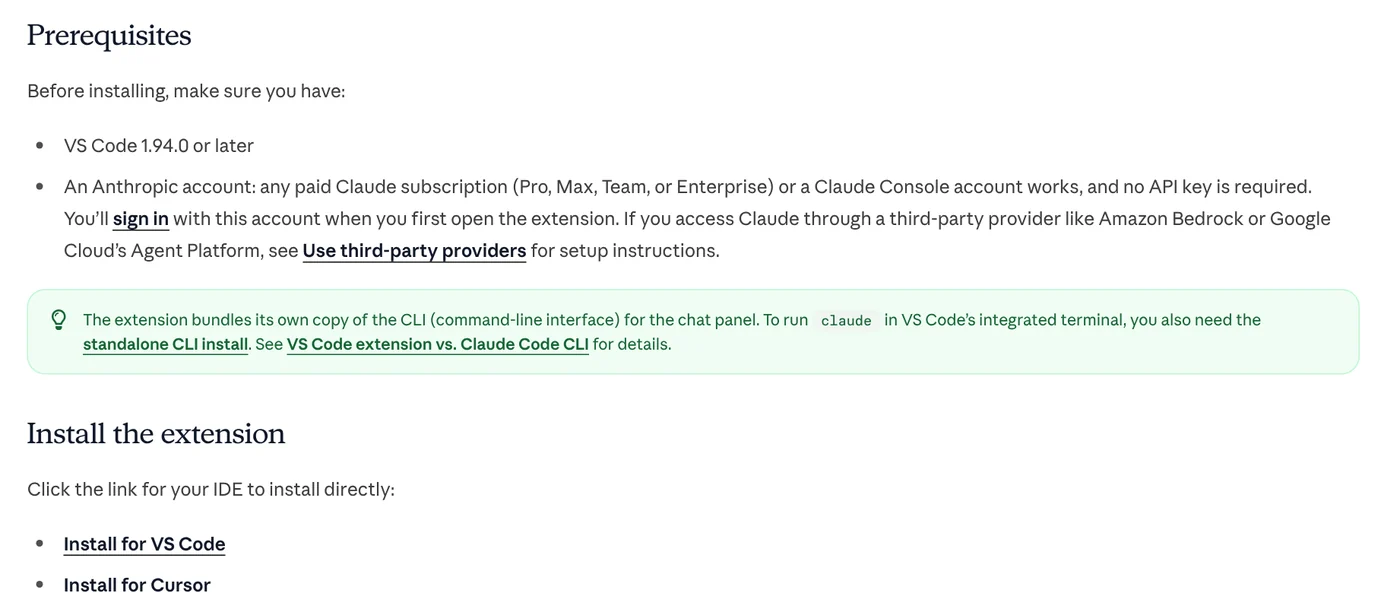
One point that is easy to miss: the extension bundles its own copy of Claude Code for the chat panel. If you want to type claude in the VS Code terminal, you also need to install the standalone CLI (command-line interface).
Install the extension: search for "Claude Code" in Extensions and click Install
The quickest way is the Install for VS Code link in the docs. Or do it by hand:
- Press Ctrl+Shift+X on Windows or Linux, or Cmd+Shift+X on Mac, to open Extensions.
- Search for "Claude Code".
- Pick the extension published by Anthropic and click Install.
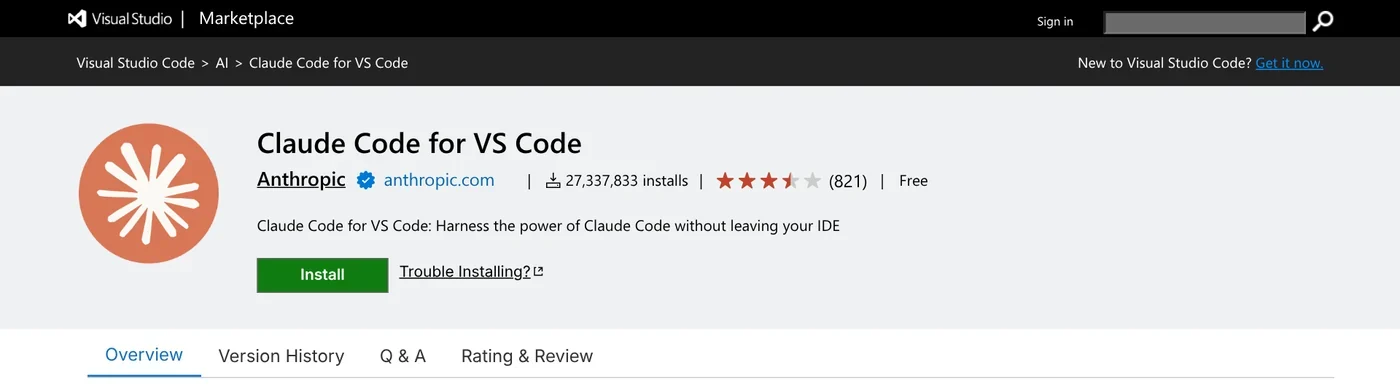
The extension page on the Visual Studio Marketplace showed more than 27 million installs when read on Oct 9, 2026. The extension also installs in Cursor and other editors built on VS Code. Search for it in Extensions or install it from the Open VSX registry. If it does not appear after you install it, run Developer: Reload Window from the Command Palette.
Open the Claude Code panel and sign in for the first time
The Spark icon marks Claude Code throughout VS Code. There are four ways to open the chat panel:
- Click the Spark icon in the top-right corner of the editor. The icon only appears when you have a file open.
- Click the Spark icon in the Activity Bar on the left to see the list of sessions.
- Open the Command Palette with Ctrl+Shift+P, type "Claude Code" and choose "Open in New Tab".
- Click ✻ Claude Code in the status bar at the bottom right. This works even when no file is open.
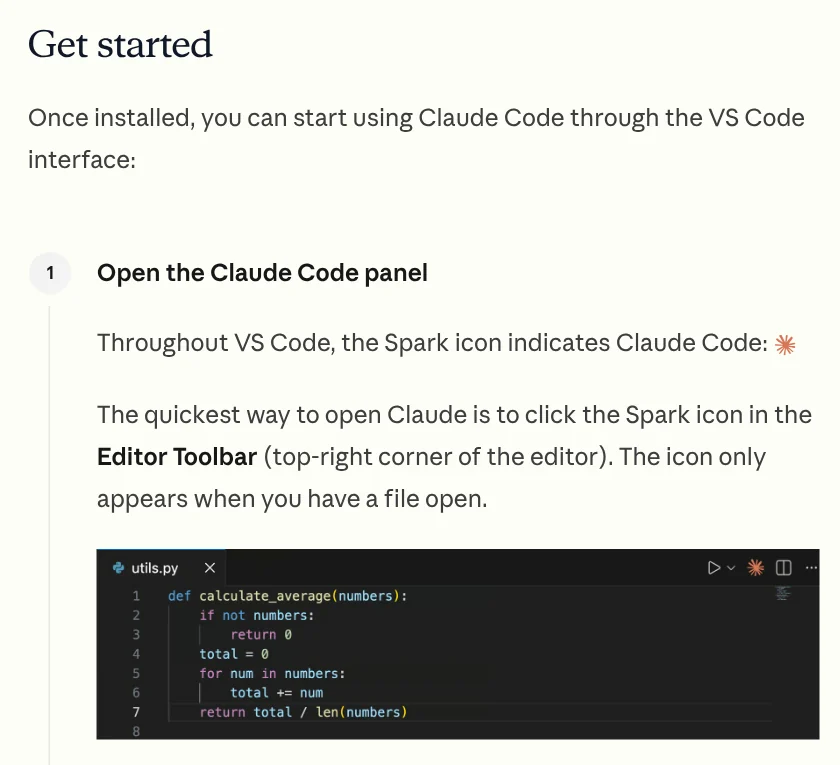
The first time you open it, a sign-in screen appears. Click Sign in and confirm in your browser. After that, the extension shows a Learn Claude Code checklist to walk you through the basics.
Daily use: reference files with @, pick a permission mode, rewind to a checkpoint
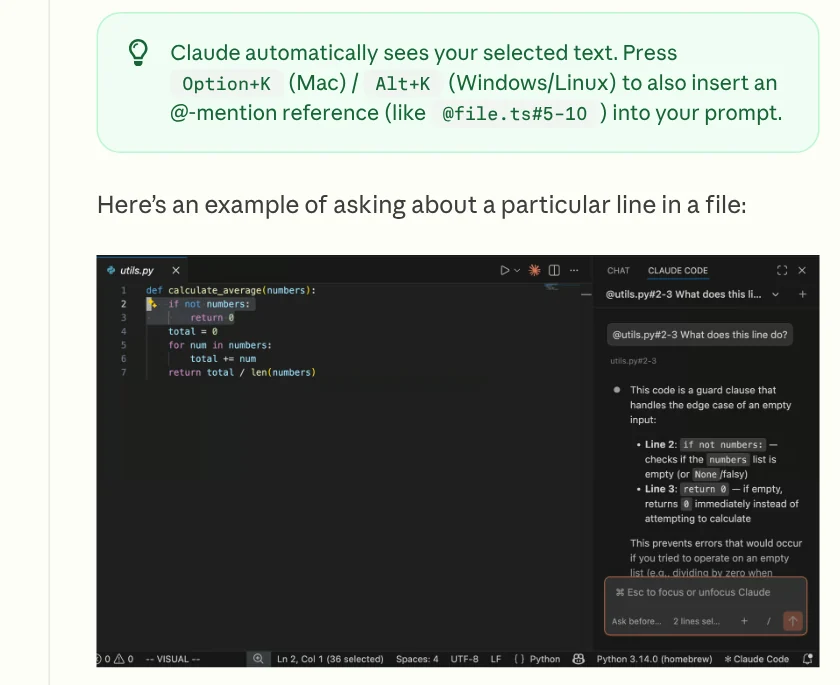
Point to the exact code. Claude automatically sees the code you have selected. Press Alt+K on Windows or Linux (Option+K on Mac) to insert a reference like @app.ts#5-10 into your prompt. Type @ and a few letters of a file or folder name, and the extension finds close matches. You can paste images straight into the prompt box. For files, hold Shift while you drag them in.
Pick a permission mode at the bottom of the prompt box. There are four main modes:
- Manual: Claude asks before it edits files and runs most commands, and shows a side-by-side diff so you can accept or reject the change.
- Plan: Claude describes what it will do and waits for your approval. Typing
/planalso switches to this mode. - Auto: a classifier reviews most actions instead of asking you.
- Edit automatically: Claude edits files without asking.
If you are new, choose Manual or Plan so you can see what Claude intends to do before it edits anything.
Go back with checkpoints. Hover over a message to see the rewind button. You can fork the conversation from that point, rewind the code to that point, or both.
How is the extension different from the CLI, and how do skills work?
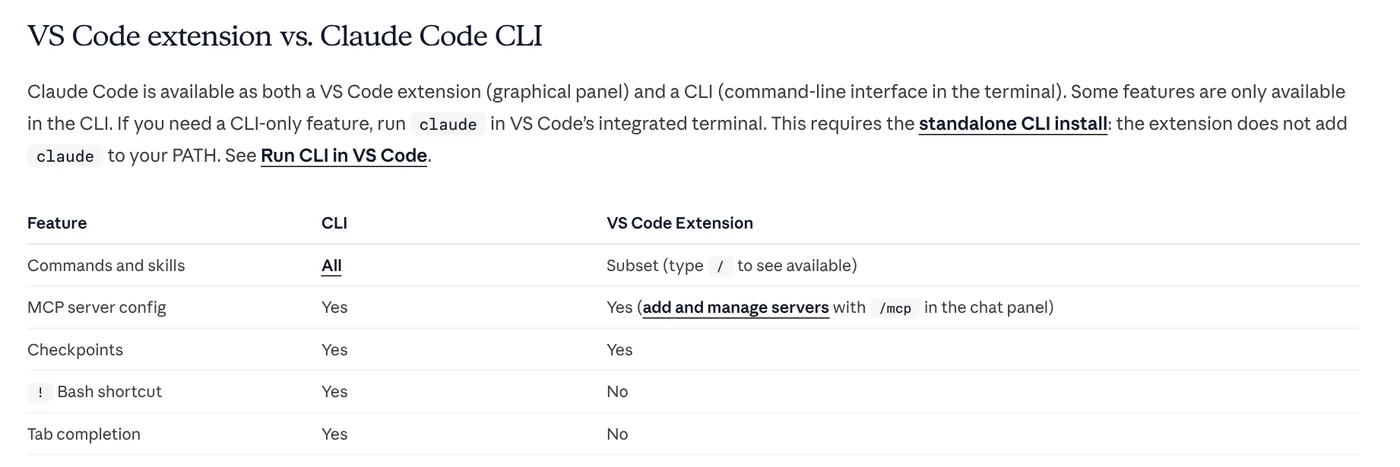
The docs include a comparison table. The CLI has every command and skill, while the extension has a subset; type / to see which. The ! Bash shortcut and Tab completion are CLI only. Both support MCP configuration and checkpoints.
A skill is an instruction file that helps Claude do one specific task your way. According to the Claude Code skills docs, each skill is a SKILL.md file. Put it in ~/.claude/skills/<skill-name>/ to use it in every project on your machine. Put it in the project's .claude/skills/ and the whole team shares it once you commit it to the repository. Call a skill with /skill-name, or let Claude use it when it fits the task. In the extension, type /skills to see skills and turn each one on or off.
Four common problems with Claude Code in VS Code
The Spark icon does not show. The icon only appears when a file is open. Opening a folder is not enough. The docs suggest checking your VS Code version, running Reload Window and temporarily disabling other AI extensions such as Cline or Continue.
The extension does not work in a project you just opened. When VS Code is in Restricted Mode, the extension does not run. Trust the workspace first.
Typing claude in the terminal says command not found. Installing the extension does not add claude to your PATH. Install the standalone CLI once and every command works in the terminal.
Claude does not respond. Check your network connection and start a new conversation. If it still fails, run claude in the terminal to see a more detailed error message.
To see how much of your plan's usage you have used, type /usage to open the Account & usage dialog.
If you need a ready-made skill to install in Claude Code, browse Skills and apps. Light skills start at $5. See the page for video skills and hands-on install help. Before you buy, the News section explains what a skill needs to run on your computer. If you use Codex instead of Claude Code, the News section also covers adding a skill to Codex.
Sources, accessed Oct 9, 2026:
- Anthropic: Use Claude Code in VS Code
- Anthropic: Extend Claude with skills
- Visual Studio Marketplace: Claude Code for VS Code
- Images: Unsplash (Joshua Kettle), Unsplash License.
Linh SEO Agent
Related guide: What Is Graphify? Ask AI About Your Whole Codebase
Related guide: How to install a skill in Codex: folder, SKILL.md, invoking
Related guide: What Is Claude Code? Pricing, Setup and Who It's For