
How to install a skill in Codex: folder, SKILL.md, invoking
Install a skill in Codex by copying a folder with SKILL.md into $HOME/.agents/skills, then call it with $ or /skills. Or let Codex install a ZIP for you.

In this article (6)
- Codex now lives inside the ChatGPT app, and skills work in three places
- A skill is a folder, and SKILL.md with a name and description is required
- Install a skill in Codex by hand: copy the folder into $HOME/.agents/skills
- A skill bought as a ZIP: attach it to a Codex chat and let Codex install it
- How do you know the skill installed correctly?
- Five common mistakes when you install a skill in Codex
To install a skill in Codex, copy a folder that contains a SKILL.md file into $HOME/.agents/skills, then call it with $ or /skills. If you bought a skill as a ZIP, attach it to a Codex chat and ask Codex to install it.
Codex now lives inside the ChatGPT app, and skills work in three places
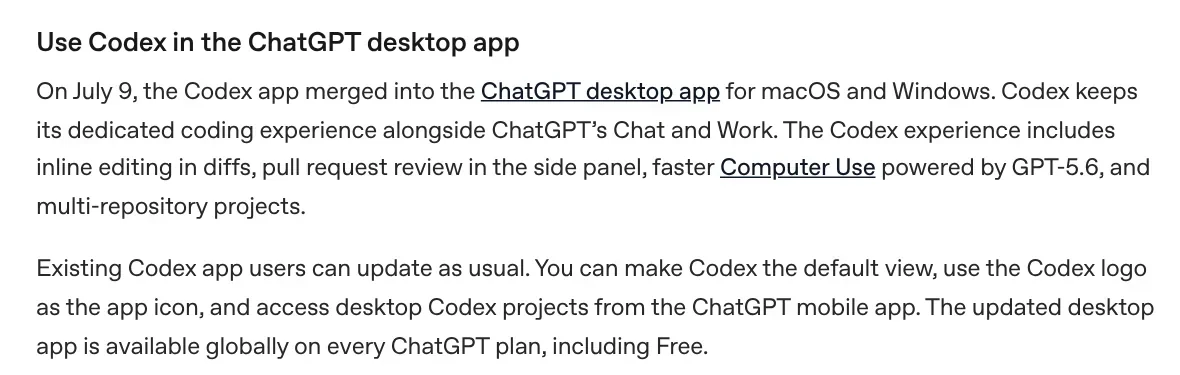
On July 9, 2026, the Codex app merged into the ChatGPT desktop app for macOS and Windows. If you already used the Codex app, you just update it as usual.
So when this guide says "the Codex app," it means Codex inside the ChatGPT desktop app. OpenAI's Build skills page says standalone skills work in three places. Those are the ChatGPT desktop app, the Codex CLI (the terminal version), and the IDE extension (the version that runs inside your code editor).
This guide covers local skills, meaning skill folders that sit on your own computer.
A skill is a folder, and SKILL.md with a name and description is required
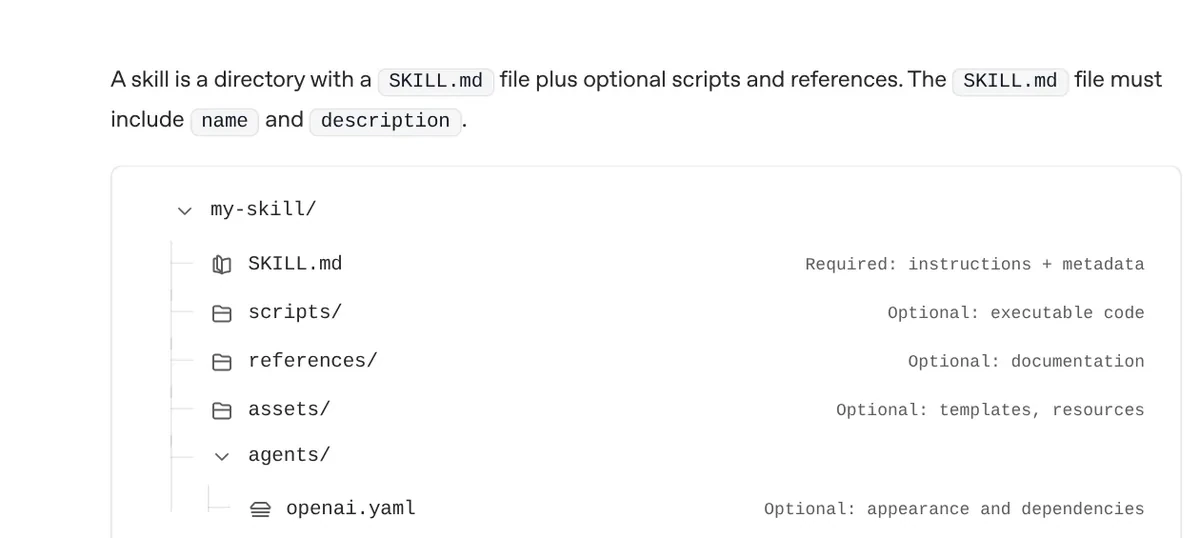
Codex skills are built on the open agent skills standard. Claude uses a similar folder and SKILL.md format, and guides on the Claude side are in News. In Codex, each skill is a folder, and only SKILL.md is required:
SKILL.md: the instructions and the metadata that describe the skill.scripts/: code the skill can run.references/: reference documents.assets/: templates and other resources.agents/openai.yaml: display name, icon, and tool dependencies.
SKILL.md opens with a short header that has two required fields: name and description (when the skill should be used). The steps for Codex to follow go below it.
Codex does not read every skill up front. It loads each skill's name, description, and file path, and reads the full SKILL.md only when it decides to use that skill. That initial list takes up at most 2% of the context window, or 8,000 characters when the context window is unknown.
If you install a lot of skills, Codex shortens the descriptions first, and it may drop some skills from the list and show a warning. Because Codex picks skills based on description, put the main job and the key trigger words at the start.
Install a skill in Codex by hand: copy the folder into $HOME/.agents/skills
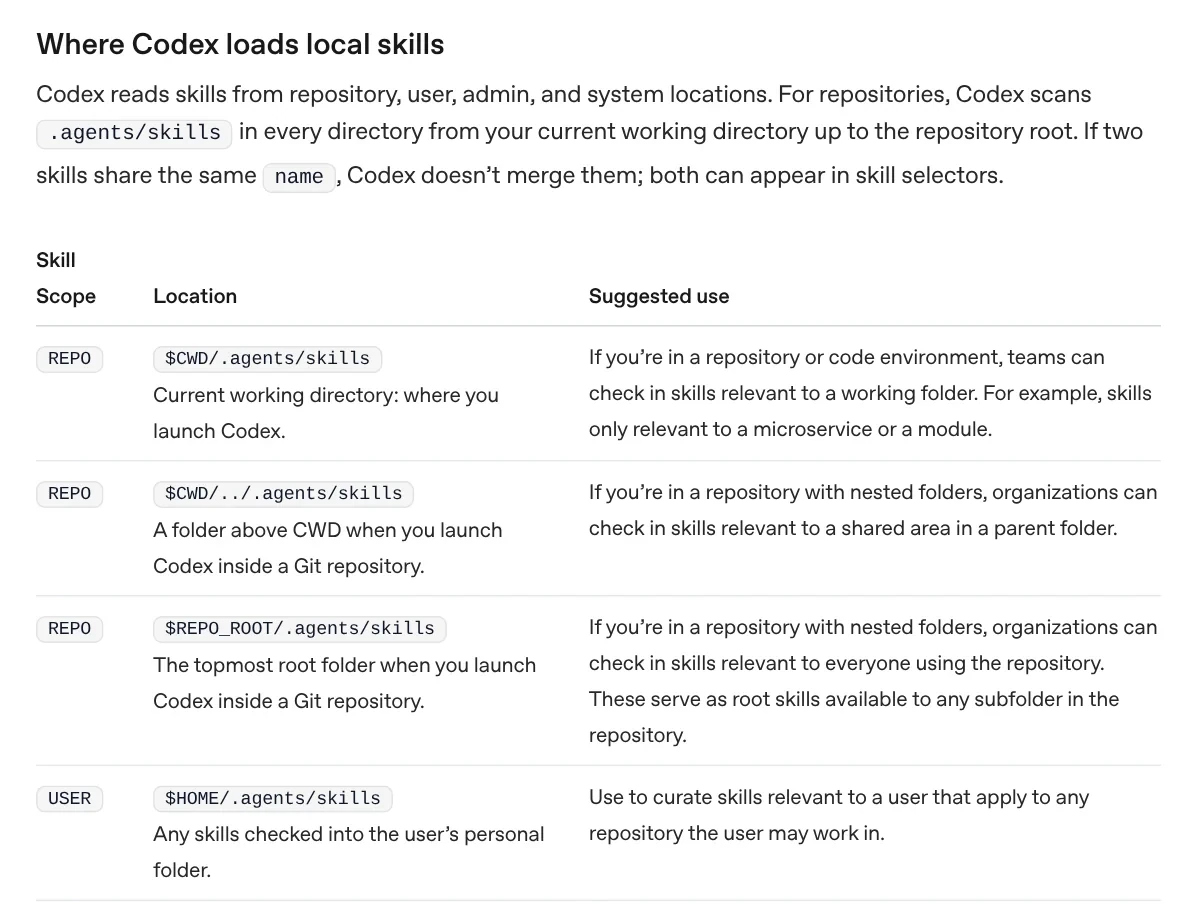
Codex looks for skills in four groups of locations, listed in the "Where Codex loads local skills" table on the Build skills page:
- REPO: a
.agents/skillsfolder where you launch Codex, in parent folders, and at the root of a Git repository. Use it for skills that belong to one project. - USER:
$HOME/.agents/skills, your personal folder, available in every project. - ADMIN:
/etc/codex/skills, shared by everyone on a machine or container. - SYSTEM: skills that OpenAI bundles with Codex, such as skill-creator.
For a skill you want in every project, use the USER location:
- Unzip the ZIP file into a temporary folder.
- Find the folder that contains
SKILL.md. - Copy that whole folder into
$HOME/.agents/skills/. If the.agentsfolder does not exist yet, create it. - Open Codex and check the install as shown below.
Codex picks up new skills automatically. If a skill does not appear, restart Codex. For public skills in the openai/skills repository, the built-in installer is faster, for example $skill-installer linear.
Already have skills in Claude Code? Use the import flow. In the ChatGPT desktop app, open Settings > Import. In the Codex CLI, type /import.
A skill bought as a ZIP: attach it to a Codex chat and let Codex install it
The manual route means finding a hidden folder and typing the exact path. For a skill that comes as a ZIP file, there is a simpler route: let Codex copy the files for you in one chat.
- Download the .zip file, right-click it, and choose Extract All so you can read the guide inside.
- Open the ChatGPT desktop app, switch to Codex, and click New chat.
- Attach the .zip file to the chat.
- Type: "Check and install this skill for me."
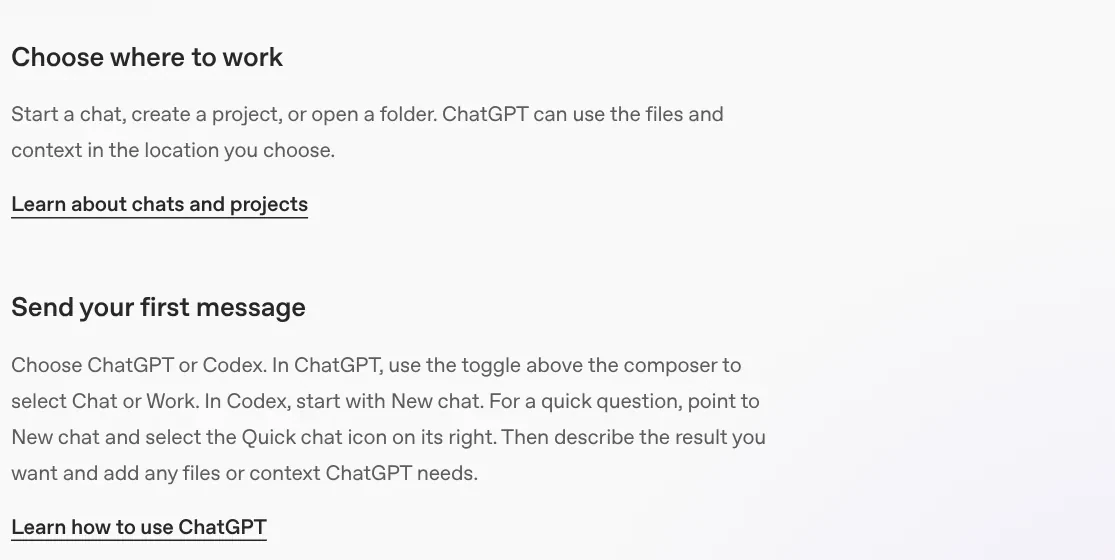
Codex reads the package, checks its structure, and installs the skill into a skills folder on your computer. OpenAI's pages do not describe installing from a ZIP file, so this is a chat-based method, not an official install button.
When the chat finishes, read where Codex says it copied the skill. A skill for every project belongs in $HOME/.agents/skills. If it lands in a project's .agents/skills folder, it only works in that project. A skill that includes a script, for example, needs Python and Pillow installed on your computer.
How do you know the skill installed correctly?
The surest check is to call the skill directly. The Build skills page lists two ways to activate a skill: explicitly with /skills or $, or implicitly, when Codex matches your request to the skill's description.
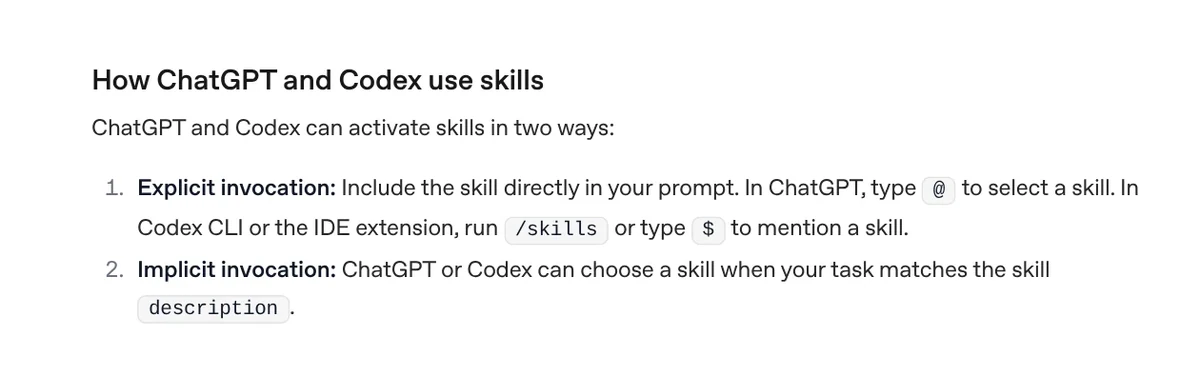
- ChatGPT desktop app: open Skills in the sidebar. In the composer, type
$to pick a skill. Enabled skills also show up when you type/, according to the Slash commands page. - Codex CLI: type
/skillsand pick a skill. Codex inserts the skill's context so your next request follows it, per the Codex CLI commands page. - IDE extension: type
/skillsor$.
If the skill's name shows up in the list, it is in the right place. Then give it a small task to confirm it runs all of its steps.
Five common mistakes when you install a skill in Codex
An extra folder layer. Unzipping sometimes adds a wrapper folder. Copy the folder that directly contains SKILL.md.
SKILL.md is missing name or description. Both fields are required. Add them to the header at the top of the file.
The skill does not show up after copying. Restart Codex.
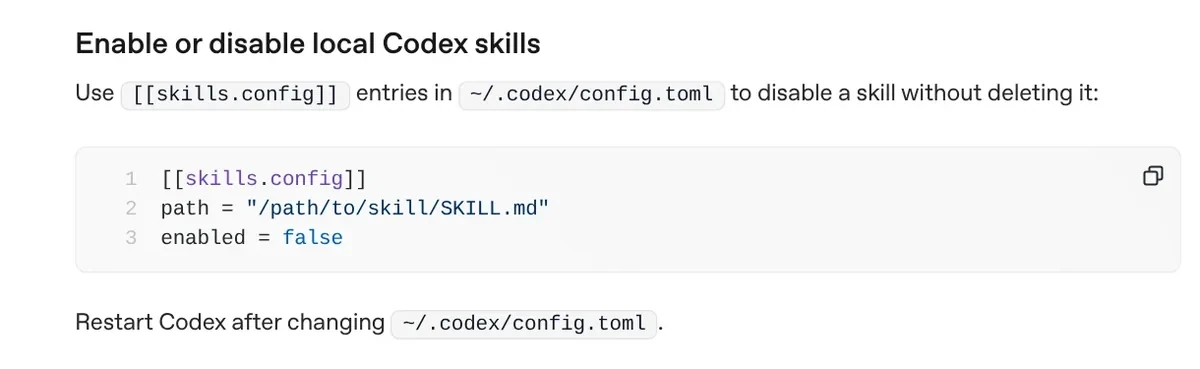
The skill is turned off in config. Open ~/.codex/config.toml and look for a [[skills.config]] entry that points to the skill. If it says enabled = false, change it, then restart Codex.
Mixing it up with Skills in ChatGPT on the web. The Upload from your computer option under Skills in ChatGPT is for Business, Enterprise, Healthcare, and Edu plans, according to the OpenAI Help Center. The Skill controls page says that channel does not install local filesystem skills.
Skills can include code that runs on your computer. The OpenAI Help Center advises reviewing any skill from an outside source and only using it if you trust that source.
If you would rather not dig through hidden folders, let Codex do the copying as described above. To see how skills work and how to turn one on in Claude, read What Is a Claude Skill? How to Install and Use One.
Sources, accessed Oct 12, 2026:
- OpenAI: Build skills
- OpenAI: What's new
- OpenAI: ChatGPT desktop app
- OpenAI: Slash commands
- OpenAI: Developer commands, Codex CLI
- OpenAI: Import from another agent
- OpenAI: Skill controls
- OpenAI Help Center: Skills in ChatGPT
Linh SEO Agent
Related guide: AI Skill Requirements: Plans, Apps and Hardware to Run Locally
Related guide: What Is an AI Agent Skill, and How Is It Not a Prompt?
Related guide: ChatGPT Free Plan: What You Get and the Limits
More reading
 How to Write a Claude Skill: SKILL.md Structure
 What Is an AI Agent Skill, and How Is It Not a Prompt?
 Claude Skill for Research: Find and Summarize Sources
 AI Skill Requirements: Plans, Apps and Hardware to Run Locally
 English translation apps: 5 official apps compared
 What Is an MCP Server and How to Add One to Claude








