How to Install Claude Code on Windows, Step by Step
Install Claude Code on Windows with one PowerShell command and no admin rights. System requirements, native vs WSL, first login and common errors.


In this article (6)
- Claude Code runs natively on Windows 10 version 1809 and later
- Choose native Windows if your projects live on Windows
- Install Claude Code on Windows with PowerShell in 4 steps
- Do you need Git for Windows?
- Sign in with your Claude account the first time you run it
- Five common errors when you install Claude Code on Windows
You can install Claude Code on Windows with one command in PowerShell. You do not need administrator rights or WSL. Your PC needs Windows 10 version 1809 or later, at least 4 GB of RAM, and a Claude account that includes Claude Code.
Claude Code runs natively on Windows 10 version 1809 and later
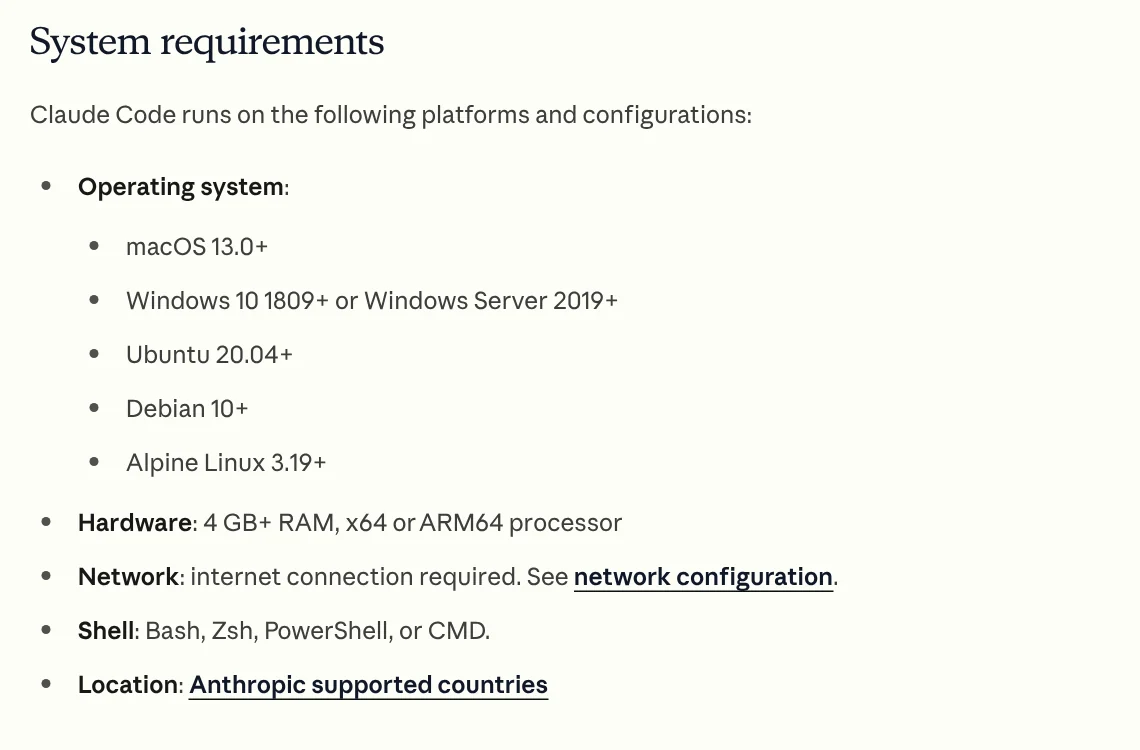
Anthropic's Claude Code setup page, read on Oct 9, 2026, lists these requirements for a Windows PC:
- Operating system: Windows 10 version 1809 or later, or Windows Server 2019 or later.
- Hardware: 4 GB of RAM or more, with an x64 or ARM64 processor.
- Network: an internet connection.
- Shell: PowerShell or CMD both work.
- Location: a country Anthropic supports. Check that yours is on the list of supported countries and regions.
One warning from the installation troubleshooting page: Claude Code does not support 32-bit Windows. The Start menu has two entries, Windows PowerShell and Windows PowerShell (x86). The x86 one runs as a 32-bit process and causes an error even on a 64-bit PC, so open the plain Windows PowerShell entry.
Choose native Windows if your projects live on Windows
Anthropic gives you two ways to run it: directly on Windows (native) or inside WSL, the Linux layer that runs within Windows. The docs compare them in this table:
| Option | Requires | Sandboxing (isolated commands) | When to use |
|---|---|---|---|
| Native Windows | Nothing, Git for Windows is optional | Not supported | Your projects and tools run on Windows |
| WSL 2 | WSL 2 enabled | Supported | You use Linux tools or want sandboxed commands |
| WSL 1 | WSL 1 enabled | Not supported | WSL 2 is not available on your PC |
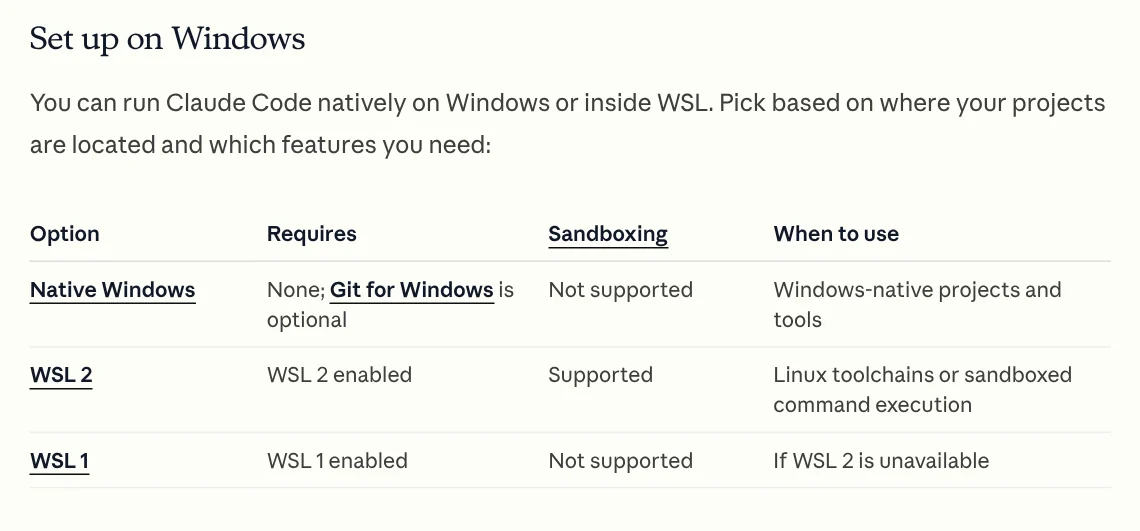
If you are new and work with files on your C or D drive, pick native Windows. The steps below cover that option.
Install Claude Code on Windows with PowerShell in 4 steps
- Open Windows PowerShell from the Start menu. A prompt that starts with
PS C:\means you are in the right place. - Paste this command and press Enter:
`` irm https://claude.ai/install.ps1 | iex ``
- Wait. The docs say the install command shows no progress bar while it downloads, so a screen that sits still for a while is normal.
- Close the window, open a new PowerShell window and type
claude --version. If it prints a version number, the install worked.
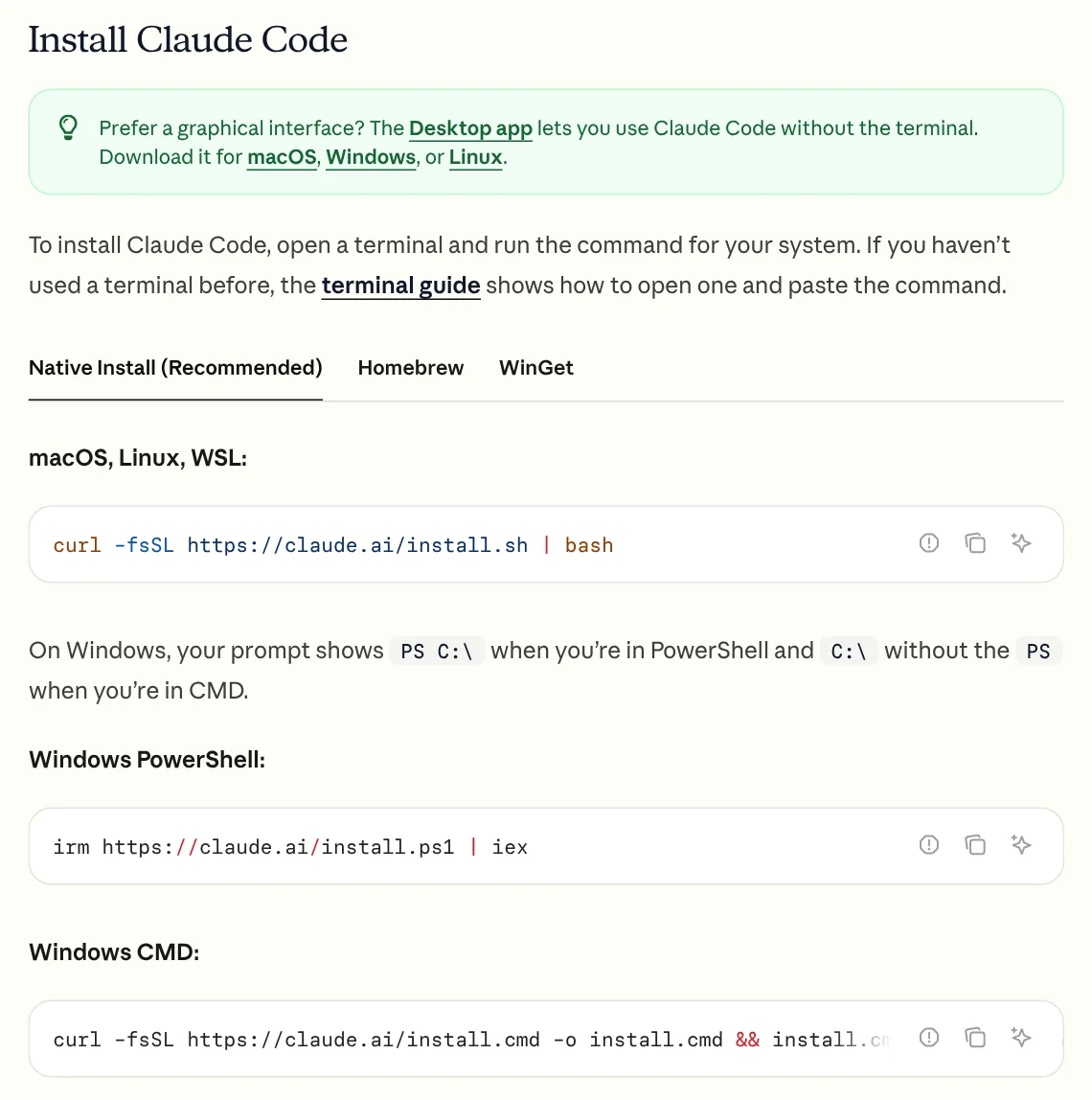
If you prefer CMD, run the CMD command from the same page. This native install updates itself in the background. If you like WinGet, the command is winget install Anthropic.ClaudeCode. The WinGet version does not update itself, so run winget upgrade Anthropic.ClaudeCode from time to time.
For a deeper check, type claude doctor. It prints your install health, errors in your settings files and suggested fixes, without starting a session.
Do you need Git for Windows?
No, it is optional, though the docs recommend it on native Windows. Git for Windows provides Git Bash, which the Claude Code Bash tool and Monitor tool need. Without Git for Windows, Claude Code runs commands through its PowerShell tool instead.
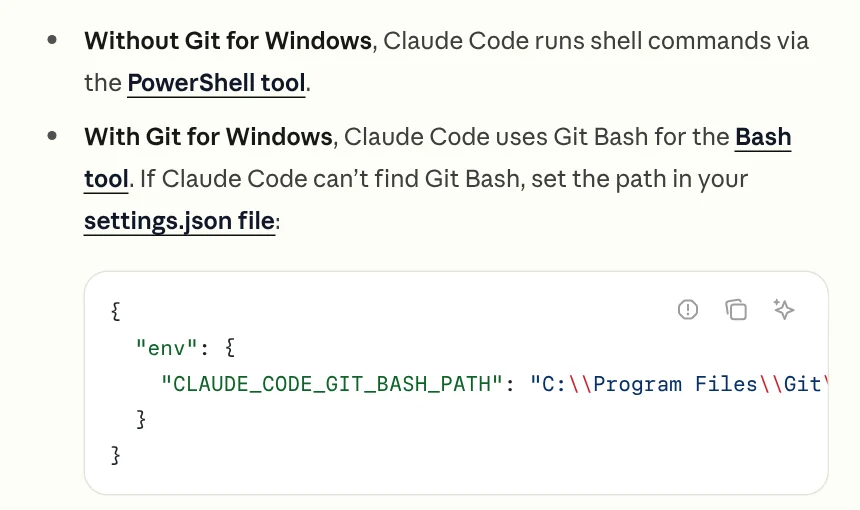
If you have Git installed but Claude Code cannot find Git Bash, set the path in your settings.json file with the CLAUDE_CODE_GIT_BASH_PATH variable, for example C:\Program Files\Git\bin\bash.exe. If you use WSL, you do not need Git for Windows.
Sign in with your Claude account the first time you run it
Type claude in your project folder. On first launch, Claude Code opens your browser so you can log in. According to the authentication page, you can use one of these account types:
- A Claude Pro or Max plan, signed in with your claude.ai account.
- Claude for Teams or Enterprise, signed in with the claude.ai account your team admin invited.
- Claude Console, after an admin has invited you.
If the browser does not open on its own, press c to copy the login URL, then paste it into your browser. If the browser shows a code instead of sending you back, paste that code at the "Paste code here" prompt in the terminal. When you see "Login successful", you are done.
Five common errors when you install Claude Code on Windows
'claude' is not recognized. The install folder is not on your PATH. The installer puts the file at %USERPROFILE%\.local\bin\claude.exe. Add that folder to your User PATH in Environment Variables, then reopen the terminal.
'irm' is not recognized. You are in CMD, not PowerShell. Open PowerShell and run it again, or use the CMD command instead.
The token '&&' is not a valid statement separator. The reverse problem: you pasted the CMD command into PowerShell.
The install finished but an old version still shows. Add the install folder to PATH as above and open a new window. If your PC has another copy, such as an older npm install, the troubleshooting page recommends you keep only the native install.
You would rather not use the command line. Claude Code has a Desktop app for Windows with a graphical interface, so you do not need to type commands.
Once it is installed, Claude Code can read skills, which are instruction packs that help Claude do one specific job well. The News section explains what a skill needs to run on your computer. In Skills and apps, light skills start at $5, and you can also find video skills and an on-device setup service if you want someone to install it with you. If you have already bought one, the News section also explains how you receive the files.
Sources, accessed Oct 9, 2026:
- Anthropic: Claude Code, Advanced setup
- Anthropic: Troubleshoot installation and login
- Anthropic: Authentication
- Anthropic: Supported countries and regions
- Illustrative photo: Unsplash (Vitaly Gariev), Unsplash License.
Linh SEO Agent
Related guide: What Is Claude Code? Pricing, Setup and Who It's For
Related guide: Claude Code VS Code Extension: How to Install and Use It
Related guide: What Is Gemini CLI? Install, Sign In and Daily Use