What Is Gemini CLI? Install, Sign In and Daily Use
Gemini CLI is Google's open-source AI agent for the terminal. Who can still use it after June 18, 2026, how to install it, GEMINI.md, skills and fixes.


In this article (7)
- Gemini CLI is an AI agent for the terminal, now for organizations and API keys
- Who can still use Gemini CLI after June 18, 2026?
- Install Gemini CLI on Windows with Node.js 20 and one npm command
- Sign in with an organization account, an API key or Vertex AI
- Using Gemini CLI every day: four things to know
- One prompt can use up many requests from your daily quota
- Common mistakes when you install and use Gemini CLI
Gemini CLI is Google's open-source AI agent that runs in your terminal. Since June 18, 2026, it only serves organizations with a Code Assist license and paid API keys.
Gemini CLI is an AI agent for the terminal, now for organizations and API keys
Google's official GitHub repository, read on Oct 9, 2026, introduces Gemini CLI as an open-source AI agent that brings Gemini into the terminal (the command-line window). The tool uses the Apache 2.0 license.
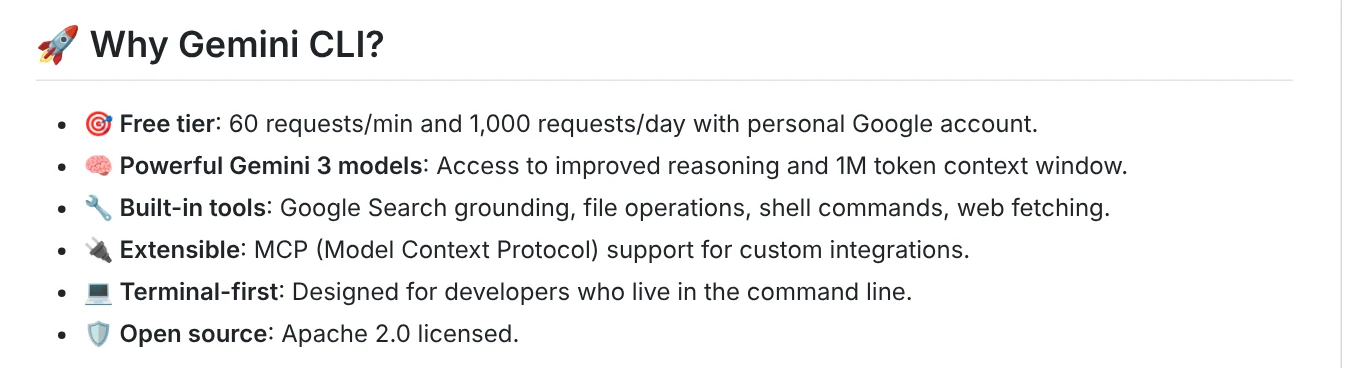
Key points on the page:
- Models: the Gemini 3 family, with a 1 million token context window.
- Built-in tools: Google Search, reading and writing files, running shell commands and fetching web pages.
- Extensions: support for MCP (Model Context Protocol, a standard for connecting outside tools).
- Free tier: the README still lists 60 requests per minute and 1,000 requests per day for personal Google accounts. This is out of date. See the next section.
Unlike a web chatbot, Gemini CLI works directly in your folders. It reads code, edits files and runs commands, so it suits developers and anyone who works with files a lot.
Who can still use Gemini CLI after June 18, 2026?
On May 19, 2026, Google published a post on moving Gemini CLI to Antigravity CLI. From June 18, 2026, Gemini CLI stopped serving Google AI Pro and Ultra users and free users of Gemini Code Assist for individuals. The Gemini CLI docs pages also show this notice at the top.
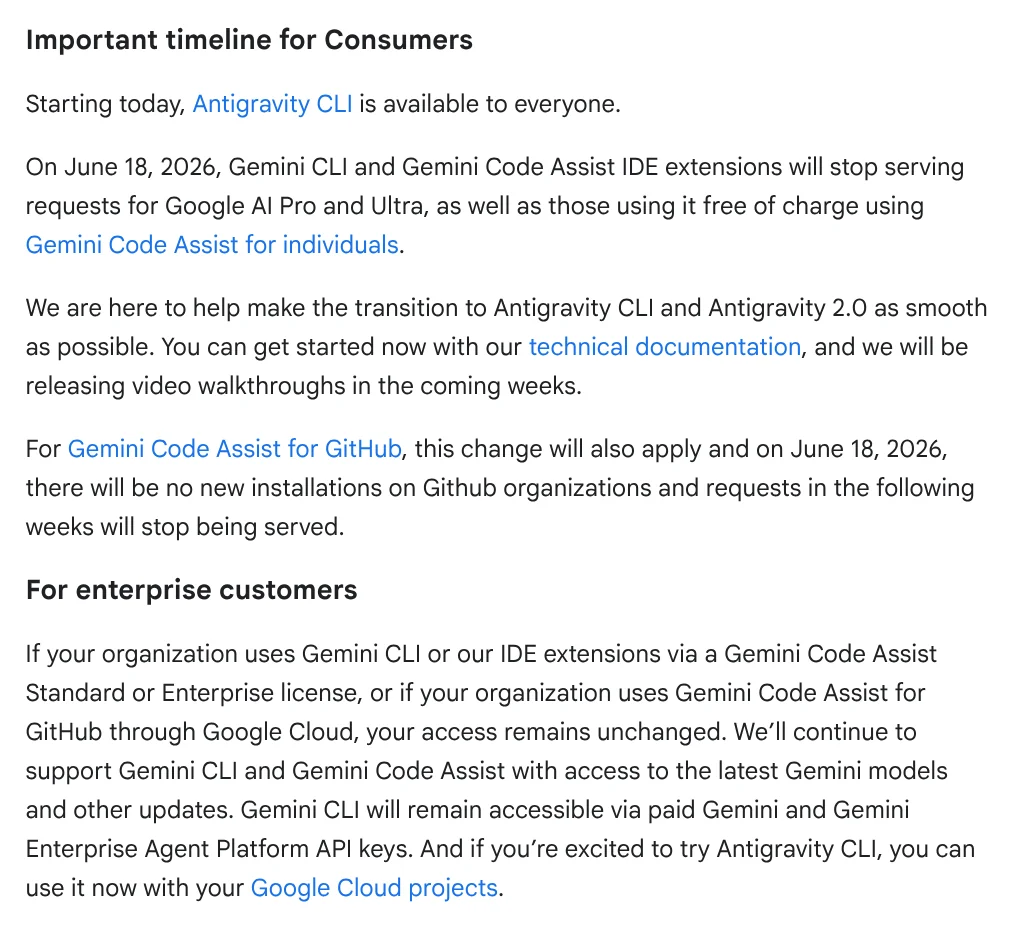
Who can keep using it:
- Organizations with a Gemini Code Assist Standard or Enterprise license.
- Users with a paid Gemini API key or a Gemini Enterprise Agent Platform API key.
Google moved individual users to Antigravity CLI, open to everyone since May 19, 2026. According to the post, Antigravity CLI keeps the main Gemini CLI features: Agent Skills, Hooks, Subagents and Extensions (now called plugins). Google also says it will not match every Gemini CLI feature from day one.
Install Gemini CLI on Windows with Node.js 20 and one npm command
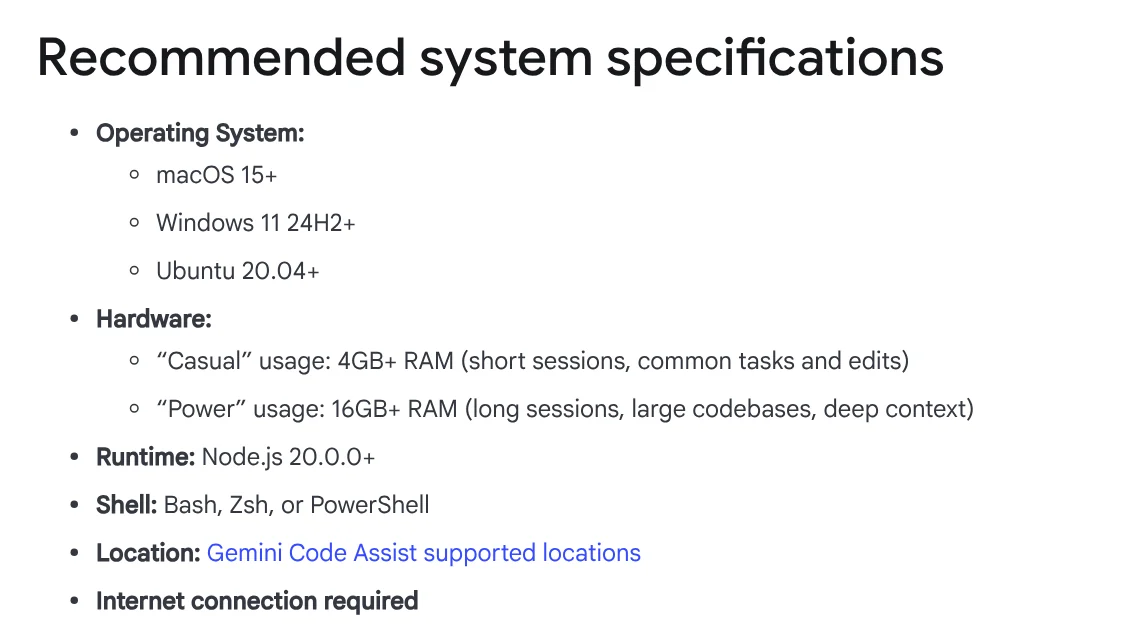
The Gemini CLI installation page, last updated May 14, 2026, recommends:
- Operating system: Windows 11 24H2 or later, macOS 15 or later, or Ubuntu 20.04 or later.
- RAM: 4 GB or more for short sessions, 16 GB or more for long sessions and large projects.
- Node.js 20.0.0 or later.
- Shell: Bash, Zsh or PowerShell.
- An internet connection, and a location where Gemini Code Assist is supported.
Once you have Node.js, open PowerShell and type:
`` npm install -g @google/gemini-cli gemini ``
To try it without installing, use npx @google/gemini-cli. On macOS and Linux you can also install it with Homebrew using brew install gemini-cli.
Sign in with an organization account, an API key or Vertex AI
The first time you type gemini, you choose how to sign in. The GitHub repository and the authentication guide list three options:
- Sign in with Google: sign in through your browser. After June 18, 2026, this only fits company, school or Workspace accounts with a Code Assist license. In that case you need to set a Google Cloud project with the
GOOGLE_CLOUD_PROJECTvariable. - Gemini API key: get a key from Google AI Studio and set the
GEMINI_API_KEYvariable. This suits you if you need a specific model and want to pay for what you use. - Vertex AI: for businesses on Google Cloud, with higher limits when you have a billing account.
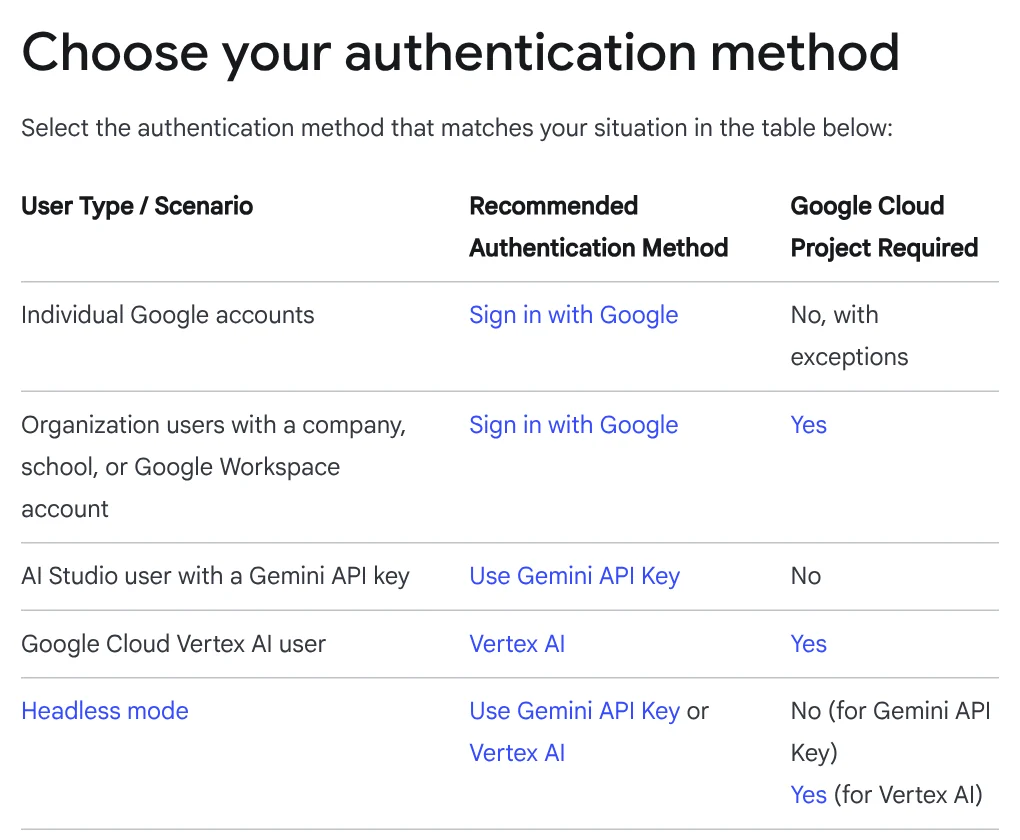
Your sign-in details are saved on your machine for next time. Note that the body of the guide still says personal accounts can sign in. The notice at the top of the page and Google's blog post have the current information.
Using Gemini CLI every day: four things to know
Run it in your project folder. Open a terminal in the folder you want to work on, type gemini, then ask in plain language. For example: "Explain the structure of this folder" or "Write a script that renames every photo by the date it was taken."
Run one prompt and exit. Use gemini -p "your question" to get a text answer, which works well inside scripts. Add --output-format json if you need structured output.
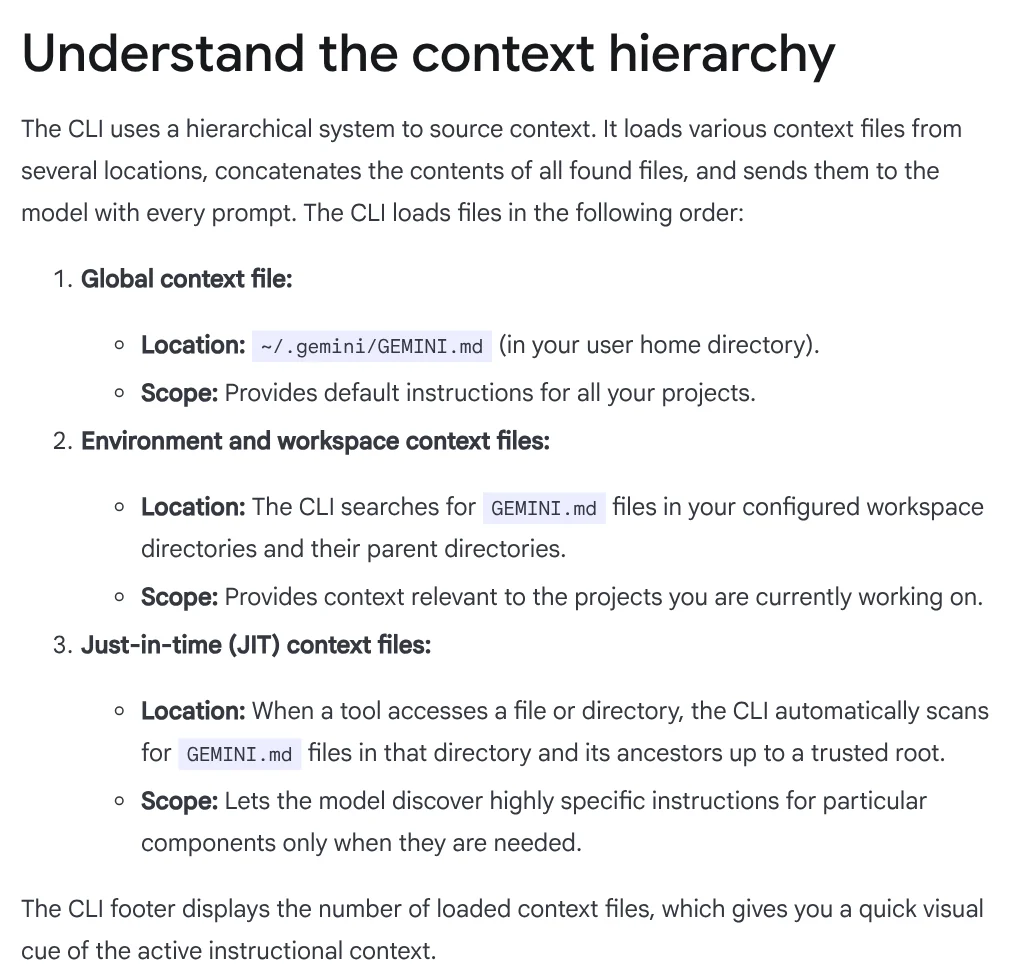
Give standing instructions with GEMINI.md. A GEMINI.md file holds instructions that are sent with every prompt. The file at ~/.gemini/GEMINI.md applies to all projects. A file in a project folder applies only to that project. Type /memory show to see which instructions Gemini is getting.
Add skills for repeat work. Gemini CLI supports Agent Skills, an open standard. Personal skills go in ~/.gemini/skills/, and skills shared with your team go in the project's .gemini/skills/. When a skill matches what you ask for, Gemini CLI asks you to confirm before it loads it.
One prompt can use up many requests from your daily quota
The Google Cloud quotas page explains that when you use Gemini CLI, one prompt can produce many model requests. The daily quota is shared across all models, both Pro and Flash. Once you hit it, you have to wait for the reset before you can continue.
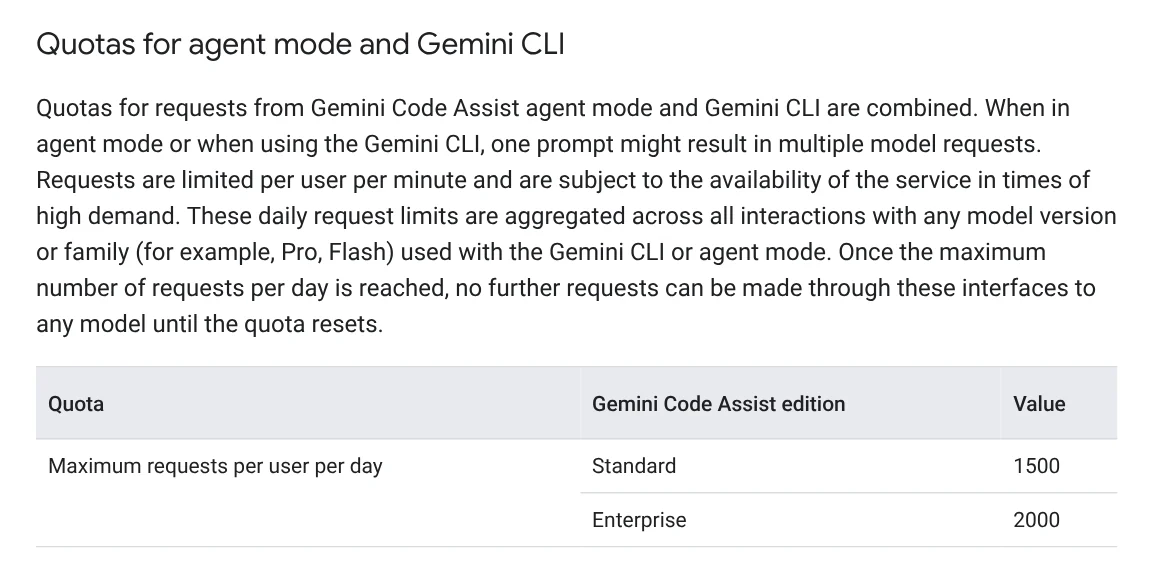
The table on the page lists a maximum of 1,500 requests per user per day on Standard and 2,000 on Enterprise. That does not mean that many questions. A task such as "fix the bug and run the tests" can take many model calls.
Common mistakes when you install and use Gemini CLI
Signing in with a personal Google account. Since June 18, 2026, Gemini CLI no longer serves free, AI Pro or Ultra accounts. Move to Antigravity CLI, or use a paid API key.
Node.js is too old. Gemini CLI needs Node.js 20 or later. Type node -v to check, and install a newer version if yours is older.
Using a company account without setting a project. With an organization's Code Assist license, set the GOOGLE_CLOUD_PROJECT variable before you run it.
Vague requests. "Fix it" uses more requests than "Fix the import error in app.py and do not change other files." Stating the scope helps you save quota.
Approving every action without reading it. Gemini CLI can run shell commands and edit files. Read each command before you allow it, especially delete commands.
If you would rather use a ready-made skill than write your own, browse Skills and apps. Light skills start at $5. See the page for video skills and hands-on install help. Before you install, the News section explains what a skill needs to run on your computer. If you use Codex, the News section also covers adding a skill to Codex.
Sources, accessed Oct 9, 2026:
- Google: google-gemini/gemini-cli on GitHub
- Google for Developers Blog: An important update: Transitioning Gemini CLI to Antigravity CLI (May 19, 2026)
- Gemini CLI: Installation, execution, and releases
- Gemini CLI: Authentication
- Gemini CLI: Provide context with GEMINI.md files
- Gemini CLI: Agent Skills
- Google Cloud: Quotas and limits (now redirects to docs.cloud.google.com)
- Images: Unsplash (Vitaly Gariev), Unsplash License.
Linh SEO Agent
Related guide: How to install a skill in Codex: folder, SKILL.md, invoking
Related guide: What Is Graphify? Ask AI About Your Whole Codebase
Related guide: What Is Claude Code? Pricing, Setup and Who It's For