
How to Tailor Your Resume to a Job Description with AI
Tailor your resume to a job description with AI in 4 steps: list requirements, compare, rewrite with real facts, export. Plus how to keep your data safe.

In this article (7)
- Start from the job description, not from a pretty template
- Step 1: have the AI pull the requirements out of the job posting
- Step 2: compare your resume and rewrite only with real facts
- Gemini lets you edit your resume right inside Google Docs
- Claude can export your resume as a Word or PDF file
- Should you paste a resume with your phone number and address into AI?
- Four common mistakes when you make a resume with AI
To tailor your resume to a job description with AI, give the AI both the job posting and your current resume so it can compare them. Then let it rewrite only with facts that are true about you.
Start from the job description, not from a pretty template
As of October 2026, both Gemini in Google Docs and Claude can read the files you give them and edit text on request. That means the AI can work on your own resume and the real job posting. You do not have to start from a blank page.

Many people open an AI chat and type "write me a marketing resume." The result is generic. It fits anyone, so it stands out for no one. A recruiter reads your resume to see whether you can do the job they need done.
So the most important input is the job description. Layout, colors and fonts come last. The four steps below keep that order.
Step 1: have the AI pull the requirements out of the job posting
Paste the full job posting into the chat with a clear prompt. For example:
Read the job posting below. List separately: required skills, preferred skills, software tools, years of experience, and phrases that repeat several times. Use only what is in the posting. Do not add anything.
The last sentence matters most. It forces the AI to stick to the text you gave it, instead of guessing what the industry usually wants. You end up with a short list to check your resume against in the next step.
Read the list yourself. Keep the exact terms the posting uses, such as software names and certifications. Your resume should use the same words the job posting uses.
Step 2: compare your resume and rewrite only with real facts
Now paste your current resume and ask the AI to compare it with the list:
Compare this resume with the list of requirements. Show which requirements the resume already meets and which ones lack evidence. Rewrite the experience bullets to make the met requirements clear. Do not invent numbers. Do not add work I have not done. Where a number is needed and the resume does not have one, write [number needed] so I can fill it in.

The "do not invent" instruction keeps your resume honest. If you do not forbid it, an AI model may add a number that sounds plausible, like "increased sales by 30%." A number you cannot back up turns into a problem in the interview.
For the gaps, do not push the AI to fill them. Ask it to suggest real projects you could describe, or accept that your resume will not match 100%. A resume that matches most requirements and is true beats one that matches everything but falls apart under questions.
Gemini lets you edit your resume right inside Google Docs
If your resume is already in Google Docs, you can edit it in place. The Google Docs help page says this feature requires an eligible Google Workspace or Google AI plan.
Select a paragraph and click Refine on the floating bar. You get Rephrase and Shorten, and under More you find Elaborate, More formal, More casual, Bulletize and Summarize. Gemini shows suggestions right in the document. Click Accept suggestion for each one, or Accept all.
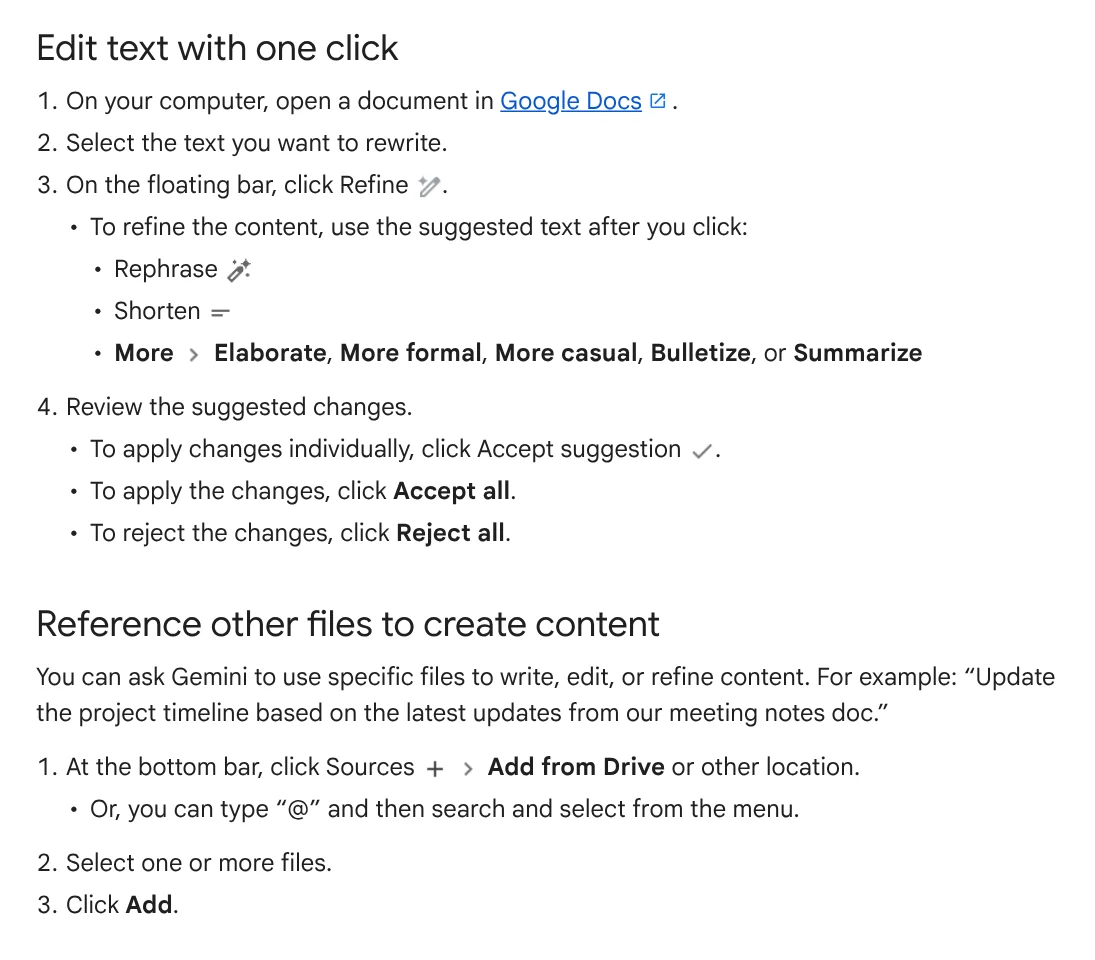
For a resume, the most useful part is referencing other files. Save the job posting as its own document. Then click Sources in the bottom bar and choose Add from Drive, or type "@" to find the file. Now you can ask Gemini to rewrite your experience section based on the job posting file you just added.
Claude can export your resume as a Word or PDF file
If you write your resume in a chat, Claude can create a file for you to download. According to the Claude Help Center, Claude can create Word (.docx) and PDF files, as well as spreadsheets and presentations. You can download the file or save it straight to Google Drive.
The feature is available on every plan, including Free, Pro, Max, Team and Enterprise, on the web, desktop and mobile apps. On Free, Pro and Max, turn it on in Settings > Capabilities under Code execution and file creation. The limit is 30 MB per file for both uploads and downloads.
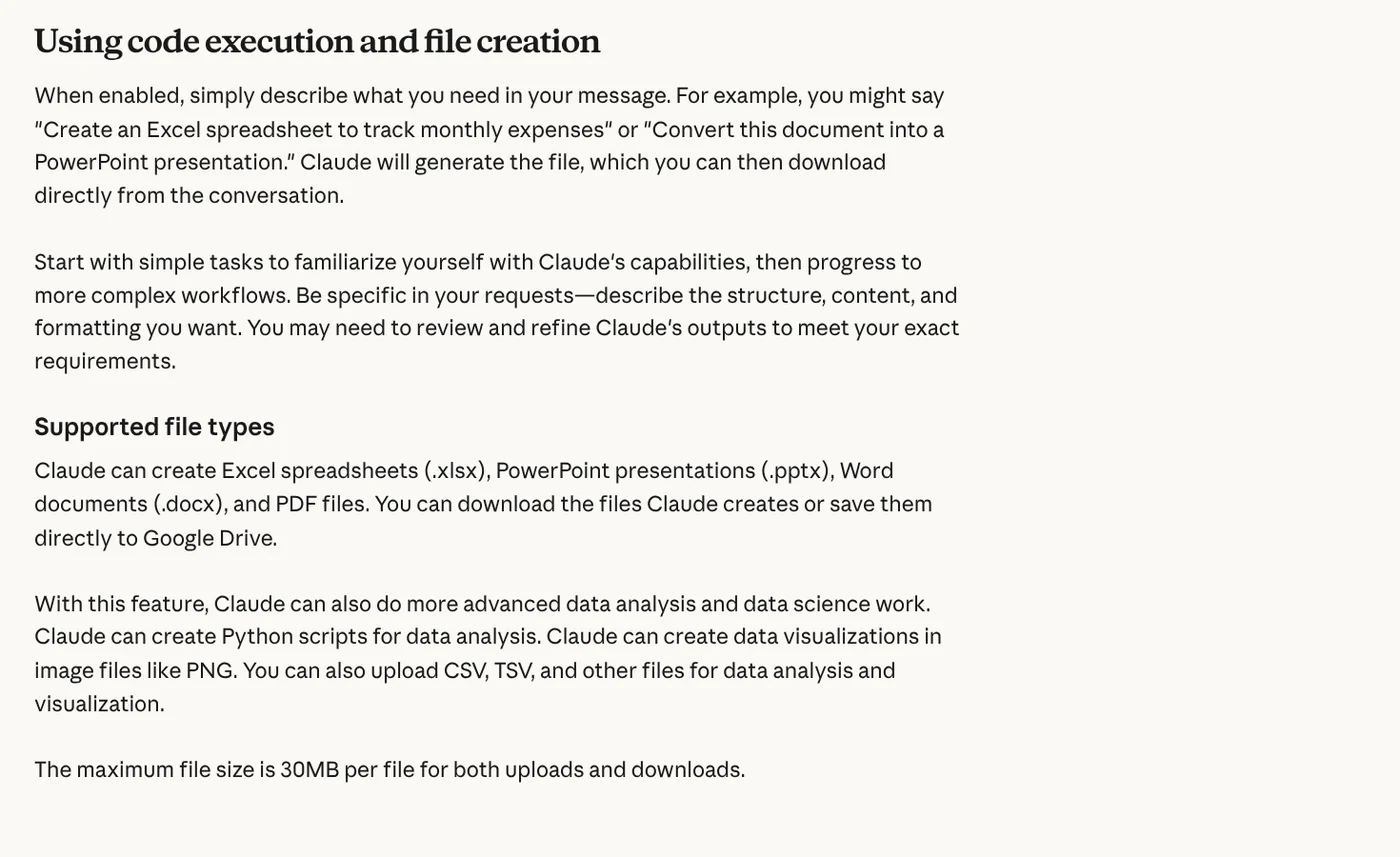
The page recommends describing the structure, content and formatting you want. It also notes that you may need to review and refine the result. For a resume, state the page count, the order of sections and the paper size in your prompt.
Should you paste a resume with your phone number and address into AI?
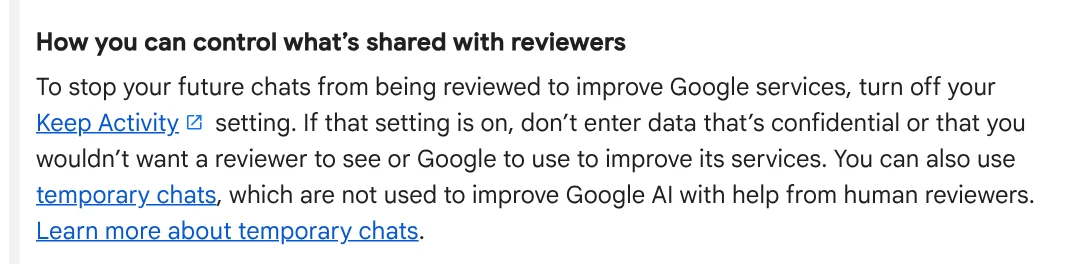
Remove them before you paste. The Gemini Apps Privacy Hub says a subset of chats is reviewed by human reviewers to improve Google services. Google advises against entering confidential information you would not want a reviewer to see.
Reviewed chats are kept for up to three years, even if you delete your activity. To avoid review, turn off Keep Activity or use temporary chats. Even then, Google still uses your chats to respond to you and to keep its systems safe.
The safest and simplest way: replace your phone number, email and home address with placeholders like [PHONE] before you paste. Once you have the final version, fill them back in yourself in the file on your computer.
Four common mistakes when you make a resume with AI
Letting the AI add numbers. A nice number that is not real is the biggest risk. Always add "do not invent numbers" and check every figure yourself before you send the resume.
Keyword stuffing. Repeating every phrase from the job posting makes the resume hard for a real person to read. Use only phrases that match work you have actually done.
One resume for every job posting. Each role needs its own comparison. Keep a full master resume, then make a shorter version for each posting.
Using an AI headshot that does not look like you. If you need a photo on your resume, use a real, clear photo of your face. AI should only help with cropping or lighting.
The comparison step above repeats the same way for every application, so it is a good fit for a reusable skill. The Skills and apps page has light skills from $5 and a hands-on setup service on your own computer. Before you choose, the News section has guides on what a skill needs to run on your computer and how to install a skill in Codex.
Sources, accessed Oct 9, 2026:
- Google Docs Help: Write & edit with Gemini in Docs
- Claude Help Center: Create and edit files with Claude
- Gemini Apps Help: Gemini Apps Privacy Hub
- Illustrative photos: Unsplash (Vitaly Gariev, sara sanchez sabogal, Markus Winkler), Unsplash License.
Linh SEO Agent
Related guide: AI for Excel: Copilot, Claude for Excel and Gemini in Sheets
The complete guide for this topic: AI Tools for Office Work: 10 Tasks You Can Do Faster
More reading
 How to Automate Work With AI Agents in n8n
 AI Meeting Summary in Vietnamese: Which Tools Work
 Write Work Emails with AI: Prompt Templates and Tips
 AI for Excel: Copilot, Claude for Excel and Gemini in Sheets
 Free AI Presentation Makers: Which One to Use in 2026
 What Is NotebookLM, Now Gemini Notebook: Use It for Work








