Can You Transfer Photos From iPhone to PC via Bluetooth?
Apple's guides have no step for sending photos from iPhone to a PC over Bluetooth. What works instead: a USB cable, iCloud Photos, or Wi-Fi with no cable.

In this article (6)
- Can You Transfer Photos From iPhone to PC via Bluetooth?
- Bluetooth on iPhone is for accessories, not for sending photos
- Windows can send files over Bluetooth, but the iPhone has to support it on the other end
- A USB cable is the method Apple documents for Windows PCs
- iCloud Photos needs no cable, but it uses cloud storage
- No cable and no iCloud: how do you move photos to Windows?
Can You Transfer Photos From iPhone to PC via Bluetooth?
Apple's guides do not show any way to transfer photos from an iPhone to a PC via Bluetooth. Apple covers a USB cable, iCloud Photos, or AirDrop if the computer is a Mac. If you want no cable on Windows, send the photos over Wi-Fi.
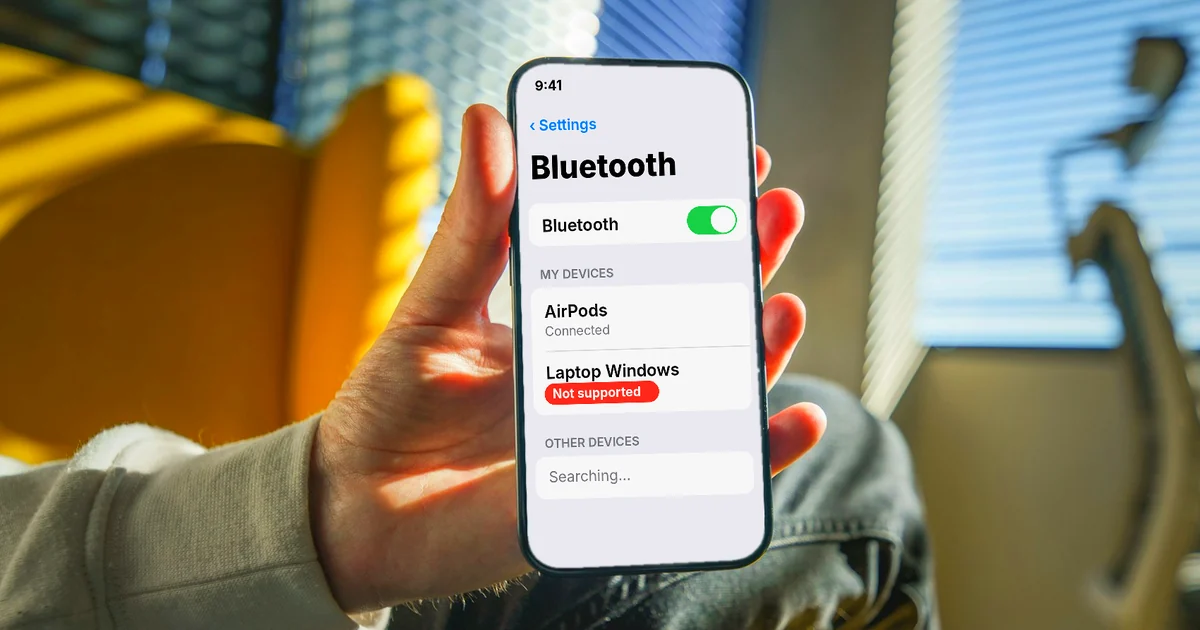
Bluetooth on iPhone is for accessories, not for sending photos
Apple's page Connect iPhone to Bluetooth accessories, read on Oct 9, 2026, states what Bluetooth on iPhone is for: streaming music and videos, playing games, connecting keyboards, and similar accessories.

Every step on that page is about pairing an accessory. You put the accessory in discovery mode, go to Settings > Bluetooth, and tap the accessory's name. The iPhone must be within about 33 feet (10 meters) of the accessory to pair. No step mentions sending photos or files to a computer.
Many people look for a Bluetooth option because they are used to doing this on an Android phone. With an iPhone, you save time by going straight to the methods Apple documents instead of digging through settings.
Windows can send files over Bluetooth, but the iPhone has to support it on the other end
Microsoft's support page explains how to send and receive files over Bluetooth in Windows. You go to Settings > Bluetooth & devices > Devices, then select Send or receive files via Bluetooth under Related settings.

Microsoft does say the other device can be iOS or Android. But in the very next step, the page tells you to check that device's documentation or the manufacturer's website to learn how it receives files over Bluetooth. On Apple's side, as shown above, there is no such guide. That makes this Windows option a better fit for Android phones than for an iPhone.
A USB cable is the method Apple documents for Windows PCs
Apple's page on transferring photos explains how to import photos to a Windows PC in five steps:
- Install the Apple Devices app from the Microsoft Store.
- Connect your iPhone to the PC with a USB cable.
- If asked, enter your iPhone passcode.
- If the iPhone asks whether to trust this computer, tap Trust or Allow.
- Follow Microsoft's steps to import the photos with the Photos app on Windows.

For the last step, Microsoft's import page says to select Import, choose your connected phone, then pick the photos and where to save them. The phone has to be turned on and past the lock screen, or the PC will not find it.
Apple also gives a tip so photos open easily on Windows. Go to Settings > Camera > Formats and choose Most Compatible. From then on, the camera takes JPEG photos and records H.264 video.
iCloud Photos needs no cable, but it uses cloud storage
The second method Apple documents is iCloud Photos. Your photos upload on their own and show up on your Apple devices, on iCloud.com, and on a PC. The originals are stored at full resolution.

The thing to plan for is storage. Apple's iCloud page says you get 5GB free, and the 50GB iCloud+ plan costs $0.99 a month in the US. If your photo library is bigger than 5GB, you need to buy more space.
What about AirDrop? Apple's AirDrop page describes it as a way to share with nearby Apple devices, with both Wi-Fi and Bluetooth turned on. The photo transfer page also only lists AirDrop for sending to a Mac.
No cable and no iCloud: how do you move photos to Windows?
The remaining option is to send them over Wi-Fi with an app that runs on the computer. AdamDrop is built for this job. You scan one QR code and send photos, videos, and files between your iPhone and a Windows PC. No cable, no account, and your files do not pass through any server.
AdamDrop works in both directions and handles a whole folder or a 4 GB video in one go. If the Wi-Fi drops, the transfer resumes where it stopped. Photos stay as originals, with no compression and no renaming. On Windows it is a single exe file of about 930 KB.
Five common problems when you move photos from an iPhone to Windows:
The PC does not see the iPhone. The iPhone is locked, or you have not tapped Trust. Enter your passcode and plug the cable back in.
The cable only charges. Microsoft notes that not every USB cable can transfer files. Try another cable.
Photos are missing after import. With iCloud Photos on, the originals may only be in the cloud. Download the originals to the iPhone before you import.
Photos will not open on Windows. Switch the camera format to Most Compatible for the photos you take from now on.
Searching the iPhone for a Bluetooth option. Apple does not document this method, so choose a cable, iCloud, or Wi-Fi to save time.
If you prefer a cable-free option, you can use a Wi-Fi transfer tool such as AdamDrop. You can find more guides in News.
Sources, accessed Oct 9, 2026:
- Apple: Connect iPhone to Bluetooth accessories
- Microsoft: Send and receive files over Bluetooth in Windows
- Apple: Transfer photos from your iPhone or iPad
- Microsoft: Import photos and videos from phone to PC
- Apple: iCloud (US prices, accessed Oct 11, 2026)
- Apple: How to use AirDrop on your iPhone or iPad
- Illustrations: Unsplash (Brett Wharton, Jakub Żerdzicki), Unsplash License.
Linh SEO Agent
Related guide: English translation apps: 5 official apps compared
Related guide: Can You AirDrop from iPhone to Windows? 4 Alternatives
Related guide: How to Transfer Videos from iPhone to PC Without Quality Loss
The complete guide for this topic: Transfer Files From iPhone to a Windows Laptop: 6 Ways