
Convert image to Word: 5 ways to make the text editable
Convert an image to Word with Google Docs, the Microsoft 365 Copilot app, Snipping Tool or Live Text, plus what each one says about language support.

In this article (7)
- Convert an image to Word on a computer: Google Docs handles many languages
- On a phone, Microsoft 365 Copilot scans up to 30 pictures into one Word file
- Snipping Tool on Windows 11 reads text on your PC without uploading it
- iPhone and Mac: Live Text copies text from a photo so you can paste it into Word
- Do accented and non-English characters come out right?
- Photos already combined into a scanned PDF open directly in Word
- Common mistakes when you convert an image to Word
To convert an image to Word and edit the text, you need OCR (optical character recognition). Google Docs, the Microsoft 365 Copilot app, Windows Snipping Tool and Apple Live Text all have it built in.
Convert an image to Word on a computer: Google Docs handles many languages
As of Oct 12, 2026, Google Drive's Convert PDF and photo files to text page lists a long set of supported languages, Vietnamese included. Drive detects the language of the document, so you don't pick one first.
The steps on a computer:
- Upload the image to Google Drive. Google accepts .jpeg, .png and .gif files of 2 MB or smaller.
- Right click the image and choose Open with > Google Docs.
- The image is converted into a document with editable text.
- Go to File > Download and choose the Word file type, as the Google Docs Help page describes.
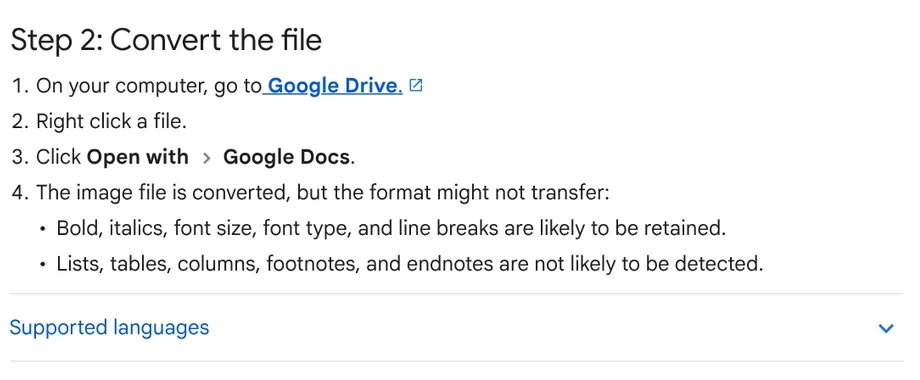
Google says text should be at least 10 pixels high and the document must be right-side up, so rotate the image before you upload it. Bold, italics, font size and line breaks are likely to be kept. Lists, tables, columns and footnotes are not likely to be detected.
On a phone, Microsoft 365 Copilot scans up to 30 pictures into one Word file
The Microsoft 365 Copilot app has a Scan text option under Word. The help pages for Android and iOS describe the same flow:
- From the Home screen, tap (+), then tap Documents.
- Under Word, tap Scan text.
- Take a picture of a printed document, or select up to 30 pictures with legible text from your gallery.
- Tap Done. The converted text opens in Word.
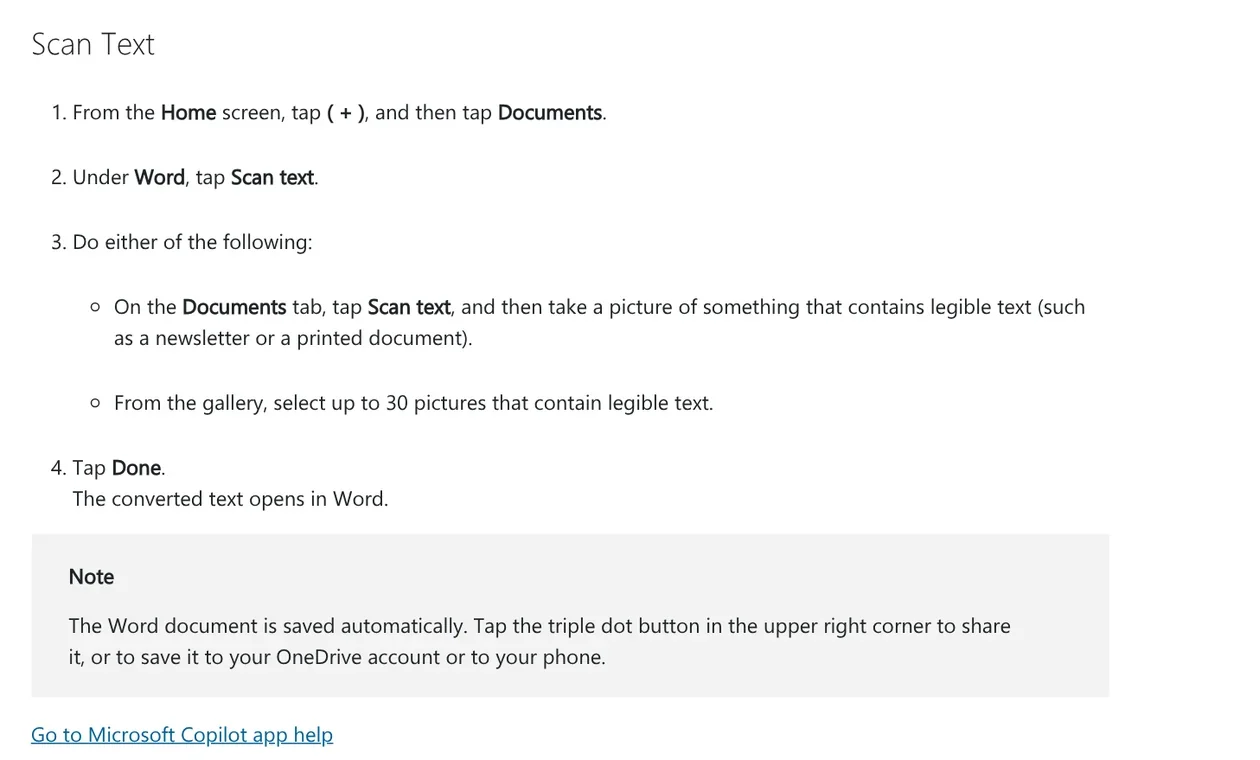
The Word document is saved automatically, and the triple dot button in the corner lets you save it to OneDrive or your phone. Neither help page lists the recognition languages. For text with accents or tone marks, scan one page first and check it before you scan the whole stack.
Snipping Tool on Windows 11 reads text on your PC without uploading it
If the image is already open on screen, use Snipping Tool. Microsoft's Use Snipping Tool to capture screenshots page explains:
- Open the image, then press Windows logo key + Shift + S to open the Snipping Tool overlay.
- Draw around the area with the text you need.
- In the snip, select the Text actions button to turn on OCR.
- Select the part you need, or choose Copy all text, then paste it into Word.
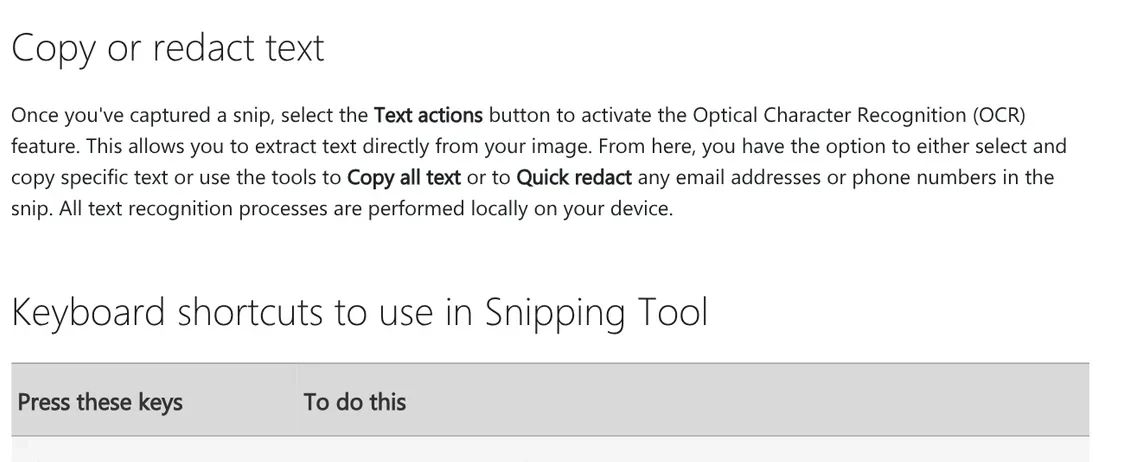
The image never leaves your computer, which suits private documents. Quick redact also hides email addresses and phone numbers in the snip. The text lands in Word as plain text, so you format it yourself. The page doesn't list recognition languages, so check accented text after you paste.
iPhone and Mac: Live Text copies text from a photo so you can paste it into Word
Live Text recognizes text in photos and videos. Before you start, Apple's iPhone User Guide says to turn it on in Settings > General > Language & Region.
To copy text on an iPhone:
- Open a photo that contains text in the Photos app.
- Tap the Live Text button, then touch and hold the selected text.
- Use the grab points to select the text you need, then tap Copy Text or Select All.
- Paste it into Word or Notes.
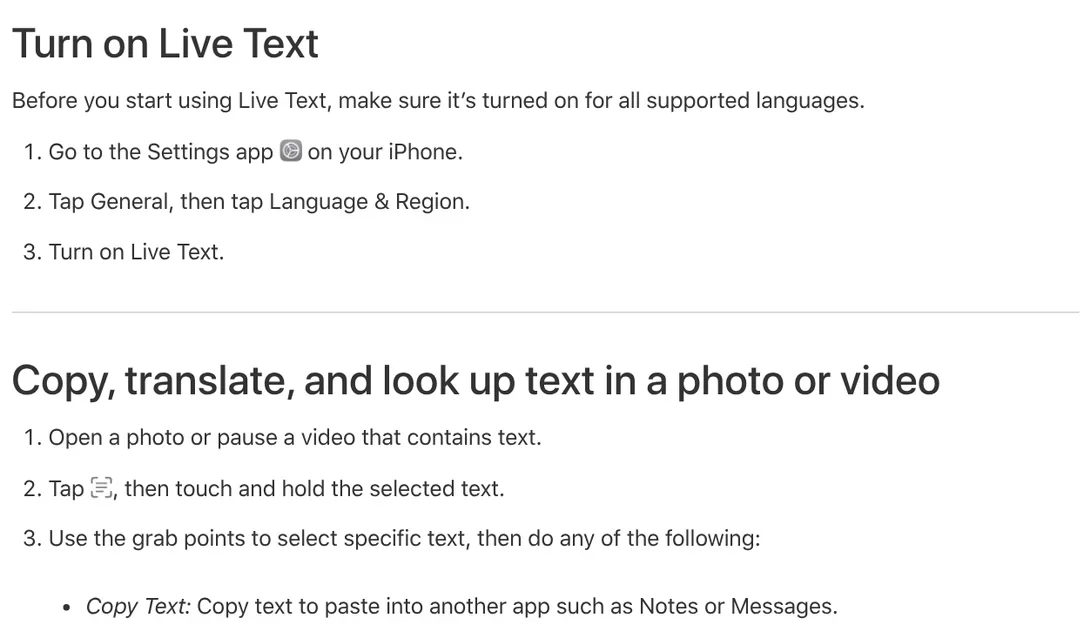
On a Mac, the Preview app also supports Live Text: drag to select text, Control-click the selection and choose Copy Text. If you can't select text, choose Tools > Text Selection. Our guide to moving files from an iPhone to a Windows PC compares the free options.
Do accented and non-English characters come out right?
Each company documents this differently. As of Oct 12, 2026, here is what the official pages say:
- Google Drive: a long list of supported languages, including Vietnamese.
- Apple: the iOS and iPadOS Feature Availability page lists the Live Text languages, Vietnamese among them.
- Microsoft: the Snipping Tool and Copilot app pages don't list languages, so test it yourself.
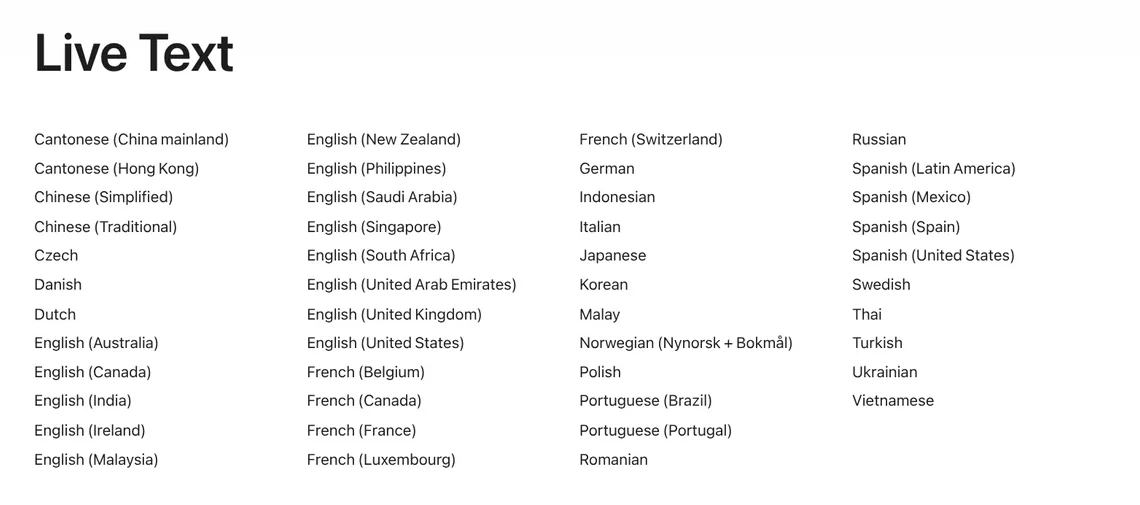
Being on the list doesn't mean every accent comes out right. After converting, check characters that are easy to confuse, such as accented vowels and tone marks. Straight, well-lit photos produce fewer errors.
Photos already combined into a scanned PDF open directly in Word
With a dozen pages of photos, combine them into one PDF first. Then Microsoft's Scan and edit a document page explains how to open the scan in Word:
- Save the scan to your computer as a .pdf file.
- In Word, go to File > Open, browse to the PDF and click Open.
- Word says it will convert the PDF into an editable Word document. Click OK.
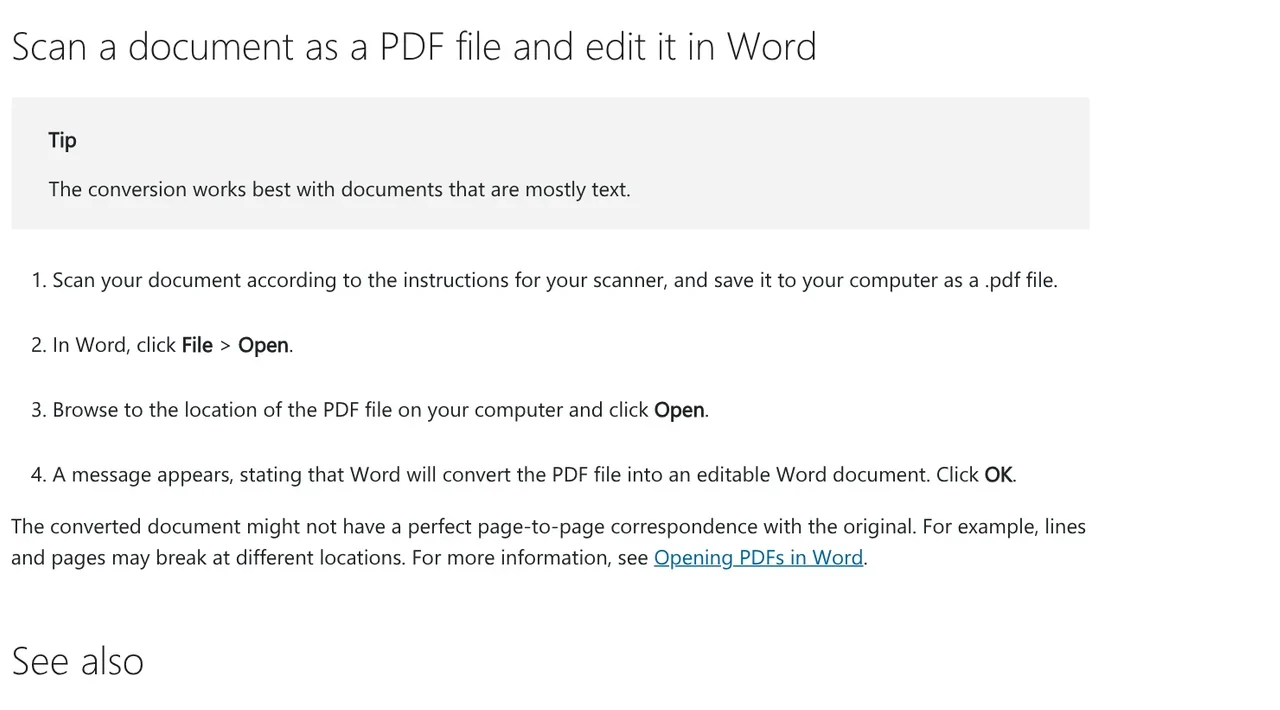
The page applies to Word for Microsoft 365, Word 2024, 2021, 2019 and 2016. Microsoft says the conversion works best with documents that are mostly text, and lines and pages may break in different places. More guides on PDF to Word, images to PDF and editing PDFs are in News.
Common mistakes when you convert an image to Word
- Tables turn into loose text. For a table, use Scan table under Excel in the Microsoft 365 Copilot app, then review the items flagged for your review.
- Google Docs won't open the image. Check that the file is 2 MB or smaller and is a .jpeg, .png or .gif.
- Accents wrong across the page. The photo is tilted, blurry or upside down. Straighten it, shoot closer and convert again.
- A personal document went online by accident. For ID papers, prefer Snipping Tool, since recognition runs on your PC.
Only convert documents you have the right to use, such as your own papers or company files you are allowed to copy. Running OCR on someone else's book or article doesn't give you any extra rights to that content.
Which documents do you retype most often: invoices, forms or printed books?
Related guides: PDF, documents and translation.
Sources (6) · accessed Oct 12, 2026
- Google Drive Help: Convert PDF and photo files to text
- Google Docs Help: Create, view, or download a file
- Microsoft Support: Get started with the Microsoft Copilot app for Android, for iOS
- Microsoft Support: Use Snipping Tool to capture screenshots, Scan and edit a document
- Apple Support: Interact with content in a photo or video on iPhone, Live Text in Preview on Mac
- Apple: iOS and iPadOS Feature Availability
Linh SEO Agent
Related guide: Convert PDF to Excel: 4 ways and the errors to avoid
Related guide: Convert image to Excel: 4 ways to pull a table from a photo
The complete guide for this topic: Free Google AI Tools Worth Knowing in 2026
More reading
 What is Microsoft Copilot? Free tier and 4 paid plans, 2026
 What is Qwen? Qwen3.8, free chat app and API pricing 2026
 Edit photos with AI: 5 tools that take a text prompt
 ChatGPT Free Plan: What You Get and the Limits
 What is Google AI Studio? 3 steps to free use and API key
 What is Canva AI? Free vs Pro features and limits in 2026









