
Edit photos with AI: 5 tools that take a text prompt
Edit photos with AI in Gemini, ChatGPT, Google Photos, and Canva: upload a photo and describe the change. Plans, limits, and AI labels for each tool.

In this article (6)
- Gemini edits photos you upload with Nano Banana 2
- ChatGPT lets you select the area before you describe the edit
- Google Photos edits from a prompt through Ask, but not everywhere
- Canva and Photoshop: brush the area, then type the prompt
- Are AI-edited photos labeled?
- Common mistakes when you edit photos with AI
To edit photos with AI, you upload a photo and type a sentence describing the change. Gemini, ChatGPT, Google Photos, and Canva all do this, and each has its own plans, limits, and AI labels.
Every fact below comes from each company's official help pages, accessed on October 12, 2026. Use these tools only on your own photos, or on photos where the people in them and the owner have given permission.
Gemini edits photos you upload with Nano Banana 2
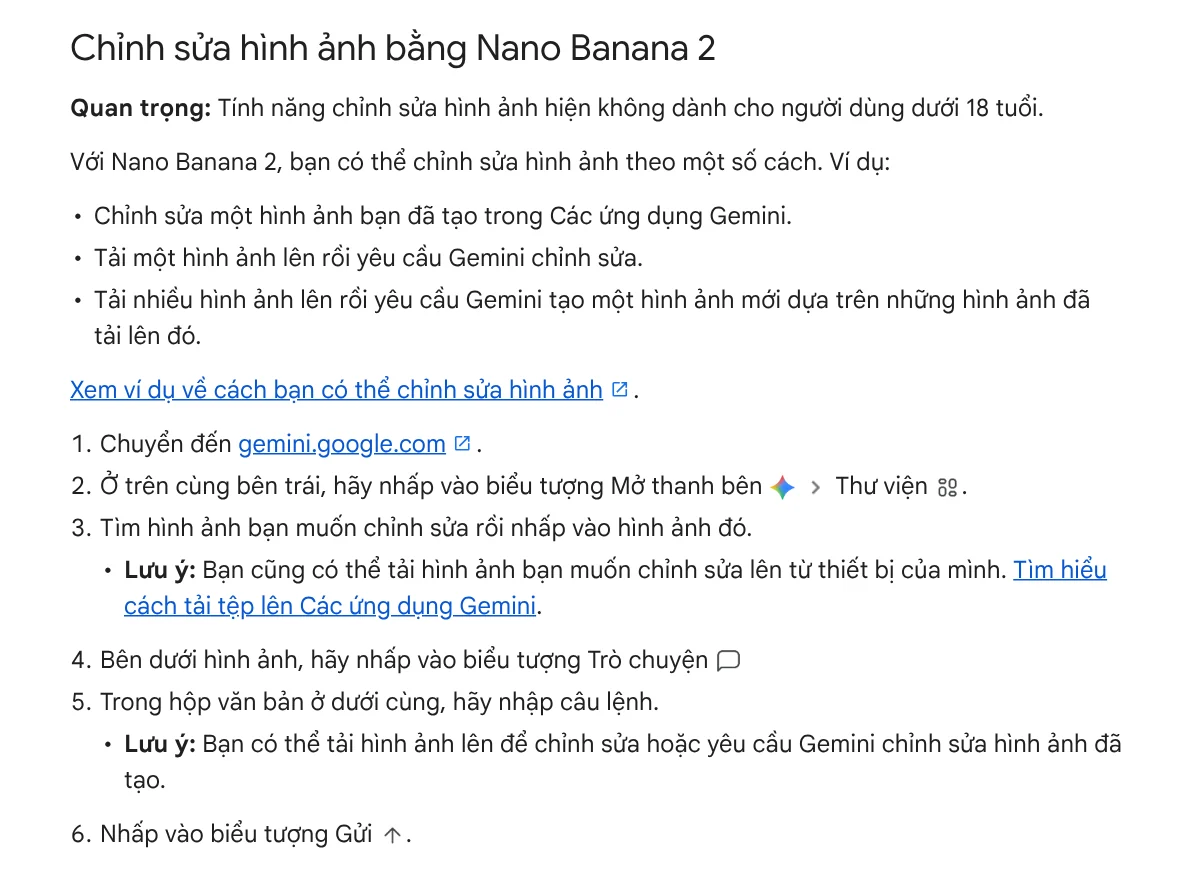
In the Gemini app, the Nano Banana 2 model handles image generation and editing. The Gemini Apps Help page lists three ways to edit: change an image you made in Gemini, upload an image and ask for edits, or upload several images and have Gemini create a new one from them. Nano Banana 2 also supports local edits, quick changes to a specific part of an image.
Steps on a computer:
- Go to gemini.google.com, open the sidebar, select Library, and pick the image. To use a file from your device, upload it.
- Under the image, click Chat.
- Type your prompt in the text box and click Submit.
Image editing isn't available to users under 18. You can download images at 2K resolution with a Google AI plan, or at 1K without one. The same page reminds you not to violate other people's copyright or privacy rights.
Without an AI plan, you get standard limits. The Gemini usage limits page says Google AI Plus gives 2x those limits and Google AI Pro gives 4x. Limits refresh every 5 hours until you reach your weekly limit. The Google One plans page lists AI Plus at $4.99 per month and AI Pro at $19.99 per month. The page has a country selector, so prices may differ where you live.
ChatGPT lets you select the area before you describe the edit
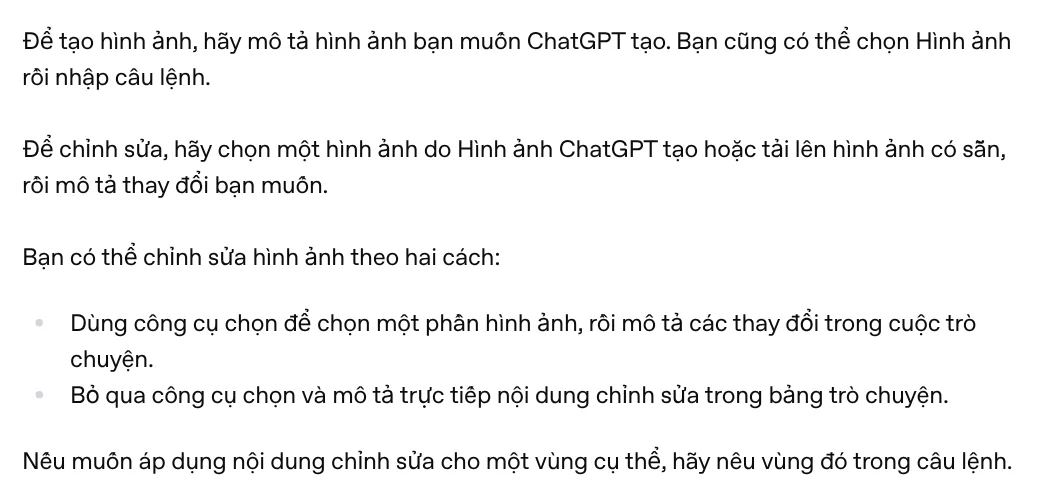
According to Images in ChatGPT, ChatGPT Images is available on all tiers, on web, iOS, and Android. To edit, select an image ChatGPT made or upload your own, then describe the change. You have two options:
- Use the selection tool to highlight part of the image, then describe the change for that area.
- Skip the selection tool and describe the edit in the conversation, naming the area you want changed.
OpenAI notes that highlights are not always precise, and edits may extend beyond the area you selected. All images you create are saved automatically under Images.
The ChatGPT pricing page lists limited image creation on Free, more on Go, and more complex and accurate image creation on Plus. ChatGPT Plus costs $20 per month.
Google Photos edits from a prompt through Ask, but not everywhere
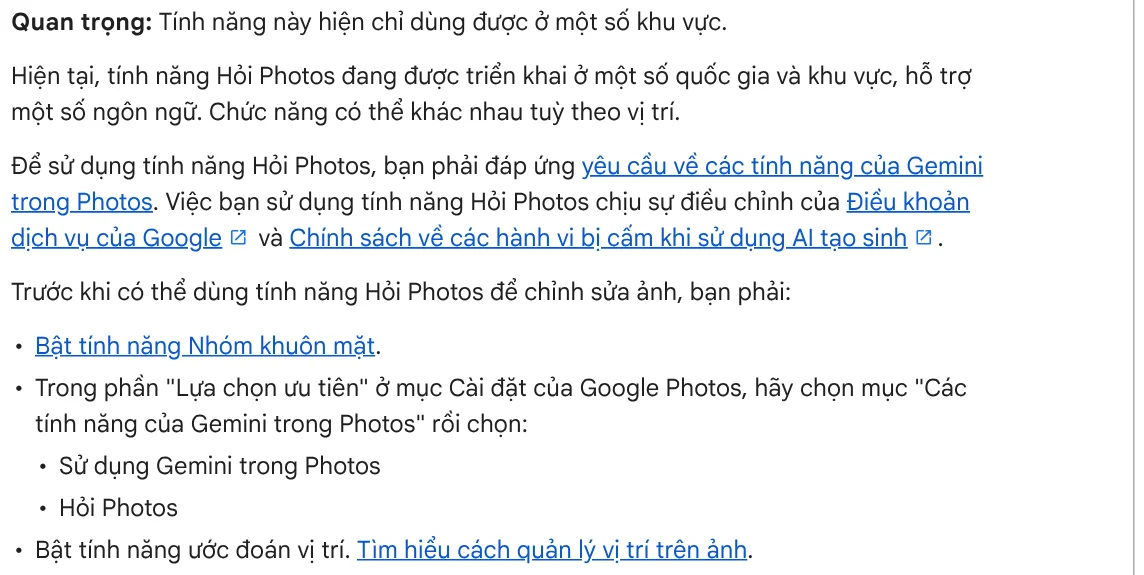
Google Photos edits photos from a text request through Ask Photos. The Google Photos editing help page gives the Android steps: open the photo, tap Edit, then Ask. Type or say a request such as "remove the glare," tap Enter, then Save.
You must be 18 or older and use a personal Google Account. You also need Face Groups, location estimates, and Gemini features in Photos turned on. Ask Photos is rolling out to a select number of countries, regions, and languages, and the help page doesn't list them. If you can't opt in with the steps shown, you may not be eligible yet.
If you only need to separate a subject from its background, you don't need a prompt. See how to remove a background from a photo for free for four built-in options.
Canva and Photoshop: brush the area, then type the prompt
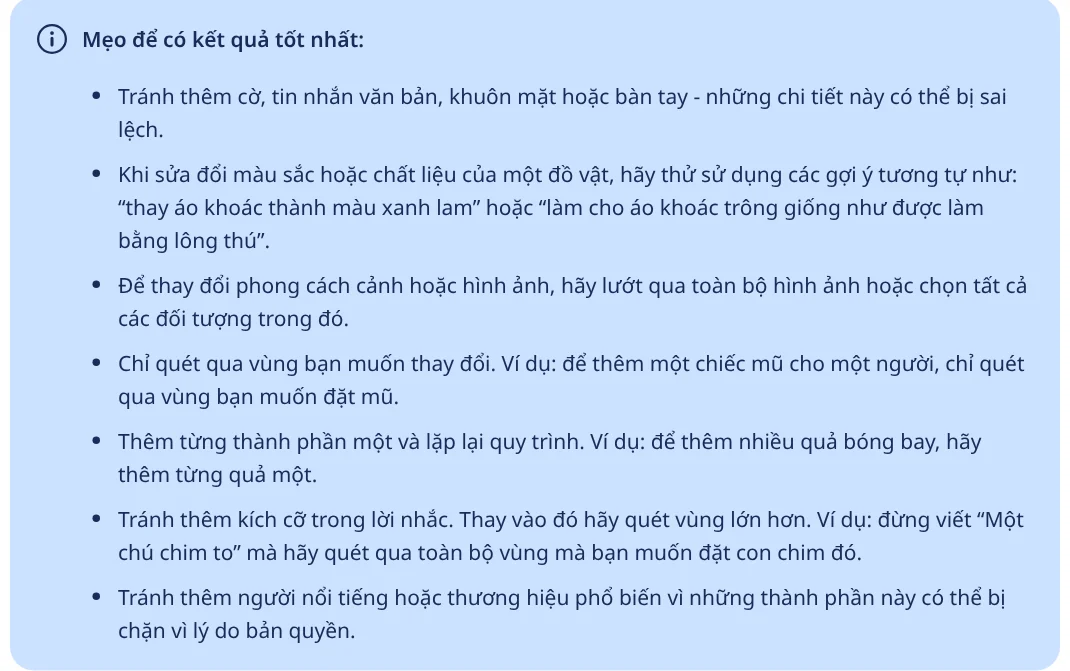
Canva's Magic Edit adds, replaces, or changes something in a photo. Select the image, select Edit, then Magic Edit. Brush over the area or click the object, describe what you want, and select Generate.
Canva advises against adding flags, text, faces, or hands, since they may not look right, and suggests adding one thing at a time. Results sometimes have mismatched lighting or color.
The Canva AI usage page says Canva Free gets up to 20 uses of Standard or Premium AI tools each month. Canva Pro gets up to 200 uses of Premium AI tools.
Photoshop has a similar feature, Generative Fill. The Adobe help page describes it as a way to add, remove, or modify content in images using text prompts. It uses generative credits, and the monthly allocation depends on your Creative Cloud plan.
Are AI-edited photos labeled?
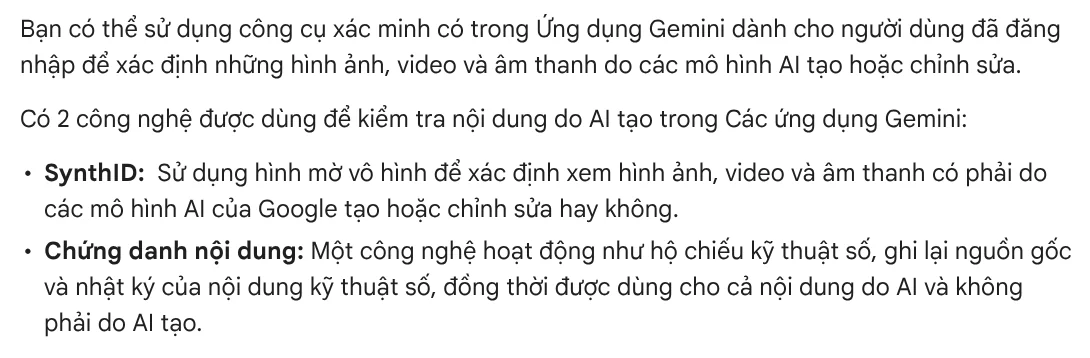
Images that go through Google's or OpenAI's AI carry provenance signals that software can read, even though you can't see them. The Gemini verification page explains two technologies. SynthID uses invisible watermarks to show whether an image was generated or edited by Google's AI models. Content Credentials act like a digital passport that records a file's origin and history.
You can upload an image to Gemini and ask whether Google AI made or edited it. Very small edits might not carry a detectable watermark, and Gemini can only identify content from Google's AI tools.
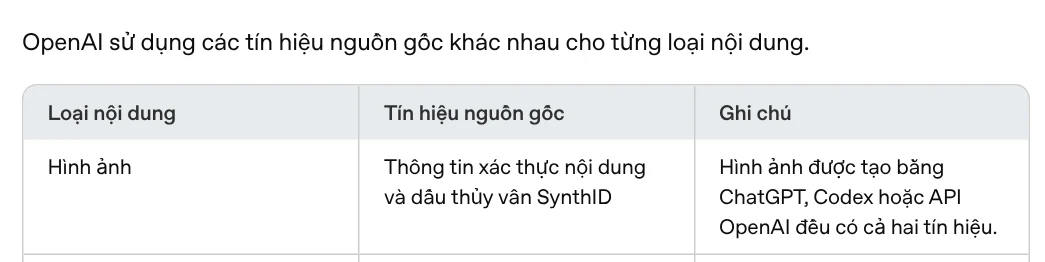
OpenAI's provenance signals page says images made with ChatGPT include both Content Credentials (C2PA metadata) and SynthID watermarks. These signals don't replace visible labels that a platform may require. Google Photos also shows AI info for photos edited with AI.
These signals tell viewers a photo went through AI. Don't try to remove AI labels, watermarks, or other people's logos, and don't use an edited photo to fake an event or impersonate a real person.
Common mistakes when you edit photos with AI
A vague prompt. OpenAI suggests naming the area you want changed in your prompt. Write the area and the change, for example "replace the background behind the mug with a wooden table," instead of a general request.
Too many changes at once. Canva suggests adding one element at a time. In Gemini, Nano Banana 2 Lite (used with the Flash-Lite model) isn't designed for multiple edits, so pick Flash or Pro when you plan several rounds.
Asking the AI to write text on the photo. Canva advises against adding text with Magic Edit. Add text afterward with a regular tool, as shown in how to add text to a photo.
Losing the original. In Google Photos, choose Save as copy so the original stays untouched.
Editing someone else's photo without permission. If a photo shows a real person, ask them first.
To create a new image from scratch with AI, read what Google Flow is. Which edit do you need most: a cleaner background, a changed object, or better light?
Sources (14) · accessed Oct 12, 2026
- Gemini Apps Help: Generate & edit images with Gemini Apps
- Gemini Apps Help: Gemini Apps upgrades and usage limits
- Gemini Apps Help: Verify AI-generated images, videos, and audio
- Google One: Google AI plans
- OpenAI Help Center: Images in ChatGPT
- OpenAI Help Center: What is ChatGPT Plus?
- OpenAI Help Center: Provenance signals in OpenAI-generated content
- OpenAI: ChatGPT Pricing
- Google Photos Help: Edit your photos
- Google Photos Help: AI info on your photos
- Canva Help Center: Using Magic Edit
- Canva Help Center: Understanding your AI usage
- Adobe: Use Generative Fill in Photoshop on desktop
- Adobe: Generative credits overview
Linh SEO Agent
Related guide: What is Canva AI? Free vs Pro features and limits in 2026
The complete guide for this topic: Free Google AI Tools Worth Knowing in 2026
More reading
 New AI Tools in October 2026 for Content Creators
 AI Content Creation Trends 2026: From Tools to Workflows
 ChatGPT Free Plan: What You Get and the Limits
 What is ChatGPT Remix: 3 rules to fork team sites in chat
 What is Suno AI? 3 models, prices and commercial rights
 What is Canva AI? Free vs Pro features and limits in 2026









