
Convert PDF to Excel: 4 ways and the errors to avoid
Convert PDF to Excel with Power Query Get Data From PDF, Adobe online or Stirling-PDF. Fix scans, numbers stored as text, decimal commas and merged cells.


In this article (6)
- Convert PDF to Excel with Get Data From PDF: built into Microsoft 365
- Long tables across pages: let Power Query join them, split only for huge files
- No Microsoft 365: Adobe online or Stirling-PDF, and Google Sheets doesn't take PDFs
- Scanned PDFs need OCR before they become Excel tables
- Why do numbers turn into text or lose decimal commas after you convert PDF to Excel?
- Use Power Query if you have Microsoft 365, and OCR first for scans
The built-in way to convert PDF to Excel is Get Data From PDF in Excel for Microsoft 365. Scanned files, older Excel versions and numbers with the wrong decimal separator need a few extra steps.
Convert PDF to Excel with Get Data From PDF: built into Microsoft 365
As of Oct 12, 2026, Microsoft's Import data from data sources (Power Query) page gives these steps for pulling tables from a PDF. Power Query is the import and cleanup engine on Excel's Data tab.
- Select Data > Get Data > From File > From PDF.
- Pick the PDF and select Open. The Navigator dialog lists the tables Excel found, with page numbers.
- Choose the tables you want. Select Load to send them straight to a worksheet, or Transform Data to clean them up first.
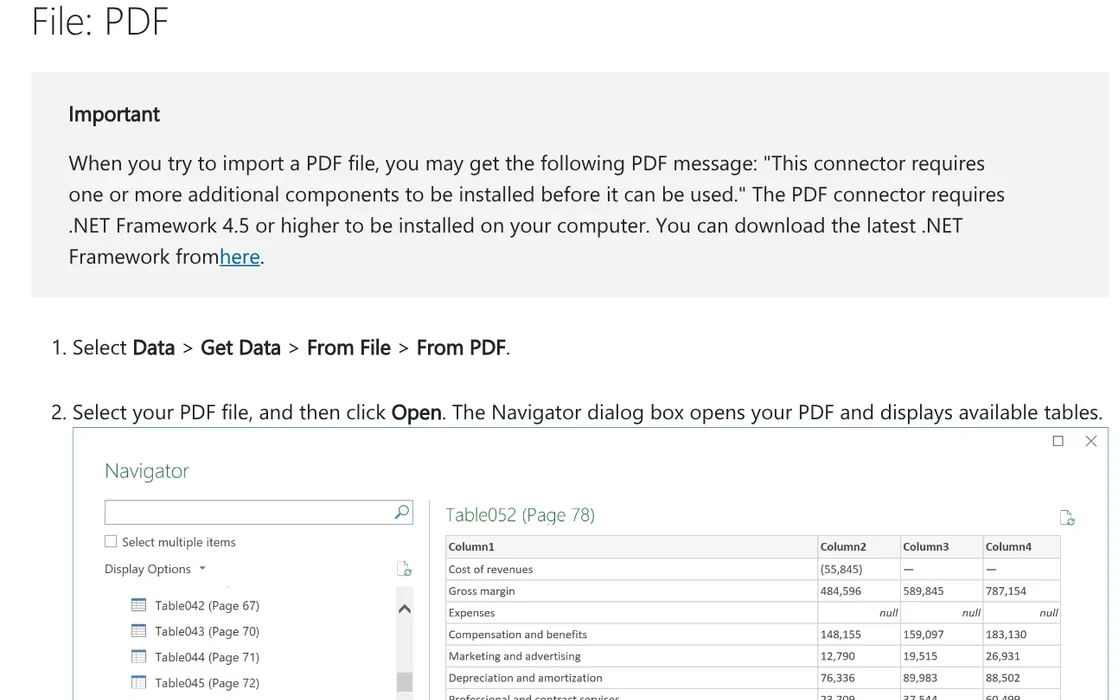
If Excel says the connector needs extra components, the same page notes that the PDF connector requires .NET Framework 4.5 or higher. Your Excel version matters more. The Power Query data sources by Excel version table checks the PDF connector only for Microsoft 365 plans. Office 2016 and Office 2019 one-time purchase versions don't have it.
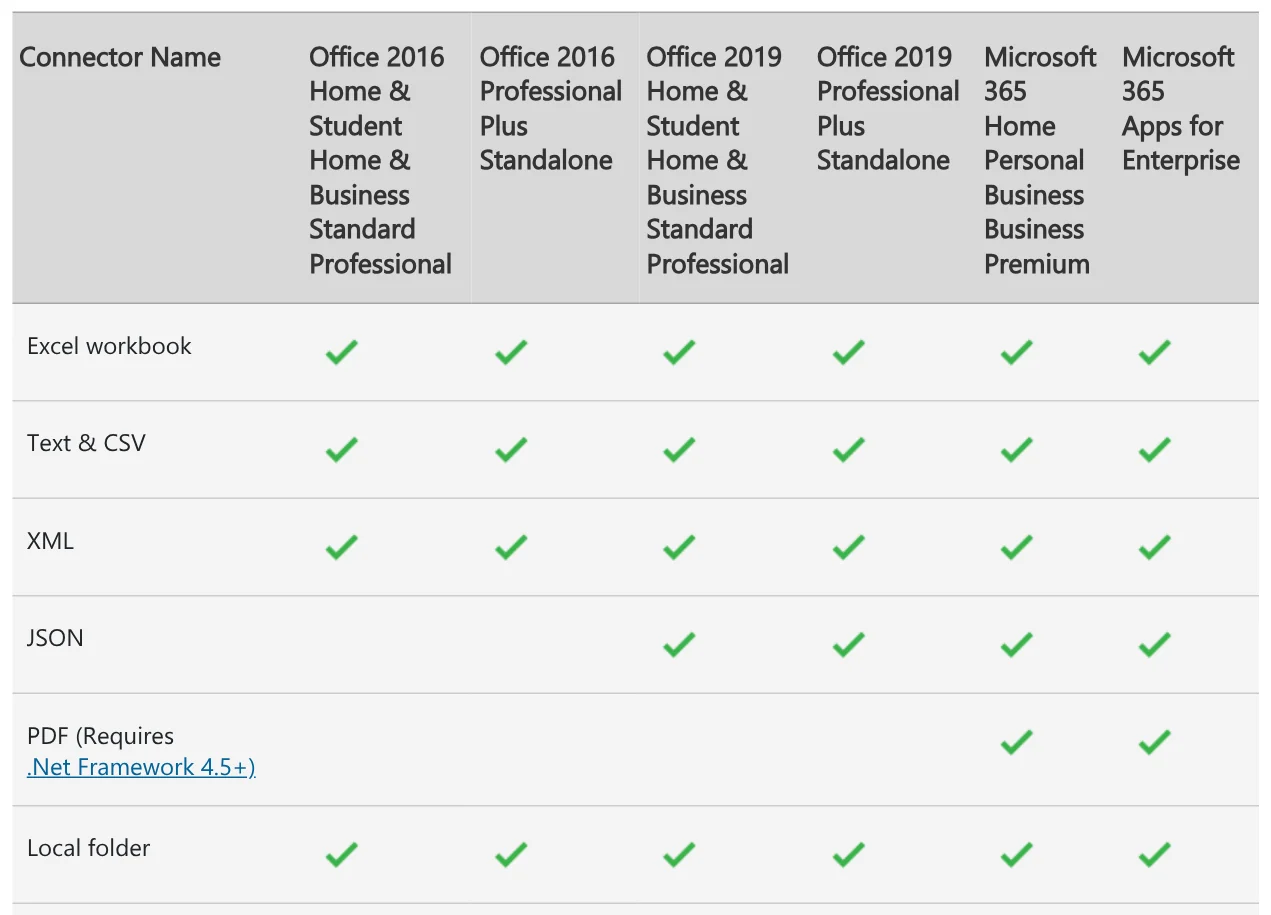
The same version page lists no PDF source for Excel for Mac, and says Power Query isn't supported in Excel for Android and iOS. On a Mac or a phone, use one of the options further down.
Long tables across pages: let Power Query join them, split only for huge files
Bank statements and reports often run one table across many pages. The PDF connector docs on Microsoft Learn say the MultiPageTables option is on by default, so similar tables on consecutive pages are combined into one.
For large files, Microsoft suggests editing the Pdf.Tables function in the formula bar and using StartPage and EndPage to read one small page range at a time. If the whole file is one huge table, turning MultiPageTables off may help the query run lighter.
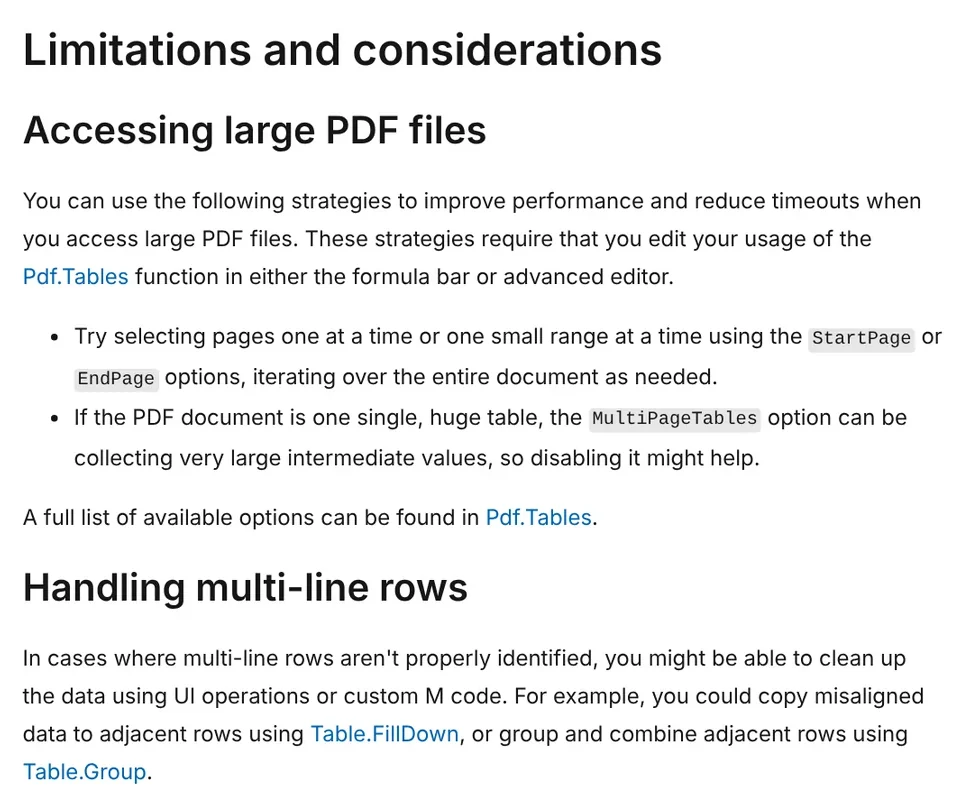
If a fully ruled table still has columns merged the wrong way, try turning on EnforceBorderLines (off by default) so Power Query always treats border lines as cell boundaries. For many PDFs with the same layout, use the Folder connector.
No Microsoft 365: Adobe online or Stirling-PDF, and Google Sheets doesn't take PDFs
On Adobe's PDF to Excel page, you choose Select a file or drag a PDF in, then download an XLSX file. Adobe says your file is handled by Adobe servers and deleted unless you sign in to save it. For payroll or contracts, think about whether the file should leave your computer.
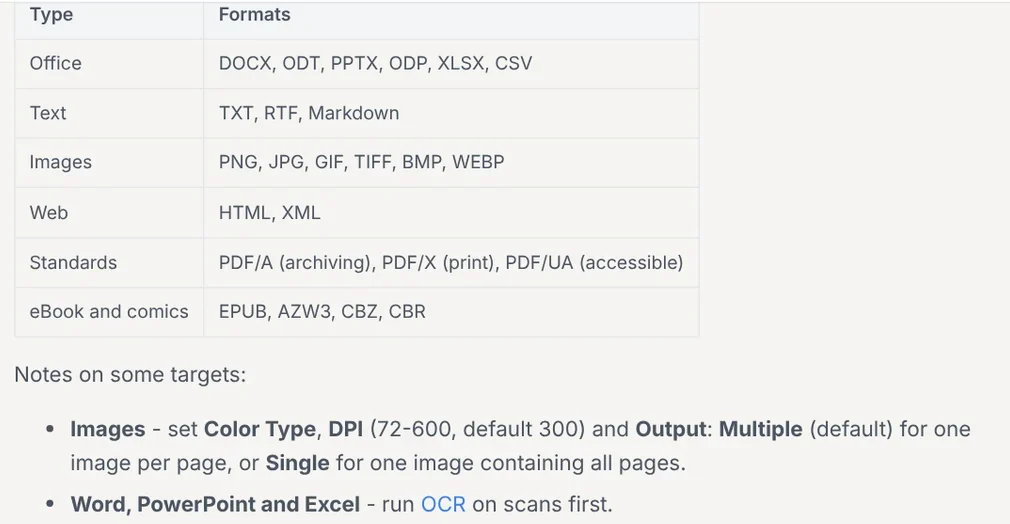
To keep the file in house, Stirling-PDF is an open-source PDF toolkit you install yourself (see the Stirling-PDF guide in our news section). Its Convert page lists XLSX and CSV among the formats it can export from a PDF, with a note to run OCR on scans first.
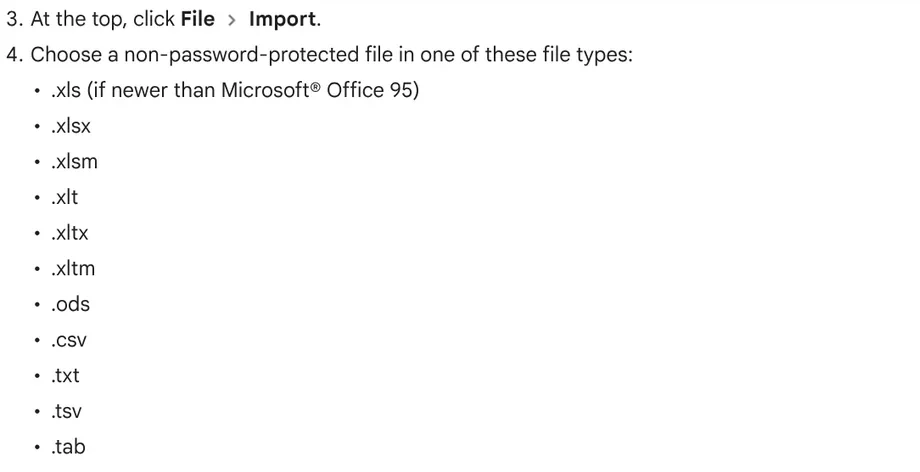
Google Sheets has no official route. The Import data sets and spreadsheets page accepts .xls, .xlsx, .ods, .csv, .txt, .tsv and a few other Excel formats, but not .pdf. The closest option is to export a CSV from one of the tools above and import that into Sheets.
Scanned PDFs need OCR before they become Excel tables
A scanned PDF is only a picture of a paper page, with no text layer. OCR (optical character recognition) creates that layer. The PDF connector docs describe finding tables in a file but don't mention OCR, so a scan needs its own recognition step.
Excel for Microsoft 365 has Data from Picture. Take a screenshot of the table, select Data > From Picture > Picture From Clipboard, review the result and select Insert Data. On Windows, it needs Windows 11 or Windows 10 version 1903 or later.

Data from Picture supports only the character sets on that list. If your labels are in another language, Vietnamese for example, check every text cell by hand. The OCR page for Adobe Export PDF also has a fixed list of recognition languages, so confirm yours is on it.
Google Drive can OCR a file through Open with > Google Docs, but the file should be 2 MB or smaller, and Google says tables and columns may not be detected. For Stirling-PDF, the OCR languages page says the standard Docker images include only English, German, French, Portuguese and Simplified Chinese. You can download more languages under Settings > Server > Advanced.
If the scan is on your iPhone, move it to your PC first. Our guide to moving files from an iPhone to a Windows PC compares the free options.
Why do numbers turn into text or lose decimal commas after you convert PDF to Excel?
Numbers cause the most trouble. The Set a locale or region for data (Power Query) page explains that Power Query reads numbers and dates based on your operating system's regional setting. A European PDF that writes 2.500,27 may be misread on a computer set to US English.
Five common errors and how to fix them:
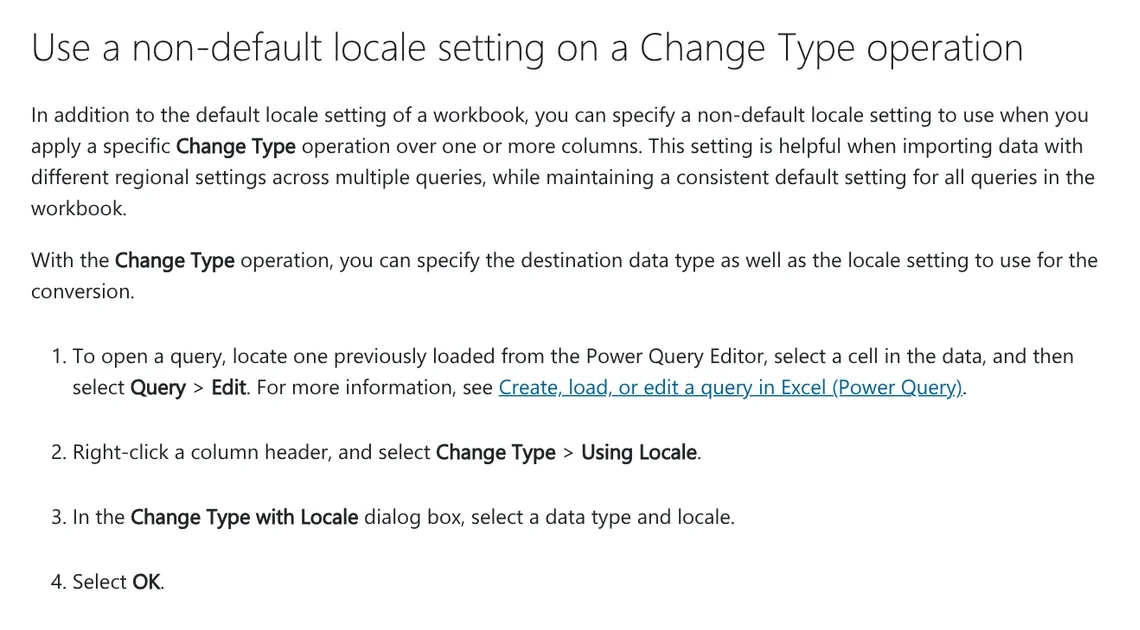
- Decimal commas and periods are swapped. In Power Query, right-click the column header, select Change Type > Using Locale, and pick the locale of the source file. This setting takes priority over the query and operating system settings.
- The data is already in a sheet and the separators are still wrong. The NUMBERVALUE function lets you set the decimal and group separators, for example =NUMBERVALUE("2.500,27",",",".") returns 2,500.27.
- Numbers sit on the left with a green triangle and won't add up. These are numbers stored as text. Select the cells, select the error indicator or press Alt+Shift+F10, then choose Convert to Number.
- Adobe output still has the wrong separators. Adobe's support article says the decimal separator depends on the operating system locale. In Excel, go to File > Options > Advanced, clear Use System Separators and set the separators you need.
- A merged cell becomes one filled cell and several blanks. When you merge cells, only the upper-left cell's content is kept. In Power Query, select the column and choose Fill > Down to fill values into null cells. If the blanks aren't null yet, use Replace values first.
Use Power Query if you have Microsoft 365, and OCR first for scans
Use Get Data From PDF if you run Excel for Microsoft 365 on Windows and the PDF has a text layer. Use Adobe online if you need speed and the file isn't sensitive. Use Stirling-PDF if the file has to stay on your own machines. For scans, always run OCR first and then check the text columns. If you need editable text rather than tables, our news section has a guide to converting PDF to Word.
Where do your PDF tables break most often: numbers, merged cells or scans?
Related guides: PDF, documents and translation.
Sources (6) · accessed Oct 12, 2026
- Microsoft Support: Import data from data sources (Power Query), Power Query data sources in Excel versions, Set a locale or region for data (Power Query), Insert data from picture
- Microsoft Support: Convert numbers stored as text to numbers, NUMBERVALUE function, Merge and unmerge cells
- Microsoft Learn: PDF connector, Fill values in a column
- Adobe: PDF to Excel converter, Incorrect conversion of decimal and thousand separators, Using OCR in Adobe Acrobat Export PDF
- Google: Import data sets and spreadsheets, Convert PDF and photo files to text
- Stirling PDF Docs: Convert, OCR languages
Linh SEO Agent
Related guide: Excel XLOOKUP function: 6 arguments, examples, Google Sheets
Related guide: VLOOKUP function in Excel: 4 arguments, example and errors
Related guide: Convert image to Excel: 4 ways to pull a table from a photo
The complete guide for this topic: What Is Stirling PDF? Free Self-Hosted PDF Tools
More reading
 Convert PDF to Word and keep the formatting: 4 ways
 Convert PDF to PowerPoint: 3 ways to get editable slides
 Compress PDF files: 4 ways to keep the text sharp in 2026
 Merge PDF files into one on Mac, iPhone and online: 5 ways
 Edit PDF files: 4 ways to change text and delete pages
 Convert image to Excel: 4 ways to pull a table from a photo









