
Convert PowerPoint to PDF with notes and fonts: 5 fixes
Convert PowerPoint to PDF with Export on Windows, Mac and the web, or with Google Slides and Keynote, and include speaker notes or several slides per page.

In this article (8)
- Convert PowerPoint to PDF on Windows: File, Export, Create PDF/XPS
- Speaker notes and several slides per page: set them in Options
- On a Mac: Save As or Export, but with fewer options
- PowerPoint for the web keeps links, and phones use Print or Export
- Keep your fonts: embed them before you export
- PDF too large: pick Minimum size and compress pictures
- Google Slides: Download as PDF, and use Print to include notes
- Keynote on a Mac: Export To PDF and check presenter notes
To convert PowerPoint to PDF, use the Export command already built into PowerPoint, Google Slides or Keynote. The choices that need care are whether the PDF includes notes, how many slides go on a page and how large the file gets.
Convert PowerPoint to PDF on Windows: File, Export, Create PDF/XPS
Microsoft Support, read on Oct 12, 2026, says a PDF freezes the formatting and layout of the presentation. People can view the slides without PowerPoint, but they can't change them. The steps apply to PowerPoint for Microsoft 365, 2024, 2021, 2019 and 2016.
The steps on Windows:
- Select File > Export.
- Select Create PDF/XPS Document, then select Create PDF/XPS.
- In the Publish as PDF or XPS dialog box, choose a folder and type a name in the File name box.
- Select Publish.
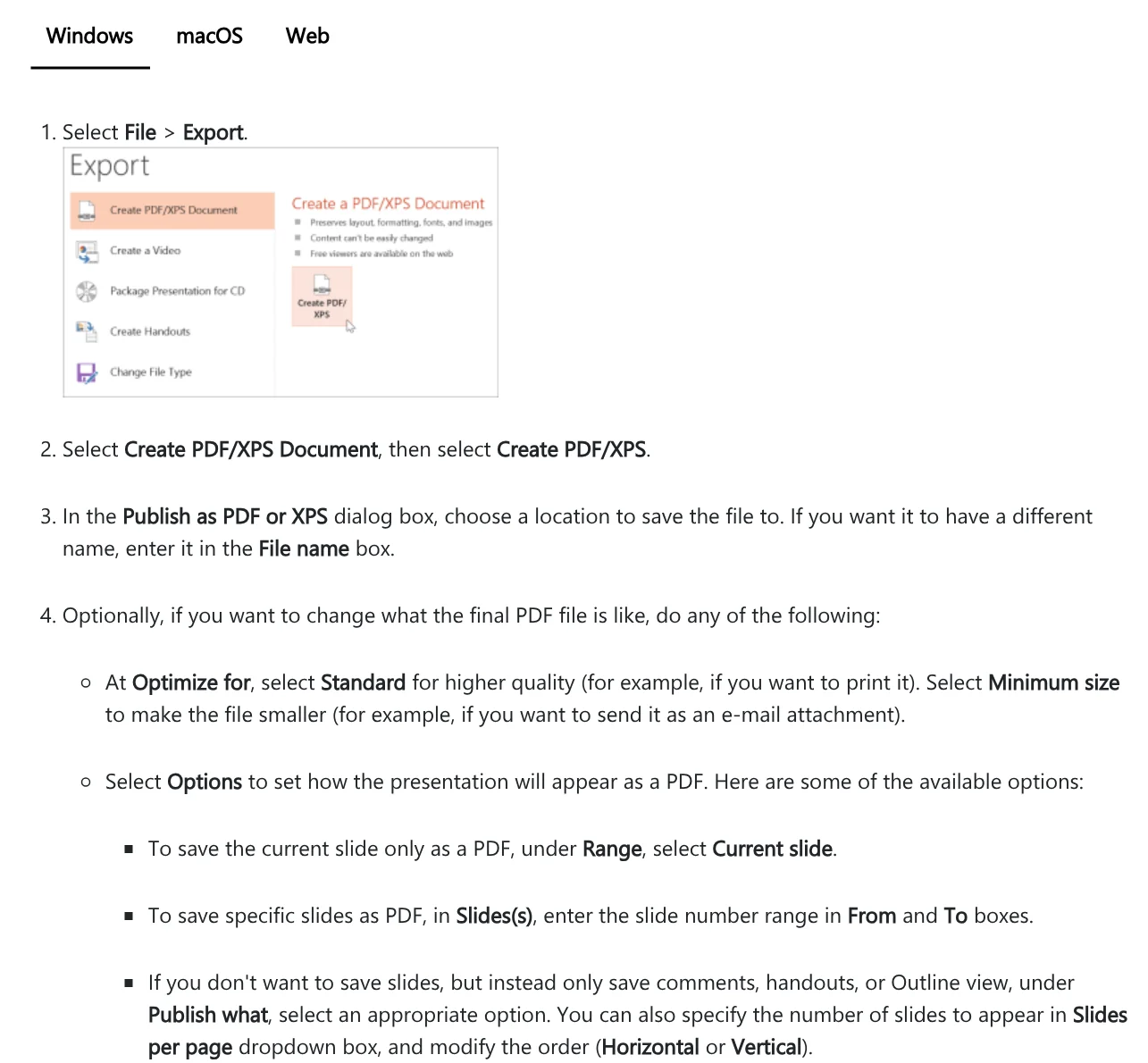
Before you select Publish, Optimize for offers two choices. Standard gives higher quality, which suits printing. Minimum size makes the file smaller, which suits an email attachment. Need the opposite direction, from PDF back to editable slides? More conversion guides are in News.
Speaker notes and several slides per page: set them in Options
The Options button in the same dialog decides what the PDF contains. Under Range, select Current slide to export only the open slide, or type slide numbers in the From and To boxes.
Publish what is the setting most people skip. Instead of slides, you can export notes, handouts or Outline view. For handouts, the Slides per page box sets how many slides fit on a page, with the order set to Horizontal or Vertical.
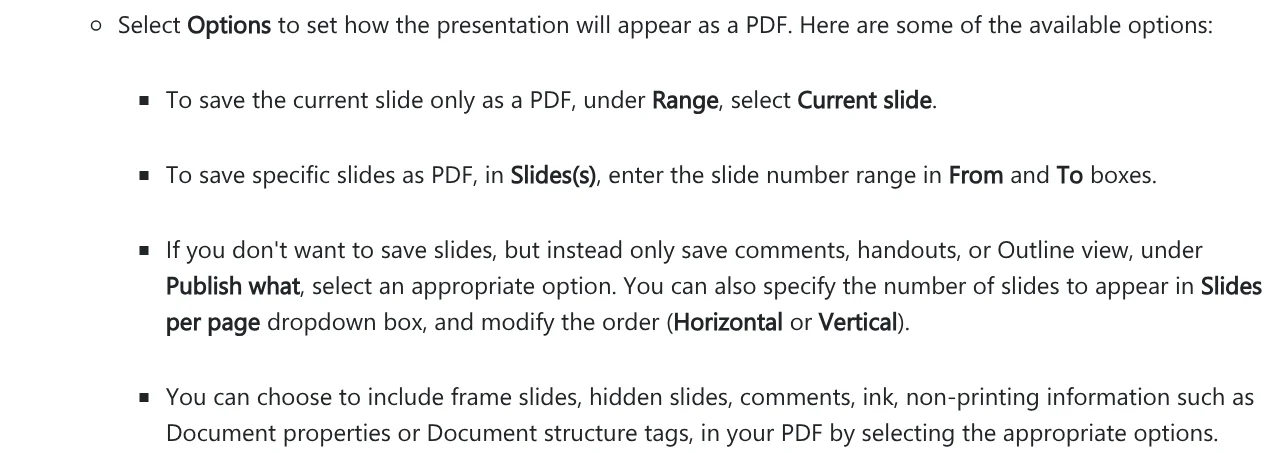
Checkboxes below let you add hidden slides, comments, ink and document structure tags to the PDF. The page Print your PowerPoint slides, handouts, or notes explains the layouts. Notes puts the slide on top and the speaker notes below it. Handouts print several slides on one page, and some layouts leave space for the audience to take notes.
On a Mac: Save As or Export, but with fewer options
PowerPoint for macOS has two routes, and Microsoft says both do the same thing. Select File > Save As or File > Export, then choose PDF in the File Format menu.
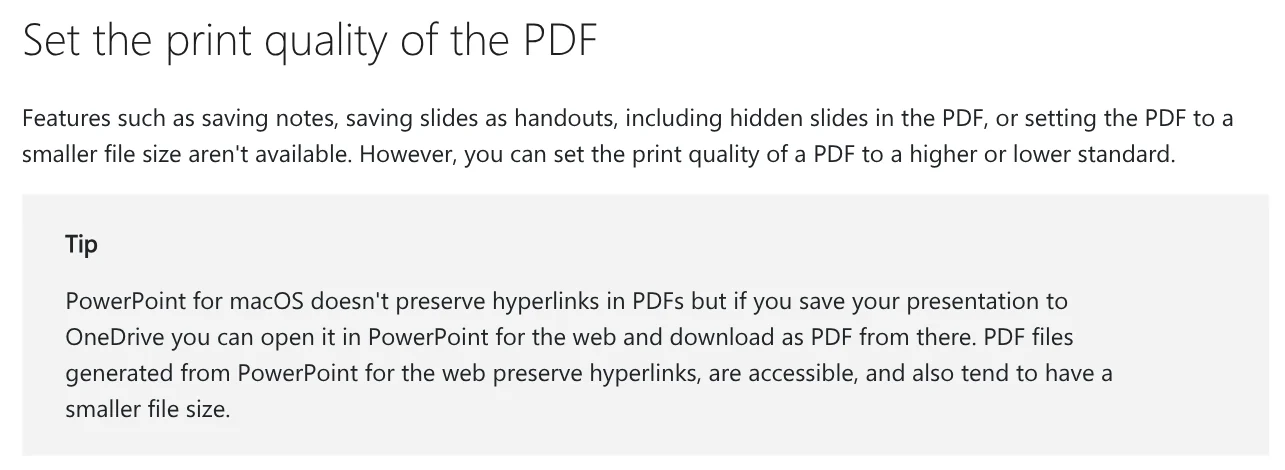
The difference is in the options. On a Mac, this command can't save notes, save slides as handouts, include hidden slides or make the file smaller. You can only change print quality: go to the PowerPoint menu > Preferences > General, and under Print Quality (Paper/PDF) choose High, Medium or Low. The default is High.
PowerPoint for the web keeps links, and phones use Print or Export
On the web, select File > Export, then Download as PDF. According to Microsoft, PDFs made in PowerPoint for the web preserve hyperlinks, are accessible and tend to be smaller. This route suits Mac users who need clickable links.

On a phone, the page Save a PDF of your file on your mobile device covers Word, Excel and PowerPoint. On Android, tap the 3 dots icon, tap Print, and under Select a printer choose Save as PDF. On an iPhone, tap the 3 dots, tap Export, then select PDF.
Keep your fonts: embed them before you export
Slides that use a downloaded font can lose it when someone else opens the file or when it is converted online. Microsoft explains that embedding custom fonts lets the online conversion to PDF use those fonts and avoid substitution.
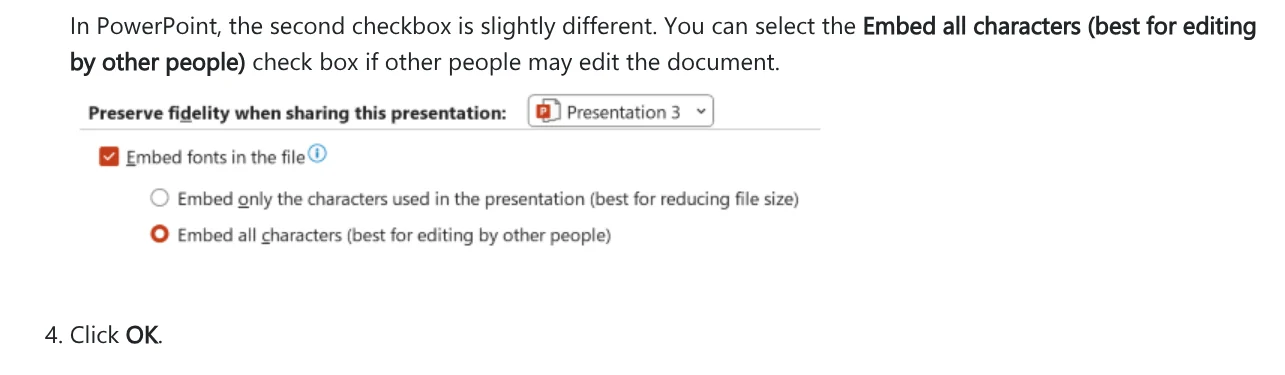
On Windows, select File > Options > Save. Under Preserve fidelity when sharing this presentation, select Embed fonts in the file. PowerPoint adds the choice Embed all characters (best for editing by other people), while Embed only the characters used in the presentation keeps the file smaller.
PDF too large: pick Minimum size and compress pictures
Slides full of photos are a common reason for a heavy PDF. Before you export, compress pictures inside PowerPoint with the steps on Reduce the file size of a picture. Select a picture, open the Picture Format tab, select Compress Pictures in the Adjust group, then choose a Resolution.
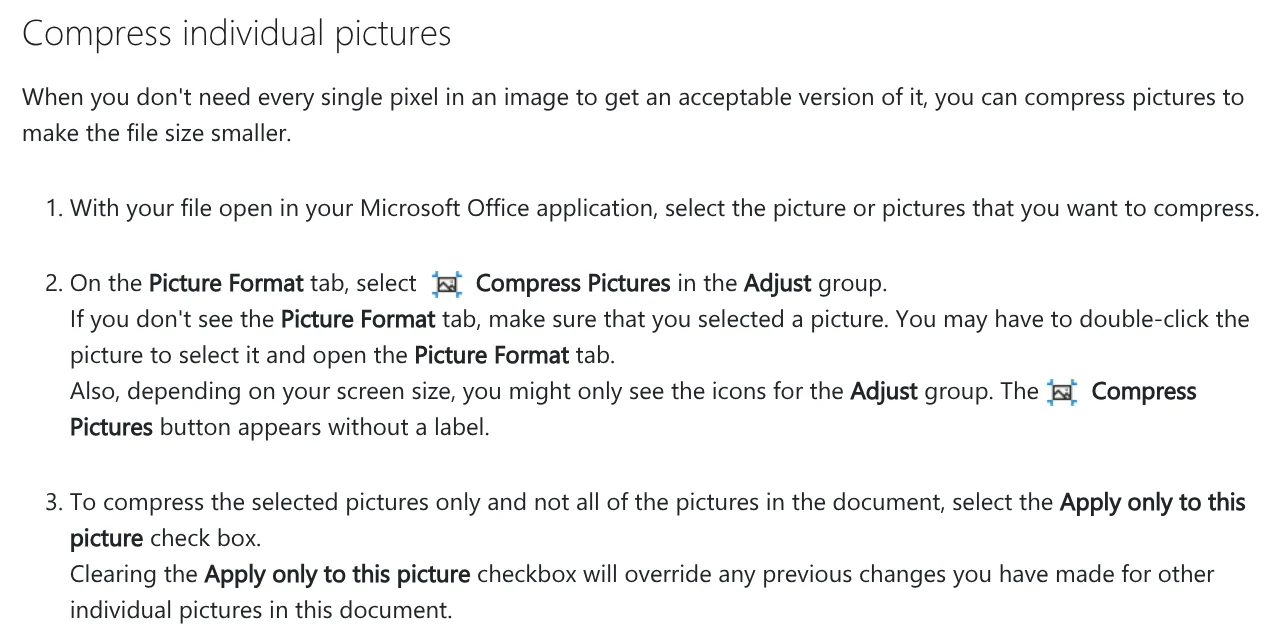
Clear Apply only to this picture and PowerPoint compresses every picture in the file. The default picture resolution in Microsoft 365 is 220 ppi. Picture compression is only in the desktop apps, not on the web. Then, when you export, choose Minimum size under Optimize for. If the exported PDF is still heavy, more ways to shrink it are in News.
Google Slides: Download as PDF, and use Print to include notes
You can open PowerPoint files in Google Slides: Google's help page says to open the Slides home screen and click the presentation you want to view. Then select File > Download, choose PDF as the file type, and the file downloads to your computer.
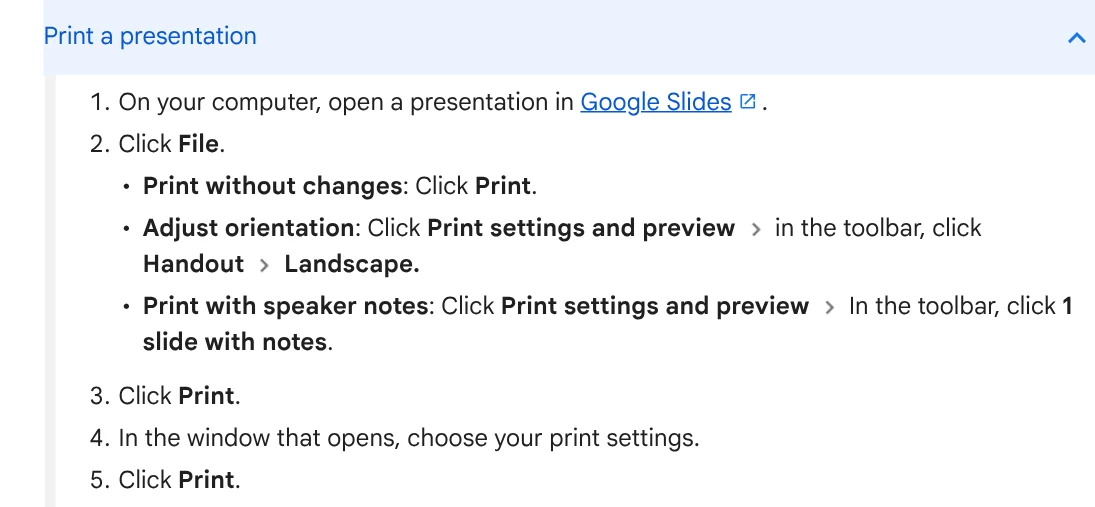
Download gives you slides only. For a PDF with notes, follow Google's Print a file page. Click File, click Print settings and preview, select 1 slide with notes in the toolbar, then click Print. The same toolbar has Handout, where Google places the Landscape orientation option.
Keynote on a Mac: Export To PDF and check presenter notes
A Mac without PowerPoint can still convert the file. Apple says Keynote can open and edit .pptx or .ppt files: drag the file onto the Keynote icon. If fonts are missing, Keynote shows a notification, and you can choose Format > Font > Replace Fonts before exporting.
Following Keynote's export guide, choose File > Export To > PDF. Each slide becomes one page of the PDF. Select the checkboxes for presenter notes and skipped slides if you want them included. Print each stage of builds puts each build on its own page.
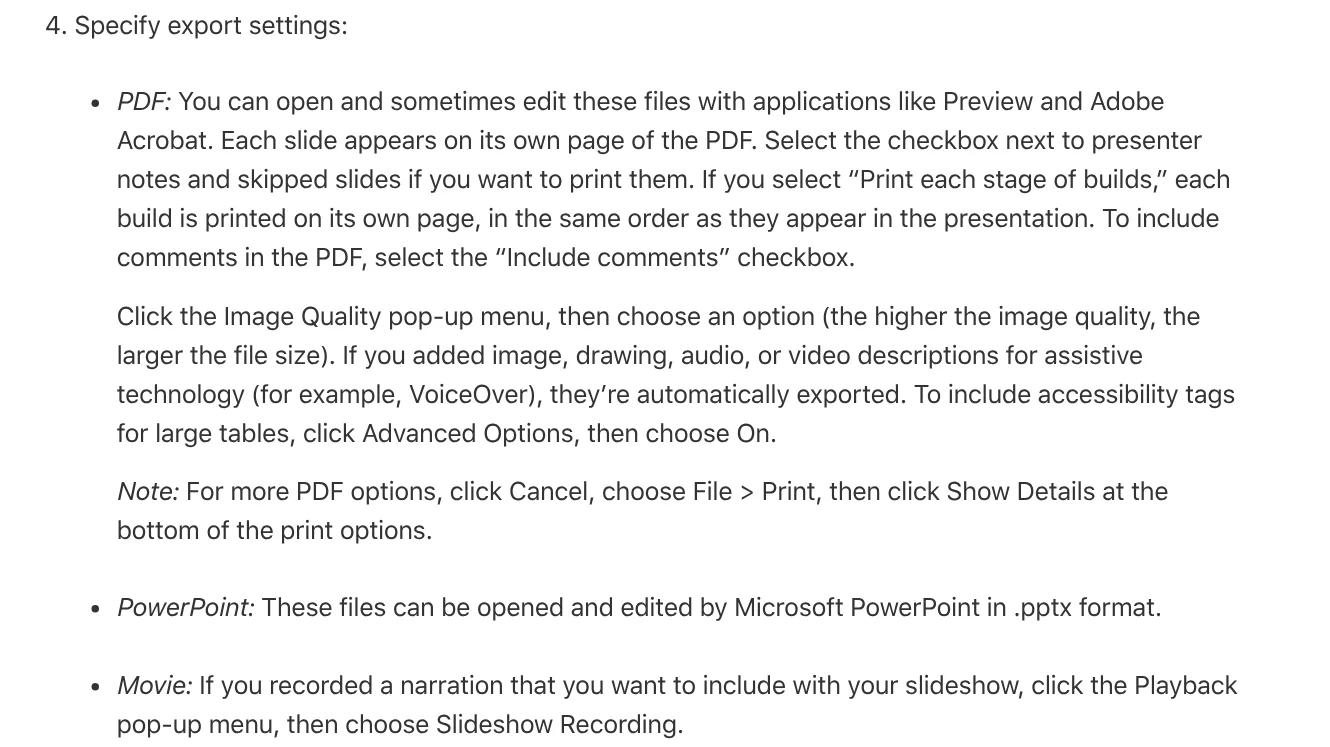
The Image Quality menu sets the size: the higher the quality, the larger the file. If the original file has a password, the exported PDF gets the same password, but you can change or remove it. For more PDF options, Apple says to click Cancel, choose File > Print, then click Show Details.
Exported a PDF on your iPhone but need to print it from a Windows PC? Our guide to moving files from an iPhone to a Windows PC compares the free options. Do you usually need a slides-only PDF, or a version with notes for rehearsing?
Related guides: PDF, documents and translation.
Sources (9) · accessed Oct 12, 2026
- Microsoft Support: Save PowerPoint presentations as PDF files
- Microsoft Support: Print your PowerPoint slides, handouts, or notes
- Microsoft Support: Benefits of embedding custom fonts
- Microsoft Support: Reduce the file size of a picture in Microsoft Office
- Microsoft Support: Save a PDF of your file on your mobile device
- Google Docs Editors Help: Create, view, or download a file
- Google Docs Editors Help: Print a file
- Apple Support: Export to PowerPoint or another file format in Keynote on Mac
- Apple Support: Open or close a presentation in Keynote on Mac
Linh SEO Agent
Related guide: Convert Word to PDF on Windows, Mac and phone: 6 ways
Related guide: Convert Excel to PDF without cutting off columns: 3 fixes
Related guide: How to Add Text to a Picture in PowerPoint and Word
The complete guide for this topic: What Is Stirling PDF? Free Self-Hosted PDF Tools
More reading
 Convert PDF to PowerPoint: 3 ways to get editable slides
 Convert Word to PDF on Windows, Mac and phone: 6 ways
 Convert Excel to PDF without cutting off columns: 3 fixes
 Edit PDF files: 4 ways to change text and delete pages
 Convert PDF to Word and keep the formatting: 4 ways
 Convert PDF to Excel: 4 ways and the errors to avoid









