
Google Translate images: 3 ways to translate text in photos
How to use Google Translate on images: the Camera button on Android and iPhone, the Images tab on desktop, Google Lens, plus fixes for blurry photos.


In this article (6)
- Google Translate images on Android: tap Camera, then pick a photo or point
- On iPhone, download languages first to translate photos offline
- Translate images on a computer: the Images tab takes jpg, jpeg, png, webp
- Google Lens translates into every language Google Translate supports
- Why does Google Translate get image text wrong, and how do you fix it?
- Common mistakes, and moving photos from iPhone to a PC for translation
Google Translate images work three ways: the Camera button in the Google Translate app, the Images tab on the website for computers, and Google Lens.
As of Oct 12, 2026, the Google Translate website accepts four image file types on a computer: .jpg, .jpeg, .png and .webp. On a phone, everything sits behind one Camera icon. This guide covers each device, then the part that matters most: why a translation comes out wrong and how to fix it.
Google Translate images on Android: tap Camera, then pick a photo or point
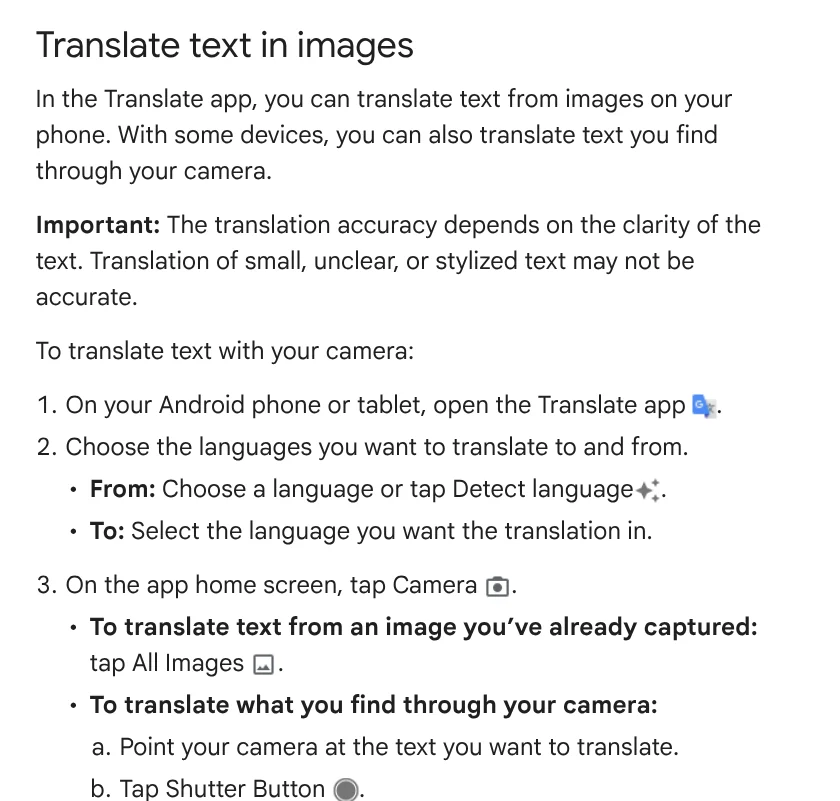
The Google Translate Help page for Android lists these steps:
- Open the Google Translate app, choose the From language (or Detect language) and the To language.
- On the home screen, tap Camera.
- For a photo you already took: tap All Images and pick the photo.
- For live translation: point the camera at the text and tap the Shutter button. Tap Shutter again to freeze the translation on screen.
Google notes that translating through the camera works only on some devices. If yours does not support it, take the photo first, then open it with All Images.
To translate one section instead of the whole image, tap Expand, turn on Show original text, tap a word, then drag the selection anchors. The translation appears in a card below. The card has four actions: Copy text, Listen, Send to Translate Home and Search.
On iPhone, download languages first to translate photos offline
On iPhone the steps are close to Android, but some buttons have different names. The Help page for iPhone and iPad says to choose languages at the bottom, then tap Camera under the text box. For a saved photo, tap Gallery. Point the camera at text and the translation appears right away; tap Shutter to pause the image.
The step people skip is offline mode. Tap Camera, open the language picker, and download both the source and the target language. Once the download finishes, camera translation works without an internet connection. Do this before a trip, while you still have Wi-Fi.
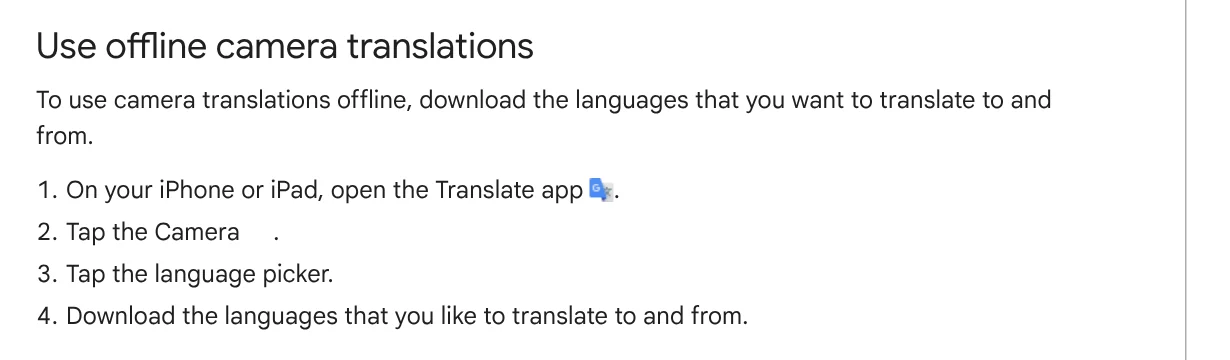
Android has the same mode in the same place: Camera, then the Language picker, then download the languages you need.
Translate images on a computer: the Images tab takes jpg, jpeg, png, webp
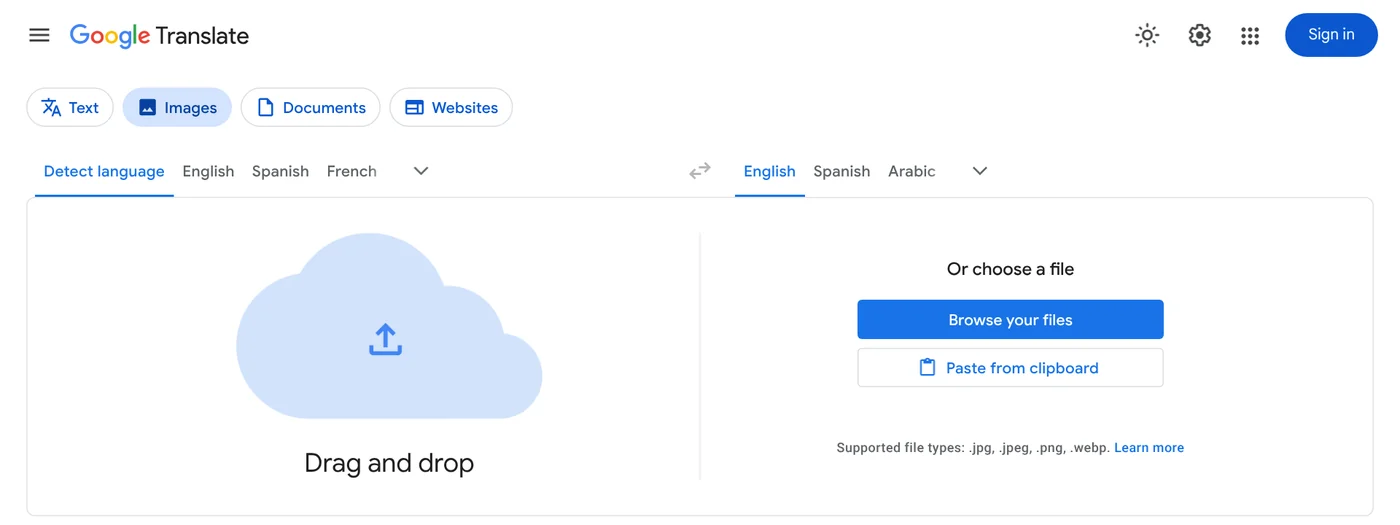
There is no desktop app, so you use a browser. The Google Translate Help page for computers says to open Google Translate, select the Images tab, choose the source and target languages, then pick an image file.
The Help page calls the file button Browse your computer. The live page on Oct 12, 2026 shows Browse your files, plus two other options: drag the image into the box, or use Paste from clipboard. Pasting suits screenshots, since you do not have to save a file first.
After translation, turn on Show original to see the source text next to the translation, click Copy text, or click Download translation to save the translated image. The Clear button starts a new translation.
An iPhone on iOS 11 or later can capture photos in HEIF, which is not one of the four file types above. Apple explains how to switch to JPEG: Settings > Camera > Formats > Most Compatible. For ways to move photos to a computer, see the guides in News.
Google Lens translates into every language Google Translate supports
Google Lens is a visual search tool, and translation is one of its jobs. The Google Search Help page says Lens can translate text into all Google Translate languages. The Lens overview page says camera translation covers over 100 languages.
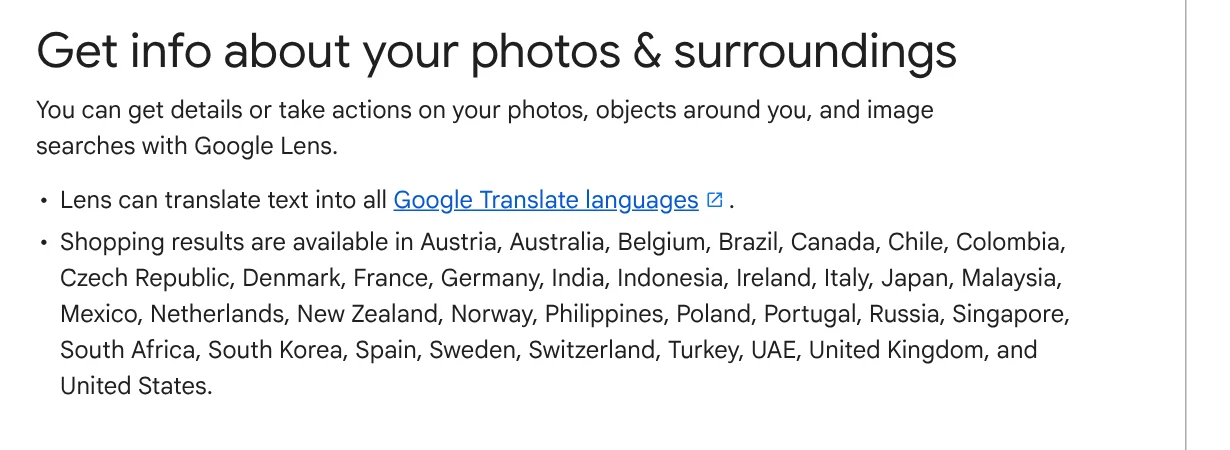
On iPhone, you use Lens through Google Photos or the Google app, not through the Camera app. For a photo in Google Photos, open it, tap More, then Google Lens. The Lens region selection page says that on Android and iOS you can select one area of text and translate only that part.
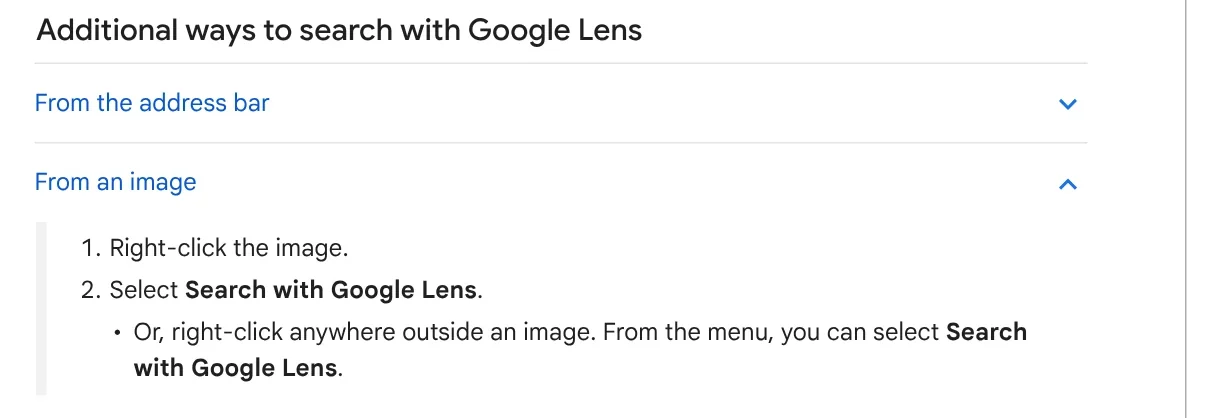
On a computer, the Chrome Help page says to right-click an image on a web page and select Search with Google Lens. This requires Google as your default search engine. A screenshot of the page is sent to Google, kept only in temporary storage for the query, and not used for training.
Pick Google Translate when you need a full document page or offline use. Pick Lens when the photo is already in Google Photos or on a web page you have open.
Why does Google Translate get image text wrong, and how do you fix it?
All three Help pages share one note: accuracy depends on how clear the text is. Small, unclear or stylized text may be translated incorrectly. Based on that note and the "Get the best results" section, here are five things to do with a blurry photo:
- Check the "Translate from" and "Translate to" languages. If Detect language guesses wrong, pick the source language yourself.
- Retake the photo so the text is larger and sharper. Small text is the first cause Google lists, so move closer instead of zooming into a saved photo.
- Turn on the Flash in low light. The button sits inside the app's Camera mode.
- Translate only the part you need. Use Show original text and drag the anchors, or use region selection in Lens, to skip decorative text.
- Use a strong connection. The phone Help pages recommend this for the best results.

Handwriting and stylized fonts on signs tend to be the hardest. If the result still looks odd after all five fixes, type a few key words into the text box to compare.
Common mistakes, and moving photos from iPhone to a PC for translation
Three mistakes come up most often with Google Translate images. First, uploading a HEIF photo to the website, which lists only jpg, jpeg, png and webp. Second, forgetting to download languages, so translation stops when you lose signal abroad. Third, letting Detect language guess wrong on an image with two languages.
Many people shoot documents on an iPhone but want to read the translation on a bigger screen. Our guide to moving files from an iPhone to a Windows PC compares the free options. It keeps the original file, so set the iPhone camera to Most Compatible before you shoot.
Related guides: PDF, documents and translation.
Sources (9) · accessed Oct 12, 2026
- Google Translate Help: Translate images, Android phone & tablet
- Google Translate Help: Translate images, iPhone & iPad
- Google Translate Help: Translate images, Computer
- Google Translate: Images tab
- Google Search Help: Get info about your photos & surroundings
- Google Search Help: Region selection in Lens
- Google Chrome Help: Search with Google Lens in Chrome
- Google: Google Lens
- Apple: Using HEIF or HEVC media on Apple devices
Linh SEO Agent
Related guide: English translation apps: 5 official apps compared
More reading
 Google Translate voice: 3 ways to use it on phone and PC
 How to combine photos: 4 steps on iPhone, Android and PC
 Convert images to PDF on iPhone, Android and PC: 3 ways
 How to Transfer Photos From iPhone to a Windows PC: 5 Ways
 Compress images without losing quality: 3 free tools
 Screen record on iPhone with sound: 4 steps, find the file









