
Convert image to Excel: 4 ways to pull a table from a photo
Convert an image to Excel with Data from Picture, Scan table on your phone, or Gemini's Export to Sheets, then check names and numbers stored as text.


In this article (7)
- Convert an image to Excel on a computer: Data from Picture sits on the Data tab
- On a Mac, your iPhone scans a paper table straight into a cell
- On your phone, Excel and the Microsoft 365 Copilot app flag cells to review
- Google Sheets has no image-to-table command, so Gemini does it and exports
- Live Text on iPhone and Mac suits a few numbers, not a whole table
- Why should you check the numbers after you convert an image to Excel?
- Common mistakes when you convert an image to Excel
To convert an image to Excel, use Data from Picture, which is built into Excel, or Scan table on your phone. Both let you review each cell before the data goes in.
Convert an image to Excel on a computer: Data from Picture sits on the Data tab
As of Oct 12, 2026, the Microsoft page Insert data from picture lists Excel for Microsoft 365 under Applies To, which is the subscription version of Excel. Data from Picture reads the table in an image and puts it into cells you can edit.
On Windows, pick one of two ways to bring the image in:
- A saved picture: select Data > From Picture > Picture From File.
- A table on your screen: press the Windows logo key + Shift + S to capture the table, then select Data > From Picture > Picture From Clipboard.
The Data from Picture dialog box shows its progress while Excel analyzes the image. Review the results, fix any wrong cells, then click Insert Data.
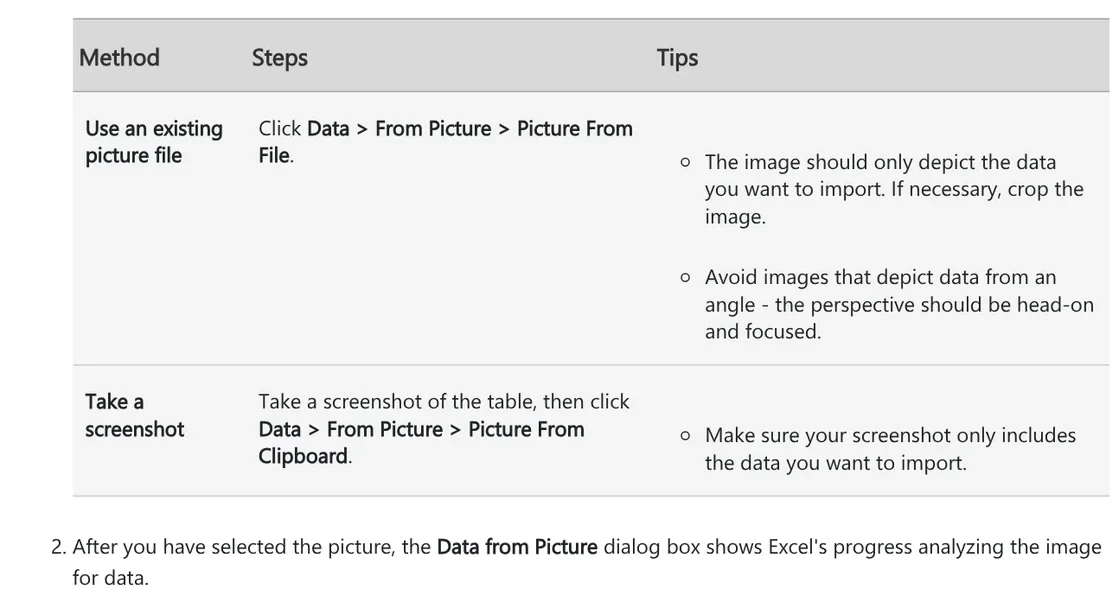
On Windows, the feature needs Windows 11 or Windows 10 version 1903 or later, with Microsoft Edge WebView2 Runtime installed. Excel for the web only takes picture files: select Data > Data From Picture, choose the file, then click Open. Microsoft advises an image that shows only the data you want, shot head-on and in focus, not from an angle.
On a Mac, your iPhone scans a paper table straight into a cell
Excel for Mac accepts a picture file, a screen clipping on the clipboard (press Shift + Control + Command + 4), and a third method. That one needs an iPhone set up for Continuity Camera:
- In Excel on your Mac, right-click a cell and click Scan Documents.
- Aim the iPhone camera at the table, adjust lighting and focus, then tap the shutter button.
- Make any further adjustments to the image, then tap Save.
- Excel analyzes the image. Review, correct, then click Insert Data.
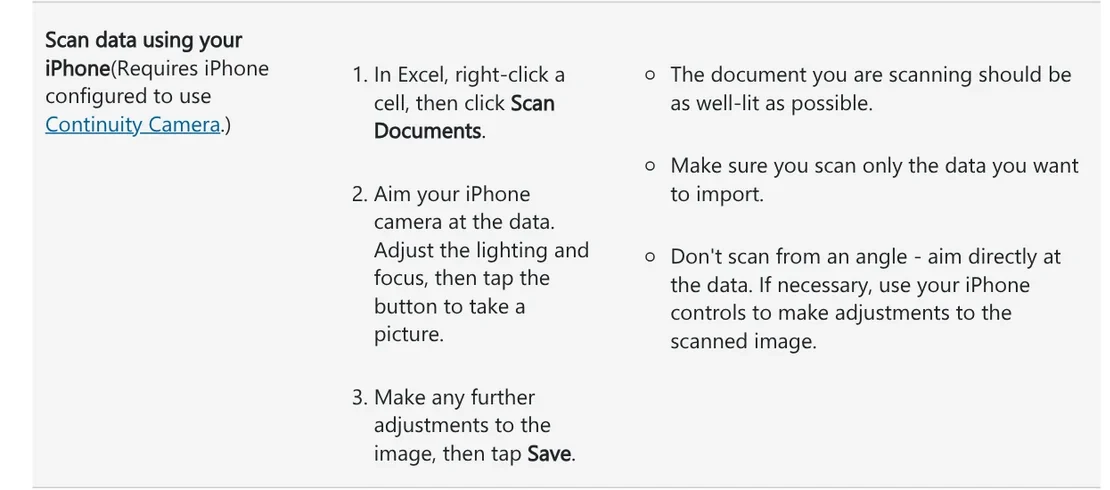
Microsoft suggests this for data printed in a book or magazine. The page should be well lit and shot straight on.
On your phone, Excel and the Microsoft 365 Copilot app flag cells to review
Excel on phones and tablets (iOS and Android) has Insert > Data from Picture. Move the camera until the table has a red border around it, then tap the capture button. Excel shows the issues it found: tap Ignore to move to the next one, or Edit to fix it. When you are done, tap Insert.
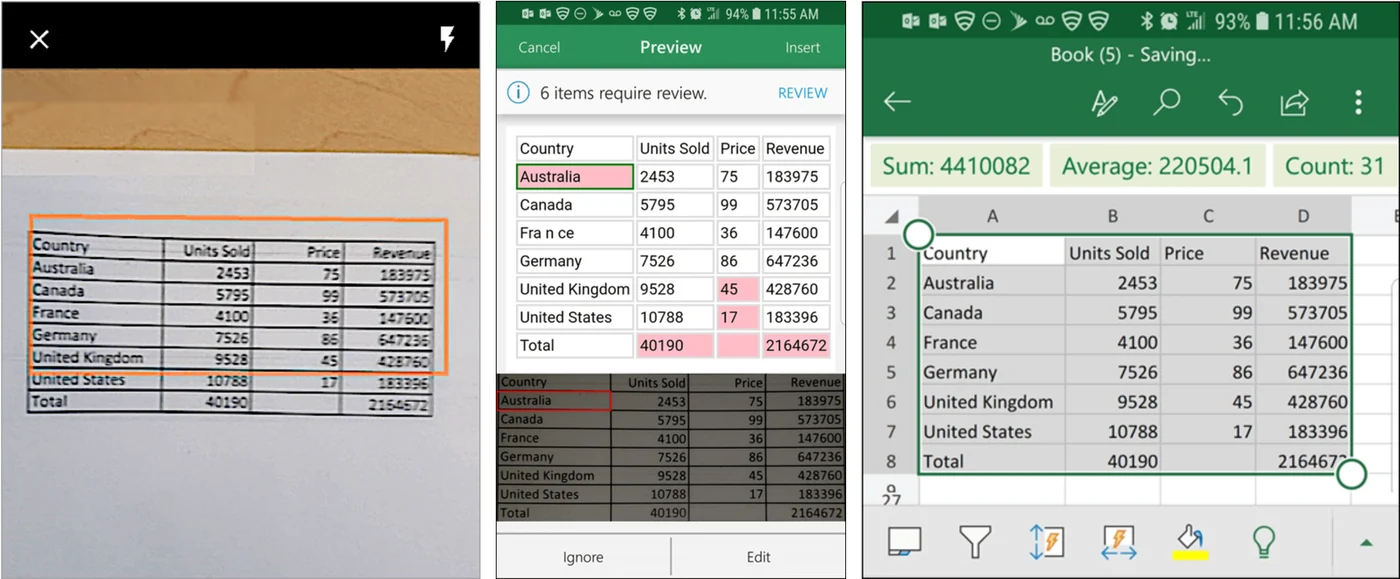
The Microsoft 365 Copilot app has Scan table. The guide for Android lists these steps:
- From the Home screen, tap (+), then tap Documents.
- Under Excel, tap Scan table.
- Take a picture of the table with the camera, or pick one from the gallery. Crop it so only the table shows, then tap Done.
- Tap Open. Conversion errors are marked with the message "Items need your review."
- Tap Review all to fix them one by one, or Open anyway to go straight to Excel.
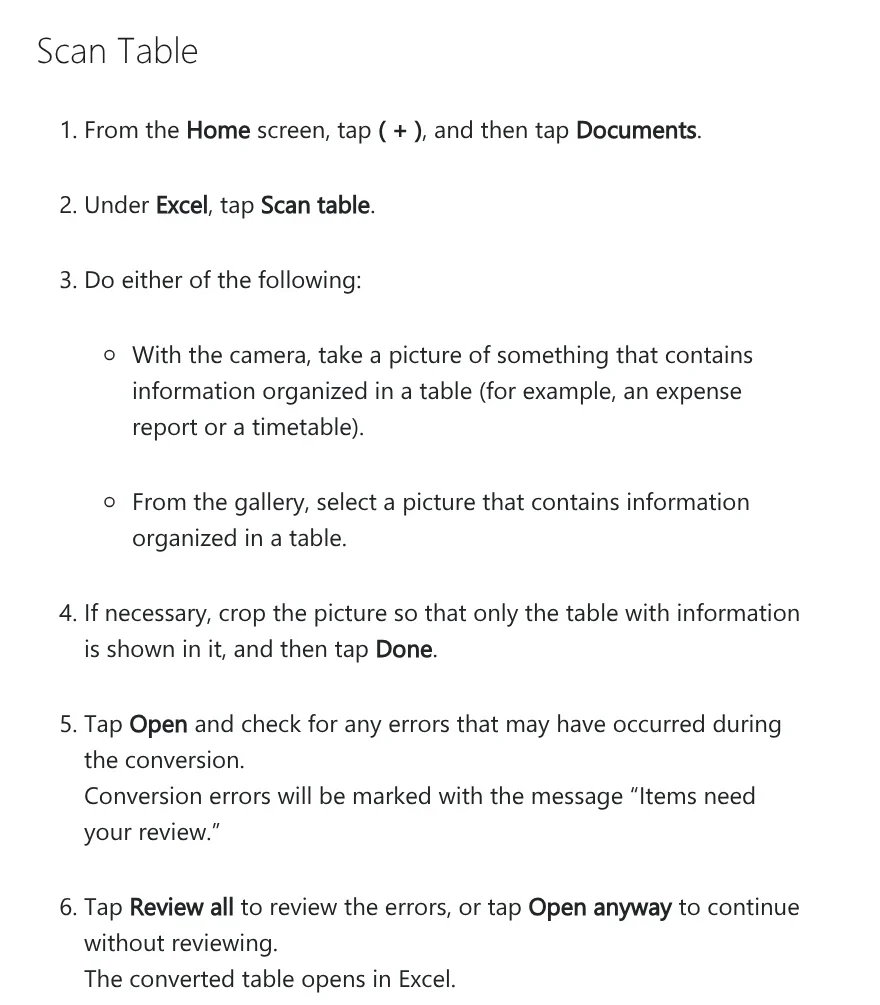
The spreadsheet saves automatically. The triple dot button in the upper right corner lets you share it, or save it to OneDrive or your phone.
Google Sheets has no image-to-table command, so Gemini does it and exports
As of Oct 12, 2026, the page Collaborate with Gemini in Google Sheets lists creating tables, formulas and charts, but nothing about reading a table from an image. It also requires an eligible Google Workspace or Google AI plan. If you open an image with Google Docs instead, Google Drive (Vietnamese page) notes that tables and columns may not be detected.
The official workaround is the Gemini app:
- Go to gemini.google.com, click Add files, then Upload Files to add the image of the table. The upload page allows up to 10 files per prompt and up to 100 MB per image.
- Ask Gemini to rewrite the table from the image as a table, keeping the column names and numbers exact.
- At the bottom right of the table in the response, click Export to Sheets. The export page says this saves the table in a new spreadsheet in Google Drive.
- Need a file for Excel? Open the spreadsheet, go to File > Download, and choose a file type, per Google Docs Editors Help (Vietnamese page).

Tables with images can't be exported to Sheets. The Gemini Apps Privacy Hub says human reviewers look at some of the data collected, and asks you not to enter confidential information you would not want a reviewer to see. Keep payroll sheets or invoices with customer details out of it, or use a temporary chat.
Live Text on iPhone and Mac suits a few numbers, not a whole table
Live Text recognizes text in photos. The iOS Feature Availability page lists Vietnamese among the Live Text languages, along with English, French, Spanish and many more. On a Mac, Preview lets you drag to select text, Control-click the selection, and choose Copy Text.
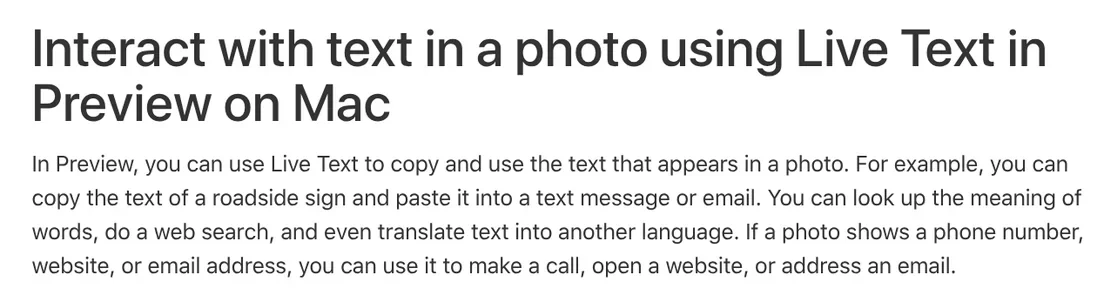
Apple's Preview page and iPhone page only cover copying text, with no mention of rows and columns. So Live Text fits when you need one order number, one total, or one column of names. More guides on pulling text out of images are in News.
Why should you check the numbers after you convert an image to Excel?
The first reason is language. As of Oct 12, 2026, Data from Picture supports 21 character sets, including English, French, German, Polish and Turkish. Names written in a language outside that list, such as Vietnamese, are more likely to come out wrong. Even Microsoft's own sample image shows "France" split into "Fra n ce".
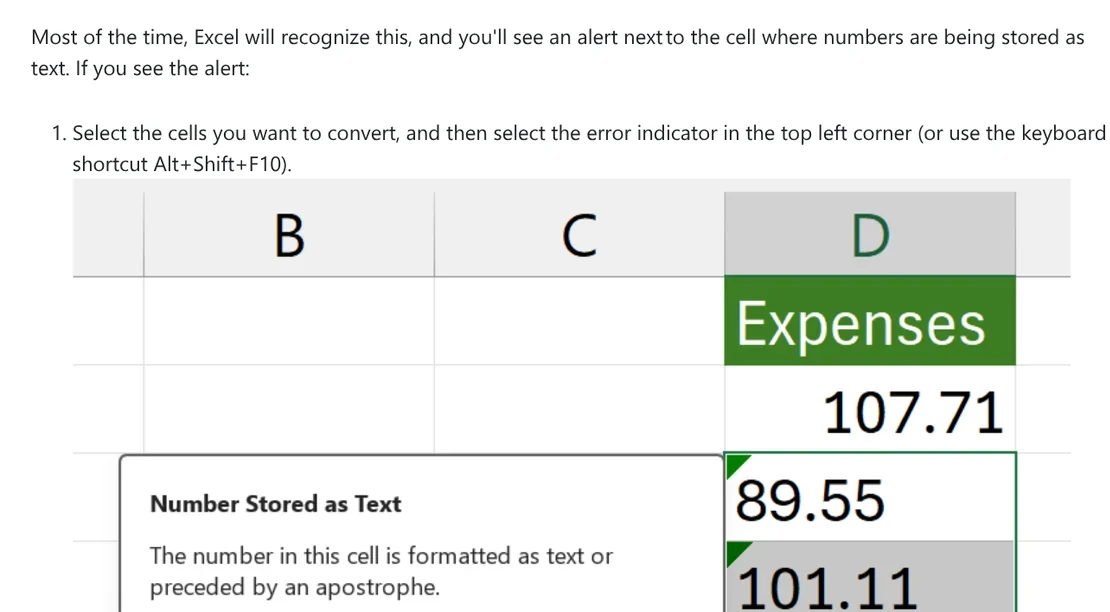
The second reason is numbers stored as text, which formulas skip. Microsoft says Excel usually shows an alert next to such cells. Select them, select the error indicator or press Alt+Shift+F10, then choose Convert to Number. The VALUE function also returns the numeric value of the text.
Three quick checks once the table is in:
- Count rows. The number of rows in Excel should match the paper.
- Add up columns. Use the SUM function (Vietnamese page) on each number column and compare with the printed total. Any gap means a wrong cell.
- Look up codes. If you have a master list of item codes, run VLOOKUP on each code. A #N/A result means the code is not in the master list, possibly because one character was misread.
Common mistakes when you convert an image to Excel
- No From Picture command. Check that you are on Excel for Microsoft 365. On Windows you also need Windows 10 version 1903 or later and WebView2 Runtime.
- Columns shifted or cells merged. The photo was taken at an angle or includes things outside the table. Crop so only the table remains.
- Accented names wrong across the board. Data from Picture does not support every language. Check text columns separately, or recopy that column with Live Text.
- No Picture From Clipboard in Excel for the web. Save your screenshot as a file, then choose the file.
- No Export to Sheets button in Gemini. It only appears when the response is a table and the table contains no images.
Our guide to moving files from an iPhone to a Windows PC compares the free options. No cable, no account, and the photos stay original. Which paper table do you retype most often: receipts, timesheets or stock lists?
Related guides: PDF, documents and translation.
Sources (8) · accessed Oct 12, 2026
- Microsoft Support: Insert data from picture
- Microsoft Support: Get started with the Microsoft 365 Copilot app for Android
- Microsoft Support: Convert numbers stored as text to numbers in Excel, SUM function (Vietnamese page)
- Google Docs Editors Help: Collaborate with Gemini in Google Sheets, Create, view, or download a file (Vietnamese page)
- Google Drive Help: Convert PDF and photo files to text (Vietnamese page)
- Gemini Apps Help: Upload & analyze files in Gemini Apps, Export responses from Gemini Apps, Gemini Apps Privacy Hub
- Apple Support: Interact with text in a photo using Live Text in Preview on Mac, Interact with content in a photo or video on iPhone
- Apple: iOS and iPadOS Feature Availability
Linh SEO Agent
Related guide: Convert PDF to Excel: 4 ways and the errors to avoid
Related guide: Convert image to Word: 5 ways to make the text editable
The complete guide for this topic: AI Tools for Office Work: 10 Tasks You Can Do Faster
More reading
 AI for Excel: Copilot, Claude for Excel and Gemini in Sheets
 Convert PDF to Excel: 4 ways and the errors to avoid
 Excel XLOOKUP function: 6 arguments, examples, Google Sheets
 VLOOKUP function in Excel: 4 arguments, example and errors
 How to Tailor Your Resume to a Job Description with AI
 What Is NotebookLM, Now Gemini Notebook: Use It for Work









