
Convert PDF to Word and keep the formatting: 4 ways
Convert PDF to Word with Word itself, Google Docs, Adobe online or self-hosted Stirling-PDF. How to OCR scanned PDFs and fix broken tables and fonts.

In this article (6)
- Convert PDF to Word in Word itself: fastest for text-heavy files
- Google Docs suits small files of 2 MB or less
- Sensitive files: Adobe online is convenient, Stirling-PDF keeps files in house
- Scanned PDFs need OCR before Word can edit the text
- Why does converting PDF to Word break tables and fonts?
- Choose Word for text files, OCR first for scans
The fastest way to convert PDF to Word is to open the PDF directly in Word. Files with many tables, scanned pages or sensitive content need a different route, plus OCR when the PDF is only a picture.
Convert PDF to Word in Word itself: fastest for text-heavy files
As of Oct 12, 2026, Microsoft's Opening PDFs in Word page says the feature applies to Word for Microsoft 365, Word 2024, 2021, 2019 and 2016. You don't need any extra conversion software.
The desktop steps, from the Edit a PDF page:
- In Word, go to File > Open and pick the PDF (you may have to select Browse to find the folder).
- Word tells you it will make a copy and convert the contents into a format it can display. Select OK.
- After editing, use Save as and choose the Word file type.
The original PDF is not changed, so if a conversion goes wrong you can start over. If Word isn't installed, Microsoft's PDF to Word page explains how to upload the PDF to Word for the web, edit it online and download the result.
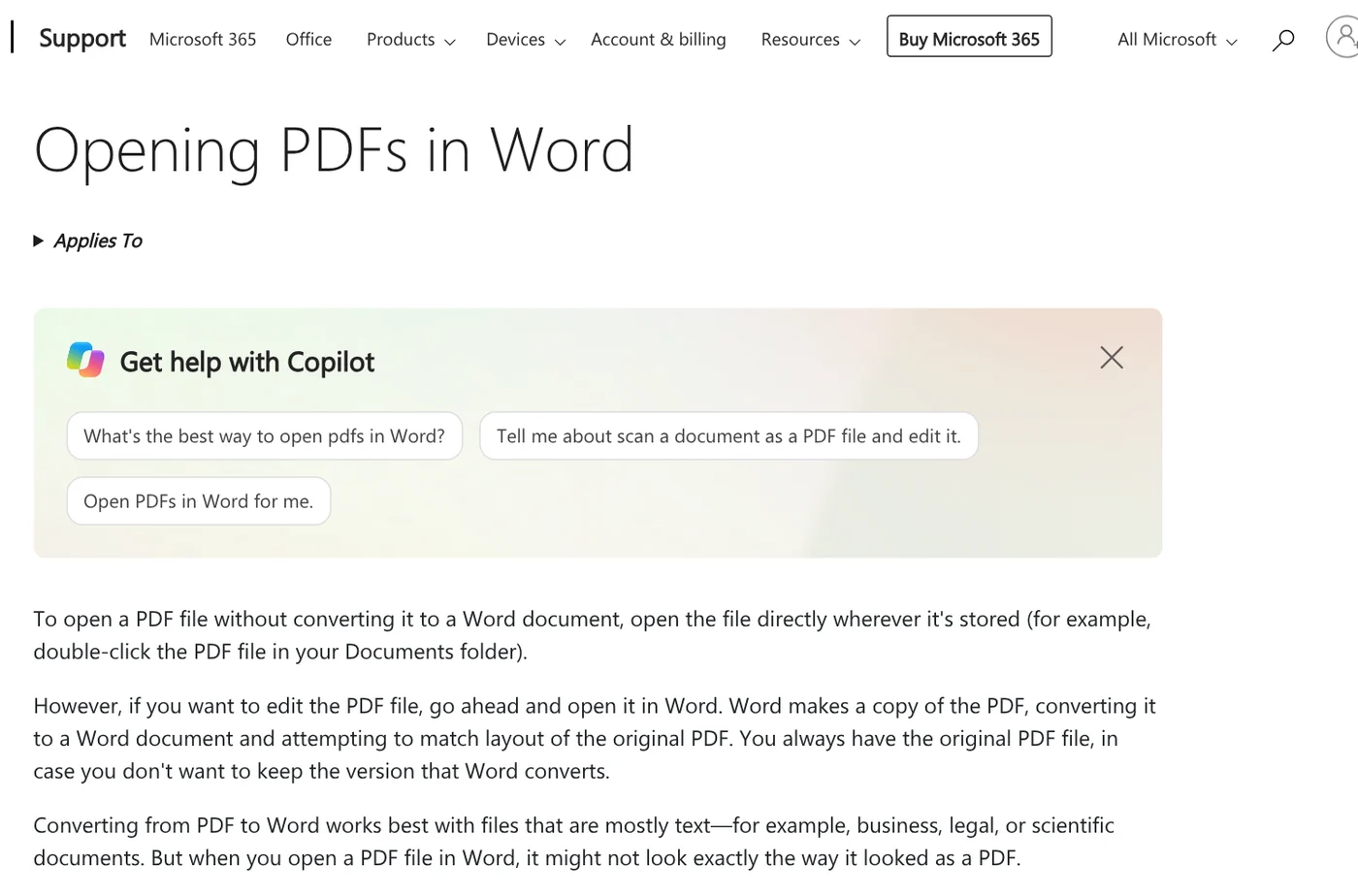
Microsoft says this works best with files that are mostly text, such as business, legal or scientific documents. A PDF made mostly of charts and graphics may come through as one image per page, and then you can't edit the text.
Google Docs suits small files of 2 MB or less
If you live in Google Drive, the Google Drive Help page gives the steps: on a computer, right-click the PDF in Drive and choose Open with > Google Docs. Then go to File > Download and choose the Word file type, per Google Docs Editors Help.
Google's file preparation step lists a few tips for good results. The file should be 2 MB or smaller, text at least 10 pixels high, and pages right-side up. Common fonts such as Arial or Times New Roman work best.
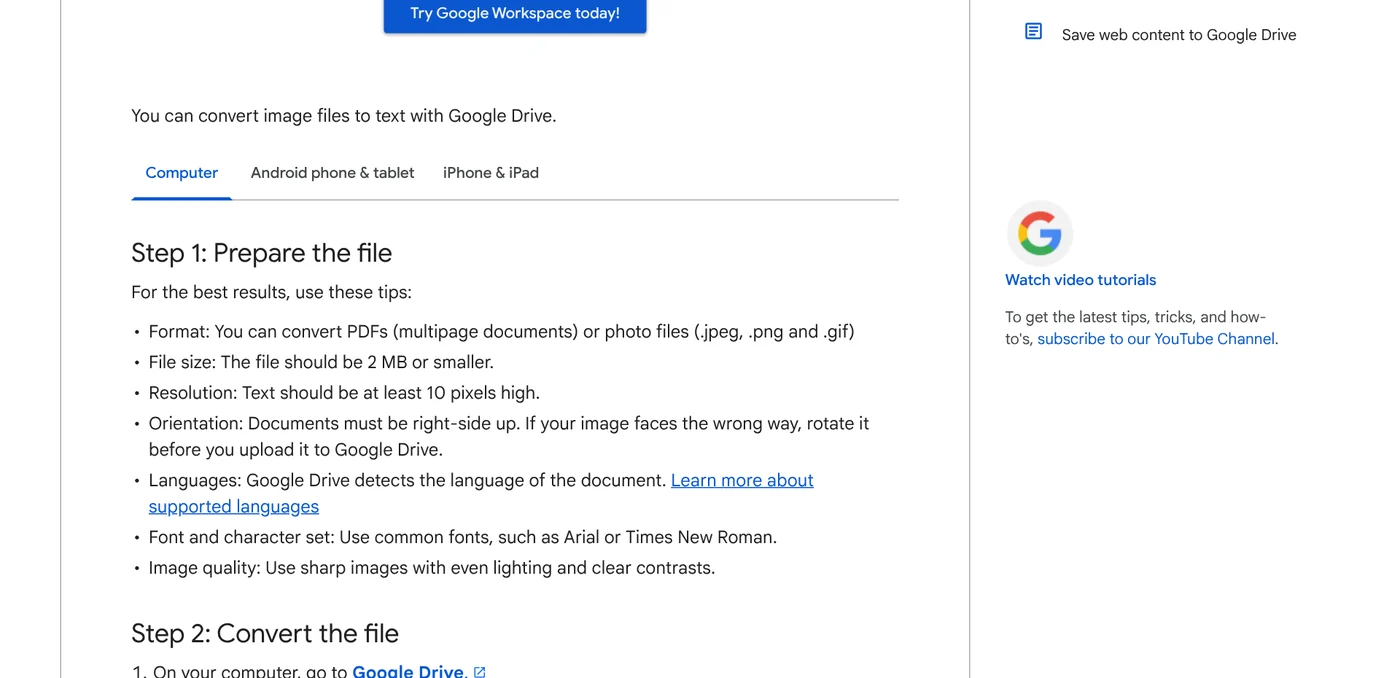
The weak spot is formatting. Google says bold, italics, font size and line breaks are likely to be retained, while lists, tables, columns, footnotes and endnotes are not likely to be detected. For table-heavy files, use Word.
Sensitive files: Adobe online is convenient, Stirling-PDF keeps files in house
An online converter needs you to upload the file to its servers. Microsoft's own PDF to Word page points out that some online tools put your file on a third-party server where you can't control the content.
Adobe Acrobat online: nothing to install, files pass through Adobe servers
On Adobe's Convert PDF to Word page, you click Select a file or drag the PDF into the drop zone and get a Word file. Adobe says no sign-up is required, the free tool has daily conversion limits, and your file is handled on Adobe servers and deleted unless you sign in to save it.
Stirling-PDF: converting to Word needs your own server
Stirling-PDF is an open source PDF toolkit you install yourself, covered in the News section. For PDF to Word, the Where your tools run page lists it among the tools that usually need Stirling Cloud or a server. In Local Only mode, the desktop app asks you to sign in to Cloud or connect to a server.
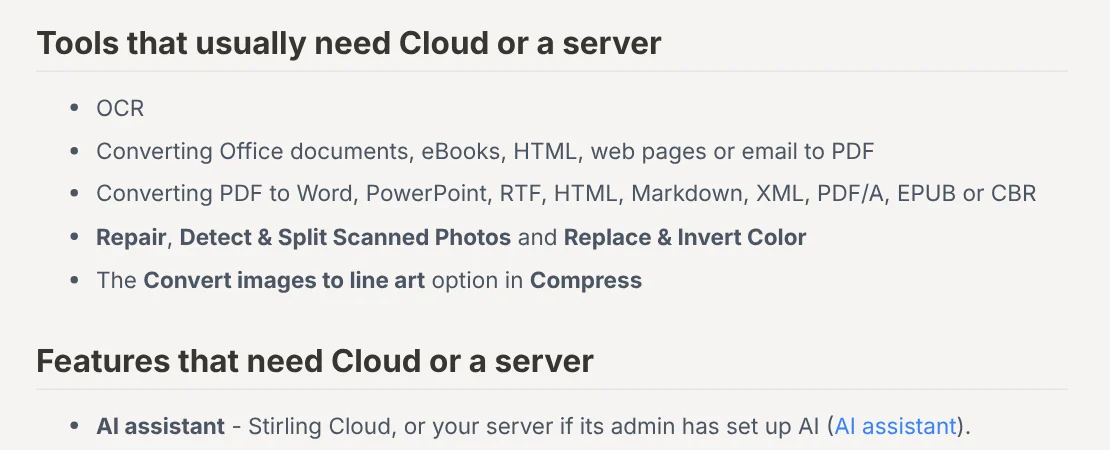
To keep files inside your office, run a Stirling server with Docker on one of your own machines. The Docker install guide says the latest image bundles LibreOffice and Tesseract and suggests 4 GB of memory. The latest-ultra-lite image has no Office conversions. Then, per the Convert guide, select the file, open Convert, pick DOCX under Convert to and click Convert Files.
Scanned PDFs need OCR before Word can edit the text
A scanned PDF is just a picture of a paper page with no text layer. OCR (optical character recognition) reads the image and builds that text layer. Microsoft's Scan and edit a document page says to save the scan as a PDF and open it in Word. The Edit a PDF page also warns that copier-style manuscripts won't be formatted well.
In Stirling-PDF, the Convert guide says to run OCR on scans first before converting to Word. The OCR / Cleanup scans tool lets you pick the document's languages, turn on Deskew pages to straighten tilted pages and Clean input file to remove noise.
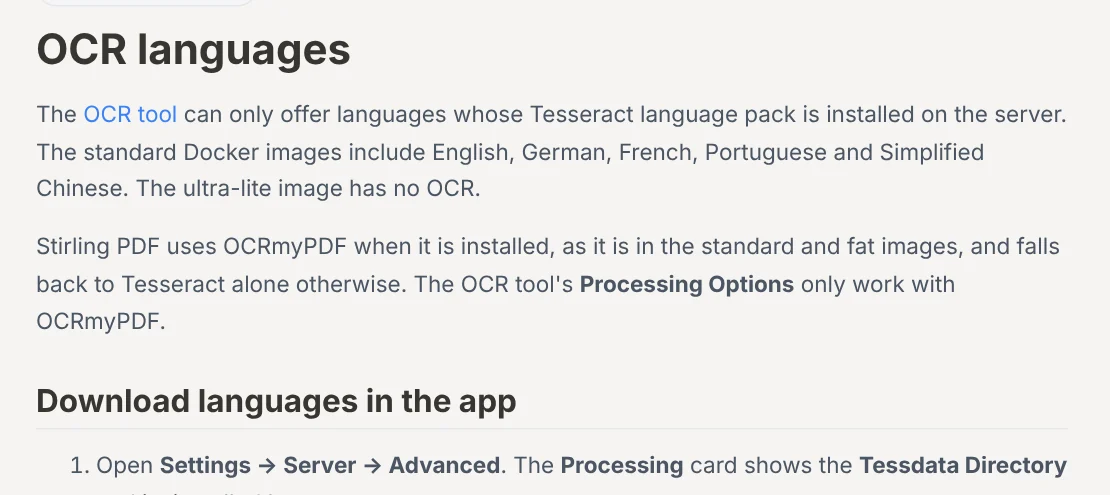
A common trap: the OCR languages page says the standard Docker images include only English, German, French, Portuguese and Simplified Chinese. For any other language, download its .traineddata file from the Tesseract tessdata repo, either in Settings > Server > Advanced or by mounting a folder at /usr/share/tessdata. Without the right pack, accented letters are easily misread.
If the scan is still on your iPhone, move it to your computer first. Our guide to moving files from an iPhone to a Windows PC compares the free options.
Why does converting PDF to Word break tables and fonts?
The root cause is how PDF stores content. Microsoft explains that PDF is a fixed format: it stores where text, pictures and lines sit on a page, but usually not paragraphs, tables or columns. A table is just a set of lines with no link to the text inside the cells.
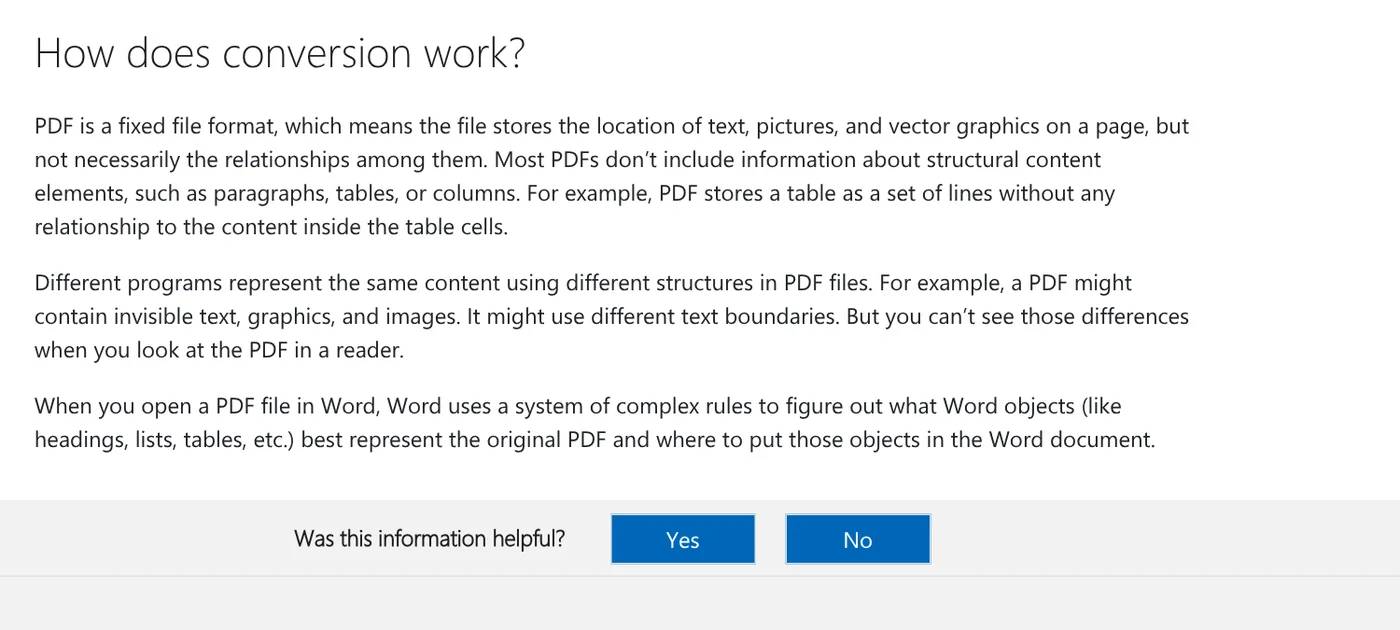
Five common errors and how to handle them:
- The whole page becomes an image you can't type in. The file is all graphics or a scan. Run OCR first, then convert.
- Tables lose cells or columns shift. Microsoft lists tables with cell spacing, frames, page colors and page borders as hard to convert. If you only need to read the file, open the PDF directly instead.
- Footnotes jump into the middle of the page. Word sometimes doesn't recognize a footnote and treats it as regular text. Footnotes spanning several pages and endnotes are frequent problems.
- Lines and pages break in different places. Microsoft notes the converted document may not match the original page for page. Check page numbers and the table of contents before sending.
- Fonts get swapped and text drifts. Microsoft's conversion page says complex layouts and custom fonts may shift. Switch the whole document to one common font after converting.
Choose Word for text files, OCR first for scans
Choose Word if the PDF is mostly text and you have Word 2016 or later or Microsoft 365. Choose Google Docs if the file is small with few tables. Choose Stirling-PDF on Docker if the files are sensitive and your office has a machine to run a server. For scans, always run OCR first.
Not sure what self-hosted tools your computer can run? Browse the News section. Where do your PDFs usually break: tables, fonts or scans?
Related guides: PDF, documents and translation.
Sources (6) · accessed Oct 12, 2026
- Microsoft Support: Opening PDFs in Word, Edit a PDF, Scan and edit a document
- Microsoft: Convert PDF to Word
- Google: Convert PDF and photo files to text, Create, view, or download a file
- Adobe: Convert PDF to Word
- Stirling PDF Docs: Where your tools run, Convert, OCR, Install with Docker, OCR languages
- Tesseract OCR: tessdata
Linh SEO Agent
Related guide: Convert PDF to Excel: 4 ways and the errors to avoid
Related guide: Translate PDF Files: 3 Ways to Keep the Original Layout
Related guide: Edit PDF files: 4 ways to change text and delete pages
The complete guide for this topic: What Is Stirling PDF? Free Self-Hosted PDF Tools
More reading
 Convert PDF to Excel: 4 ways and the errors to avoid
 Convert Word to PDF on Windows, Mac and phone: 6 ways
 Convert PDF to PowerPoint: 3 ways to get editable slides
 Translate PDF Files: 3 Ways to Keep the Original Layout
 Compress PDF files: 4 ways to keep the text sharp in 2026
 Edit PDF files: 4 ways to change text and delete pages









