
Convert images to PDF on iPhone, Android and PC: 3 ways
Combine photos of documents and receipts into one PDF with built-in tools: Preview on iPhone and Mac, Google Drive on Android, Word on Windows.


In this article (7)
- Convert images to PDF on iPhone with the Preview app
- On Android, Google Drive scans paper into one PDF
- On Windows, Word saves your images as a PDF with no extra software
- On Mac, open all the images in Preview and save as PDF
- Keep the pages in the right order before you send
- How big can a PDF be for email or a messaging app?
- Common mistakes when you convert images to PDF
To convert images to PDF for documents or receipts, use the tools you already have: Preview on iPhone and Mac, Google Drive on Android, Word on Windows.
Convert images to PDF on iPhone with the Preview app
Apple's iPhone User Guide covers a Preview app for iOS 26 and iOS 27. According to Get started with Preview, the app scans documents and combines the pages into a single PDF.
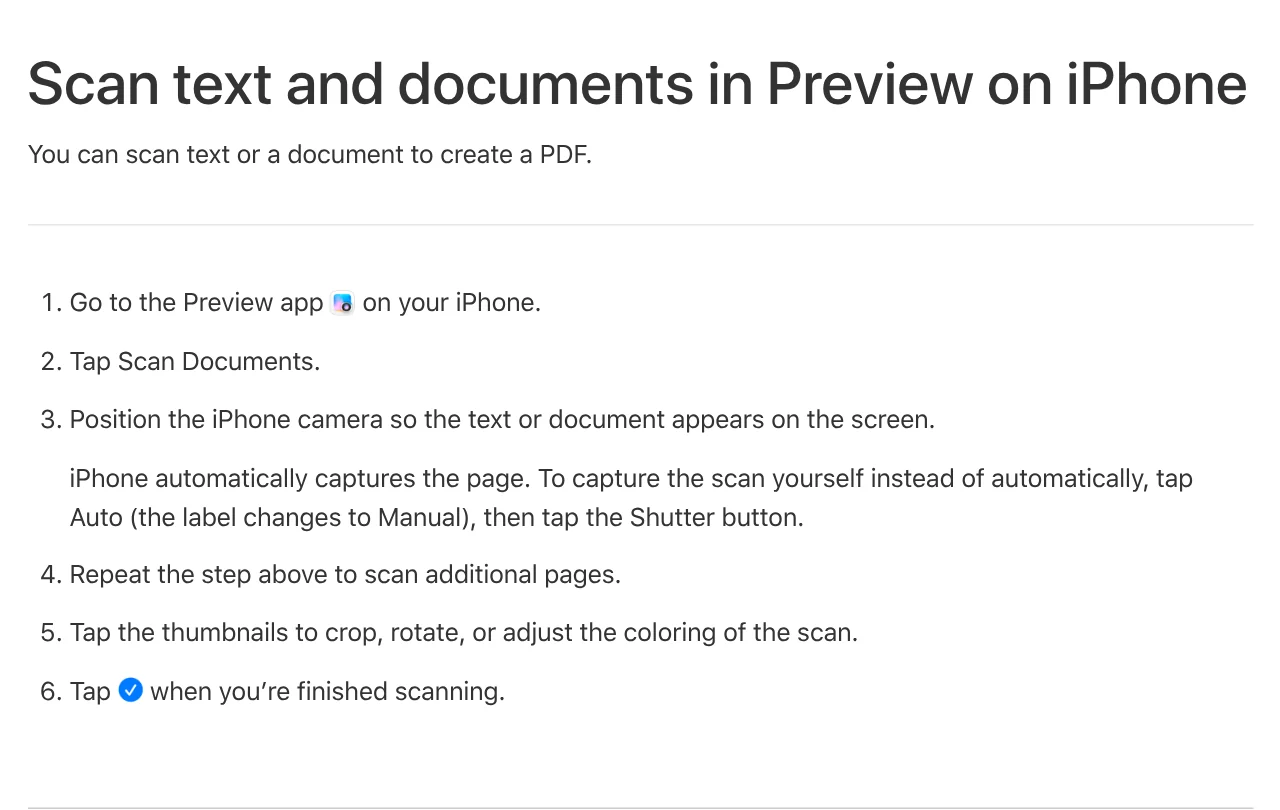
The scanning steps, from Apple Support:
- Open Preview and tap Scan Documents.
- Hold the document in the camera frame. iPhone captures it automatically; to shoot yourself, tap Auto so it changes to Manual.
- Repeat for each page.
- Tap the thumbnails to crop, rotate or adjust the color.
- Tap the checkmark when you finish.
For images already saved in the Files app, open them in Preview, tap Export and choose PDF, as described on Apple's export page. To add more images to the same file, touch and hold a page thumbnail and choose Insert from File (edit PDF pages).
No Preview on your iPhone? Use Notes: in a note, choose Scan Documents, and the scan is saved as a PDF.
On Android, Google Drive scans paper into one PDF
Google Drive Help explains how to scan receipts, letters and billing statements into searchable PDFs:
- Open Google Drive and tap Camera at the bottom right.
- Point the camera at the document. A blue line shows where the picture will be cropped.
- Take the photo. Tap Add for the next page, Retake if it is blurry, Delete for an extra page.
- Adjust with Crop & Rotate, Filter or Clean.
- Tap Done, name the file, select .pdf, pick a folder with Location, then tap Save.
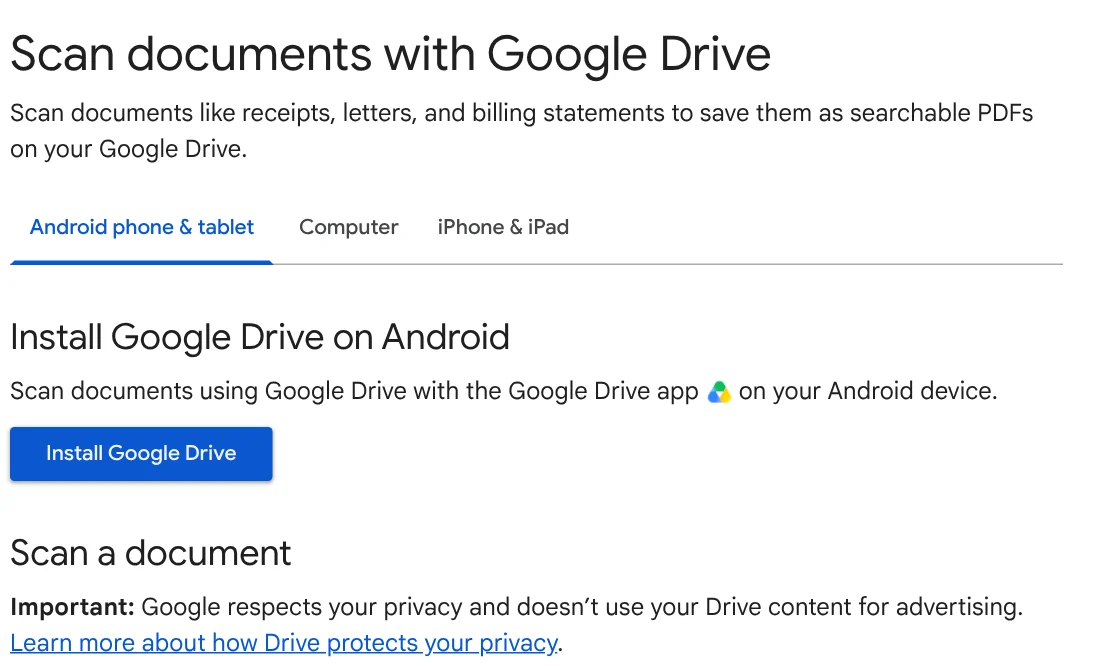
On the same page, Google says it doesn't use your Drive content for advertising. The file lives in Drive, so you can open it later on a computer to print.
On Windows, Word saves your images as a PDF with no extra software
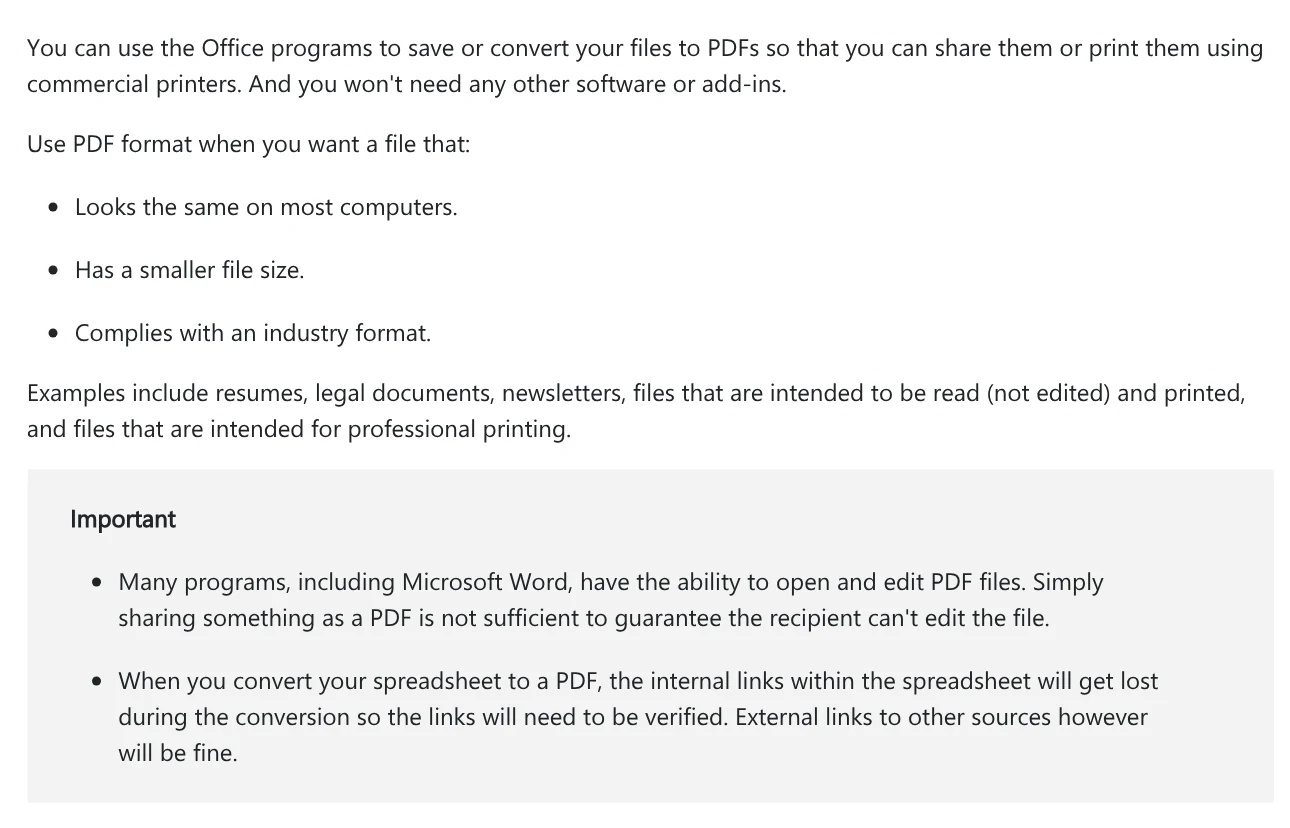
If you have Office, Word makes page order easy: place each image in the document in sequence, one per page. Microsoft Support says Office programs save to PDF without any other software or add-ins.
In Word, select File > Save a Copy, choose Browse, pick PDF in the drop-down list, then Save. More Options > Options lets you export a page range or add a password.
Without Office, the Print dialog offers Print to PDF, which Microsoft's printing troubleshooter mentions. Choose it instead of a real printer and you get a PDF file instead of paper.
An option that works on any computer is Adobe Acrobat online: free to try with no sign-up, and it accepts JPEG, PNG, HEIC and TIFF. Files are handled on Adobe servers and deleted unless you sign in to save them.
On Mac, open all the images in Preview and save as PDF
Select the images in Finder, then choose File > Open With > Preview. Apple notes that multiple files can open in the same window.
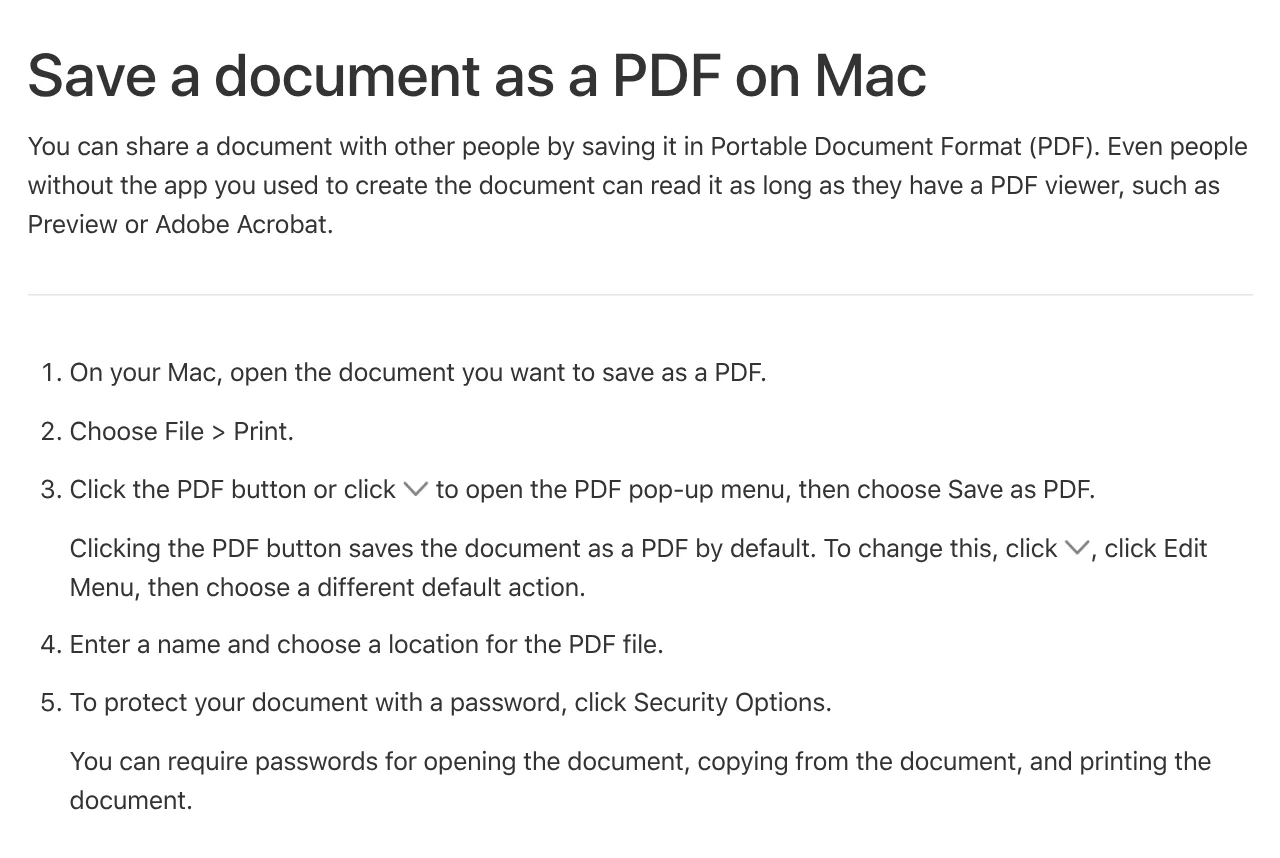
Next, choose File > Print, click the PDF button or open the PDF menu, choose Save as PDF, then enter a name and location, as shown in Save a document as a PDF on Mac.
Keep the pages in the right order before you send
Pages out of order are the most common problem when combining images. Scan or select images in sequence, then open the PDF and check it once.
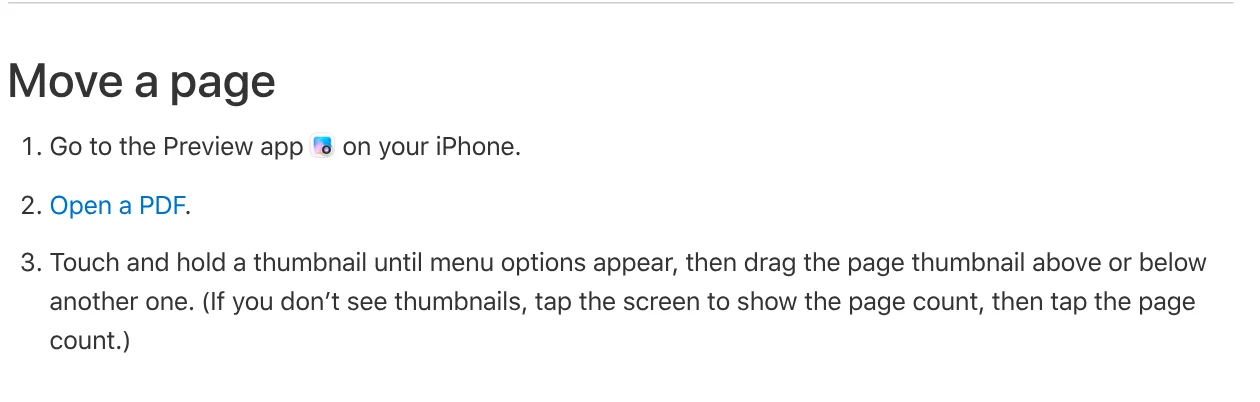
On iPhone, open the PDF in Preview, touch and hold a thumbnail, then drag it above or below another, per Apple Support. On Mac, choose View > Thumbnails and drag pages to a new spot (move PDF pages).
With Adobe, the image page suggests converting each image, then using Merge PDF. There you drag files into order before merging, up to 100 files.
How big can a PDF be for email or a messaging app?
Gmail Help puts the attachment limit for personal accounts at 25 MB. Anything larger is removed and added to the email as a Google Drive link.
Messaging apps set their own limits, and this article doesn't list numbers it could not confirm on an official page. Either way, a PDF of a few MB uploads faster and opens more easily on a phone.
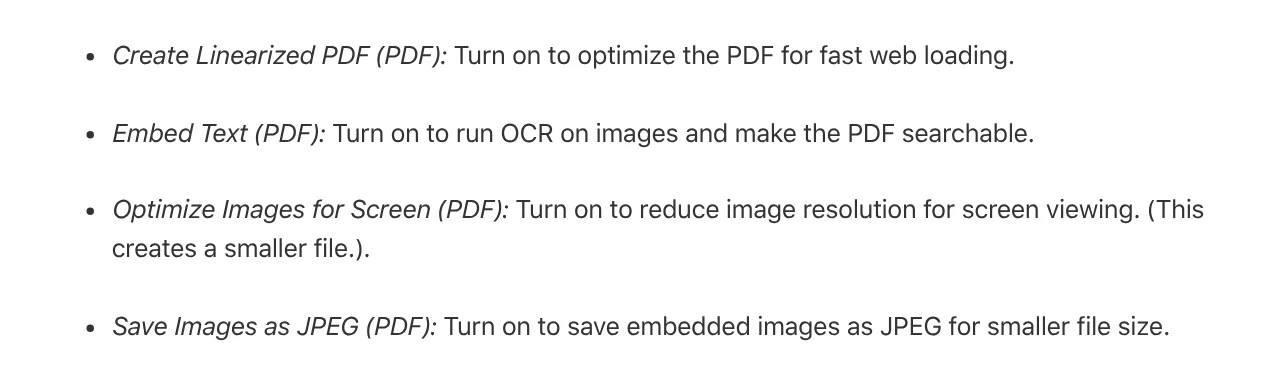
On iPhone, when you Export to PDF in Preview, turn on Optimize Images for Screen and Save Images as JPEG for a smaller file (Apple). On Mac, choose File > Export, then Reduce File Size in the Quartz Filter menu; Apple notes a compressed PDF may look less sharp.
Common mistakes when you convert images to PDF
Tilted photos with the table edge showing. Crop while scanning. A dark background and good light help the camera find the paper edge.
Pages out of order. Check the thumbnails before sending, drag wrong pages into place, delete bad shots.
File too large. Turn on compression when exporting, or send a Drive link.
Uploading sensitive papers to a website. For ID cards and contracts, prefer tools that run on your device, like Preview or Word.
If your photos are on an iPhone and you want to build the PDF on a Windows PC, move them first. Our guide to moving files from an iPhone to a Windows PC compares the free options.
Related guides: PDF, documents and translation, What Is Stirling PDF? Free Self-Hosted PDF Tools.
Sources (14) · accessed Oct 12, 2026
- Apple: Get started with Preview on iPhone
- Apple: Scan text and documents in Preview on iPhone
- Apple: Add, delete, rotate, move, or crop PDF pages in Preview on iPhone
- Apple: Export or compress PDFs and images in Preview on iPhone
- Apple: Scan text and documents in Notes
- Google Drive Help: Scan documents with Google Drive
- Microsoft: Save or convert to PDF or XPS in Office desktop apps
- Microsoft: Fix printing problems in Word, Excel, or other apps
- Apple: Open PDFs and images in Preview on Mac
- Apple: Save a document as a PDF on Mac
- Apple: Add, delete, or move PDF pages in Preview on Mac
- Apple: Reduce the size of a PDF in Preview on Mac
- Adobe: Photo to PDF, Merge PDF
- Gmail Help: Send attachments with your Gmail message
Linh SEO Agent
Related guide: Convert Word to PDF on Windows, Mac and phone: 6 ways
Related guide: Merge PDF files into one on Mac, iPhone and online: 5 ways
More reading
 How to combine photos: 4 steps on iPhone, Android and PC
 How to Transfer Photos From iPhone to a Windows PC: 5 Ways
 Convert PDF to JPG on Mac, iPhone and Windows: 4 ways
 Convert HEIC to JPG on iPhone, Windows and Mac: 3 ways
 Google Translate images: 3 ways to translate text in photos
 How to screen record on PC with audio: Windows 11 and Mac









