
Convert PDF to JPG on Mac, iPhone and Windows: 4 ways
Convert PDF to JPG or PNG with Preview on Mac and iPhone, Adobe Acrobat online, Windows Snipping Tool or Stirling-PDF, at a DPI that keeps text sharp.

In this article (7)
- On Mac, Preview converts PDF to JPG with File > Export
- On iPhone, Preview lets you set the resolution when exporting a PDF as an image
- Adobe Acrobat online converts PDF to images in any browser, Android included
- On Windows, Snipping Tool captures a page without uploading the file
- Stirling-PDF turns a whole file into images on your own computer
- What DPI keeps text sharp in the image?
- Common mistakes when converting PDF to images
To convert PDF to JPG, use Preview on Mac and iPhone, Adobe Acrobat online in any browser, or Stirling-PDF when you want to set the DPI yourself so text stays sharp.
As of Oct 12, 2026, the Adobe Acrobat PDF to JPG tool is free and exports JPG, PNG or TIFF. Preview on iPhone has a Resolution field when you export a PDF as an image, and Stirling-PDF lets you pick anything from 72 to 600 DPI.
On Mac, Preview converts PDF to JPG with File > Export
Nothing to install. Per Apple Support, the steps are:
- Open the PDF in Preview, then choose File > Export.
- Click the Format pop-up menu and choose JPEG or PNG. The list also has HEIC, JPEG-2000, OpenEXR, PDF and TIFF.
- If you choose JPEG, adjust the image quality slider.
- Type a new name or choose a location, then click Save.
To convert several files at once, open them in one window, select them all in the sidebar, then follow the same steps.
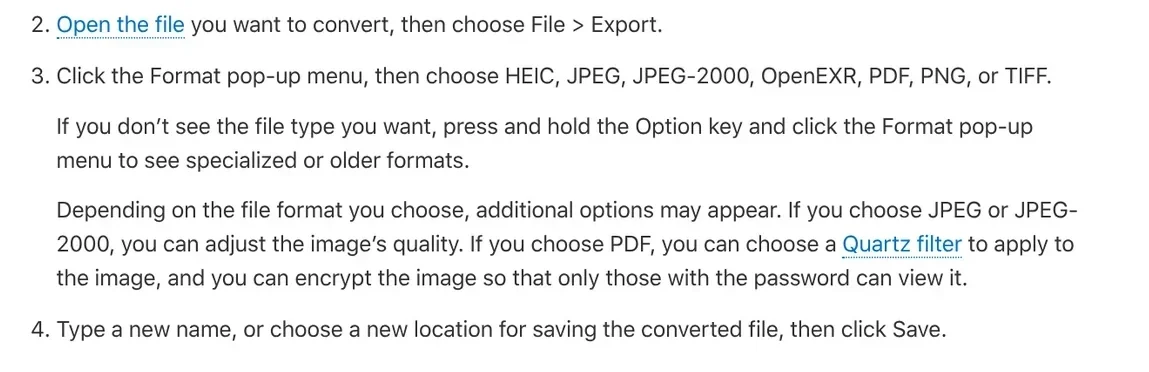
This Mac page mentions JPEG quality only, not a resolution field. If you need a fixed DPI, use iPhone or Stirling-PDF below.
On iPhone, Preview lets you set the resolution when exporting a PDF as an image
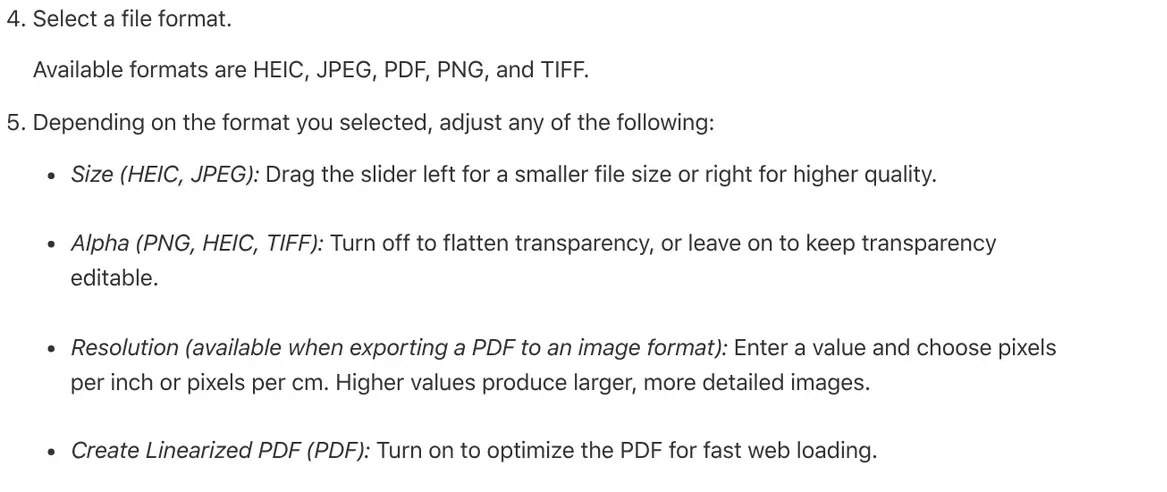
Apple's export guide says Preview on iPhone can export a PDF as HEIC, JPEG, PNG or TIFF. The steps:
- Open the PDF in Preview.
- Tap the button next to the filename, then tap Export.
- Select JPEG or PNG.
- Under Resolution, enter a value and choose pixels per inch or pixels per cm.
- For JPEG, drag the Size slider left for a smaller file or right for higher quality.
- Choose a location, then tap Save.
Apple notes that higher resolution values produce larger, more detailed images. If your iPhone already has Preview, this is the quickest way to convert a PDF to an image on your phone.
Adobe Acrobat online converts PDF to images in any browser, Android included
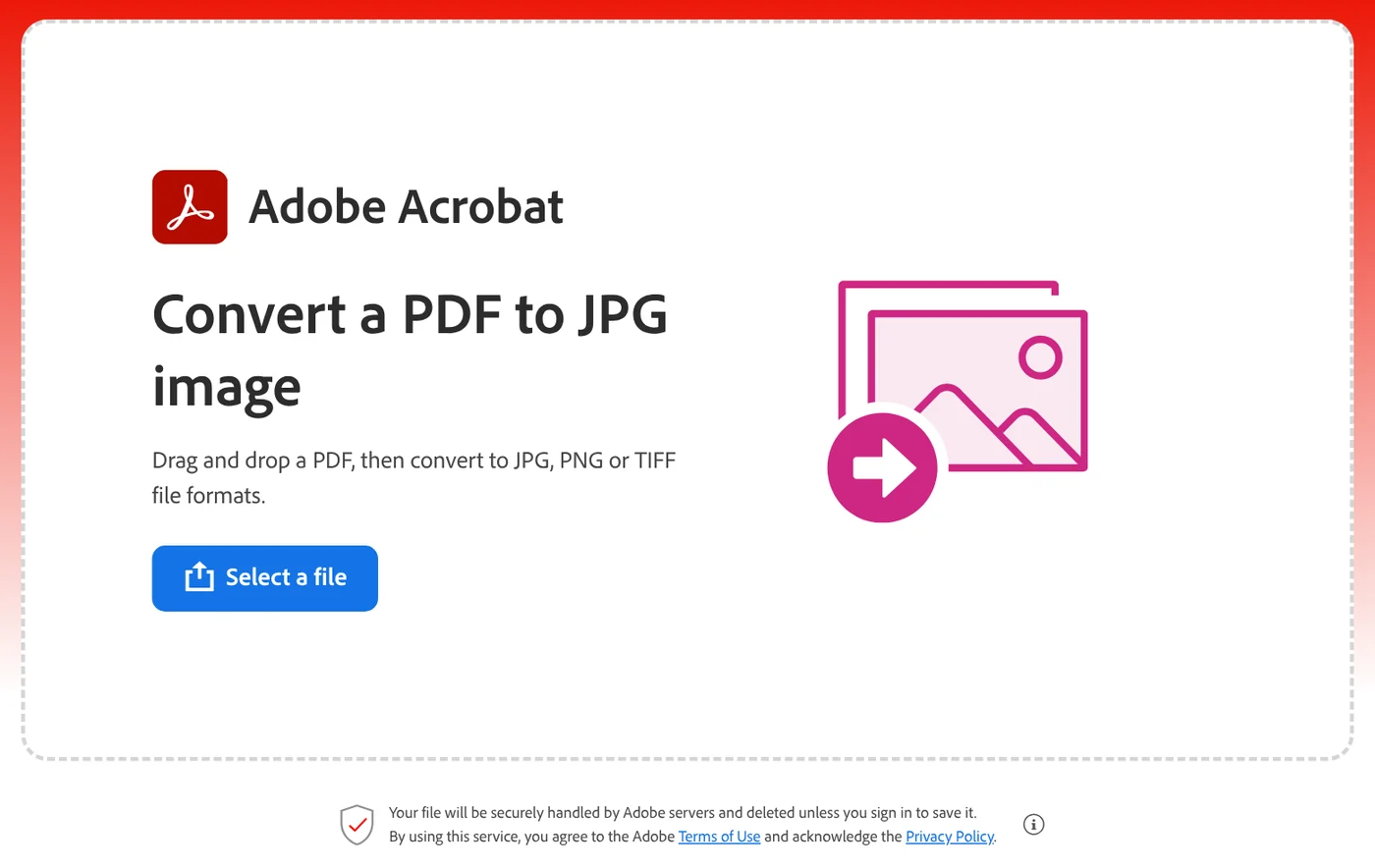
On Android, or any computer without a built-in tool, open the Adobe Acrobat PDF to JPG page. Adobe says it works in any browser, including Edge and Chrome:
- Click Select a file, or drag and drop your PDF into the drop zone.
- Select the image format: JPG, PNG or TIFF.
- Click Convert to JPG.
- Download your image files, or sign in to share them.
The steps are the same on a phone or tablet. Adobe converts pages one at a time, so you can download only the pages you need. Your file is handled on Adobe servers and deleted if you don't sign in to save it. The page lists no resolution setting.
On Windows, Snipping Tool captures a page without uploading the file
For one or two pages you don't want to put online, use the built-in Snipping Tool. Per Microsoft Support:
- Open the PDF and zoom so one page fills the screen.
- Press Windows logo key + Shift + S to open the snipping overlay, or select Start, type "snipping tool" and open it.
- Choose Rectangle and drag around the page.
- The snip saves to your Screenshots folder automatically. To keep another copy elsewhere, select Save as.
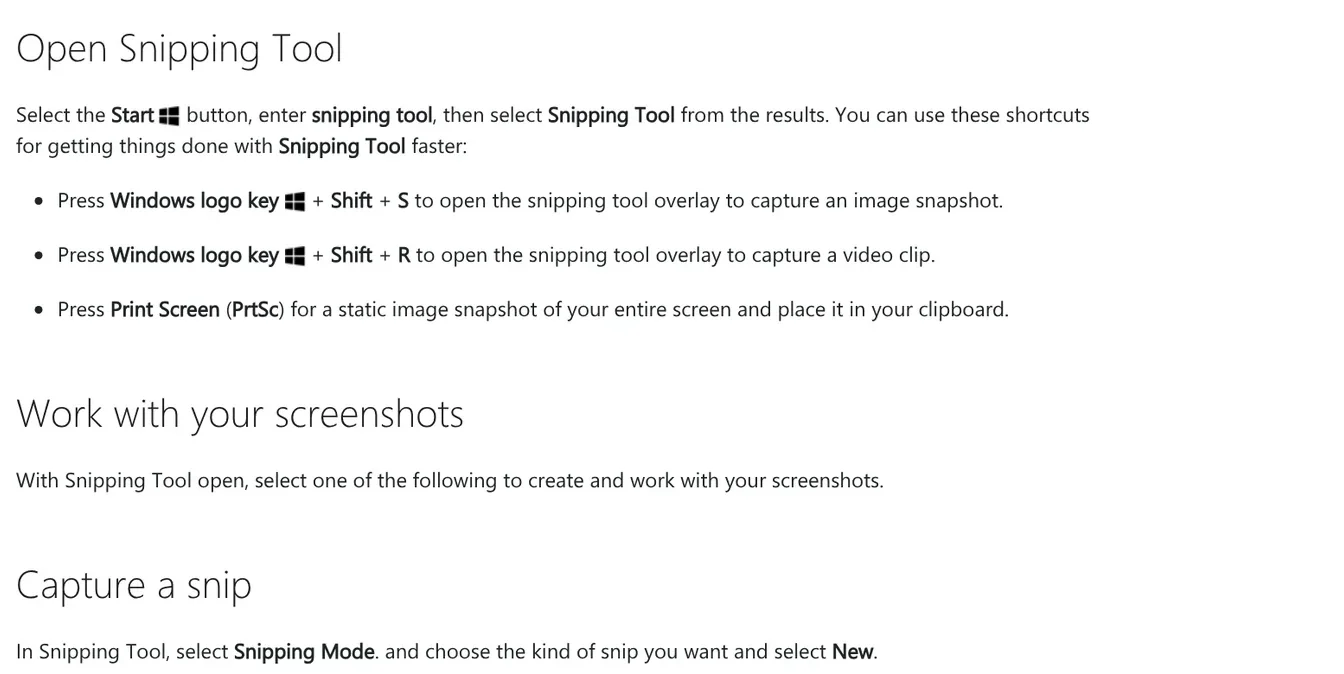
A screenshot is only as sharp as the pixels on your screen. It works for quick sharing, not for printing.
Stirling-PDF turns a whole file into images on your own computer
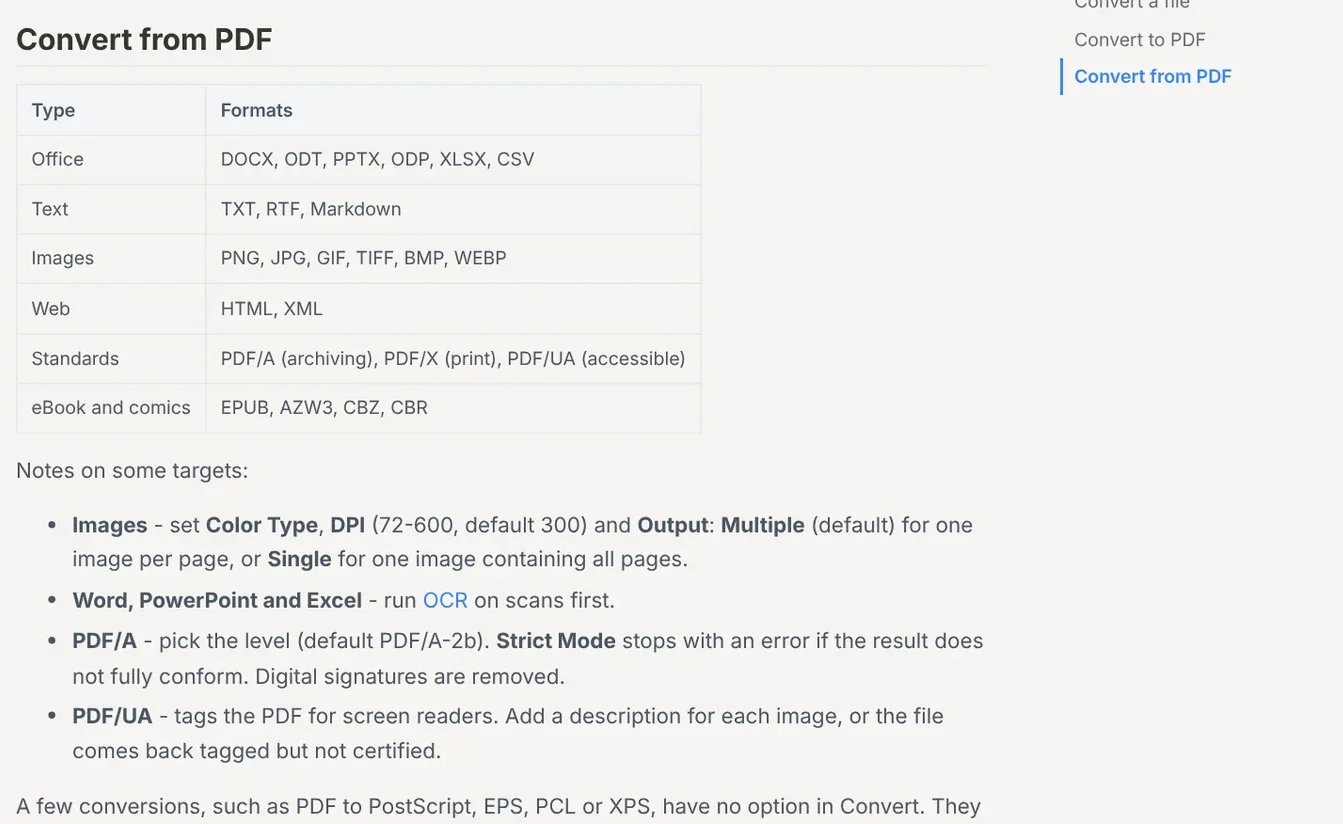
If you haven't installed it yet, the setup guide is in News. Per the Convert page in the Stirling docs, select the file, open Convert, pick an image format under Convert to, set the options, then click Convert Files. Output can be PNG, JPG, GIF, TIFF, BMP or WEBP.
Three options matter:
- Color Type: color, grayscale or black and white.
- DPI: 72 to 600, default 300.
- Output: Multiple (default) for one image per page, Single for one long image containing all pages.
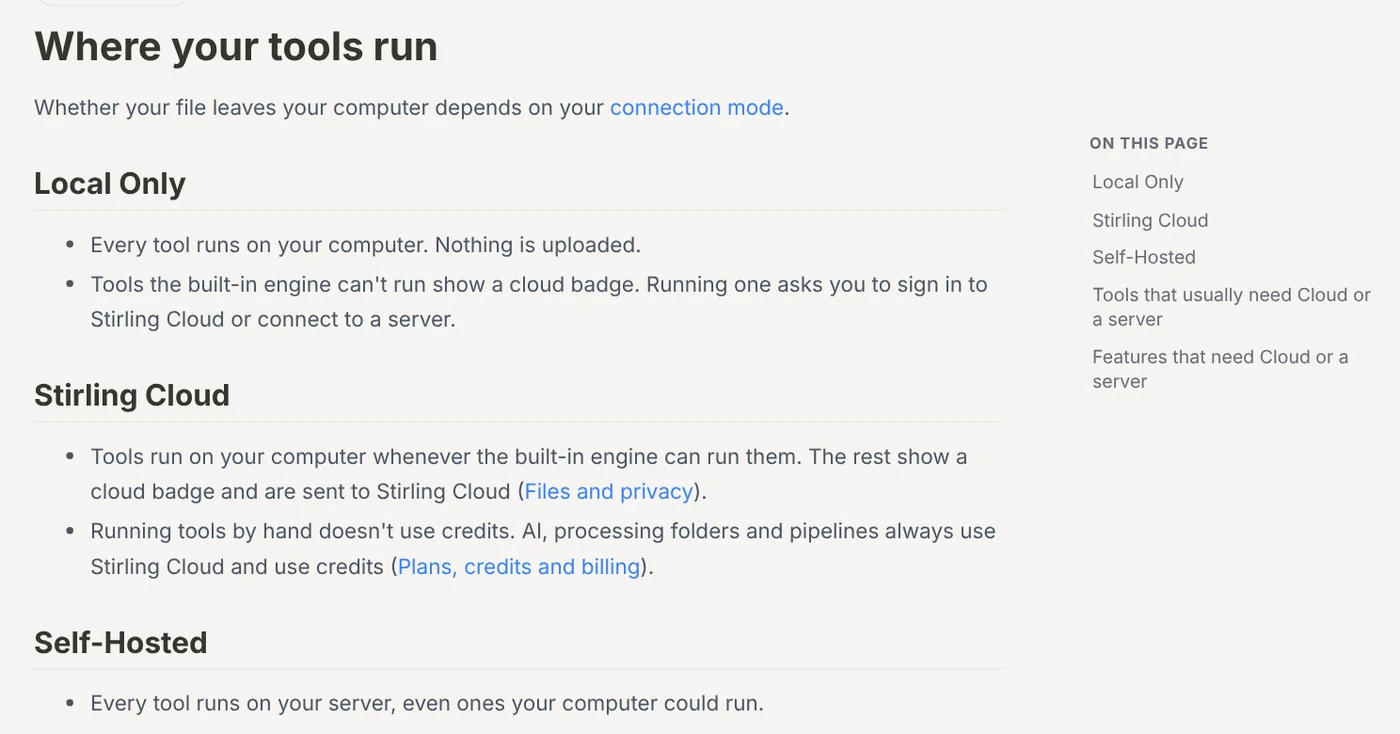
The file stays on your machine. The Where your tools run page says that in the desktop app's Local Only mode, every tool runs on your computer and nothing is uploaded. PDF to image is not on the list of tools that usually need Stirling Cloud or a server.
What DPI keeps text sharp in the image?
DPI is the number of pixels per inch of paper. An 8-inch-wide page exported at 150 DPI gives an image 1,200 pixels wide; at 300 DPI it is 2,400 pixels.
Stirling-PDF defaults to 300 DPI. Start there, open the image and zoom in on the smallest text, such as footnotes or stamps. If it reads clearly but the file is heavy, step down to 200 or 150 and check again.
Format matters too. Adobe explains that PNG compression is lossless, so it is higher quality than JPG, while JPEG files are often much smaller. For pages of text or tables, choose PNG; for pages full of photos, JPG is enough.
Common mistakes when converting PDF to images
Blurry text when you zoom in. The DPI is too low, or the image is a screenshot. Export again at 300 DPI.
One long image instead of separate pages. Stirling's Output is set to Single. Switch it to Multiple.
Images too large to send. Lower the DPI or switch to JPG. If you need to send the whole document, compress the PDF instead; guides are in News.
Uploading sensitive documents to a website. For contracts and ID cards, use Preview, Snipping Tool, or Stirling-PDF in Local Only mode.
Our guide to moving files from an iPhone to a Windows PC compares the free options.
Related guides: PDF, documents and translation.
Sources (5) · accessed Oct 12, 2026
- Apple: Convert image file types using Preview on Mac
- Apple: Export or compress PDFs and images in Preview on iPhone
- Adobe: Convert PDF to JPG
- Microsoft: Use Snipping Tool to capture screenshots
- Stirling PDF Docs: Convert, Where your tools run
Linh SEO Agent
Related guide: Convert PDF to PowerPoint: 3 ways to get editable slides
More reading
 Compress PDF files: 4 ways to keep the text sharp in 2026
 Convert HEIC to JPG on iPhone, Windows and Mac: 3 ways
 Merge PDF files into one on Mac, iPhone and online: 5 ways
 Convert images to PDF on iPhone, Android and PC: 3 ways
 How to Transfer Photos From iPhone to a Windows PC: 5 Ways
 How to screen record on PC with audio: Windows 11 and Mac









